1
User Manual
OPTIMA 147
WARNING
Do not expose the camera battery pack or other
accessories to rain or humidity to prevent fire hazard or
electric shock.
For customers in the U.S.A.
Tested To Comply With FCC Standards
FOR HOME OR OFFICE USE
This symbol [crossed-out wheeled bin WEEE
Annex IV] indicates separate collection of waste
electrical and electronic equipment in the European
countries. Please do not throw the equipment into
the domestic refuse. Please use the return and collection
systems available in your country for the disposal of this
product.
Declaration of Conformity
FCC Statement
Model Name: OPTIMA 147
This device complies with part 15 of the FCC Rules.
Operation is subject to the following two conditions:
Trade Name:
AgfaPhoto
(1) This device may not cause harmful interference, and (2)
this device must accept any interference received, including
interference that may cause undesired operation.
Responsible Party: RedDot Imaging
For customers in Europe
Customer Care Hotline:
"CE" mark indicates that this product complies
with the European requirements for safety,
health, environment and customer protection. "CE" marked
cameras are intended for sales in Europe.
Address:RedDot Imaging, 2275 NW 84thAve, Doral, FL
33122.
Service & Repair Hotline (USA):
1-855-243-2937 (from a landline only)
Service & Repair (UK):
+44 1908 488676
Online Service / International contact:
[email protected]
For repair and service in all other countries, please
refer to the warranty pamphlet for additional
information.
SAFETY PRECAUTIONS
Camera notes:
Do not store or use the camera in the following types of
locations:
• In the rain, very humid and dusty places.
• In a place where the camera can be exposed directly to
the sunlight or subject to high temperature, e.g. Inside a
closed car in summer.
• In a place where the camera is subject to a high
magnetic field, e.g. near motors, transformers or
magnets.
Do not place the camera on a wet surface or places where
dripping water or sand may come in contact with the
camera, which may cause irrepairable faults.
If the camera will not be used for a long period of time, we
suggest you remove the battery and the memory card from
the camera and keep them in dry environment.
If you carry the camera suddenly from a cold location to a
warm place, moisture may condense inside the camera. We
suggest you wait for a while before turing on the camera.
No compensation for loss of recordings. Loss of recordings
cannot be compensated for if a malfunction of your camera
or recording media, etc, makes the playback of recordings
not possible.
Battery notes:
Incorrect use of the batteries may cause them to leak,
become hot, ignite or burst. Always observe the precautions
given below.
ii
• Do not expose the batteries to water, and take particular
care to keep the terminals dry.
• Do not heat the batteries or throw them into a fire.
• Do not attempt to deform, disassemble or modify the
batteries.
Keep the batteries out of reach of babies and small
children.
In cold locations, battery performance deteriorates and the
time for which they can be used shortens markedly.
Memory card notes:
When using a new memory card, or a memory card has
been initialized by a PC, be sure to format the card with
your digital camera before using it.
To edit image data, copy the image data to the PC’s hard
disk first.
Do not change or delete the folder names or file names
in the memory card from your PC, as this may make it
impossible to recognize or misinterpret the original folder
or file in your camera.
The photos taken by this camera are stored in the autogenerated folder in SD card. Please do not store photos
that are not taken by this model of camera, as this may
make it impossible to recognize the picture when the
camera is in playback mode. Please do not expose the
camera to harsh environments such as moisture or extreme
temperatures, which may shorten the life of your camera or
damage the batteries.
BEFORE YOU START
Preface
Thank you for purchasing this AgfaPhoto digital camera.
Please read this manual carefully and keep it in a safe
place for future reference.
Copyright
© Copyright 2011 RedDot Imaging All rights reserved.
Safety information
Please read the following important information carefully
before using the product.
• Do not take apart or attempt to service the camera
yourself.
• Do not drop or knock the camera. Improper handling
may damage the product.
No part of this publication may be reproduced, transmitted,
transcribed, stored in a retrieval system, or translated into
any language or computer language, in any form, by any
means, without the prior written permission of RedDot
Imaging
• Turn off the camera before inserting or removing the
battery and memory card.
Trademarks
• Do not touch the camera lens.
All trademarks mentioned in this manual are used for
identification purposes only and are properties of their
respective owners.
• Use only the type of battery that come with the camera.
Using other types of batteries may damage the camera
and invalidate the warranty.
• Please not expose the camera to harsh environments
such as moisture, or extreme temperatures, which may
shorten the life of your camera or damage the batteries.
• Do not use or store the camera in dusty, dirty, or sandy
areas, as its components may be damaged.
AgfaPhoto OPTIMA 147
• Do not expose the lens to direct sunlight for extended
periods.
• Download all pictures and remove the batteries from
the camera if you are going to store the camera for long
periods of time.
• Do not use abrasive cleansers, alcohol-based, or solvent-based cleaners to clean the camera. To clean, wipe
the camera with a slightly damp soft cloth.
About this manual
This manual provides you with instructions on how to use
your AgfaPhoto digital camera. Every effort has been made
to ensure that the contents of this manual are accurate,
however RedDot Imaging reserves the right to make
changes without notice.
Symbols used in this manual
Throughout this manual, the following symbols are used to
help you locate information quickly and easily:
Indicates the useful information to know.
Indicates precautions to be taken while operating the
camera.
CONTENTS
WARNING ...................................................................i
SAFETY PRECAUTIONS ....................................ii
BEFORE YOU START .........................................1
Preface ................................................................................................... 1
AgfaPhoto OPTIMA 147
Setting the Language......................................................... 15
Setting the Date and Time............................................... 16
About the LCD Screen.................................................................. 17
Copyright ..................................................................................... 1
BASIC OPERATION .......................................... 18
Trademarks ................................................................................ 1
Shooting in Auto Mode................................................................ 18
Safety information ........................................................................... 1
Using the Zoom Function........................................................... 18
About this manual............................................................................. 2
Flash....................................................................................................... 19
Symbols used in this manual............................................. 2
Self-timer............................................................................................. 19
Macro Mode........................................................................................ 20
CONTENTS ..............................................................3
GETTING READY....................................................7
Unpacking.............................................................................................. 7
Camera Views....................................................................................... 8
Charging the Battery..................................................................... 10
Insert the Battery and SD/SDHC
Card (Not included)......................................................................... 11
i button function.............................................................................. 20
Face Detection........................................................................ 21
Smile Detection....................................................................... 21
Blink Detection................................................................................. 22
Advanced Functions Menu........................................................ 23
WB (White Balance).............................................................. 24
ISO................................................................................................. 24
Turning On and Off......................................................................... 13
Quality.......................................................................................... 25
Mode Button Operation............................................................... 14
Size................................................................................................ 25
Setting Date/Time and Language......................................... 15
Color.............................................................................................. 26
AgfaPhoto OPTIMA 147
Exposure Compensation.................................................... 26
USING THE MODES ......................................... 30
Museum ..................................................................................... 34
Night Landscape .................................................................. 34
LCD Screen Display ...................................................................... 27
Children ..................................................................................... 34
Still Picture Mode Display ................................................ 27
Leaf ............................................................................................. 35
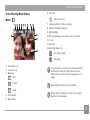
Video Shooting Mode Display ....................................... 29
Sunset ........................................................................................ 35
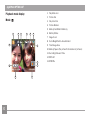
Playback Mode Display ..................................................... 30
Glass ........................................................................................... 35
ASCN mode ....................................................................................... 31
Landscape ............................................................................... 35
Landscape ............................................................................... 31
Night Portrait ......................................................................... 35
Portrait ....................................................................................... 31
Beach........................................................................................... 35
Night Portrait .......................................................................... 32
Text............................................................................................... 35
Backlit Portrait ...................................................................... 32
Gathering.................................................................................... 35
Night Landscape .................................................................. 32
ID..................................................................................................... 35
Macro .......................................................................................... 32
Fish eye....................................................................................... 35
Auto ............................................................................................ 32
Travel shooting....................................................................... 35
Panorama mode............................................................................... 32
Photo frame.............................................................................. 35
Scene mode ...................................................................................... 33
Sketch.......................................................................................... 35
Sport ........................................................................................... 34
Stabilization mode ........................................................................ 36
Indoor ......................................................................................... 34
Snow ........................................................................................... 34
Fireworks .................................................................................. 34
AgfaPhoto OPTIMA 147
PLAYBACK ........................................................... 37
Expo Metering (Exposure Metering) ........................... 50
Viewing Photos and Videos ..................................................... 37
DIS.................................................................................................. 50
Thumbnail View .............................................................................. 38
Playback Menu ................................................................................ 51
i button playback function......................................................... 39
Protect ....................................................................................... 51
Using Zoom on Playback (for still pictures only) .......... 41
Delete ......................................................................................... 52
Using the Delete Button ............................................................ 42
DPOF (Digital Print Order Format) .............................. 53
Trim .............................................................................................. 54
USING THE MENUS ......................................... 43
Still Picture Menu ........................................................................... 43
AF Mode (Auto-Focus mode) ........................................ 44
AF-assist Beam .................................................................... 44
Continuous AF ....................................................................... 45
Expo Metering (Exposure Metering) ........................... 45
Continuous Shot .................................................................. 46
Date Imprint ............................................................................ 46
Quick Review .......................................................................... 47
Digital Zoom ........................................................................... 47
Slow Shutter ........................................................................... 48
Movie Menu ....................................................................................... 48
HDR-High Dynamic Range................................................ 54
Resize ........................................................................................ 55
Rotate ........................................................................................ 55
Red-eye Reduction............................................................... 56
Display Setup ................................................................................... 56
Slideshow ................................................................................. 57
Wallpaper Settings ............................................................. 57
Setup Menu ...................................................................................... 60
Beep ............................................................................................ 61
LCD Brightness ..................................................................... 61
Power Saver ........................................................................... 62
Zone ............................................................................................ 62
Continuous AF ....................................................................... 49
AgfaPhoto OPTIMA 147
Date/Time ................................................................................ 63
Print DPOF ............................................................................... 73
Language ................................................................................. 63
Exit ............................................................................................... 73
File and Software .......................................................................... 63
File Numbering ...................................................................... 64
Copy to Card (Copy internal memory to
memory card) ......................................................................... 64
Specifications .................................................................................. 74
Reset Settings ...................................................................... 65
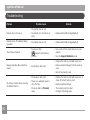
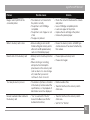
Troubleshooting ............................................................................. 80
FW Version (Firmware version) .................................... 65
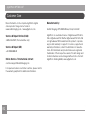
Customer Care.................................................................................. 82
Transmission........................................................ 66
Connecting to a PC ....................................................................... 66
Setting the USB Mode ...................................................... 66
Transferring Files to your PC ........................................ 66
Connecting to a PictBridge Compatible Printer ............ 68
Setting the USB Mode ...................................................... 68
Connecting the Camera and Printer .......................... 69
Using the PictBridge Menu ...................................................... 70
Print with Date ...................................................................... 70
Print without Date ............................................................... 71
Print Index ................................................................................ 72
APPENDICES ....................................................... 74
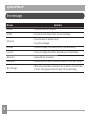
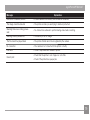
Error Messages ............................................................................... 78
GETTING READY
AgfaPhoto OPTIMA 147
Unpacking
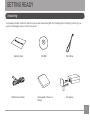
Your package should contain the camera model you purchased along with the following items. If anything is missing or appears to be damaged, please contact your vendor.
Warranty Card
USB Extension Cable
CD-ROM
Rechargeable lithium-ion
battery
Wrist Strap
AC adapter
AgfaPhoto OPTIMA 147
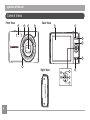
Camera Views
Front View
1
2
3
4
Back View
6
7
8
9
10
5
Right View
16
15
12
13
14
11
AgfaPhoto OPTIMA 147
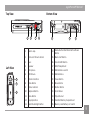
Top View
Bottom View
20
Left View
21
22
23
24
25
1
Flash Lamp
14
Delete Button/Self-timer Button/Down
Button
2
AF Assist/Timer Indicator
15
Macro/Left Button
3
Lens
16
Function/OK Button
4
Speaker
17
Wrist Strap Mount
5
Microphone
18
USB interface switch
6
LCD Screen
19
USB interface
Power Button
17
7
i Function Button
20
18
8
Mode Button
21
Movie Button
9
Status Indicator
22
Shutter Button
10
Playback Button
23
Zoom Wheel
11
Menu Button
24
Tripod Socket
12
Disp/Up Button
25
Card Slot/Battery Compartment
13
Flash Mode/Right Button
26
Memory card/Battery slot switch
19
26
AgfaPhoto OPTIMA 147
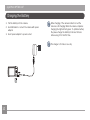
Charging the Battery
1. Put the battery into the camera.
2. Use USB cable to connect the camera with power
adapter.
3. Insert power adapter to power socket.
When charging, if the camera indicator is red the
camera is still charging. When the camera completes
charging, the light will turn green. To optimize battery
life, please charge the battery for at least 4 hours
before using it for the first time.
The charger is for indoor use only.
10
AgfaPhoto OPTIMA 147
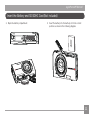
Insert the Battery and SD/SDHC Card (Not included)
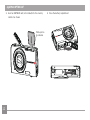
1. Open the battery compartment.
2. Insert the battery into the battery slot in the correct
position as shown in the following diagram.
11
AgfaPhoto OPTIMA 147
3. Insert an SD/SDHC card (not included) into the memory
card slot as shown.
Write-protection buckle
12
4. Close the battery compartment.
AgfaPhoto OPTIMA 147
Optional SD/SDHC cards are not included. The use
of 64 MB to 32 GB memory cards from recognized
manufacturers such as SanDisk, Panasonic and
Toshiba is recommended for reliable data storage.
To remove the SD/SDHC card, open the battery
compartment and gently push the card to release it.
Pull the card out carefully.
Turning On and Off
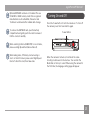
Press the Power button to turn the camera on. To turn off
the camera, press the Power button again.
Power Button
When selecting Full size (1280X720) to record video,
please use High Speed Card (above Class 4).
When taking video, if “Memory card accessing is
slow” on the LCD screen, please select High Speed
Card or format this card, then take video
When the camera is turned on, it will be at the same
shooting mode based on the last use. You can turn the
Mode Dial on the top to select. When using the camera for
the first-time, the language setting page will appear.
13
AgfaPhoto OPTIMA 147
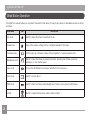
Mode Button Operation
The AgfaPhoto camera features a convenient mode button that allows for easy mode selection. All available modes are listed
as follows:
Mode Name
Auto mode
14
Icon
AUTO
Description
Switch to take still pictures in automatic mode.
Manual mode
Many of the camera settings can be configured manually in this mode.
Panorama mode
In this mode, up to 3 frames can be stitched together to create panoramic photo.
Stabilization mode
Switch to take still pictures by reducing the blurs caused by hand shake, under low
luminance, or slow shutter speed.
Scene mode
Choose from 20 different scene types and effects for your photos.
Movie mode
Switch to record videos.
ASCN mode
Switch to have the camera automatically select the best scene type for still pictures.
Portrait
Switch to take portrait pictures under normal condition.
AgfaPhoto OPTIMA 147
Setting Date/Time and Language
The Date/Time and Language setup will automatically
appear when the camera is turned on the first time.
To set the display language, date, and time, go to the
following setup options in the General Setup menu.
• Language
• Date / Time
To access the Setup menu, do the following:
1. Press Power to turn the camera on.
button, navigate through the camera
2. Press the
menus by using the Left/Right button to select the
General Setup menu.
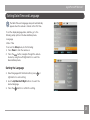
Setting the Language
1. Select language with the Down button, press
or
right button to enter setting.
2. Use the Up/Down/Left/Right buttons to select the
desired language.
3. Press the
button to confirm the setting.
15
AgfaPhoto OPTIMA 147
Setting the Date and Time
1. Select Date/Time with the Up/Down button, then press
or right button to enter setting.
2. Use the Left/Right button to select date or time field,
then press Up/Down buttons to adjust values.
3. Press the
16
button to confirm the setting.
AgfaPhoto OPTIMA 147
About the LCD Screen
When you turn the camera on, various icons are shown on
the LCD screen to indicate the current camera settings and
status. To learn more about the displayed icons, see “LCD
Screen display” on page 27.
LCD Screen notes:
Extremely high-precision technology had been used to
manufacture the LCD screen so that most of the pixels are
operational for use. However, there may be some minute
points (black, white, red, blue or green) that constantly
appear on the LCD screen. These points are normal in the
manufacturing process and the recording is not affected
in any way.
Avoid exposing the LCD screen to water; please
remove any moisture on the LCD screen with dry and
soft cleaning cloth.
If the LCD monitor is damaged, take particular care
with the liquid crystal in the monitor. If any of the
following situations arise, take the recommended
immediate action indicated below:
• If liquid crystal comes in contact with your skin, wipe
the area with a cloth and then wash thoroughly with
soap and running water.
• If liquid crystal flows into the eyes inadvertently,
please rinse with water immediately and seek medical
assistance.
• If liquid crystal is swallowed, flush your mouth
thoroughly with water. Drink large quantities of water
and induce vomiting. Then seek medical assistance
immediately.
17
BASIC OPERATION
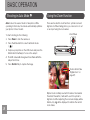
Shooting in Auto Mode
AUTO
Auto mode is the easiest mode to take photos. While
operating in this mode, the camera automatically optimizes
your photos for best results.
To start shooting, do the following:
Using the Zoom Function
There are two built-in zoom functions: optical zoom and
digital zoom. When taking photos, you can zoom in or out
on an object using the zoom wheel.
Zoom Wheel
1. Press Power to turn the camera on.
2. Press the Mode button to select Automatic mode
(
).
AUTO
3. Compose your picture on the LCD screen and press the
Shutter button halfway to focus on the subject.
4. The LCD screen will show green focus frame after the
subject is in focus.
5. Press Shutter fully to capture the image.
Zoom indicator (See
“Digital Zoom“ on
page 47)
18
Optical zoom is initially used until it reaches the maximal
threshold. Thereafter, it will switch over from optical to
digital zoom. After adjusting, the zoom axis display will be
hidden, only
will be displayed to indicate the current
zoom status.
AgfaPhoto OPTIMA 147
Flash
Press Right/Flash button to enter the flash interface, then
press Left/Right button to switch among six different flash
modes:
•
Flash: Forced off
Self-timer
To enable self-timer function, press Down/Self-timer button
to enter the self-timer selection interface, press Left/Right
button to switch among three self-timer modes:
•
Self-timer : Off
•
Self-timer : 2 Sec
A single picture is taken 2 seconds after the
Shutter button is pressed.
•
Self-timer : 10 Sec
A single picture is taken 10 seconds after the
Shutter button is pressed.
Flash is turned off.
•
Flash: Forced flash
Disable the self-timer.
Make forced flash at the moment of shooting.
•
Flash: Slow Synchro
This allows you to take pictures of people at night
that clearly show both your subjects and the night
time backdrop.
•
Flash:Red-Eye+Slow Synchro
Using this mode for slow synchro shots with redeye reduction.
•
Flash: Red-eye reduction
The camera exposes a brief flash before the
picture is taken to reduce red-eye effects.
•
Flash: Auto
Camera flash goes on automatically based on
existing light conditions.
19
AgfaPhoto OPTIMA 147
Macro Mode
Press the Left/Macro button to enter the close-up photo
selection interface, press the Left/Right button to switch
between two close-up shooting modes:
•
Macro : On
i button function
In Shooting mode, pressing
key can select the
functions of face detection and smile shooting.
1. Press
key to enter function menu.
Select this to focus on subjects 5cm from the
lens.
•
Macro : Off
Select this option to disable Macro.
2. Press Left/Right button to select the function that you
need to set.
3. Press
menu.
20
button to enable this function and quit the
AgfaPhoto OPTIMA 147
For face and smile detection, only one option can be
activated at a time.
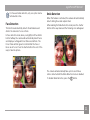
Face Detection
This function automatically detects facial features and
directs the camera to focus on them.
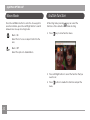
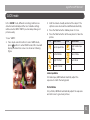
Smile Detection
When this feature is activated, the camera will automatically
detect smiling faces and capture them.
After enabling the Smile Detection mode press the shutter
button all the way down and the following icons will appear:
In face detection mode, when you slightly hold the shutter
button halfway, the camera will automatically detect faces
and display a rectangular focus frame around them. The
focus frame will turn green to indicate that the face or
faces are in focus. Press the shutter button the rest of the
way to take the picture.
The camera will automatically take a photo each time a
smile is detected until the Smile Detection mode is disabled.
To disable Smile Detection, press the
button.
21
AgfaPhoto OPTIMA 147
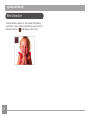
Blink Detection
The blink detection feature is on by default. After taking
each photo, if a face is detected with their eyes closed, the
) will display on the screen.
blink detected icon (
22
AgfaPhoto OPTIMA 147
Advanced Functions Menu
The Advanced Functions menu of the camera includes
image size, image quality, white balance, image color, ISO
and EV value. These customized settings will allow you to
capture pictures and videos with optimal results.
Set the advanced functions with the following steps:
1. Pull up the Advanced Function Menus by pressing
button.
4. Use the Left/Right buttons to change the settings and
then press
to confirm the new settings and close
this Advanced Function Menu.
2. Press the Down button to enter the advanced functions
selection screen, press Left/Right button to select the
function that you want to set.
3. Press the Up button to enter the advanced functions
setting interface.
23
AgfaPhoto OPTIMA 147
WB (White Balance)
ISO
The White Balance allows you to adjust the color
temperature under different light source to ensure correct
color reproduction. (The WB setting is only available when
Manual mode).
the camera is in the
The ISO function allows you to set the sensitivity of the
camera sensor based on the brightness of the scene. To
improve the performance in darker environments, a higher
ISO value is required. On the other hand, a lower ISO value
is needed when in bright conditions. (The ISO setting is
Manual
only available when the camera is in the
mode).
Pictures at higher ISO will naturally have more noise than
those at lower ISO.
The options of White Balance include:
24
•
WB : Auto
•
WB : Daylight
•
WB : Cloudy
•
WB : Fluorescent
•
WB : Fluorescent CWF
•
WB : Incandescent
•
WB : Manual (Press the shutter button to set
WB)
The options of ISO include automatic, 64, 100, 200, 400,
800 and 1600.
AgfaPhoto OPTIMA 147
Quality
Size
The quality setting adjusts the compression ratio of the
images. Higher quality settings give better photos, but will
take up more memory space.
The size setting refers to the image resolution in pixels. A
higher image resolution allows you to print that image in
larger sizes without degrading the image quality.
The picture quality of image has three options:
•
Quality : Best
•
Quality : Fine
•
Quality : Normal
The larger the number of pixels, the better the image
quality. However, it will take up more space. The
opposite will be true also.
25
AgfaPhoto OPTIMA 147
Color
Exposure Compensation
The color setting allows you to add artistic effects directly
when taking pictures. You can try different color tones to
alter the mood of your pictures. (The Color setting is only
available when the camera is in the
Manual mode).
The exposure compensation allows you to adjust the light
exposure value to optimize photo.
The adjustable range of exposure value is from EV -2.0 to
EV+2.0.
The color options include:
26
•
Color : Auto
•
Color : Vivid
•
Color : Black & White
•
Color : Sepia
USING THE MODES
AgfaPhoto OPTIMA 147
LCD Screen Display
Still Picture Mode Display
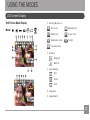
Mode:
AUTO
1 Shooting Mode Icons
M
1
2
3
4
5
6
7
Auto mode
Manual mode
ASCN mode
Scene mode
Stabilization mode
Portrait
8
AUTO
9
16
Panorama mode
10
15
2 AF Mode
14
11
13
17
18
19
20
12
Single-AF
Multi-AF
3 Expo Metering
Spot
Center
AiAE
21
AUTO
4 Image Size
5 Image Quality
27
AgfaPhoto OPTIMA 147
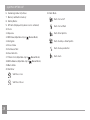
6 Remaining number of pictures
21 Flash Mode
7 Memory card/built-in memory
Flash : Forced off
8 Battery Status
9 WT Ratio (Displayed only when zoom is activated)
Flash : Forced flash
10 Zoom
11 Exposure
12 ISO Value (Adjustable only in
Flash : Slow Synchro
Manual Mode)
Flash : Red-Eye + Slow Synchro
13 Histogram
14 Focus Frame
Flash : Red-eye reduction
15 Continuous Shot
16 Face Detection
17 Picture Color (Adjustable only in
18 White Balance (Adjustable only in
19 Macro Mode
20 Self-timer
Self-time : 2-sec
28
Self-time : 10-sec
Manual Mode)
Manual Mode)
Flash : Auto
AgfaPhoto OPTIMA 147
Video Shooting Mode Display
6 Self-timer
Mode :
1
2
3
4
5
6
7
8
Self-time : 10-sec
7 Remaining Time for Video Recording
9
8 Memory Card/Built-in Memory
9 Battery Status
10
13
11
10 WT Ratio (Displayed only when zoom is activated)
11 Zoom
12 Exposure
13 Recording Status Icon
12
1 Video Mode icon
2 Continuous AF
3 Metering
Spot
Center
AiAE
4 Video Quality
Recording standby
Recording
For optimal video shooting, it is recommended that
an SD card be used. Recording videos with the
internal memory jitter and noise may appear on the
image.
HD recording time limited to below 29min.
During video recording the 7x optical zoom and 6x
digital zoom are available.
5 Macro Mode
29
AgfaPhoto OPTIMA 147
Playback mode display
1 Play Mode icon
2 Picture File
Mode:
3 File protection
4 Picture Number
5 Memory Card/Built-in Memory
1
2
3
4
5
6 Battery Status
6
7 Image Zoom
8 Zoom Magnification Area Indicator
13
7
9 Total Image Area
10 Memory Space (this picture/Total number of pictures)
11 Recording Date and Time
12 OK:PLAY
8
9
12
11
30
10
13 DPOF file
AgfaPhoto OPTIMA 147
ASCN mode
In the "ASCN" mode, different recording conditions are
detected automatically and the most suitable settings
will be selected. With "ASCN" you can always take good
pictures easily.
To use "ASCN":
1. Press mode selection button to select ASCN mode,
button to enter ASCN mode, LCD screen will
press
display the detection scene icon shown as following
figure:
2. Hold the camera steadily and aim at the subject. The
optimum scene mode will be identified automatically.
3. Press the Shutter button halfway down to focus.
4. Press the Shutter button all the way down to take the
picture.
Icon
Mode name
Icon
Mode name
Landscape Mode
Night Landscape
Mode
Portrait Mode
Macro Mode
Night Portrait
Auto Mode
Backlit Portrait
Landscape Mode
For landscapes, ASCN will automatically adjust the
exposure to match the background.
Portrait Mode
For portraits, ASCN will automatically adjust the exposure
and skin tones to give clear pictures.
31
AgfaPhoto OPTIMA 147
Night Portrait
When you shoot portraits at night, or in low light conditions,
ASCN will automatically adjust the exposure for people and
night scenes.
Backlit Portrait
When the sun or any other light source is behind you,
ASCN will automatically adjust the foreground exposure to
produce good pictures.
Night Landscape Mode
For night scenes, ASCN will automatically increase the ISO
value to compensate for low light.
Macro Mode
To capture object detail for close-ups, ASCN will
automatically adjust the focus.
Auto Mode
The camera will automatically adjusts the exposure and
focus to ensure good pictures.
32
Panorama mode
Panorama Mode allows you to create a panoramic picture.
The camera will automatically compose a panoramic picture
using the individual shots that you take.
Follow these steps to create a panoramic picture:
1. Press Mode button, use Left/Right button to select
button to enter
Panorama mode, then press
Panorama mode for shooting.
2. Use Left/Right button to select the direction for
button to enter Shooting
starting to shoot, press
mode; if no selection is made after 2 seconds, the
camera will default to left to right.
3. After the first shot is taken, two target icons will
appear on the left and right side of the LCD screen.
Pan the camera and the circle icon on the screen will
move towards the square frame icon. When the circle
icon and square frame connects, it will turn green
and the camera will take the picture automatically.
Repeat the same step for the third picture to finish the
stitching.
AgfaPhoto OPTIMA 147
Scene mode
In Manual Scene mode, you can select from a total of 20
scene types to match your needs. The camera will adjust
the optimal settings for that scene type.
The camera will then stitch the pictures into a panorama
automatically. Press the playback button to enter Playback
mode and review the panorama result.
Press Mode button, use Left/Right button to enter Scene
button to enter Scene
Selection mode menu, press
Selection mode, the following figure will display on LCD
screen:
After selecting Panorama mode, Flash, Self-timer,
Macro mode and Exposure Compensation can’t be
adjusted.
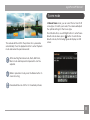
While in panoramic mode, press the Delete button to
cancel shooting.
Panorama Mode can stitch 2 or 3 maximum pictures.
33
AgfaPhoto OPTIMA 147
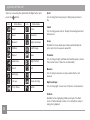
Select a scene using the Up/Down/Left/Right button and
button.
press the
Icon
Mode Name
Icon
Sport
For shooting fast-moving objects. Bring lively pictures to
life.
Mode Name
Indoor
Sport
Indoor
Snow
Fireworks
For shooting people indoors. Clearly show background and
atmosphere.
Museum
Night Landscape
Snow
Children
Leaf/Foilage
Suitable for snowy landscape. Camera automatically adjusts and corrects exposure value (EV).
Sunset
Glass
Fireworks
Landscape
Night Portrait
For shooting at night and fireworks. Shutterspeed is slower
than normal. (Use of tripod is recommended)
Beach
Text
Museum
Gathering
ID
For shooting in museums or places where flash is not
allowed.
Fish eye
Travel shooting
Night landscape
Photo frame
Sketch
For shooting night scenes. Use of tripod is recommended.
Children
Suitable for photographing children and pets. The flash
shuts off automatically in order not to disturb the subject
being photographed.
34
AgfaPhoto OPTIMA 147
Leaf/Foilage
Gathering
For shooting plants. Vivid reproduction of green.
For taking pictures of large groups or in areas with uneven
lighting.
Sunset
For shooting sunsets. Vivid reproduction of red and yellow.
ID
For shooting ID size photos.
Glass
Suitable for photographing objects behind glass or window.
Fish eye
Landscape
Creates a fish-eye effect, by distorting the center of the
image.
For shooting landscapes. Vivid reproduction of green and
blue.
Travel shooting
Night portrait
Produces background image blur that emphasizes the
motion of the main subject.
For shooting portraits with night scenes as background.
Beach
For taking pictures in areas with strong sunlight.
Text
Photo frame
For adding interesting frame effects to the photo.
Sketch
For taking photos with pencil sketch effect.
For taking pictures of text, documents or white boards.
35
AgfaPhoto OPTIMA 147
Stabilization mode
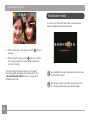
This mode can help reduce photo blur caused by hand
shake, low light and slow shutter speed
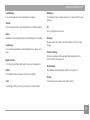
1. After selecting the scene type, press the
activate.
button to
button to confirm
2. After setting the option, press
the setting and enter the selected Scene Selection
mode for shooting.
The main function menu also allows you to adjust
the image quality and image size. Please refer to the
"Advanced Functions Menu" section on page 23 for
detailed instructions.
Use stabilization mode in dark environments or when
in slow shutter speed .
Shooting in a windy or unstable environment (such
as a moving vehicle) may cause blurred images.
36
PLAYBACK
AgfaPhoto OPTIMA 147
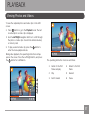
Viewing Photos and Videos
To view the captured photos and video clips on the LCD
screen:
button to go to the Playback mode. The last
1. Press
recorded photo or video clip is displayed.
2. Use the Left/Right navigation buttons to scroll through
the photos or video clips stored in the internal memory
or memory card.
3. To play a selected video clip, press the
enter the movie playback mode.
6
button to
During video playback, the operating instructions will appear on the screen. Press the Left/Right button, and press
button for confirmation.
the
1
The operating instruction icons are as follows.
1
Return to the first
frame and play
4
Return to the first
frame
2
Play
5
Rewind
3
Fast Forward
6
Pause
2
3
4
5
37
AgfaPhoto OPTIMA 147
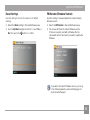
When playing a stored video, press the Up/Down arrow
button to adjust the playback volume
; or to mute
the volume
.
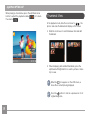
Thumbnail View
In the playback mode, slide the zoom lever to
, the
photos and video thumbnails will display on the screen.
1. Slide the zoom lever to switch between 3x3 and 4x4
thumbnails.
2. When displaying 3x3 and 4x4 thumbnails, press the
Up/Down/Left/Right button to select a picture or video
clip to view.
icon appears on the LCD screen, a
When the
movie file is currently being displayed.
button to restore a preview icon to its
Press the
original image size.
38
AgfaPhoto OPTIMA 147
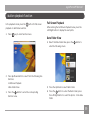
i button playback function
In the playback mode, press the
button for full screen
playback or date folder selection.
1. Press
Full Screen Playback
After entering the Full Screen Playback menu, press the
Left/Right button to display the next photo.
key to enter function menu.
Date Folder View
4. Select the Date Folder View, press the
button to
enter the following screen:
2. Press Up/Down button to select from the following two
functions:
•Full Screen Playback
•Date Folder View
3. Press the
button to enter the corresponding
function menu.
5. Press the Up/Down to select Date Folder.
6. Press the
button to enter the Date Folder, press
the Left/Right button to select the photos in the date
folder.
39
AgfaPhoto OPTIMA 147
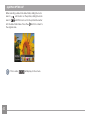
When selecting a date in the date folder, sliding the zoom
will zoom in on the picture; sliding the zoom
lever to
will first zoom out on the picture then enter
lever to
into the date folder index. Press the
button to return to
the original scale.
If it is a video,
40
will display on the screen.
AgfaPhoto OPTIMA 147
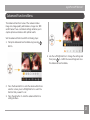
Using Zoom Playback (for still pictures only)
In playback mode, the zoom wheel can be used to zoom in
2x to 8x.
1. Press
button to go to the Playback mode.
5. Use the navigation buttons to pan across the image.
6. Press the
scale.
button to return the image to its original
2. Use the Left/Right navigation buttons to select a photo
to magnify.
3. Slide the zoom wheel to
picture.
to on zoom in on the
Movie images cannot be magnified.
4. While zooming, the zoom indicator and photo frame
icon will display on screen.
41
AgfaPhoto OPTIMA 147
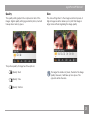
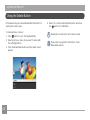
Using the Delete Button
In Playback mode, press Down/Delete/Self-timer button to
delete photos and movies.
To delete pictures or videos:
1. Press
button to go to the Playback Mode.
2. Select a picture or video clip you want to delete with
the Left/Right button.
3. Press the Down/Delete button and the delete screen
appears.
42
4. Select Yes or Cancel with Up/Down button and press
button for confirmation.
the
Erased photos/video clips cannot be recovered.
Please refer to page 52 for instructions on the
Delete Menu options.
USING THE MENUS
AgfaPhoto OPTIMA 147
Still Menu
Mode:
AUTO
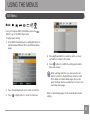
In any of the above Still Picture Modes, press the
button to go to the Still Picture menu.
To adjust each setting:
1. In the Still Picture Menu, press Left/Right buttons to
switch between different Photo and Camera Setup
pages.
4. Press Up/Down button to select an option, or press
Left button to return to the menu.
5. Press
button to confirm the setting and return to
the previous layer.
After selecting a function, you can press the Up
button to return to the Still Picture menu for other
Photo Setup or Camera Setup pages. Or you can
press the Down button several times to move to the
next setup menu page.
2. Press the Up/Down buttons to select the function.
3. Press
or Right button to enter the submenu.
Refer to the following pages for more details about each
setting.
43
AgfaPhoto OPTIMA 147
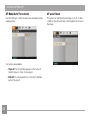
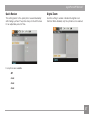
AF Mode (Auto-Focus mode)
AF-assist Beam
Use this setting to control the auto-focus mechanism while
taking pictures.
This option can turn the AF assist lamp on or off. In dark
conditions, the AF assist lamp can strengthen the focus on
the image.
Two options are available:
• Single-AF: The focus frame appears on the center of
the LCD screen to focus on the subject.
• Multi-AF: The camera shall focus correctly for multiple
parts of the object.
44
AgfaPhoto OPTIMA 147
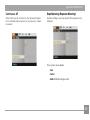
Continuous AF
Expo Metering (Exposure Metering)
After Continuous AF is turned on, the camera will adjust
focus automatically in response to any camera or subject
movement.
Use this setting to select an area for the exposure to be
obtained.
Three options are available:
• Spot
• Center
• AiAE (Artificial Intelligence AE)
45
AgfaPhoto OPTIMA 147
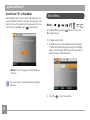
Continuous Shot
Use this setting to perform continuous shooting. After
entering this mode, you can shoot multiple images through
operating the shutter button.
The flash is designed not to work in this mode in
order to enable quick succession of shots.
Date Imprint
Include a Date/Time stamp in the photo image.
There are five available options:
• OFF: Turn off Continuous Shot function.
• Unlimited: Press and hold the shutter to shoot continuously until you release the shutter or when the
memory card has run out of space.
• 3 shot: Capture up to 3 consecutive pictures.
• 3 shots (Last): Capture pictures continuously until the
Shutter button is released but only the last 3 shots
are recorded.
• Time-Lapse: Automatically capture pictures in a
predefined interval.
46
• Off
• Date
• Date / Time
AgfaPhoto OPTIMA 147
Quick Review
Digital Zoom
This setting refers to the quick photo review immediately
after taking a picture. The picture stays on the LCD screen
for an adjustable period of time.
Use this setting to enable or disable the digital zoom
function. When disabled, only the optical zoom is enabled.
Four options are available:
• Off
• 1 sec
• 2 sec
• 3 sec
47
AgfaPhoto OPTIMA 147
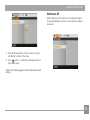
Slow Shutter ("B" or Bulb Mode)
In Slow Shutter (B) mode, the shutter will remain open as
long as the Shutter button is pressed. This gives you complete control over the duration of the exposure. (The slow
manual mode.)
shutter mode is available only in
Movie Menu
Mode :
AUTO
In the Movie Mode, press the
Movie Setup menu.
button to access the
To configure each setting:
1. In the Menu screen, switch between the Movie Setup
or different Camera Setup pages using the Left/Right
button, select the page with the function you want to
adjust and press the Down button.
• Manual : To set a long exposure time between
2~30 sec.
The use of tripod is recommended for prolonged
exposure.
2. Press the
48
to enter the selection.
AgfaPhoto OPTIMA 147
Continuous AF
After Continuous AF is turned on, the camera will adjust
focus automatically in response to any camera or subject
movement.
3. Press Up/Down button to select an option, or press
Left button to return to the menu.
button to confirm the setting and return to
4. Press
the previous layer.
Refer to the following pages for more details about each
setting.
49
AgfaPhoto OPTIMA 147
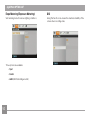
Expo Metering (Exposure Metering)
DIS
Set metering mode for various lighting conditions.
Using this function can ensure the maximum stability of the
screen when recording video.
Three options are available:
• Spot
• Center
• AiAE (Artificial Intelligence AE)
50
AgfaPhoto OPTIMA 147
Playback Menu
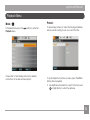
Protect
Mode :
In Playback mode, press the
Playback menu.
button to enter the
Please refer to the following sections for detailed
instructions on the various menu options.
To prevent any pictures or videos from being accidentally
erased, use this setting to lock one or all of the files.
To protect/unprotect pictures or videos, press the MENU
button while in playback.
1. Use Up/Down arrow button to select Protection, press
or Right button to enter the submenu.
51
AgfaPhoto OPTIMA 147
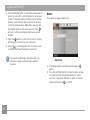
2. Use the Up/Down button to select One picture/video to
protect or select ALL to protect all photos and movies
stored on the active memory (memory card or internal
memory - when memory card is inserted, the memory
card is the active memory. Without the memory card,
the internal memory is the active memory). Press
button to confirm and enter photo/movie protection
interface.
Delete
There are three ways to delete files.
button to select Yes to lock. For locked
3. Press the
picture/video, use Unlock option to unlock it.
) icon will appear on the top of the screen
4. A key (
to indicate that the picture/video is protected.
If you Reset the Settings in the menu option, all
protection settings on pictures/videos will be
cancelled.
• Delete One:
1. In the Delete Option, select One and then press
button.
2. Press the Left/Right button to locate the photo or video
to be deleted. Press the Up/Down button to select
item (Yes: to delete the file, Back: to return to previous
to confirm.
menu) and then press
52
AgfaPhoto OPTIMA 147
DPOF (Digital Print Order Format)
• Delete All:
1. In the Delete option, select All and then press
button.
2. Use Up/Down button to select Yes to delete all files, or
select Back to return to the menu.
DPOF allows you to record your selection of pictures that
you would like to print, and will save your selection in the
memory card, so that you can simply hand your memory
card to a photo kiosk without having to tell them in person
which photos you would like to print.
• Delete Date Folder:
1. In the Delete Folder, press
or button after selecting
date folder.
2. Use the Up/Down button to select Date Folder to be
deleted, press
to confirm, press the Up/Down
button to select item (Yes: to delete the file, Back: to
return to the menu) and then press
to confirm.
The “
” indicator means a file is protected. File
protection must be removed first before a file can be
deleted.
Deleting files will cause DPOF settings to be reset.
53
AgfaPhoto OPTIMA 147
Trim
HDR-High Dynamic Range
The Trim setting allows you select an area of the photo you
want to keep and then save it as a new photo.
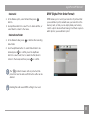
With the HDR function, pictures that may be overexposed
may be corrected to optimize the highlights and lowlights
captured to more accurately represent the real scene.
To trim a picture:
1. Select the Trim setting from the
menu.
2. Using the Left/Right buttons, locate the photo that you
want to crop and have it displayed on the LCD.
3. Select “Yes” to confirm cutting, use the zoom lever and
direction key to select the part to be cut, then cut the
photo you need.
4. Press
menu by pressing Menu
2. Press Left and Right button to find picture you want
to optimize and then select Confirm to perform HDR
optimization or select Return to go back to Playback
menu.
button and a ‘Save Changes?’ prompt will
display. Select “O” to confirm changes and save it as a
new image, or select “X” to cancel changes and return
to the previous menu.
The image can not be clipped again when it is clipped
to 640X480.
54
1. Select HDR setting in
while in Playback.
3. After HDR optimizing, the image will be saved as
another file with the
icon appearing as a prompt,
the original file still remains in the memory.
AgfaPhoto OPTIMA 147
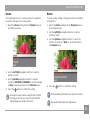
Resize
Rotate
This setting allows you to resize a picture to a specified
resolution, and saves it as a new picture.
You can use this setting to change the picture orientation
of the picture.
1. Select the Resize setting from the Playback menu as
described previously.
1. Select the Rotate setting from the Playback menu as
described previously.
2. Use the Left/Right navigation buttons to select a
picture to rotate.
3. Use the Up/Down navigation buttons to select the
direction for rotation or Back to cancel and return to
the Playback menu.
2. Use the Left/Right navigation buttons to select a
picture to resize.
3. Use the Up/Down navigation buttons to select a
resolution (1024X768 or 640X480) to resize the image
or Back to cancel and return to the Playback menu.
4. Press the
4. Press the
button to confirm the setting.
button to confirm the setting.
Resizing an image creates a new file that contains
the image in the size you select. The file with the
original image also remains in memory.
The panorama picture and video cannot be rotated.
Revolved file will replace the original one.
55
AgfaPhoto OPTIMA 147
Red-eye Reduction
Use this setting to remove red-eyes in your photos.
1. Select the Red-eye Reduction in Playback menu as
described previously.
2. Use the Left/Right button to select the picture from
which the red-eye needs to be removed.
3. Use the Up/Down navigation buttons to select Yes to
fix the selected image or Back to cancel and return to
the Playback menu.
4. Press the
Mode:
Press
menu.
button in Playback mode to enter Display Setup
button to confirm the setting.
For best results, the face of the subject should be
relatively large on the LCD screen, the subject should
be facing the camera as front on as possible, and the
red eyes should be as large as possible.
If there is no red eyes in the image, press
button
after selecting “Yes”, such prompt will appear on the
screen: red eye is not detected!
56
Display Setup
Refer to the following sections for details of every setting.
AgfaPhoto OPTIMA 147
Slideshow
Wallpaper Settings
This setting allows you to view all the stored pictures as a
slideshow.
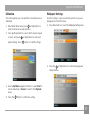
Use this setting to select your favorite picture to use as a
background on the LCD screen.
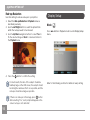
1. Select Slide Show menu, press
or Right button to
1. Press Down button to select the Wallpaper Setting menu.
enter the slide show setup interface.
2. Press Up/Down button to select effect, interval, repeat
or music, and press
adjust settings. Press
or Right button to enter and
button to confirm settings.
2. Press the
or Right button to enter the background
setup interface.
3. Use the Up/Down navigation buttons to select Start to
run the slideshow or Cancel to return to the Playback
menu.
4. Press the
button to confirm the setting.
57
AgfaPhoto OPTIMA 147
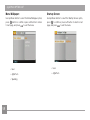
Menu Wallpaper:
Startup Screen:
Use Up/Down button to select the Menu Wallpaper option,
Use Up/Down button to select the Startup Screen option,
press
button to confirm or press Left button to return
to last page, and press
• User
• AgfaPhoto
• Sparkling
58
to exit the menu.
press
to confirm or press Left button to return to last
page, and press
• User
• AgfaPhoto
to exit the menu.
AgfaPhoto OPTIMA 147
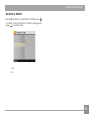
Set back to default:
Use Up/Down button to select Back To Default, press
to confirm or press Left button to return to last page, and
to exit the menu.
press
• Yes
• No
59
AgfaPhoto OPTIMA 147
Setup Menu
Mode :
AUTO
2. Switch between different functions with the Up/Down
button.
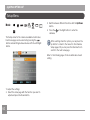
3. Press the
submenu.
The Setup menu for the camera is available in all modes.
Each menu page can be selected by pressing the
button and switching between menus with the Left/Right
button.
or the Right button to enter the
After selecting a function option, you can press the
Up button to return to the menu for other Camera
Setup pages. Or you can press the Down button to
switch to the next menu page.
Refer to the following pages for more details about each
setting.
To adjust the settings:
1. Select the menu page with the function you want to
adjust and press the Down button.
60
AgfaPhoto OPTIMA 147
Beep
LCD Brightness
Use this setting to adjust the volume of beep when buttons
are pressed and change the tones for Shutter button, selftimer, and power-on/power-off.
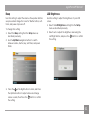
Use this setting to adjust the brightness of your LCD
screen.
To change this setting:
1. Select the Beep setting from the Setup menu as
described previously.
2. Use the Up/Down navigation buttons to switch
between volume, shutter, key, self-timer, and power
fields.
3. Press the
1. Select the LCD Brightness setting from the Setup
menu as described previously.
2. Select auto or adjust the brightness level using the
Left/Right button, and press the
button to confirm
the setting.
or the Right button to enter, and Press
the Up/Down button to adjust volume and change
various sounds, then Press the
button to confirm
the setting.
61
AgfaPhoto OPTIMA 147
Power Saver
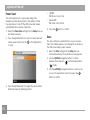
This setting allows you to save power and get the
maximum possible running time for your battery. Follow
the steps below to turn off the LCD screen and camera
automatically after a period of inactivity.
1. Select the Power Save setting from the Setup menu as
described previously.
2. Press the Up/Down button to select screen power and
camera power, then Press the
or the Right button
to enter.
• LCD Off :
ON, 30 sec, 1 min, 2 min.
• Camera Off :
ON, 3 min, 5 min, 10 min.
4. Press the
button to confirm.
Zone
The Zone setting is a useful function on your overseas
trips. This feature enables you to display the local time on
the LCD screen while you are overseas.
1. Select the Zone setting from the Setup menu as
described previously. The world time screen appears.
2. Use the Up/Down navigation buttons to switch
) and travel destination
between the hometown (
(
) fields.
3. Use the Left/Right navigation buttons to select a city
close to the desired time zone. Then press the
button to confirm.
3. Press the Up/Down button to adjust the selected item.
Both items have the following options:
62
AgfaPhoto OPTIMA 147
File and Software
Format Memory
Please note: formatting enables you to delete all contents
in the memory card and built-in memory, including protected
photo and movie files.
To use this setting:
1. Select the Format in File and Software menu.
2. Use the Up/Down navigation buttons to select Yes or
No. Then press the
button to confirm.
Date/Time
See “Setting the Date and Time“ section on page 16.
Language
See “Setting the Language“ section on page 15.
3. Select Yes, the camera will format the selected media.
4. Please note that when you perform the Format
Memory function, it only formats the active memory. If
a memory card is inserted, the memory card is active
and will be formatted. If there is no memory card, the
internal memory is active and the internal memory will
be formatted. Formatting the memory card will not
automatically format the internal memory.
63
AgfaPhoto OPTIMA 147
File Numbering
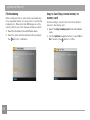
After you take a picture or video clip,the camera will save
it in a sequential number. You can use this to reset the file
numbering to 1. (When more than 999 images are on the
memory card, the use of this features will have no effect.)
Use this setting to copy the files stored in the internal
memory to the memory card.
1. Select the File Name in File and Software menu.
1. Select the Copy to memory card in File and Software
menu.
2. Select the option with the Up/Down button and press
2. Use the Up/Down navigation buttons to select Yes or
the
64
Copy to Card (Copy internal memory to
memory card)
button for confirmation.
No. Then press the
button to confirm.
AgfaPhoto OPTIMA 147
Reset Settings
FW Version (Firmware Version)
Use this setting to restore the camera to its default
settings.
Use this setting to view and update the current camera
firmware version.
1. Select the Reset setting in File and Software menu.
1. Select the FW Version in File and Software menu.
2. Use the Up/Down navigation buttons to select Yes or
2. The screen will show the current firmware version.
If there is a memory card with a firmware file, the
camera will detect it and ask if you want to update the
firmware.
No. Then press the
button to confirm.
To update to the latest firmware version, you can go
to the following website: www.reddotimaging.com
and look under Support.
65
Transmission
Connecting to a PC
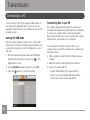
You can connect to the PC by using the USB interface on
the camera or the USB cable. Once connected you can
manually transfer the files or use software such as Arcsoft
(included on disc).
Transferring files to your PC
Setting the USB mode
The computer will automatically detect the camera as a
removable drive. Double click on My Computer (or Computer)
to access your computer drives. Locate the removable
drive, browse the directory to locate your files and copy the
folders/files as you normally do on a computer.
Since the camera’s USB port can be set to connect with
either a PC or a Printer, the following steps will allow you to
ensure that the camera is correctly configured to connect
with a PC.
To use the Arcsoft software to transfer files to your
computer, please connect the camera to the computer and
follow these steps:
1. Enter the camera setup menu and select USB Mode
with the UP/Down button, then press the
or the
Right button to enter.
2. Use the Up/Down navigation buttons to select PC.
3. Press the
button to confirm the setting.
1. Start a computer to which ArcSoft software has been
installed.
2. Make sure both the camera and PC are turned on.
3. Connect the camera with PC:
•Connect USB interface of the camera with PC;
•connect one end of attached USB cable with the
camera, and connect another end with PC.
66
AgfaPhoto OPTIMA 147
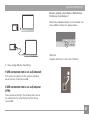
Windows operating system (Windows 2000, Windows
XP, Windows Vista, Windows 7.)
Click [Remove hardware safely] icon in the taskbar, and
remove USB according to the displayed menu.
Macintosh
Drag the untitled icon to the Trash. ("Untitled")
4. Please unplug USB after transmitting.
If USB connection item is set as [Computer]:
First remove the camera from the system as indicated
below, then turn off and remove USB.
If USB connection item is set as [Computer
(PTP)]:
Please operate according to the following steps: remove
the camera from the system firstly, then turn off and
remove USB.
67
AgfaPhoto OPTIMA 147
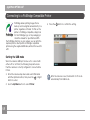
Connecting to a PictBridge Compatible Printer
PictBridge allows printing images from a
memory card in a digital camera directly to a
printer, regardless of brand. To find out if a
printer is PictBridge compatible, simply look
for the PictBridge logo on the packaging or
check the manual for specifications.With
the PictBridge function on your camera, you can print the
captured photos directly with a PictBridge compatible
printer using the supplied USB cable, without the need for
a PC.
3. Press the
button to confirm the setting.
Setting the USB mode
Since the camera’s USB port can be set to connect with
either a PC or a Printer, the following steps will ensure
that the camera is correctly configured to connect with a
Printer.
1. Enter the camera setup menu and select USB cable
or Right
with the Up/Down button, then press the
button to enter.
2. Use the Up/Down button to select Printer.
68
After the camera is reset, it will switch to PC mode
automatically from USB mode.
AgfaPhoto OPTIMA 147
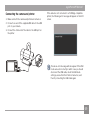
Connecting the camera and printer.
1. Make sure both the camera and printer are turned on.
If the camera is not connected to a PictBridge compatible
printer, the following error message will appear on the LCD
screen.
2. Connect one end of the supplied USB cable to the USB
port on your camera.
3. Connect the other end of the cable to the USB port on
the printer.
The above error message will also appear if the USB
mode were set incorrectly, in which case you should
disconnect the USB cable, check the USB mode
settings, ensure that the Printer is turned on, and
then try connecting the USB cable again.
69
AgfaPhoto OPTIMA 147
Using the PictBridge Menu
After setting the USB mode to Printer, the PictBridge menu
will appear:
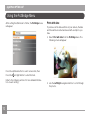
Print with date
If you have set the date and time of your camera, the date
and time will be recorded and saved with each photo you
take.
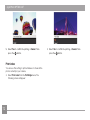
1. Select Print with date from the PictBridge menu. The
following screen will appear:
Press the Up/Down button to select a menu item, then
or Right button to enter this item.
Press the
Refer to the following sections for more detailed information on each setting.
70
2. Use the Left/Right navigation buttons to scroll through
the photos.
AgfaPhoto OPTIMA 147
3. Use the Up/Down navigation buttons to select the
number of prints for the current displayed photo.
4. Press the
appear:
button and the following screen will
5. Select Yes to confirm the printing, or Cancel. Then
button.
press the
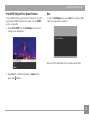
Print without date
Use this setting to print the photos without dates on them.
1. Select Print without date from the PictBridge menu.
The following screen will appear:
2. Use the Left/Right navigation buttons to scroll through
the images.
3. Use the Up/Down navigation buttons to select the
number of prints for the current displayed image.
4. Press the
appear:
button and the following screenwill
71
AgfaPhoto OPTIMA 147
5. Select Yes to confirm the printing, or Cancel. Then
button.
press the
Print index
You can use this setting to print all indexes to show all the
photos currently in your camera.
1. Select Print index from the PictBridge menu. The
following screen will appear:
72
2. Select Yes to confirm the printing, or Cancel. Then
button.
press the
AgfaPhoto OPTIMA 147
Print DPOF (Digital Print Order Format)
Exit
To use DPOF printing, you must select the photos for printing using the DPOF settings before hand. see the “DPOF”
section on page 53.
To exit the PictBridge menu, select Exit. The “Remove USB
cable” message will be displayed.
1. Select Print DPOF from the PictBridge menu. The following screen will appear:
Disconnect the USB cable from the camera and printer.
2. Select Yes to confirm the printing, or Cancel. Then
button.
press the
73
APPENDICES
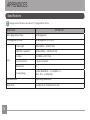
Specifications
Design and specifications are subject to change without notice.
Model name
OPTIMA 147
Active Image Sensor Pixels
14.14 Megapixels
Total Image Sensor Pixels
14.48 Megapixels [1/2.3"CCD]
Focal Length
Lens
74
5.9mm (Wide) — 41.3mm (Tele)
[35mm film equivalent]
[32.9mm (Wide) — 230.3mm (Tele)]
F number
F3.4 (Wide) — F5.7 (Tele)
Lens Construction
7 groups 9 elements
Optical Zoom
7x
Focusing Range
Normal: (Wide) 60cm ~ ∞, (Tele) 80cm ~ ∞
Macro: 5cm ~ ∞ (Wide Only)
Anti-Handshake
Digital Image Stabilization
Digital Zoom
6x Digital Zoom (Combined Zoom: 42x)
AgfaPhoto OPTIMA 147
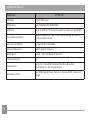
Model name
Number of
Recording
Pixels
OPTIMA 147
Still Image
14MP: 4320x3240, (3:2)12MP: 4320x2880, (16:9)10MP: 4320x2432, 8MP:
3264x2448, 5MP: 2592x1944, 3MP: 2048x1536, 0.3MP: 640x480
Movie
720p30, 720p15, VGA, QVGA
Image Compression
Best, Fine, Normal
DCF, DPOF (Ver1.1) Support
Yes
File Format
Still Image
Exif 2.2 (JPEG)
Movie
Movie Format: MOV (Motion JPEG), Audio: G.711 [Monaural]
Shooting Modes
Auto, Manual, Image Stabilization, Panorama, Movie, ASCN, Portrait, Scene
(Sport, Landscape, Children, Indoor, Leaf, Beach, Text, Party, ID, Fisheye,
Panning Shot, Photo Frame, Sketch, Snow, Sunset, Fireworks, Glass, Museum,
Night Landscape, Night Portrait)
Detection Features
Face, Smile, Blink
Red-Eye Removal
Yes
HDR
Yes (Post-Processing)
Panorama
Capture
Still Image
Yes (Horizontal)
View Angle
0° ~ 135°
75
AgfaPhoto OPTIMA 147
Model name
76
OPTIMA 147
LCD Display
3.0inch (230k Pixels)
ISO Sensitivity
Auto, ISO64/100/200/400/800/1600
AF Method
Single AF, Multi-AF (TTL 9-point), Face-Detection, AF Assist Light (On/Off)
Exposure Metering Method
Artificial Intelligence AE (AiAE), Center-Weighted Average, Spot (Fixed to
Center of Frame), Face AE
Exposure Control Method
Program AE (AE-Lock Available)
Exposure Compensation
±2EV in 1/3 Step Increments
Shutter Speed
1/2000 ~ 4 Seconds (Manual: 30 Seconds)
Continuous Shooting
Yes
Playback Modes
Single Photo, Index (9/16 Thumbnails), Slide Show, Movie, Date
Zoom (Approx. 2x ~ 8x), Histogram Display
White Balance Control
Auto (AWB), Daylight, Cloudy, Fluorescent, Fluorescent CWF, Incandescent,
Manual
AgfaPhoto OPTIMA 147
Model name
OPTIMA 147
Flash Modes
Auto, Red-Eye Reduction, Forced Flash, No Flash, Slow Synchro, Red-Eye
Reduction + Slow Synchro
Shooting Range
(Wide) Approx. 0.6 ~ 4.0m (ISO 800)
(Tele) Approx. 0.8 ~ 2.5m (ISO 800)
Internal Flash
Recording Media
Internal Memory: Approx. 50 MB
SD/SDHC Card (Up to 32GB Support) [Nonsupport MMC Card]
Other Features
PictBridge, ExifPrint Support, Multi-Language Support (26 Languages)
Jacks
USB Arm
Power
Rechargeable Li-ion Battery SKL-50, 3.7V 880mAh, In-Camera Charging
Shooting Capability (Battery Performance)
Operation Environment
Approx. 280 Shots (Based on CIPA Standards)
Temperature: 0~40oC, Humidity: 0~90%
Dimensions (W x H x D)
Approx. 101.5 x 56.9 x 24.0mm (Based on CIPA Standards)
Weight
Approx. 129g (Body only)
Supplied Accessories
Rechargeable Li-ion Battery, AC adapter, USB Extension Cable
Wrist Strap, CD-ROM
Quick Start Guide, Warranty Card
77
AgfaPhoto OPTIMA 147
Error messages
Messages
Card error
Card full
Picture error
78
Explanation
• The memory card is not formatted.
• The memory card is full and cannot store any new images.
• The picture was not captured correctly.
• The picture is damaged.
No picture
• There are no images in the memory card or in the internal memory.
Lens error
• The lens is probably stuck and the camera will power off automatically.
System error
• Unexpected error encountered.
Write protect
• The write protection switch in the memory card is set to the “LOCK” position.
Out of the range
• When pictures were taken in Panorama mode, the direction of movement was
incorrect or the angle was outside the range of the internal settings.
AgfaPhoto OPTIMA 147
Messages
Explanation
Card is not formatted, format?
• Confirm whether the memory card should be formatted.
This image cannot be deleted
• The picture or video you are trying to delete is protected.
Warning!! Camera recording, please
wait.
• No other actions allowed to perform during video/audio recording.
Warning!! Battery exhausted.
• The battery is out of charge.
This file cannot be played back
• The picture format cannot be recognized by the camera.
No connection
• The camera is not connected to the printer correctly.
Print error
• There is a problem with camera or printer.
Cannot print
• Check that the printer is out of paper or out of ink.
• Check if the printer has a paper jam.
79
AgfaPhoto OPTIMA 147
Troubleshooting
Problem
Possible causes
Solution
• The battery has run out.
Camera does not turn on.
Camera turns off suddenly during
operation.
The picture is blurred.
• The battery is not inserted correctly.
• Replace with a fully charged battery.
• The battery has run out.
• Replace with a fully charged battery.
• The lens is dirty.
• Use a soft cloth to clean the lens on your
camera
•
appears when taking
pictures.
• Use the Image Stabilization mode.
• Replace the memory card with a new one.
Images and video files cannot be
saved.
• The memory card is full.
• Delete unwanted images from the memory
card.
• Unlock the memory card.
• The memory card is full.
No picture is taken when pressing
the Shutter button.
80
• There is no available space to
store the files.
• The mode dial is in Playback
mode.
• Replace the memory card with a new one or
clean off current memory card.
• Delete unwanted images.
• The memory card is locked.
• Change to Shooting mode.
AgfaPhoto OPTIMA 147
Problem
Possible causes
Solution
Images cannot print from the
connected printer.
• The camera is not connected to
the printer correctly.
• The printer is not PictBridge
compatible.
• The printer is out of paper or out
of ink.
• The paper is jammed.
• Check the connection between the camera
and printer.
• Use a PictBridge compatible printer.
• Load some paper in the printer.
• Replace the ink cartridge in the printer.
• Remove the jammed paper.
Write to memory card is slow
• Movie recording is set in an HD
format setting, but memory card is
either not an HD capable memory
card or not formatted properly.
• Ensure the memory card is an SDHC type
card and ensure it has been formatted by
this camera.
Cannot write to the memory card
• Memory card is in write-protection
state.
• When shooting or recording,
writeprotection interruption
phenomenon in the memory card
(such as due to too slow storage
etc.) leads that you can not
continue to shoot or record.
• Please replace a memory card.
• The number of pictures or binders
in the memory card exceeded the
specifications, so the playback of
data folder can not be displayed.
• Delete needless files.
• “Yes” is selected for “File No”
menu in the Menu (see P64 for
detailed instructions)..
• Transfer the files in the memory card to
other area.
Too many movies to process
Exceed maximum folder number in
the memory card
• Please shoot again.
• Transfer the files in the memory card to
other area.
• Set “No” for “File No”.
81
AgfaPhoto OPTIMA 147
Customer Care
More information on the complete AgfaPhoto digital
camera product range can be found at
www.reddotimaging.com. / www.agfaphoto.com.
Manufactured by
Service & Repair Hotline (USA):
AgfaPhoto is used under license of Agfa-Gevaert NV & Co.
KG or Agfa-Gevaert NV. Neither Agfa-Gevaert NV & Co KG
nor Agfa-Gevaert NV manufacture this product or provide
any product warranty or support. For service, support and
warranty information, contact the distributor or manufacturer. All other brands and product names are registered
trademarks of their respective owners. Product design and
technical features can be changed without notice. Contact:
AgfaPhoto Holding GmbH, www.agfaphoto.com
1-855-243-2937 (from a landline only)
Service & Repair (UK):
+44 1908 488676
Online Service / International contact:
[email protected]
For repair and service in all other countries, please refer to
the warranty pamphlet for additional information.
82
RedDot Imaging, 2275 NW 84thAve, Doral, FL 33122.
AgfaPhoto OPTIMA 147
AgfaPhoto is used under license of Agfa-Gevaert NV & Co. KG or Agfa-Gevaert NV. Neither Agfa-Gevaert NV & C o. KG nor Agfa-Gevaert NV manufacture this product or provide any product warranty or support.
For service, support and warranty information, contact the distributor or manufacturer. For service, support and warranty information, contact the distributor or manufacturer. All other brands and product
names are registered trademarks of their respective owners. Product design and technical features can be changed without notice.
AgfaPhoto Holding GmbH, www.agfaphoto.com
83