1
AgfaPhoto OPTIMA 147
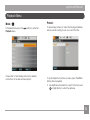
Trim
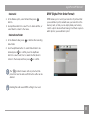
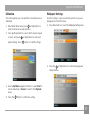
HDR-High Dynamic Range
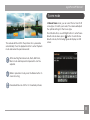
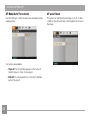
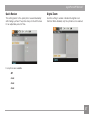
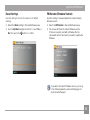
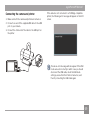
The Trim setting allows you select an area of the photo you
want to keep and then save it as a new photo.
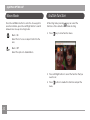
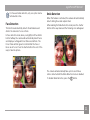
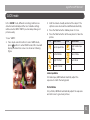
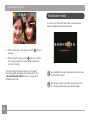
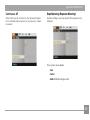
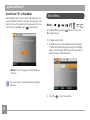
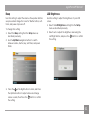
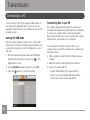
With the HDR function, pictures that may be overexposed
may be corrected to optimize the highlights and lowlights
captured to more accurately represent the real scene.
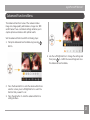
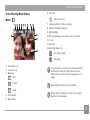
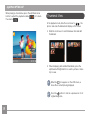
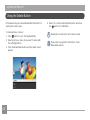
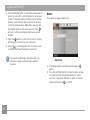
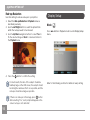
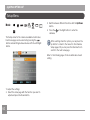
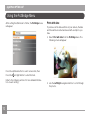
To trim a picture:
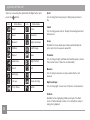
1. Select the Trim setting from the
menu.
2. Using the Left/Right buttons, locate the photo that you
want to crop and have it displayed on the LCD.
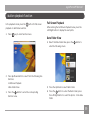
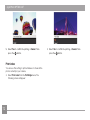
3. Select “Yes” to confirm cutting, use the zoom lever and
direction key to select the part to be cut, then cut the
photo you need.
4. Press
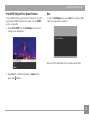
menu by pressing Menu
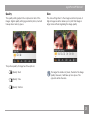
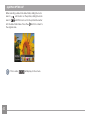
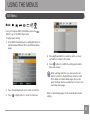
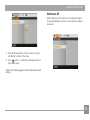
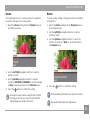
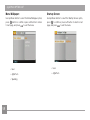
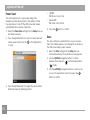
2. Press Left and Right button to find picture you want
to optimize and then select Confirm to perform HDR
optimization or select Return to go back to Playback
menu.
button and a ‘Save Changes?’ prompt will
display. Select “O” to confirm changes and save it as a
new image, or select “X” to cancel changes and return
to the previous menu.
The image can not be clipped again when it is clipped
to 640X480.
54
1. Select HDR setting in
while in Playback.
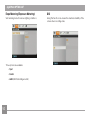
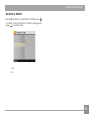
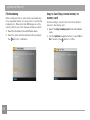
3. After HDR optimizing, the image will be saved as
another file with the
icon appearing as a prompt,
the original file still remains in the memory.