1
Chapter 4
Configuring Controller Settings
Configuring Quality of Service
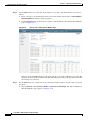
Step 1
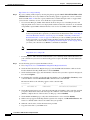
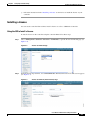
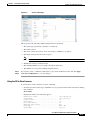
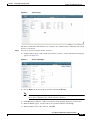
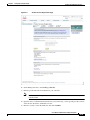
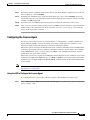
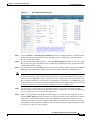
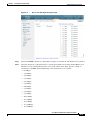
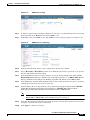
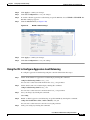
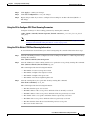
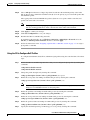
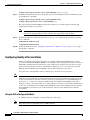
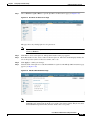
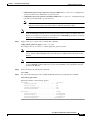
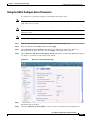
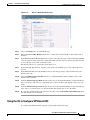
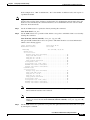
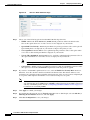
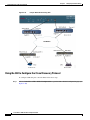
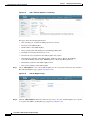
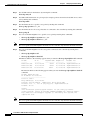
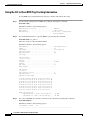
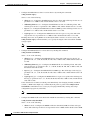
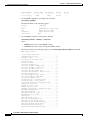
Choose Wireless > QoS > Roles to open the QoS Roles for Guest Users page (see Figure 4-27).
Figure 4-27 QoS Roles for Guest Users Page
This page shows any existing QoS roles for guest users.
Note
If you want to delete a QoS role, hover your cursor over the blue drop-down arrow for that role
and choose Remove.
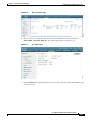
Step 2
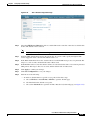
Click New to create a new QoS role. The QoS Role Name > New page appears.
Step 3
In the Role Name text box, enter a name for the new QoS role. The name should uniquely identify the
role of the QoS user (such as Contractor, Vendor, and so on).
Step 4
Click Apply to commit your changes.
Step 5
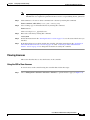
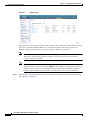
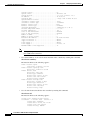
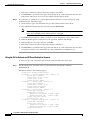
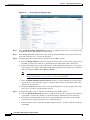
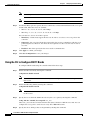
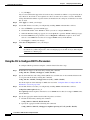
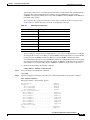
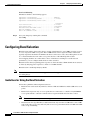
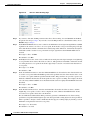
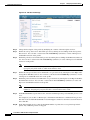
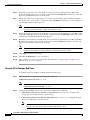
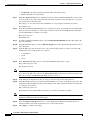
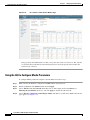
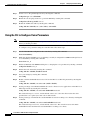
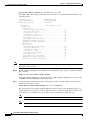
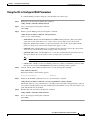
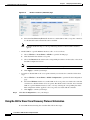
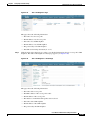
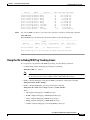
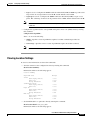
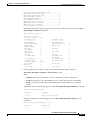
Click the name of the QoS role to edit the bandwidth of a QoS role. The Edit QoS Role Data Rates page
appears (see Figure 4-28).
Figure 4-28 Edit QoS Role Data Rates Page
Note
The values that you configure for the per-user bandwidth contracts affect only the amount of
bandwidth going downstream (from the access point to the wireless client). They do not affect
the bandwidth for upstream traffic (from the client to the access point).
Cisco Wireless LAN Controller Configuration Guide
OL-21524-02
4-69