1
2.6 Connected devices
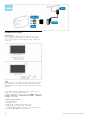
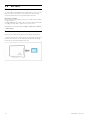
Select a device
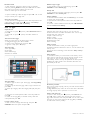
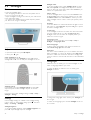
Select from the Home menu
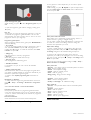
To select and watch a connected device or activity, press h to
open the Home menu and select the device or its activity and
press OK. Make sure the device is switched on.
Add a connected device to the Home menu for easy selection.
Read more about Add your devices in Help > Basics > Menus >
Home menu.
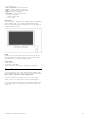
Select from the list of connections
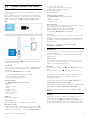
To open the list of connections, press Ú SOURCE. Select the
TV connection and press OK to switch to the device on that
connection. Make sure the device is switched on.
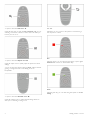
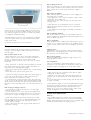
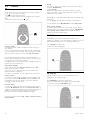
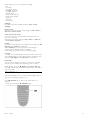
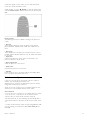
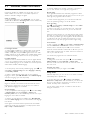
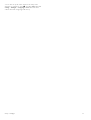
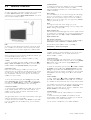
In general, these keys open the following device menus:
1 Home menu
2 Setup menu
3 Disc menu (disc content)
4 Pop -up menu
5 Options menu
6 Programme guide
7 Media selection
Read more about EasyLink in Help > Setup > Devices >
EasyLink HDMI-CEC.
Operate devices
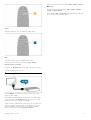
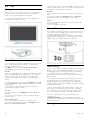
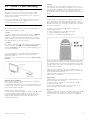
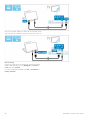
The remote control of the TV can also operate a connected
device. The device must have EasyLink (HDMI -CEC) and have it
switched on. The device must also be connected with an HDMI
cable.
Operate an EasyLink device
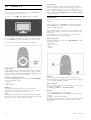
To operate such a device with the TV remote control, select the
device -or its activity - in the h Home menu and press OK.
The commands of all keys, except the h key, the t ADJUST
key and the r OPTIONS key, are forwarded to the device.
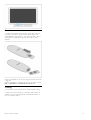
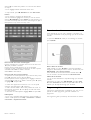
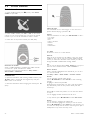
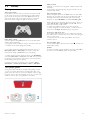
If the key you need is not on the TV remote control, you can
show extra keys on screen with Show device keys.
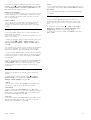
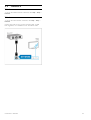
Show device keys
To show the device keys on screen, press r OPTIONS and
select Show device keys . Select the key you need and press OK.
To hide the device keys, press È (Back).
Basics / Connected devices
27