1
For easy picture or sound adjustment, you can select a preset
setting for each.
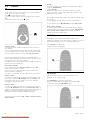
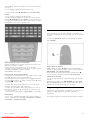
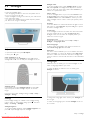
While watching TV, press t ADJUST to open the Adjust menu
and select Smart picture or Smart sound . Make a selection from
the list and press OK.
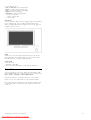
Open the Programme guide
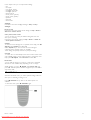
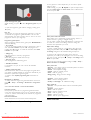
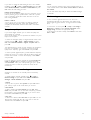
While watching TV, press h , select Programme guide and press
OK.
To quit the Programme guide without changing a setting, press
È (Back).
First use
The first time you open the Programme guide, the TV scans all
TV channels for programme guide information. This can take
several minutes. The data is stored in the TV. The TV can store
programme data for up to eight days.
Programme guide options
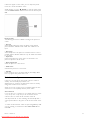
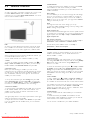
With a programme selected in the guide, press r OPTIONS to
select the following:
• Set reminder
To set an on-screen reminder for when a programme is due to
start, select Set reminder and press OK. The programme is
marked with a © (Clock). To cancel this reminder, select Clear
reminder and press OK.
• Change day
View the previous or next day's programmes.
• More info
Shows the programme details and summary.
• Search by genre
View all programmes selected by genre.
• Scheduled reminders
If a reminder is set, you can view a list of all scheduled
reminders.
• Update programme guide
After the first scan, the TV stores the programme guide data. If
you update or reinstall channels or reorder the Channel list, you
will need to update the Programme guide.
To update, select Update programme guide. Reminders are
cleared.
Broadcaster or Network
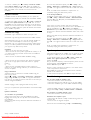
To select where the Programme guide information comes from,
press h > Setup > TV settings > Preferences > Programme
guide.
Select From the network or From the broadcaster.
From the network
Until you link up with Net TV, programme guide information
comes from the broadcaster. Once you are connected with Net
TV, the TV switches automatically to the Internet for programme
guide information.
From the broadcaster
Guide information comes from the broadcaster/operator.
Smart picture and Smart sound
Smart settings are a combination of preset settings suited to a
specific use such as gaming or daylight viewing.
You can adjust a specific setting, like Brightness or Contrast, Bass
or Treble, of a chosen smart setting. The smart setting will
remember the adjustments you made.
Adjust smart settings
To adjust a specific setting of a smart setting, select the smart
setting and press OK. Then press h and select Setup. Select
TV settings, navigate to the individual setting and adjust it.
To return to the original smart setting values, undo the
adjustments you made by first setting the TV in the smart setting
you want to reset. Then press h > Setup > TV settings, select
Reset and press OK.
Read more about adjusting separate settings in Help > Setup >
Picture and Sound and Ambilight.
Smart picture list
• Personal - Your choices made in Personalise picture and sound
• Vivid - Ideal for daylight viewing
• Natural - Natural picture settings
• Cinema - Ideal for watching movies
• Game - Ideal for gaming
• Energy saving - Energy-conscious settings
• Standard - Factory standard settings
• Photo - Ideal for viewing photos
• ISF Day and ISF Night - ISF Calibration settings
Smart sound list
• Personal - Your personal choices made in Personalise picture
and sound
• Standard - Factory standard
• News - Ideal for speech
• Movie - Ideal for watching movies
• Game - Ideal for gaming
• Drama - Ideal for TV soaps
• Sports - Ideal for sports programmes
Picture format
Smart picture and sound settings
20
Downloaded From TV-Manual.com Manuals
Basics / Watch TV