1
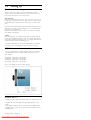
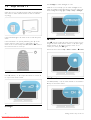
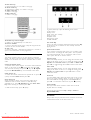
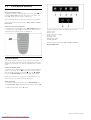
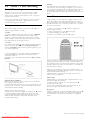
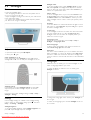
In the Adjust menu you can adjust these settings:
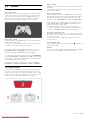
• 3D
• 3D depth
• Two player gaming
• Ambilight On or Off
• Ambilight dynamics
• Picture format
• Smart picture (presets)
• Smart sound (presets)
• Speakers
• Surround
• Picture shift
Ambilight
Read more about the Ambilight settings in Help > Setup >
Ambilight.
Picture format
Read more about the Picture format settings in Help > Basics >
Watch TV > Picture format.
Smart picture, Smart sound
You can set the TV to the pre-defined setting that best suits
what you're watching.
Read more about Smart settings in Help > Basics > Watch TV
> Smart picture and sound .
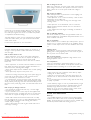
Speakers
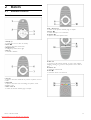
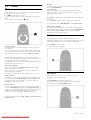
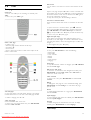
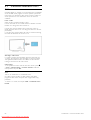
To hear the sound through the TV speakers, close Help, press t
ADJUST, select Speakers and select TV.
Select Amplifier if you want to hear the sound through a
connected Home Theatre System or Amplifier.
These settings temporarily override any EasyLink settings.
Surround
To switch the TV automatically to the best surround sound mode
(only available when a Home Theatre System is connected), close
Help, press t ADJUST, select Surround and select On.
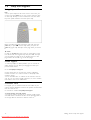
Picture shift
You can shift the picture on screen in a vertical or a horizontal
direction to view subtitles fully (depending on the TV input).
While watching TV, press t ADJUST, select Picture shift and
press OK. Shift the picture with the navigation keys. Press OK to
stop Picture shift.
r OPTIONS
With the OPTIONS menu, you select optional settings related to
what you are watching or doing on TV.
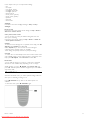
Press r OPTIONS at any time to see which options are
available.
To close the menu, press r OPTIONS again.
Basics / Menus
Downloaded From TV-Manual.com Manuals
17