1
SE-406AB : How to install - How to confirm the installation of the device driver
Samsung Optical Disc Drive
afety precautions
Features
How to install
How to install
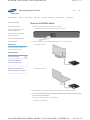
How to install the drive
How to confirm USB 2.0 and
install the USB driver
How to confirm the installation
of the device driver
How to use
페이지 1 / 2
Home
How to store and clean
Troubleshooting
Index
Specifications
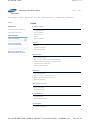
How to confirm the installation of the device
driver
How to use Device Manager to confirm
Windows 7
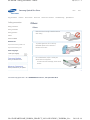
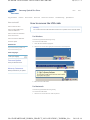
1. Click Start - Control Panel - System and Security - System Device Manager.
How to remove the USB cable
2. Click DVD-W drive in the Device Manager window.
Firmware update
To
Related links
http://www.samsung-ODD.com
Windows Vista
http://www.samsung.com
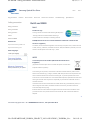
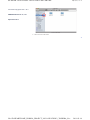
1. Click Start - Control Panel - System - Device Manager.
Select languages
2. Click DVD-W drive in the Device Manager window.
To
Select your language
Firmware Update
Check your firmware version.
Windows XP
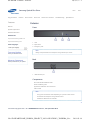
1. Click Start - Settings - Control Panel - Performance and Maintenance.
2. Click the Administrative Tools icon in the Performance and Maintenance window.
Warranty Statement
3. Click the Computer Management icon in the Administrative Tools window.
Warranty statement for your product
4. Click Device Manager icon in the Administrative Tools window and then click DVDW drive.
To
Windows 2000
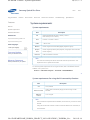
1. Click Start - Settings - Control Panel - System.
2. Click on the Hardware tab in the System Properties window. Click on the Device
Manager tab.
3. Click DVD-W drive in the Device Manager window.
To
Macintosh
1. Click Macintosh - More Info….
2. Click the Device Manager button.
To
file://D:\HEARTSOME_WORK\0_PROJECT_LOCALIZATION\3_TOSHIBA_SA...
2011-03-14