1
10
Chapter 3
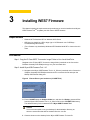
Figure 12
Prepare USB drive
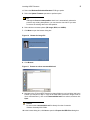
11. Select the USB key onto which you want the configurations (you can use Refresh as
needed to recognize an inserted USB key), and then click Next. The progress bars
show the overall progress and task progress.
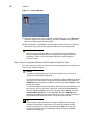
12.After configuration, click Finish to close the wizard and then remove the configured
USB key for use (you will use the configured USB key on your target devices).
Caution
Before using any configured USB key on a target device (to push firmware),
you must configure the target device to boot from the configured USB key as
described in "Step 4: Use the Configured USB Key to Install Firmware on
Each Thin Client."
Step 4: Use the Configured USB Key to Install Firmware on Each Thin Client
On each thin client you want to convert, use one of the following options to configure it to
boot from the configured USB key:
Caution
It is highly recommended that you use the one-time boot menu, as it will not
modify your default BIOS configurations.
·
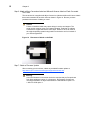
To enter and use the one-time boot menu: Attach the configured USB key to the thin
client (be sure it is shut down). During boot, press and hold the P key. Select the
USB HDD option (displaying your USB key vendor name) and press Enter. Follow
the process prompts.
·
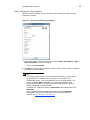
To enter and change the BIOS Setup Utility: Attach the configured USB key to the
thin client (be sure it is shut down). During boot, press and hold the Delete key.
Enter the password Fireport (this is case sensitive) and press Enter. Select the
Hard Disk Boot Priority option and press Enter. Select the USB HDD option
(displaying your USB key vendor name) and move it to the 1 position by using the +
key. Save the BIOS settings and reboot. Follow the process prompts.
Tip
When booting a target device from the configured USB key (containing the
contents to be pushed to a target device), you will be prompted to continue
with the push process (to continue, type y and press Enter). Once the push
process is complete, you will be prompted to reboot (to reboot, press Enter
and remove the USB key).