1
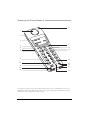
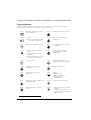
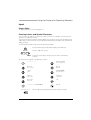
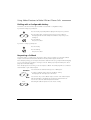
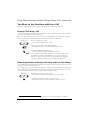
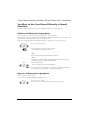
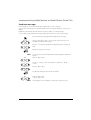
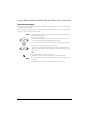
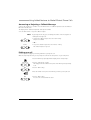
Operating and Display Elements
1
2
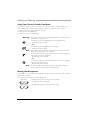
Loudspeaker
Volume key
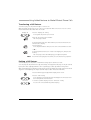
12 C-key
Delete and correction key
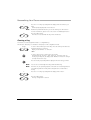
press briefly:
• Menu/configuration: Goes back 1 step
without saving
• Input: Deletes last character
press and hold down:
• Up one menu level without saving
• In the idle state: Switch the terminal off
• When the terminal is switched off:
Switch the terminal on
Rocker switch:
• Short in a call: Adjusts volume
• Short in text mode (not in a call):
Cursor right/left
3
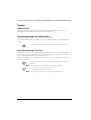
Display
• Top: Symbols
• Middle: Information
• Bottom: Foxkey functions
4
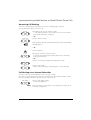
Menu key
Menu access key
• press briefly: Scrolls through Foxkey
functions
• press and hold down: Configuration mode
5
13 Info key
Calls up additional information if
displays shows i-symbol
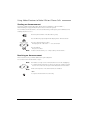
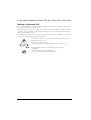
14 #-key
Foxkey
press and hold down: Menu / setting
for:
• Display contrast
• Display backlighting
• Range tone
• System Busy Beep
Multifunction key:
• press briefly: Activates
allocated function
• press and hold down: Configures Foxkey,
reverses scroll direction
6
Sound aperture
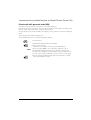
15 Hotkey
Ringing and key confirmation tone
7
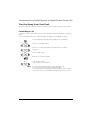
Call key
Corresponds to off-hook/on-hook,
switching phone on
8
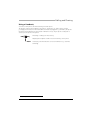
Keypad1)
☛
Digit input:
• press briefly: For entering digits
Character input in text mode:
• press once briefly, twice, etc., in quick
succession: Enters letters
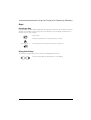
9
Loudspeaker key
• press briefly: Loudspeaker on/off
• press and hold down: Call alert
menu2)
2)
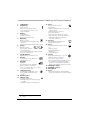
16
17
18
19
Freely configurable key for 1 [e] or 6
numbers / names or functions
• press briefly: Hotkey menu
• press and hold down: Configures Hotkey
• If configured as a Redkey [e]: Redkey
function is actuated by pressing the key
briefly or by holding it down for a moment.
2)
Charging socket
Charging contacts
Microphone
#-key
• press and hold down: Switches DTMF
mode on/off (depends on system software)
10 Headset jack
11 Indicator LED
• Flashing rapidly: Call
• Flashing slowly: Voice Mail, message,
or callback
• Flashing at intervals: Loudspeaker on
1) Illuminated display on the 135pro
2) 135pro
3