1
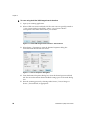
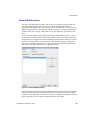
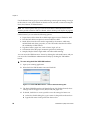
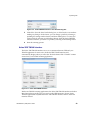
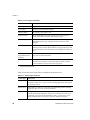
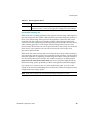
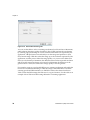
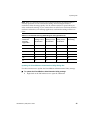
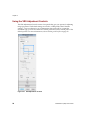
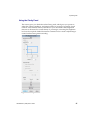
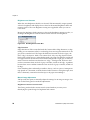
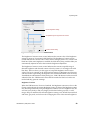
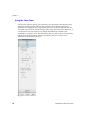
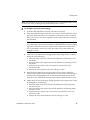
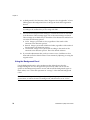
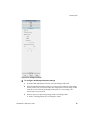
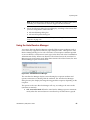
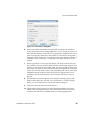
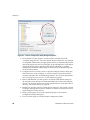
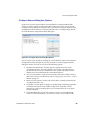
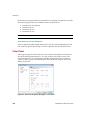
Chapter 2 Configuring VRS Before You Scan The VRS default settings produce superior results for most document types, and in most cases, you can use VRS successfully without changing anything. VRS does give you the flexibility to configure operating preferences and adjust the default settings if necessary. This section explains some configuration options that are available to you: Using the VirtualReScan Administration Utility to customize the way that VRS responds to exception images. For details, refer to the next section. Selecting an operating mode to control how often the VRS Interactive Viewer will display during a scanning session. Refer to Setting the VRS Operating Mode on page 37. Selecting a profile that will produce the best possible image quality for the documents that you scan. Refer to Working with Profiles on page 39. Previewing a sample image to confirm that the selected profile is the best choice for your documents. Refer to Previewing Images on page 45. Using the VirtualReScan Administration Utility While you may want to scan until all pages have been processed successfully, there are cases in which scanning may stop before a batch is completed. You can use the VirtualReScan Administration Utility settings to control scanning behavior under specific image and scanner conditions. Most of the settings are used to specify how VRS responds to exception images and reports problems to your scanning application. The choices vary, according to different warning or error types. The VirtualReScan Administration Utility dialog box consists of three tabs: 26 Warnings tab: settings related to image quality conditions Errors tab: settings that affect the VRS response to errors that occur in connection with equipment conflicts and paper transport issues Accelerated Scanning tab: settings that you can use to maximize the speed of your scanner VirtualReScan (VRS) User’s Guide