1
2
3
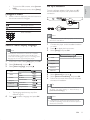
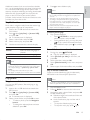
Select [Titles] or [Chapters] in the menu, and
press OK.
Select the title or chapter number, and press
OK.
Skip play to a specific time
1 During play, press OPTIONS.
» The play options menu is displayed.
2
3
Select [Time Search] in the menu, and press
OK.
Press the Navigation buttons (
) to change
the time to skip to, and press OK.
Zoom in/out
1 During play, press
Note
• Applicable only to discs that contain multi-angle scenes.
Manually shift subtitle display
You can manually adjust the subtitle position on the
TV screen.
1 During play, press OPTIONS.
» The play options menu is displayed.
2
3
OPTIONS.
» The play options menu is displayed.
2
3
4
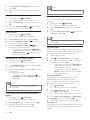
Select [Zoom] in the menu, and press OK.
Press the Navigation buttons ( )to select a
zoom factor, and press OK.
Press the Navigation buttons (
) to
navigate in the zoomed picture.
•
To cancel zoom mode, press
BACK to
display the zoom factor bar, and press the
Navigation buttons ( ) until the zoom
factor [x1] is selected.
Repeat play for a specific section
1 During play, press OPTIONS .
» The play options menu is displayed.
2
3
Select [Repeat A-B] in the menu, and press OK
to set the starting point.
Forward the video play, and press OK to set the
ending point.
» Repeat play starts.
•
To cancel repeat play mode, press
OPTIONS ,and select [Repeat A-B] and
press OK.
Note
• The marked section for repeat play is only possible
within a track/title.
View video play from different camera
angles
1 During play, press OPTIONS.
» The play options menu is displayed.
2
3
Select [Angle List] in the menu, and press .
Select an angle option, and press OK.
» Play changes to the selected angle.
14
EN
Select [Subtitle Shift] in the menu, and press
OK.
Press the Navigation buttons (
) to shift the
subtitle, and press OK.
Tip
• Subtitle shift is not supported for DivX video with
external subtitles.
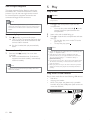
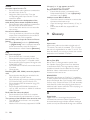
Play BD-video
Blu-ray video disc has a larger capacity and supports
features such as high-definition videos, multi-channel
surround sounds, interactive menus and so on.
1 Insert a BD-video disc.
2 Press , select [play Disc] and press OK.
3 Play automatically starts, or select a play option
in the menu and press OK.
•
During play, you can press TOP MENU to
display additional information, features or
content stored in the disc.
•
During play, you can press POP-UP
MENU to display the disc menu without
interrupting disc play.
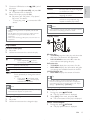
Enjoy BONUSVIEW
(Applicable only to a disc compatible with the
BONUSVIEW or Picture-in-Picture feature)
You can instantly view additional content (such as
commentaries) in a small screen window.
1 Press OPTIONS .
» The play options menu is displayed.
2
Select [PIP Selection] in the menu, and then
select [PIP], and press OK.
» The secondary video window is turned on.
3
Select [2nd Audio Language] or [2nd Subtitle
Language] in the menu, and press .
Select the language to play, and press OK.
4
Enjoy BD-LIVE
(Applicable only to a disc that enables BD-Live bonus
content. Ensure that this player is connected to the
Internet.)