1
Internet
3
4
5
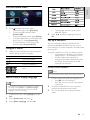
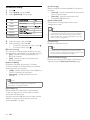
Select [Setup] and press OK.
Select [Network], and press OK.
Select [Network Installation], and press OK.
6
Follow the on-screen instructions to complete
the network installation.
» After the network installation completes,
you can access the services: browse Net TV,
browse PC, BD-Live, software updates.
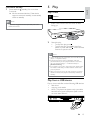
BDP8000
Router
PC (DLNA)
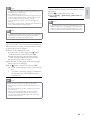
Tip
• The wired network ensures the best performance for
data transmission between the devices.
Set up a wireless network
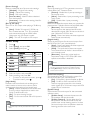
Note
Tip
• Ensure that this player and the router and the PC are all
switched on.
• You can check the status of the wired or wireless
connection of this player (see “Adjust settings” >
“Network Setup” > [View Network Settings] or [View
Wireless Settings]).
Internet
Use Philips EasyLink
This player supports Philips EasyLink which uses the
HDMI CEC (Consumer Electronics Control) protocol.
You can use one single remote control to control
EasyLink-compliant devices that are connected
through HDMI connectors.
BDP8000
Note
Router
PC (DLNA)
• To enable the EasyLink feature, you must turn on the
HDMI CEC operations on the TV and on other devices
connected to TV. Refer to the TVs/devices manual for
details.
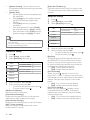
Tip
• The wireless performance can vary due to bandwidth
connection, network traffic and some environmental
effects, such as surrounded by metal panel or heavy
concrete, radio interference and coverage distance.
Install the network connection
For the first time you connect the network, install
the network connection.
1 Set up a wired or wireless network.
2 Press to display the home menu.
12
EN
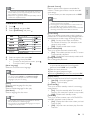
One-touch play
1 Press (standby) to turn on this player.
» The TV (if the TV supports one-touch play)
automatically turns on and switches to the
correct video-in channel.
» If a disc is loaded, disc play automatically
starts.