1
SETTINGS
Software Update Settings
6
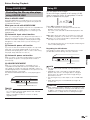
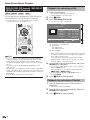
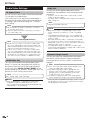
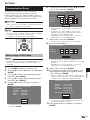
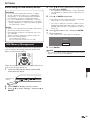
During access to the network and checking the
latest version of firmware, “Accessing” blinks.
• The current version of this unit software and the latest
version of the update file on the network are displayed
when latest version of firmware has been found.
To update this player software with update file, select
“Yes”, and go to step 7.
In this player, the software version can be updated
using either one of the following methods.
• Manual Update from Network
• Manual Update from USB memory device
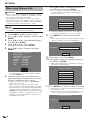
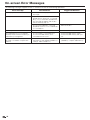
Latest version of firmware has been found.
Firmware update is available.
Proceed with update?
Current Version :
xxxxxxxxxx
Latest Version :
yyyyyyyyyy
If “Yes” will be selected, version update will start.
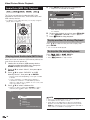
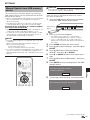
Manual Update from Network
This function allows you to perform the update
operation by accessing an Internet connection
manually to check if there is a new firmware version.
NOTE
Yes
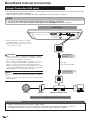
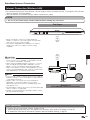
• Make sure that the LAN cable is connected to this player
if a wired Internet connection is made. Make sure that the
wireless router/access point is connected to the Internet if
a wireless Internet connection is made. (See pages 22–23.)
• Make sure to perform the communication settings. (See
pages 45–48.)
• It may take time to access and download the update
depending on the Internet connection and other factors.
No
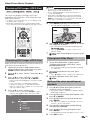
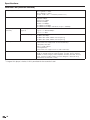
• If the firmware has already been updated to the latest
version, the following message appears.
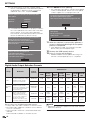
Present version of firmware is latest version.
You do not need to update.
Version :
CAUTION
xxxxxxxxxx
OK
• While downloading or updating the software, do not
remove the LAN cable when it is used for the Internet
connection, do not unplug the AC cord, do not remove any
cables from the router/access point and do not turn off the
router/access point.
• If the Internet connection has failed, an error message
appears.
Retry the update after checking if the broadband
Internet connection (pages 22–23) and communication
settings (pages 45–48) are performed properly.
7
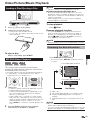
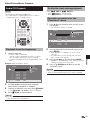
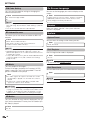
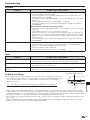
Press ENTER to start updating.
Downloading latest firmware…
Version : yyyyyyyyyy
30%
8
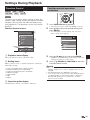
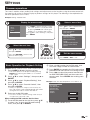
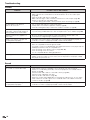
1
2
3
4
5
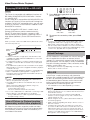
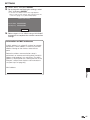
When the software is successfully updated, a
screen is displayed indicating that the update
process is completed.
• If the update has failed, an error message appears.
Retry the update after checking if the broadband
Internet connection (pages 22–23) and communication
settings (pages 45–48) are performed properly.
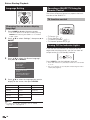
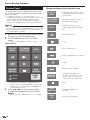
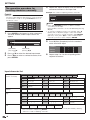
Press HOME to display the menu screen.
Press a/b to select “Settings”, then press d or
ENTER.
Press a/b to select “Software Update
Settings”, then press d or ENTER.
Press d or ENTER to move to the menu to the
right.
Press a/b to select “Network”, then press
ENTER.
50
9
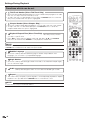
Press B to turn off the player.