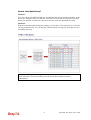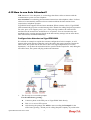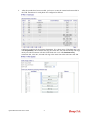
1
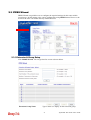
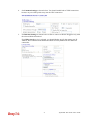
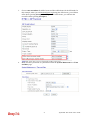
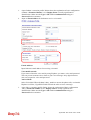
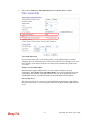
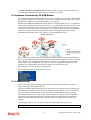
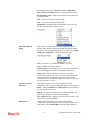
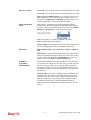
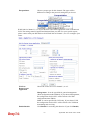
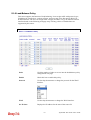
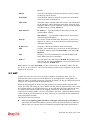
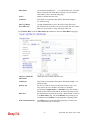
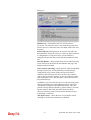
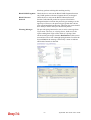
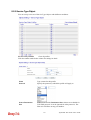
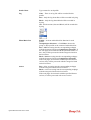
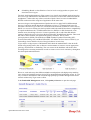
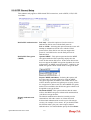
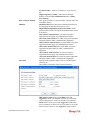
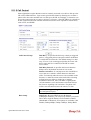
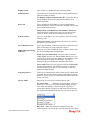
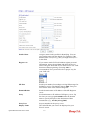
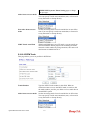
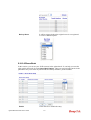
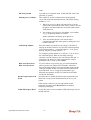
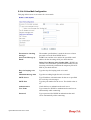
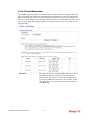
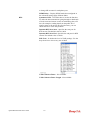
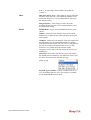
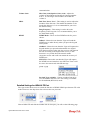
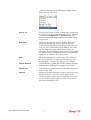
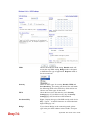
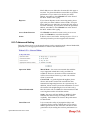
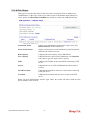
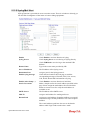
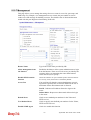
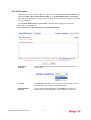
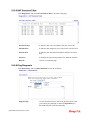
(11b+11g+11n) stations simultaneously. Simply choose
Mix (11b+11g+11n) mode.
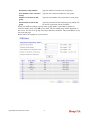
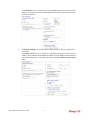
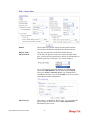
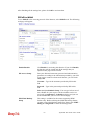
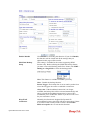
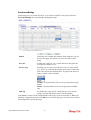
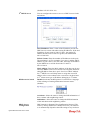
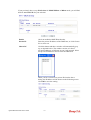
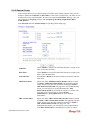
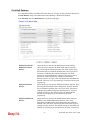
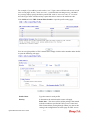
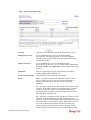
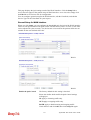
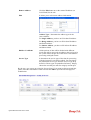
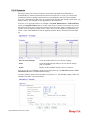
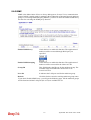
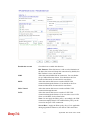
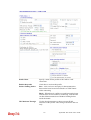
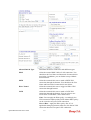
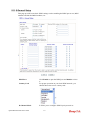
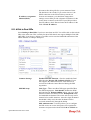
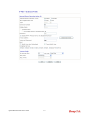
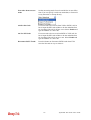
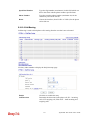
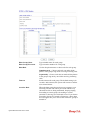
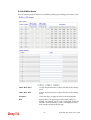
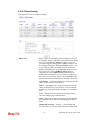
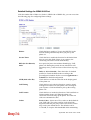
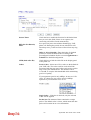
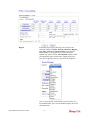
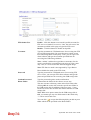
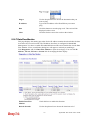
Index(1-15)
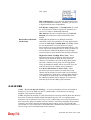
Set the wireless LAN to work at certain time interval only.
You may choose up to 4 schedules out of the 15 schedules
pre-defined in Applications >> Schedule setup. The
default setting of this filed is blank and the function will
always work.
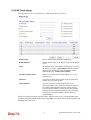
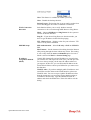
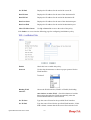
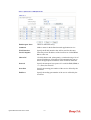
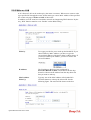
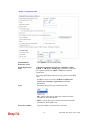
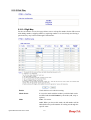
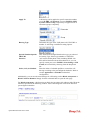
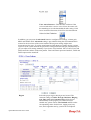
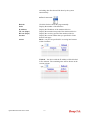
Hide SSID
Check it to prevent from wireless sniffing and make it
harder for unauthorized clients or STAs to join your
wireless LAN. Depending on the wireless utility, the user
may only see the information except SSID or just cannot
see any thing about Vigor wireless router while site
surveying. The system allows you to set four sets of SSID
for different usage. In default, the first set of SSID will be
enabled. You can hide it for your necessity.
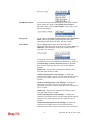
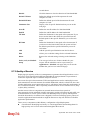
SSID
Means the identification of the wireless LAN. SSID can
be any text numbers or various special characters. The
default SSID is "default". We suggest you to change it.
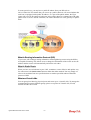
Isolate Member
Check this box to make the wireless clients (stations)
with the same SSID not accessing for each other.
Isolate VPN
Check this box to isolate wireless with remote dial-in and
LAN to LAN VPN.
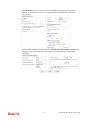
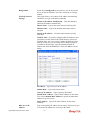
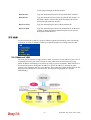
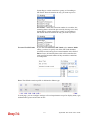
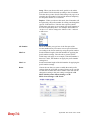
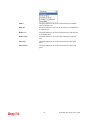
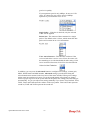
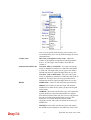
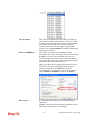
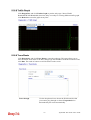
Channel
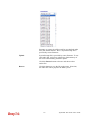
Means the channel of frequency of the wireless LAN. The
default channel is 6. You may switch channel if the
selected channel is under serious interference. If you have
no idea of choosing the frequency, please select Auto to
let system determine for you.
VigorIPPBX 2820 Series User’s Guide
321