1
SwitchView SC Installer/User Guide
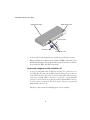
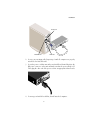
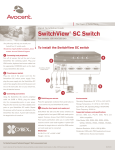
TAMPER EVIDENT STICKER
TAMPER EVIDENT STICKER
PS/2 MOUSE CABLE
VGA MONITOR CABLE
PS/2 KEYBOARD CABLE
2. Locate your PS/2 keyboard and mouse, as well as your VGA video monitor.
3. Plug your VGA monitor cable into the port labeled “VIDEO” on the back of your
SwitchView SC. Plug your PS/2 keyboard cable and your PS/2 mouse cable into
the ports labeled “KBD” and “MSE” respectively.
Connecting computers to the SwitchView SC
1. Locate your first input cable. It will have a 25-pin “D” connector at one
end. Plug this cable into any available lettered channel port on the rear
of the SwitchView SC. The other end of the input cable will have three
connectors: a 15-pin “HDD” connector for your video, a 6-pin miniDIN
connector for a PS/2 keyboard connection and a 6-pin miniDIN connector
for a PS/2 mouse connection. The PS/2 mouse connector is green and
marked with a mouse icon.
Plug these connectors into the matching ports on your computer.
6