1
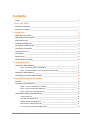
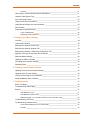
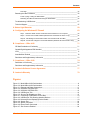
Contents
Figure 4-8. Disconnect Printer for Auto Connect..................................................................................24
Figure 4-9. Forced Device Disconnect on the Advanced Menu...........................................................26
Figure 4-10. USB Device Status...........................................................................................................27
Figure 5-1. Servers Tab........................................................................................................................30
Figure 5-2. Edit Server Configuration – Access Tab ............................................................................32
Figure 5-3. Network Tab.......................................................................................................................34
Figure 5-4. Edit Server Configuration – USB Device Configuration Tab..............................................37
Figure 5-5. Device Configuration Window............................................................................................38
Figure 5-6. Firmware Update Notification Window...............................................................................40
Figure 5-7. Servers Tab........................................................................................................................41
Figure 5-8. Update Server Firmware ....................................................................................................41
Figure 5-9. Override Server Network Settings Window........................................................................42
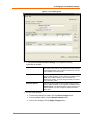
Figure 6-1. Local Settings Tab .............................................................................................................45
Figure 6-2. Edit Local Server Access Window .....................................................................................46
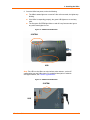
Figure 7-1. Status Lights on UBox 4100 ..............................................................................................50
Figure 7-2. Status Lights on UBox 2100 ..............................................................................................50
Figure 7-3. Resetting the UBox 4100 ...................................................................................................56
Figure 7-4. Resetting the UBox 2100 ...................................................................................................56
Figure 8-1. Position of Status Lights on the UBox................................................................................59
Figure 8-2. UBox 2100 LEDs................................................................................................................60
Figure 8-3. UBox Status Lights—UBox is Booting UP .........................................................................60
Figure 8-4. UBox Status Lights -- UBox is Running .............................................................................62
Figure 8-5. IP Address on Servers Tab................................................................................................64
Figure 8-6. Local Area Connection Properties – Advanced Tab..........................................................65
Figure 8-7. Advanced Settings Window ...............................................................................................66
Figure 8-8. Service Settings –Adding a UDP .......................................................................................66
Figure 8-9. Service Settings – Adding a TCP.......................................................................................67
Figure 8-10. Windows Firewall Window ...............................................................................................68
Figure 8-11. Exceptions Tab ................................................................................................................69
Figure 8-12. Add a Port Window - UDP ...............................................................................................69
Figure 8-13. Add a Port Window - TCP................................................................................................70
UBox User Guide
6