1
Edit (
)
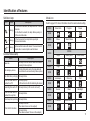
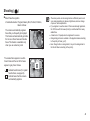
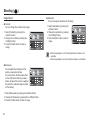
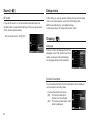
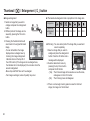
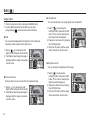
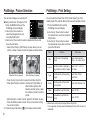
Rotating an image
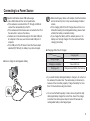
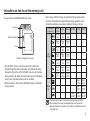
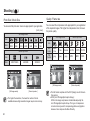
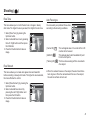
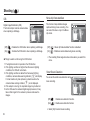
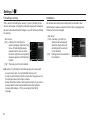
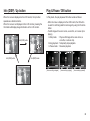
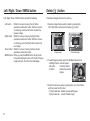
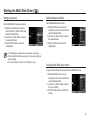
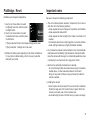
Photo Style Selector
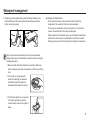
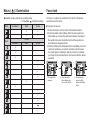
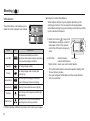
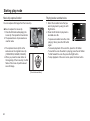
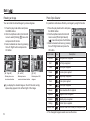
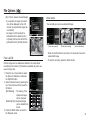
You can rotate the stored images by various degrees.
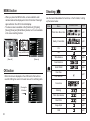
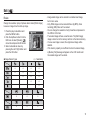
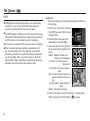
It is possible to add various effects to your images by using this function.
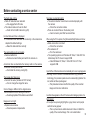
1. Press the play mode button and press
the MENU button.
2. Click the Up/Down button from the Edit
menu to select [Rotate] ( ò ) menu tab
and press the OK button.
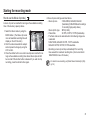
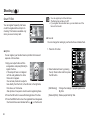
3. Select a desired sub menu by pressing
the Left / Right button and press the
OK button.
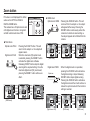
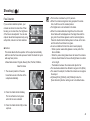
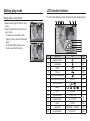
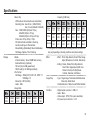
1. Press the play mode button and press
the MENU button.
2. Click the Up/Down button from the Edit
menu to select [Photo Style Selector]
(
) menu tab and press the OK button.
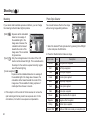
3. Select a desired sub menu by pressing
the Left / Right button and press the
OK button.
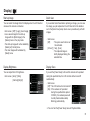
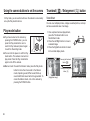
Rotate
Back
Move
Style mode
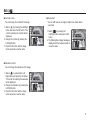
Right 90˚
Back
Left 90˚
Move
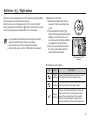
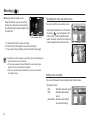
[ ô : Right 90˚]
: Rotate picture in a
clock-wise direction
Back
Normal
180˚
Move
Back
Move
[ ó : Left 90˚]
[ õ : 180˚]
: Rotate picture in a
: Rotate picture 180
counter-clock-wise direction degrees
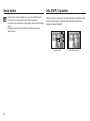
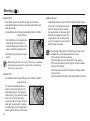
If you display the rotated image on the LCD monitor, empty
spaces may appear to the left and right of the image.
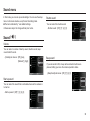
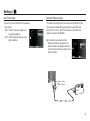
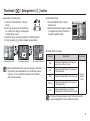
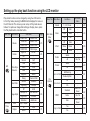
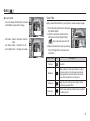
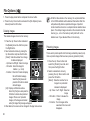
Soft style is applied.
Vivid style is applied.
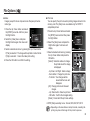
Forest
Forest style is applied.
Retro
Sepia style is applied.
Cool
Cool style is applied.
Calm
Calm style is applied.
Black & white effect is applied.
Negative effect is applied.
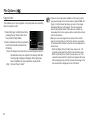
Sketch
Sketchy style is applied.
Defog
Distinct style is applied.
Custom RGB
Move
Description
Soft
Classic
Back
No style effect is applied.
Vivid
Negative
74
Icon
Photo Style Selector
Define an RGB tone to create your own photo style.
4. The changed image is saved as a new file name.