1
122
Your HTC Wildfire user guide
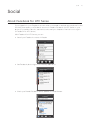
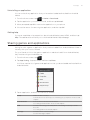
Viewing bookmarks and previously visited pages
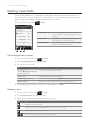
You can store as many bookmarks as you want on your phone. You can also access a
convenient History list of the sites you have visited, or quickly view the pages that you access
most often.
Bookmarking a web page
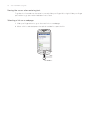
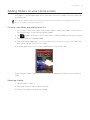
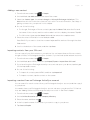
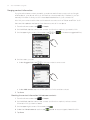
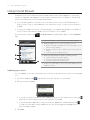
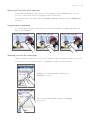
1. While viewing a web page, press MENU, and then tap Add bookmark. The New bookmark
screen opens.
2. Edit the bookmark name if needed, and then tap Done.
Opening a bookmark
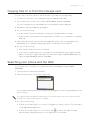
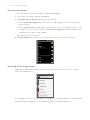
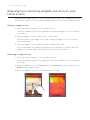
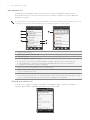
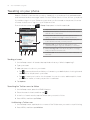
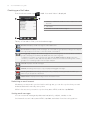
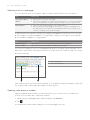
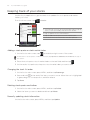
1. Press MENU, and then tap Bookmarks.
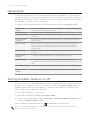
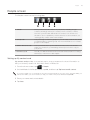
2. On the Bookmarks tab
, navigate to the bookmark you want to open, and then tap it.
Editing a bookmark
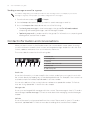
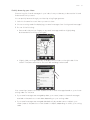
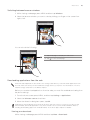
1. Press MENU, and then tap Bookmarks.
, press MENU and then tap Edit.
2. On the Bookmarks tab
3. Tap the bookmark you want to edit.
4. Enter your changes, and then tap Done.
Viewing a previously visited page
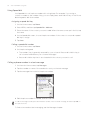
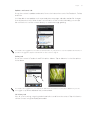
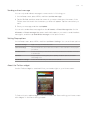
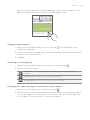
1. Press MENU, and then tap Bookmarks.
2. On the History tab
, navigate to the page you want to view and then tap the page.
Clearing the list of previously visited pages
1. Press MENU, and then tap Bookmarks.
2. On the History tab
, press MENU, and then tap Clear history.
Viewing a page that you often visit
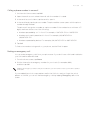
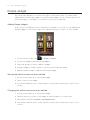
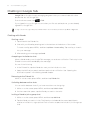
1. Press MENU, and then tap Bookmarks.
2. On the Most visited tab
page.
, navigate to the page you want to view, and then tap the
Clearing the list of most visited pages
1. Press MENU, and then tap Bookmarks.
2. On the Most visited tab
, press MENU, and then tap Clear all.