1
7.5
Recovering files protected with Acronis Nonstop
Backup
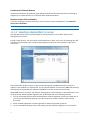
You can recover files from Acronis Nonstop Backup Storage using both the Recovery Wizard and
Acronis Time Explorer.
Recovering files using the Recovery Wizard
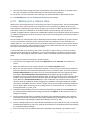
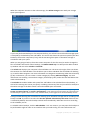
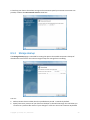
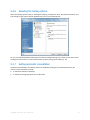
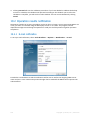
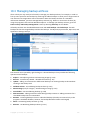
1. Choose Recovery on the sidebar, then click the Disk backups tab on the right pane.
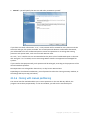
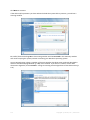
2. Select the backup archive from which you want to recover files at the Nonstop Backup Storages
area. Right-click on the backup and choose Recover in the shortcut menu to start the Recovery
Wizard.
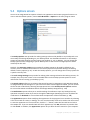
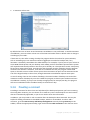
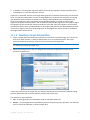
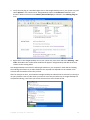
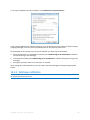
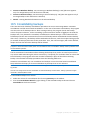
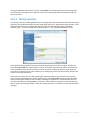
3. Select Recover chosen files and folders on the Recovery method screen.
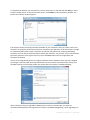
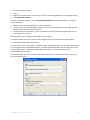
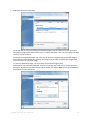
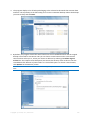
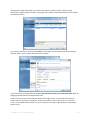
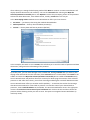
4. At the next step select the point in time at which the files and folders to be recovered were in
desired states. You can select a point in time for the files that changed within the last 24 hours
and a date for older backups. For backups that were made more than 30 days ago the program
will keep weekly backups and will highlight the dates for which backed up data is kept. Having
selected the recovery point click Next.
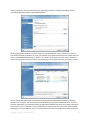
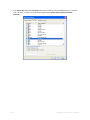
5. The next steps of the Recovery Wizard are similar to those performed when recovering files and
folders from a "classic" backup. For more information see Recovering files and folders from
image archives (p. 90).
Recovering files using Acronis Time Explorer
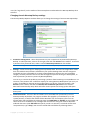
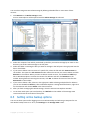
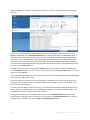
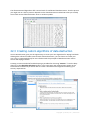
Time Explorer provides more flexibility when you need to recover just a few files. It allows you to
view the number of versions of a file kept on the storage, select a specific version, open this version
in the associated application to make sure that the version contains the data you need and recover
just that version.
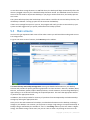
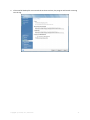
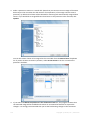
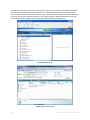
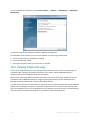
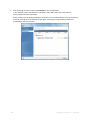
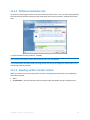
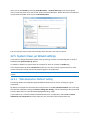
1. Choose Recovery on the sidebar, then click Recover data from nonstop backup on the right pane
to open Acronis Time Explorer.
50
Copyright © Acronis, Inc., 2000-2010