1
To fully benefit from the support that Philips
offers, register your product at
www.philips.com/welcome.
2
G
etting started
2.1 Inserting the batteries
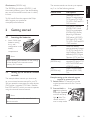
• Insert 2 AAA type
batteries, noting
the + and - configuration in the battery compartment.
Note
When replacing the batteries, all user settings
will be retained in the remote control
memory for 5 minutes.
2.2Setting up the universal remote
controls
The example below instructs you how to set
up your universal remote controls for your TV.
You can repeat the same steps for other devices
(DVD player / recorder, DTV, Cable / Satellite
box, DVR and VCR) which you want to operate,
using the universal remote controls.
Note
The setup procedure is the same for both
remote controls.
4
EN
Device name
TV
English
The remote controls can be set up to operate
any 3 or 6 of the following devices:
Description
raditional TV, LCD /
T
Plasma TV and projection
TV, TV part of TV / VCR,
TV / VCR / DVD and TV /
DVD combos
DVD
DVD player / recorder
(DVDR), DVD / Hard
Disk Drive combination
(DVDR-HDD), Blu-Ray
player, High Definition
DVD player (HD-DVD),
DVD part of TV / DVD, TV / VCR / DVD and VCR
/ DVD combos
CBL/SAT
Cable box, satellite
receiver, Internet Protocol
TV (IPTV), Free To Air TV,
High Definition Television
decoder (HDTV), Digital
Television (DTV) and Tivo
VCR
Video cassette player /
(SRP2006 only)
recorder, VCR part of TV/
VCR, TV/VCR/DVD and
VCR/DVD combos
DVR Digital / Personal Video
(SRP2006 only)Recorder (DVR / PVR),
Tivo
Example: setting up the universal remote
controls to operate your TV:
1 Switch ON the TV manually or use the
original remote control for this. Tune to
channel 1.
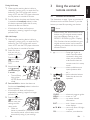
2 Press and hold the 5 sec.
device selection
button for 5 seconds
until the red Setup
light blinks. The
remote control is
now in setup mode.
EN
5
Getting started
Glow buttons (SRP2006 only)
The SRP2006 glow buttons: (ENTER, (-) and
the numeric buttons) glow in the dark, enabling
easy use of the remote control, even in a dimly
lit room.