1
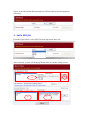
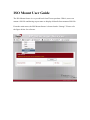
The Mount Table has divided to several portions for usage. The top one with red
rectangle area “A” has indicated the mounted lists with associated “ISO path” and
“ISO size” by pointed left hand side mounted ISO file.
You could remove single mounted ISO file or remove all by click right pane as
rectangle area “B”.
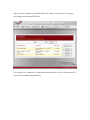
To mount new ISO file, select from rectangle “C” listed ISO file and input desired
mounting name into “Mount as:” field. Click “ADD” with confirmation to complete
mounting ISO file. Or without “Mount as” ISO file export name input, system will
automatic to give the export name by ISO file name. The “ISO filter” option is default
“Enable” to list only ISO files.
If left “Mount as:” blink then system will create mount point by ISO file name.
The rectangle “D” will list contains for mounted ISO file. By click the ISO file, the
next layer’s folders will appear. Same way apply to 2nd, 3rd layers …. By clicking
“Parent directory” it will bring you back to previous layer. You could get the directory
information “Current Directory” on top of rectangle “D”.