1
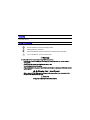
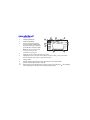
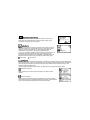
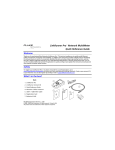
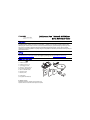
External Features - Connections, Buttons, and the LED
1. RJ-45 LAN port
1
2. SFP 1000BASE-X fiber adapter port
2
3. Power Button
4.
5.
6.
7.
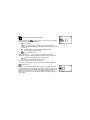
Power on – press
Power off – press and hold
USB port
Selection buttons
- Up/Down arrows navigate the selections and adjust values
- Left/Right arrows show additional information and choices
- Select center button to edit a selection or toggle a value
Link indicator LED
Kensington lock (location on back of LinkRunner Duo)
6
7
5
4
3
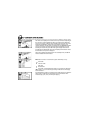
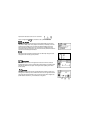
Count on LinkRunner Duo for Answers!
First connect an RJ-45 or fiber cable from the network hub or wall plate to the LinkRunner Duo RJ-45 LAN or
1000BASE-X fiber port. Check the following list of questions and associated answers to see how LinkRunner Duo can
help you get the job done.
Common Questions
¾
¾
¾
¾
¾
¾
¾
¾
¾
¾
¾
¾
¾
¾
¾
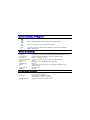
Is this a good RJ45 Ethernet cable?
Am I receiving a good fiber signal?
Where does this RJ45 cable go?
Is this cable hooked up to anything?
Is this an active Ethernet port?
What speed/duplex is this device configured for?
Can I establish Gigabit link to the network?
Can I get a DHCP address?
Can I see traffic from this connection?
Is the PC NIC OK?
Can I PING?
Do I have network connectivity?
What slot and port am I on?
Can I use it for throughput testing?
Can I connect to an 802.1X port?
- use open cable testing and a Wireview Office Locator
- use Home screen dBm measurement
- use toner function or Wireview Office Locator
- use Home screen
- use Home screen, check for Link and frame utilization
- use Home screen, check speed/duplex
- use Home screen, check for speed
- configure LinkRunner Duo for DHCP, check for link and PING
- use Home screen
- use Home screen, check for Link
- use PING screen
- use PING (Router, DNS, DHCP and custom list)
- use LLDP, CDP, EDP
- use Reflector screen
- use Configuration screen and LinkRunner Connect application
TM
TM