1
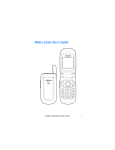
Nokia 2310 User’s Guide
Copyright © 2006 Nokia. All rights reserved.
DECLARATION OF CONFORMITY
Hereby, NOKIA CORPORATION declares that this RM-189 product is in
compliance with the essential requirements and other relevant provisions
of Directive 1999/5/EC.
A copy of the Declaration of Conformity can be found from
http://www.nokia.com/phones/declaration_of_conformity/.
0434
Copyright © 2006 Nokia. All rights reserved.
Reproduction, transfer, distribution or storage of part or all of the
contents in this document in any form without the prior written
permission of Nokia is prohibited.
US Patent No 5818437 and other pending patents. T9 text input software
Copyright © 1997-2006. Tegic Communications, Inc. All rights reserved.
Nokia and Nokia Connecting People are trademarks or registered
trademarks of Nokia Corporation. Other product and company names
mentioned herein may be trademarks or tradenames of their respective
owners.
Nokia tune is a sound mark of Nokia Corporation.
Nokia operates a policy of continuous development. Nokia reserves the
right to make changes and improvements to any of the products described
in this document without prior notice.
Copyright © 2006 Nokia. All rights reserved.
i
Under no circumstances shall Nokia be responsible for any loss of data or
income or any special, incidental, consequential or indirect damages
howsoever caused.
The contents of this document are provided “as is”. Except as required by
applicable law, no warranties of any kind, either express or implied,
including, but not limited to, the implied warranties of merchantability
and fitness for a particular purpose, are made in relation to the accuracy,
reliability or contents of this document. Nokia reserves the right to revise
this document or withdraw it at any time without prior notice.
The availability of particular products may vary by region. Please check
with the Nokia dealer nearest to you.
This device may contain commodities, technology or software subject to
export laws and regulations from the US and other countries.
Diversion contrary to laws is prohibited.
ii
Copyright © 2006 Nokia. All rights reserved.
Table of contents
For your safety .................. v
About your device ................. vii
Network services .................. viii
General information ........ ix
Access codes........................... ix
Shared memory...................... ix
Nokia support and contact
information .............................. x
1. Get started.................... 1
Install the SIM card and
battery ....................................... 1
Charge the battery................. 3
Switch on and off................... 4
Keys and parts......................... 5
Shortcuts in the standby
mode .......................................... 6
Lock the keypad ...................... 7
2. Call functions ............... 8
Make and answer a call........ 8
Loudspeaker ............................. 9
Voice messages....................... 9
3. Write text .................. 10
4. Menu functions ......... 11
Messages................................ 11
Contacts ................................. 15
Call register ........................... 17
Settings................................... 18
Alarm clock............................ 23
Radio ....................................... 24
Reminders .............................. 26
Games ..................................... 26
Extras....................................... 27
SIM services........................... 29
5. Battery information .. 30
Charging and discharging . 30
Nokia battery authentication
guidelines............................... 32
6. Genuine
Enhancements................. 36
Battery .................................... 37
Copyright © 2006 Nokia. All rights reserved.
iii
Nokia Mobile Charger
LCH-12.................................... 38
Audio....................................... 38
7. Care and maintenance 39
8. Additional safety
information ..................... 41
Operating environment....... 41
Medical devices..................... 42
Vehicles ................................... 43
Potentially explosive
environments ......................... 44
Emergency calls .................... 45
Certification information
(SAR)......................................... 47
Index ................................ 49
iv
Copyright © 2006 Nokia. All rights reserved.
For your safety
Read these simple guidelines. Not following them may be
dangerous or illegal. Read the complete user guide for further
information.
SWITCH ON SAFELY
Do not switch the phone on when wireless phone
use is prohibited or when it may cause interference
or danger.
ROAD SAFETY COMES FIRST
Obey all local laws. Always keep your hands free to
operate the vehicle while driving. Your first
consideration while driving should be road safety.
INTERFERENCE
All wireless phones may be susceptible to
interference, which could affect performance.
SWITCH OFF IN HOSPITALS
Follow any restrictions. Switch the phone off near
medical equipment.
SWITCH OFF IN AIRCRAFT
Follow any restrictions. Wireless devices can cause
interference in aircraft.
Copyright © 2006 Nokia. All rights reserved.
v
SWITCH OFF WHEN REFUELING
Do not use the phone at a refueling point. Do not use
near fuel or chemicals.
SWITCH OFF NEAR BLASTING
Follow any restrictions. Do not use the phone where
blasting is in progress.
USE SENSIBLY
Use only in the normal position as explained in the
product documentation. Do not touch the antenna
unnecessarily.
QUALIFIED SERVICE
Only qualified personnel may install or repair this
product.
ENHANCEMENTS AND BATTERIES
Use only approved enhancements and batteries.
Do not connect incompatible products.
WATER-RESISTANCE
Your phone is not water-resistant. Keep it dry.
BACK-UP COPIES
Remember to make back-up copies or keep a written
record of all important information stored in your
phone.
vi
Copyright © 2006 Nokia. All rights reserved.
CONNECTING TO OTHER DEVICES
When connecting to any other device, read its user
guide for detailed safety instructions. Do not
connect incompatible products.
EMERGENCY CALLS
Ensure the phone is switched on and in service.
Press the end key as many times as needed to clear
the display and return to the start screen. Enter the
emergency number, then press the call key. Give
your location. Do not end the call until given
permission to do so.
■ About your device
The wireless device described in this guide is approved for use on
the EGSM 900 and GSM 1800 networks. Contact your service
provider for more information about networks.
When using the features in this device, obey all laws and respect
privacy and legitimate rights of others.
Warning: To use any features in this device, other
than the alarm clock, the device must be switched on.
Do not switch the device on when wireless device use
may cause interference or danger.
Copyright © 2006 Nokia. All rights reserved.
vii
■ Network services
To use the phone you must have service from a wireless service
provider. Many of the features in this device depend on features
in the wireless network to function. These network services may
not be available on all networks or you may have to make
specific arrangements with your service provider before you can
utilize network services. Your service provider may need to give
you additional instructions for their use and explain what
charges will apply. Some networks may have limitations that
affect how you can use network services. For instance, some
networks may not support all language-dependent characters
and services.
Your service provider may have requested that certain features
be disabled or not activated in your device. If so, they will not
appear on your device menu. Your device may also have been
specially configured. This configuration may include changes in
menu names, menu order, and icons. Contact your service
provider for more information.
viii
Copyright © 2006 Nokia. All rights reserved.
General information
■ Access codes
The security code supplied with the phone protects your phone
against unauthorized use. The preset code is 12345.
The PIN code supplied with the SIM card helps to protect the
card against unauthorized use. The PIN2 code supplied with
some SIM cards is required to access certain services. If you
enter the PIN or PIN2 code incorrectly three times in succession,
you are asked for the PUK or PUK2 code. If you do not have them,
contact your local service provider.
Select Menu > Settings > Security settings to set how your
phone uses the access codes and security settings.
■ Shared memory
The following features in this device may share memory:
Messages and Composer. Use of one or more of these features
may reduce the memory available for the remaining features
sharing memory. For example, saving many text messages may
use all of the available memory. Your device may display a
message that the memory is full when you try to use a shared
Copyright © 2006 Nokia. All rights reserved.
ix
memory feature. In this case, delete some of the information or
entries stored in the shared memory features before continuing.
Some of the features, such as Contacts, may have a certain
amount of memory specially allotted to them in addition to the
memory shared with other features.
■ Nokia support and contact information
For the latest version of this guide, downloads, services and
additional information related to your Nokia product,
please visit www.nokia-asia.com/2310/support or your local
Nokia web site. You may also download free configuration
settings such as MMS, GPRS, e-mail, and other services for your
phone model at www.nokia-asia.com/phonesettings.
Should you still require assistance, please refer to
www.nokia-asia.com/contactus.
To check for the nearest Nokia care center location for
maintenance services, you may like to visit
www.nokia-asia.com/repair.
x
Copyright © 2006 Nokia. All rights reserved.
Get started
1.
Get started
■ Install the SIM card and battery
Always switch the device off and disconnect the charger before
removing the battery.
Keep all SIM cards out of the reach of small children.
For availability and information on using SIM card services,
contact your SIM card vendor. This may be the service provider,
network operator, or other vendor.
This phone is intended for use with the BL-5C battery.
1. Press the release button, and slide the back cover to remove
it (1). Lift the battery, and remove it (2).
2. Carefully lift the SIM card holder from the finger grip of the
phone (3). Insert the SIM card into the holder, so that the
beveled corner is on the upper right side and the goldcolored contact area is facing downward (4). Close the SIM
card holder, and press it to lock it into place (5).
Copyright © 2006 Nokia. All rights reserved.
1
Get started
3. Replace the battery and back cover (6, 7).
Note: Always switch off the power and disconnect the
charger and any other device before removing the
covers. Avoid touching electronic components while
changing the covers. Always store and use the device
with the covers attached.
2
Copyright © 2006 Nokia. All rights reserved.
Get started
■ Charge the battery
Warning: Use only batteries, chargers, and
enhancements approved by Nokia for use with this
particular model. The use of any other types may
invalidate any approval or warranty, and may be
dangerous.
Check the model number of any charger before use with this
device. This device is intended for use when supplied with power
from an AC-2 charger.
For availability of approved enhancements, please check with
your dealer.
1. Connect the charger to a wall outlet.
2. Connect the charger to the phone. The
battery indicator bar starts scrolling.
When the battery is fully charged, the
bar stops scrolling.
If the battery is completely discharged, it may take a few
minutes before the charging indicator appears on the display or
before any calls can be made.
Copyright © 2006 Nokia. All rights reserved.
3
Get started
■ Switch on and off
Press and hold the end key.
Use the phone only in its normal
operating position.
Your device has an internal
antenna.
Note: As with any other
radio transmitting device, do not touch the antenna
unnecessarily when the device is switched on.
Contact with the antenna affects call quality and may
cause the device to operate at a higher power level
than otherwise needed. Avoiding contact with the
antenna area when operating the device optimizes the
antenna performance and the battery life.
Note: Do not touch this
connector as it is intended for use
by authorized service personnel
only.
4
Copyright © 2006 Nokia. All rights reserved.
Get started
■ Keys and parts
When the phone is ready for use,
before you enter any characters,
the phone is in the standby mode.
• Network name or operator logo (1)
• Network signal strength (2)
• Battery charge level (3)
• Earpiece (4)
• Loudspeaker (5)
• Selection key functions (6)
• Selection keys (7)
• Scroll key (8)
• Call key (9)
• End key and power key (10)
• Keypad (11)
• Charger connector (12)
• Headset connector (13)
Copyright © 2006 Nokia. All rights reserved.
5
Get started
Warning: The scroll key in this device may contain
nickel. It is not intended to come into prolonged
contact with the skin. Continuous exposure to nickel
on the skin may lead to nickel allergy.
■ Shortcuts in the standby mode
Scroll up to access Call register.
Scroll down to access the names and numbers saved in Contacts.
Scroll left to write a message.
Scroll right to access the calendar.
Press and hold
to activate the radio.
Press the right selection key (Go to) to view the functions in your
shortcut list.
Press the call key once to access the list of dialed numbers.
Scroll to the name or number that you want, and press the call
key to call the number.
6
Copyright © 2006 Nokia. All rights reserved.
Get started
■ Lock the keypad
To lock the keypad to prevent accidental keypresses, in the
standby mode, select Menu, and press * quickly; to unlock, select
Unlock, and press * quickly.
To set the keypad to lock automatically after a preset time delay
when the phone is in the standby mode and no function of the
phone has been used, select Menu > Settings > Phone settings >
Keyguard settings > Automatic keyguard > On. To set the phone
to ask for the security code when you unlock the keypad, select
Keyguard code.
When the keypad lock is on, calls may be possible to the official
emergency number programmed into your device. Enter the
emergency number, and press the call key. The emergency
number you entered may not be displayed on the screen.
Copyright © 2006 Nokia. All rights reserved.
7
Call functions
2.
Call functions
■ Make and answer a call
To make a call, enter the phone number, including the country
code and area code if necessary. Press the call key to call the
number. Scroll right to increase or left to decrease the volume of
the earpiece or headset during the phone call.
A conference call (network service) allows up to five people to
participate in the same call. To make a call to a new participant,
select Options > New call; select Clear to clear the screen if
necessary. Enter the number you want, and press the call key.
When the new call is answered, to add it to the conference call,
select Options > Conference.
To answer an incoming call, press the call key. To reject the call
without answering, press the end key.
8
Copyright © 2006 Nokia. All rights reserved.
Call functions
■ Loudspeaker
If available, you may select Loudsp. or Hands. to use the
loudspeaker or the earpiece of the phone during a call.
Warning: Do not hold the device near your ear when
the loudspeaker is in use, because the volume may be
extremely loud.
■ Voice messages
To call your voice mailbox, press and hold 1 in the standby mode
(network service). You may need to enter the number when
calling for the first time. Contact your service provider to receive
your voice mailbox number.
Copyright © 2006 Nokia. All rights reserved.
9
Write text
3.
Write text
You can enter text using traditional text input
or predictive
text input
. To use traditional text input, press the key
repeatedly until the letter appears. To turn on predictive text
input when writing, select Options > Dictionary and the desired
language; to turn it off, select Options > Dictionary off.
When using predictive text input, press each key once for a
single letter. If the displayed word is the one you want, press 0,
and start writing the next word. To change the word, press *
repeatedly until the word you want appears. If ? is displayed
after the word, the word is not in the dictionary. To add the word
to the dictionary, select Spell, enter the word (using traditional
text input), and select OK.
Tips for writing text: to add a space, press 0. To quickly change
the text input method, press # repeatedly, and check the
indicator at the top of the display. To add a number, press and
hold the desired number key. To get a list of special characters
when using traditional text input, press *; when using predictive
text input, press and hold *. To undo the clearing of the message
in editing window, select Options > Undo clear.
10
Copyright © 2006 Nokia. All rights reserved.
Menu functions
4.
Menu functions
The phone functions are grouped into menus. Not all menu
functions or option items are described here.
In the standby mode, select Menu and the desired menu and
submenu. Select Exit or Back to exit the current menu. Press the
end key to return to the standby mode directly.
■ Messages
The message services can only be used if they are
supported by your network or service provider.
Message settings
To edit your message settings, select Menu > Messages >
Message settings and from the following:
Sending profile — select Message centre number to save the
phone number needed for sending text and picture messages.
You obtain this number from your service provider.
Select Messages sent as (network service) to choose the
message type (Text, Fax, Paging, or E-mail). Select Message
Copyright © 2006 Nokia. All rights reserved.
11
Menu functions
validity (network service) to choose how long the network
attempts to deliver your message.
Character support (network service) — to set whether Full or
Reduced coding is used when sending a text message.
No. screening — to view or edit the list of filtered numbers.
Messages from the filtered numbers are saved directly to the
Screened messages folder.
Create a message
Your device supports the sending of text messages beyond the
character limit for a single message. Longer messages are sent as
a series of two or more messages. Your service provider may
charge accordingly. Characters that use accents or other marks,
and characters from some language options like Chinese,
take up more space limiting the number of characters that can
be sent in a single message.
The number of available characters and the current part number
of a multipart message are shown on the top right of the display
(for example, 918/1).
1. Select Menu > Messages > Create message.
2. Write the message.
12
Copyright © 2006 Nokia. All rights reserved.
Menu functions
3. To send the message, select Options > Send, enter the
recipient’s phone number, and select OK.
Note: When sending messages, your device may
display Message Sent. This is an indication that the
message has been sent by your device to the message
center number programmed into your device. This is
not an indication that the message has been received
at the intended destination. For more details about
messaging services, check with your service provider.
Inbox, sent items, and drafts
When you receive text messages, the number of new messages
and
are shown in the standby mode. Select Show to view
the messages immediately, or Exit to view them later in Menu >
Messages > Inbox.
In Drafts, you can view the messages that you saved with Save
message. In Sent items, you can view the copies of the messages
that you sent.
Copyright © 2006 Nokia. All rights reserved.
13
Menu functions
Chat
You can have a conversation with other people using Chat
(network service). Each chat message is sent as a separate text
message. The messages received and sent during a chat session
are not saved.
To start a chat session, select Menu > Messages > Chat; or,
when reading a received text message, select Options > Chat.
Picture messages
You can receive and send messages that contain pictures
(network service). Received picture messages are saved in Inbox.
Each picture message comprises several text messages.
Therefore, sending one picture message may cost more than one
text message.
Note: The picture message function can be used only if
it is supported by your network operator or service
provider. Only compatible devices that offer picture
message features can receive and display picture
messages. The appearance of a message may vary
depending on the receiving device.
14
Copyright © 2006 Nokia. All rights reserved.
Menu functions
Delete messages
To delete all read messages or all the messages in a folder,
select Menu > Messages > Delete messages > All read or the
desired folder.
■ Contacts
You can save names and phone numbers in the
phone memory and in the SIM card memory.
The internal phone book can store up to 200
names.
To search for a contact, scroll down in the standby mode, and
enter the first letters of the name. Scroll to the name that you
want.
You can also select Menu > Contacts and from the following
options:
Add contact — to save names and phone numbers in the phone
book
Copy — to copy names and phone numbers all at once or one by
one from the internal phone book to the SIM phone book, or vice
versa
Copyright © 2006 Nokia. All rights reserved.
15
Menu functions
Delete — to delete names and phone numbers from the phone
book individually or all at once
Speed dialling — to activate the speed dial function and to edit
the numbers assigned to the speed dial keys
My numbers — to view the phone numbers assigned to your SIM
card, if the numbers are included on your SIM card
Settings for contacts
Select Menu > Contacts > Settings and from the available
options:
Memory in use — to select whether the names and phone
numbers are saved in Phone or SIM card. When you change the
SIM card, SIM card memory is automatically selected.
Contacts view — to select how the names and phone numbers
are displayed. When you view the Details of a contact, the name
or phone number saved in the SIM card memory is indicated by
and the name or phone number saved in the phone
memory is indicated by
.
Memory status — to check how many names and phone numbers
are already saved and how many can still be saved in each phone
book
16
Copyright © 2006 Nokia. All rights reserved.
Menu functions
■ Call register
The phone registers the number of missed,
received, and dialed calls, the approximate
length of your calls, and the number of sent and
received messages. The network must support
these functions, and the phone must be switched on and inside
the network service area.
Select Menu > Call register > Missed calls, Received calls, or
Dialled numbers > Options to view the time of the call; edit,
view, or call the registered phone number; add it to the phone
book or to the list of screened numbers; or delete it from the
recent call list. You can also send a text message. To reset the
recent call lists, select Menu > Call register > Delete recent call
lists and the lists you want.
Select Menu > Call register > Call duration to view the
approximate duration of the last call, all received calls, all
dialled calls, or all calls.
To reset the timers, select Clear timers, enter the security code,
and select OK.
Copyright © 2006 Nokia. All rights reserved.
17
Menu functions
Note: The actual invoice for calls and services from
your service provider may vary, depending upon
network features, rounding off for billing, taxes, and so
forth.
■ Settings
In this menu, you can adjust various phone
settings. To reset some menu settings to their
default values, select Restore factory settings.
Tone settings
Select Menu > Settings > Tone settings and from the available
options:
Ringing tone — to set the tone for incoming calls
Ringing volume — to set the volume level for the ringing and
message alert tones. If you set Ringing volume to level 2 or
above, your phone rings with the volume ascending from level 1
to the level for incoming calls.
Vibrating alert — to set the phone to vibrate when you receive a
call or a text message
18
Copyright © 2006 Nokia. All rights reserved.
Menu functions
Message alert tone — to set the tone to sound when you receive
a text message
Warning tones — to set the phone to sound tones, for example,
when the battery is running out of power
Display settings
Select Menu > Settings > Display settings and from the
following:
Themes — scroll to the desired theme, and select Options >
Activate or Edit to activate or edit the theme.
Colour schemes — to adjust the color scheme of the theme in
use.
Power saver clock — to set the phone to show the digital or
classic clock and all the main display icons as a screen saver.
Backlight time — to set whether the backlights are switched on
for 15 seconds (Normal), for 30 seconds (Extended), or not at all
(Off). Even if Off is selected, the backlight stays on for 15
seconds when the phone is switched on.
Screen saver — to turn the screen saver on or off, to set the time
for turning on the screen saver (Time-out), or to select the
picture for your screen saver (Screen saver).
Copyright © 2006 Nokia. All rights reserved.
19
Menu functions
Profiles
You can customize the profiles for certain features, such as
ringing tones and the screen saver.
Select Menu > Settings > Profiles, the profile that you want to
modify, and Personalise.
Time settings
Select Menu > Settings > Time settings > Clock to hide or show
the clock, to set the time, or to edit the time format. To set the
date, select Date setting.
If the battery was removed from the phone, you may need to set
the time and date again.
Call settings
Select Menu > Settings > Call settings and from the following
options:
Call divert (network service) — to divert your incoming calls to
your voice mailbox or to another phone number. Scroll to the
divert option you want, and select Activate to set the divert
option on and Cancel to set it off. To check whether the selected
option is active, select Check status. To specify a delay for
20
Copyright © 2006 Nokia. All rights reserved.
Menu functions
certain diverts, select Set delay time (not available for all divert
options). Several divert options may be active at the same time.
When Divert all voice calls is activated,
is shown on the
display in the standby mode. To deactivate all call diverts, select
Cancel all diverts.
Send my caller identity (network service) — to determine if your
phone number is displayed to or hidden from the person you are
calling
Automatic redial — to set your phone to make up to 10 attempts
to connect the call after an unsuccessful call attempt
Call waiting service (network service) — to let the network notify
you of a new incoming call while you have a call in progress
Line for outgoing calls (network service) — to use either phone
line 1 or 2 for making calls, or prevent line selection, if supported
by your SIM card.
Phone settings
Select Menu > Settings > Phone settings > Language to select
the language for the display texts, Network selection to set the
phone to automatically select a cellular network available in
your area or to select the network manually, Start-up tone to
select whether the phone plays a tone when it is switched on,
Copyright © 2006 Nokia. All rights reserved.
21
Menu functions
or Welcome note to enter a message that is shown briefly on the
display when the phone is switched on.
Cost settings
Note: The actual invoice for calls and services from
your service provider may vary, depending on network
features, rounding off for billing, taxes, and so forth.
Select Menu > Settings > Cost settings > Prepaid tracker
(network service) to view information on prepaid credit, In-call
timer to turn the call time display on or off, Call summary to turn
the approximate call time report on or off, or Call costs (network
service) to view the approximate cost of your last call or all calls
in terms of units specified in Show costs in.
Note: When no more charging units or currency units
are left, calls may only be possible to the official
emergency number programmed into the device.
Enhancement settings
The enhancement setting items are visible only after one of the
enhancements is connected to the phone.
22
Copyright © 2006 Nokia. All rights reserved.
Menu functions
Select Menu > Settings > Enhancement settings > Headset or
Loopset.
To set the phone to automatically answer an incoming call,
select Automatic answer. If the ringing tone is set to Beep once
or the active phone profile is Silent, automatic answer is off.
Right selection key settings
In the standby mode, you may select Go to to access a list of
shortcuts. To define or organize the shortcuts, select Menu >
Settings > Right selection key settings. To select functions for
shortcuts, select Select options, to change the order of the
shortcuts in the list, select Organise.
■ Alarm clock
To set the time for the alarm, select Menu >
Alarm clock > Alarm time. To select the tone for
the alarm, select Alarm tone. To set the alarm to
sound only once or repeatedly on selected days
of the week, select Repeat alarm. When the alarm sounds, select
Stop to stop the alarm or Snooze to stop the alarm and set it to
ring again in 10 minutes.
Copyright © 2006 Nokia. All rights reserved.
23
Menu functions
If the alarm time is reached while the device is switched off, the
device switches itself on and starts sounding the alarm tone.
If you select Stop, the device asks whether you want to activate
the device for calls. Select No to switch off the device or Yes to
make and receive calls. Do not select Yes when wireless phone
use may cause interference or danger.
■ Radio
You can listen to the radio with a headset or the
loudspeaker. Keep the headset connected to the
phone. The lead of the headset functions as the
radio antenna.
Warning: Listen to music at a moderate level.
Continuous exposure to high volume may damage
your hearing. Do not hold the device near your ear
when the loudspeaker is in use, because the volume
may be extremely loud.
Select Menu > Radio to turn on the radio. The channel location
number, the name of the radio channel (if you have saved the
channel), and the frequency of the radio channel are displayed.
If you have already saved radio channels, scroll up or down to
24
Copyright © 2006 Nokia. All rights reserved.
Menu functions
the channel you want to listen to, or press the the corresponding
number keys to select a radio channel location.
Radio functions
When the radio is on, press and hold the scroll keys up or down
to start the channel search. Searching stops when a channel is
found. To save the channel, select OK to set the frequency, enter
the name of the channel, and select the location where you
want to save.
When the radio is on, to adjust the volume of the radio, scroll
left and right.
Select Options and one of the following:
Switch off — to turn off the radio
Visualisation > Show Visualisation > On — to have your phone
display changes of radio sound visually. To change the way the
changes are displayed, select Visualisation type.
Save channel — to save the radio channel you found
Auto-tuning or Manual tuning — to automatically or manually
search for the channel
Delete channel or Rename — to delete or rename a channel
Copyright © 2006 Nokia. All rights reserved.
25
Menu functions
Set frequency — to enter the frequency of the desired radio
channel
Loudspeaker or Headset — to listen to the radio using the
loudspeaker or headset
Clock radio — to set the time to turn on the radio as the alarm
tone
You can normally make a call or answer an incoming call while
listening to the radio. During the call, the volume of the radio is
muted.
■ Reminders
To save a short text note with an alarm, select
Menu > Reminders > Add new. When the reminder
time is reached, select Quit to stop the alarm or
Postp. to let the phone alarm again in 10 minutes.
■ Games
Each game has a brief help text.
To adjust common game settings, select Menu >
Games > Settings. You can set the sounds (Game
sounds) and vibrations (Shakes) for the game.
26
Copyright © 2006 Nokia. All rights reserved.
Menu functions
■ Extras
Calculator
Note: This calculator has limited
accuracy and is designed for simple calculations.
Select Menu > Extras > Calculator.
1. Press 0 to 9 to insert digits and # to insert a decimal point.
To change the sign of the entered number, press *.
2. Scroll up or down to select +, -, x, or / on the right side of the
display.
3. Repeat steps 1 and 2 if necessary.
4. To get the result, select Equals.
Converter
To convert different measurement units, select Menu > Extras >
Converter. To access your last five conversions, select Last 5
conv.. You can also select to use six predefined unit categories:
Temperature, Weight, Length, Area, Volume, and Currency.
To add your own conversions, select My conversions.
Copyright © 2006 Nokia. All rights reserved.
27
Menu functions
When performing a conversion, scroll up or down to swap the
positions of the units in the conversion.
Calendar
Select Menu > Extras > Calendar to open the calendar in a
2-week view.
Composer
Select Menu > Extras > Composer and a tone.
To create your own ringing tones, enter the
notes. For example, press 4 for note f. Press 8
to shorten (-) and 9 to lengthen (+) the
duration of the note or rest. Press 0 to insert a
rest, * to set the octave, and # to make the note sharp
(not available for notes e and b).
When the tone is complete, select Options > Play, Save, Tempo,
Send, Clear screen, or Exit.
Leaving applications running in the background increases the
demand on battery power and reduces the battery life.
28
Copyright © 2006 Nokia. All rights reserved.
Menu functions
■ SIM services
Your SIM card may provide additional services that
you can access. This menu is shown only if it is
supported by your SIM card. The name and
contents of the menu depend on the SIM card.
For information, contact your service provider.
Copyright © 2006 Nokia. All rights reserved.
29
Battery information
5.
Battery information
■ Charging and discharging
Your device is powered by a rechargeable battery. The full
performance of a new battery is achieved only after two or three
complete charge and discharge cycles. The battery can be
charged and discharged hundreds of times, but it will eventually
wear out. When the talk and standby times are noticeably
shorter than normal, replace the battery. Use only Nokia
approved batteries, and recharge your battery only with Nokia
approved chargers designated for this device.
If a replacement battery is being used for the first time or if the
battery has not been used for a prolonged period, it may be
necessary to connect the charger and then disconnect and
reconnect it to start the charging.
Unplug the charger from the electrical plug and the device when
not in use. Do not leave a fully charged battery connected to a
charger, since overcharging may shorten its lifetime. If left
unused, a fully charged battery will lose its charge over time.
30
Copyright © 2006 Nokia. All rights reserved.
Battery information
If the battery is completely discharged, it may take a few
minutes before the charging indicator appears on the display or
before any calls can be made.
Use the battery only for its intended purpose. Never use any
charger or battery that is damaged.
Do not short-circuit the battery. Accidental short-circuiting can
occur when a metallic object such as a coin, clip, or pen causes
direct connection of the positive (+) and negative (-) terminals
of the battery. (These look like metal strips on the battery.)
This might happen, for example, when you carry a spare battery
in your pocket or purse. Short-circuiting the terminals may
damage the battery or the connecting object.
Leaving the battery in hot or cold places, such as in a closed car
in summer or winter conditions, will reduce the capacity and
lifetime of the battery. Always try to keep the battery between
15°C and 25°C (59°F and 77°F). A device with a hot or cold
battery may not work temporarily, even when the battery is fully
charged. Battery performance is particularly limited in
temperatures well below freezing.
Do not dispose of batteries in a fire as they may explode.
Batteries may also explode if damaged. Dispose of batteries
according to local regulations. Please recycle when possible.
Do not dispose as household waste.
Copyright © 2006 Nokia. All rights reserved.
31
Battery information
■ Nokia battery authentication guidelines
Always use original Nokia batteries for your safety. To check that
you are getting an original Nokia battery, purchase it from an
authorized Nokia dealer, look for the Nokia Original
Enhancements logo on the packaging and inspect the hologram
label using the following steps:
Successful completion of the four steps is not a total assurance
of the authenticity of the battery. If you have any reason to
believe that your battery is not an authentic original Nokia
battery, you should refrain from using it, and take it to the
nearest authorized Nokia service point or dealer for assistance.
Your authorized Nokia service point or dealer will inspect the
battery for authenticity. If authenticity cannot be verified,
return the battery to the place of purchase.
32
Copyright © 2006 Nokia. All rights reserved.
Battery information
Authenticate hologram
1. When looking at the hologram on the
label, you should see the Nokia connecting
hands symbol from one angle and the Nokia
Original Enhancements logo when looking
from another angle.
2. When you angle the hologram left, right,
down, and up, you should see 1, 2, 3, and 4
dots on each side respectively.
3. Scratch the side of the label to reveal a
20-digit code, for example,
12345678919876543210. Turn the battery
so that the numbers are facing upwards.
The 20-digit code reads starting from the
number at the top row followed by the
bottom row.
Copyright © 2006 Nokia. All rights reserved.
33
Battery information
4. Confirm that the 20-digit code is valid
by following the instructions at
www.nokiaoriginals.com/check.
To create a text message, enter the 20-digit code, for example,
12345678919876543210, and send to +44 7786 200276.
To create a text message,
• For countries in Asia Pacific, excluding India: Enter the
20-digit code, for example, 12345678919876543210, and
send to +61 427151515.
• For India only: Enter Battery followed by the 20-digit battery
code, for example, Battery 12345678919876543210,
and send to 5555.
National and international operator charges will apply.
You should receive a message indicating whether the code can
be authenticated.
34
Copyright © 2006 Nokia. All rights reserved.
Battery information
If you need assistance confirming the battery code, contact your
local Nokia Care Centres listed at www.nokia-asia.com/
carecentrelocator.
What if your battery is not authentic?
If you cannot confirm that your Nokia battery with the hologram
on the label is an authentic Nokia battery, please do not use the
battery. Take it to the nearest authorized Nokia service point or
dealer for assistance. The use of a battery that is not approved by
the manufacturer may be dangerous and may result in poor
performance and damage to your device and its enhancements.
It may also invalidate any approval or warranty applying to the
device.
To find out more about original Nokia batteries,
visit www.nokiaoriginals.com/battery.
Copyright © 2006 Nokia. All rights reserved.
35
Genuine Enhancements
6.
Genuine Enhancements
A new extensive range of enhancements is
available for your phone. Select the
enhancements which accommodate your
specific communication needs.
Some of the enhancements are described in detail below.
For availability of the enhancements, please check with your
local dealer.
A few practical rules about accessories and enhancements.
• Keep all accessories and enhancements out of the reach of
small children.
• When you disconnect the power cord of any accessory or
enhancement, grasp and pull the plug, not the cord.
• Check regularly that enhancements installed in a vehicle are
mounted and are operating properly.
• Installation of any complex car enhancements must be made
by qualified personnel only.
36
Copyright © 2006 Nokia. All rights reserved.
Genuine Enhancements
Use only batteries, chargers and enhancements approved by the
phone manufacturer. The use of any other types may invalidate
any approval or warranty applying to the phone, and may be
dangerous.
■ Battery
Type
Tech
Talktime*
Standby*
BL-5C
Li-ion
Up to 3 hr - 5 hr
Up to 250 hr - 320 hr
* Variation in operation times may occur depending on SIM card,
network and usage settings, usage style and environments.
Use of FM radio and integrated hands-free will affect talktime
and standby.
Copyright © 2006 Nokia. All rights reserved.
37
Genuine Enhancements
■ Nokia Mobile Charger LCH-12
This multi-voltage charger plugs into a compatible cigarette
lighter and charges your phone battery.
■ Audio
Headset HDC-5
For easy and simple operation this headset is provided with a
remote control.
Nokia Dual Headset HS-7
Comfortable handsfree operation with a remote control button
for answering and ending calls makes this headset convenient
and easy-to-use.
38
Copyright © 2006 Nokia. All rights reserved.
Care and maintenance
7.
Care and maintenance
Your device is a product of superior design and craftsmanship
and should be treated with care. The suggestions below will help
you protect your warranty coverage.
• Keep the device dry. Precipitation, humidity, and all types of
liquids or moisture can contain minerals that will corrode
electronic circuits. If your device does get wet, remove the
battery, and allow the device to dry completely before
replacing it.
• Do not use or store the device in dusty, dirty areas.
Its moving parts and electronic components can be
damaged.
• Do not store the device in hot areas. High temperatures can
shorten the life of electronic devices, damage batteries,
and warp or melt certain plastics.
• Do not store the device in cold areas. When the device
returns to its normal temperature, moisture can form inside
the device and damage electronic circuit boards.
• Do not attempt to open the device other than as instructed
in this guide.
Copyright © 2006 Nokia. All rights reserved.
39
Care and maintenance
• Do not drop, knock, or shake the device. Rough handling can
break internal circuit boards and fine mechanics.
• Do not use harsh chemicals, cleaning solvents, or strong
detergents to clean the device.
• Do not paint the device. Paint can clog the moving parts and
prevent proper operation.
• Use only the supplied or an approved replacement antenna.
Unauthorized antennas, modifications, or attachments could
damage the device and may violate regulations governing
radio devices.
• Use chargers indoors.
• Always create a backup of data you want to keep (such as
contacts and calendar notes) before sending your device to a
service facility.
All of the above suggestions apply equally to your device,
battery, charger, or any enhancement. If any device is not
working properly, take it to the nearest authorized service
facility for service.
40
Copyright © 2006 Nokia. All rights reserved.
Additional safety information
8.
Additional safety information
Your device and its enhancements may contain small parts. Keep
them out of the reach of small children.
■ Operating environment
Remember to follow any special regulations in force in any area,
and always switch off your device when its use is prohibited or
when it may cause interference or danger. Use the device only in
its normal operating positions. This device meets RF exposure
guidelines when used either in the normal use position against
the ear or when positioned at least 2.2 centimeters (7/8 inches)
from the body. When a carry case, belt clip, or holder is used for
body-worn operation, it should not contain metal and should
position the device the above-stated distance from your body.
In order to transmit data files or messages, this device requires a
good quality connection to the network. In some cases,
transmission of data files or messages may be delayed until such
a connection is available. Ensure the above separation distance
instructions are followed until the transmission is completed.
Parts of the device are magnetic. Metallic materials may be
attracted to the device. Do not place credit cards or other
Copyright © 2006 Nokia. All rights reserved.
41
Additional safety information
magnetic storage media near the device, because information
stored on them may be erased.
■ Medical devices
Operation of any radio transmitting equipment, including
wireless phones, may interfere with the functionality of
inadequately protected medical devices. Consult a physician or
the manufacturer of the medical device to determine if they are
adequately shielded from external RF energy or if you have any
questions. Switch off your device in health care facilities when
any regulations posted in these areas instruct you to do so.
Hospitals or health care facilities may be using equipment that
could be sensitive to external RF energy.
Pacemakers
Pacemaker manufacturers recommend that a minimum
separation of 15.3 centimeters (6 inches) be maintained
between a wireless phone and a pacemaker to avoid potential
interference with the pacemaker. These recommendations are
consistent with the independent research by and
recommendations of Wireless Technology Research.
Persons with pacemakers should:
42
Copyright © 2006 Nokia. All rights reserved.
Additional safety information
• Always keep the device more than 15.3 centimeters
(6 inches) from the pacemaker
• Not carry the device in a breast pocket
• Hold the device to the ear opposite the pacemaker to
minimize the potential for interference.
If you suspect interference, switch off your device and move the
device away.
Hearing aids
Some digital wireless devices may interfere with some hearing
aids. If interference occurs, consult your service provider.
■ Vehicles
RF signals may affect improperly installed or inadequately
shielded electronic systems in motor vehicles such as electronic
fuel injection systems, electronic antiskid (antilock) braking
systems, electronic speed control systems, and air bag systems.
For more information, check with the manufacturer or its
representative of your vehicle or any equipment that has been
added.
Only qualified personnel should service the device, or install the
device in a vehicle. Faulty installation or service may be
Copyright © 2006 Nokia. All rights reserved.
43
Additional safety information
dangerous and may invalidate any warranty that may apply to
the device. Check regularly that all wireless device equipment in
your vehicle is mounted and operating properly. Do not store or
carry flammable liquids, gases, or explosive materials in the
same compartment as the device, its parts, or enhancements.
For vehicles equipped with an air bag, remember that air bags
inflate with great force. Do not place objects, including installed
or portable wireless equipment in the area over the air bag or in
the air bag deployment area. If in-vehicle wireless equipment is
improperly installed and the air bag inflates, serious injury could
result.
Using your device while flying in aircraft is prohibited. Switch
off your device before boarding an aircraft. The use of wireless
teledevices in an aircraft may be dangerous to the operation of
the aircraft, disrupt the wireless telephone network, and may be
illegal.
■ Potentially explosive environments
Switch off your device when in any area with a potentially
explosive atmosphere, and obey all signs and instructions.
Potentially explosive atmospheres include areas where you
would normally be advised to turn off your vehicle engine.
Sparks in such areas could cause an explosion or fire resulting in
44
Copyright © 2006 Nokia. All rights reserved.
Additional safety information
bodily injury or even death. Switch off the device at refueling
points such as near gas pumps at service stations. Observe
restrictions on the use of radio equipment in fuel depots,
storage, and distribution areas; chemical plants; or where
blasting operations are in progress. Areas with a potentially
explosive atmosphere are often but not always clearly marked.
They include below deck on boats, chemical transfer or storage
facilities, vehicles using liquefied petroleum gas (such as
propane or butane), and areas where the air contains chemicals
or particles such as grain, dust, or metal powders.
■ Emergency calls
Important: Wireless phones, including this device,
operate using radio signals, wireless networks, landline
networks, and user-programmed functions. Because of
this, connections in all conditions cannot be
guaranteed. You should never rely solely on any
wireless device for essential communications like
medical emergencies.
Copyright © 2006 Nokia. All rights reserved.
45
Additional safety information
To make an emergency call:
1. If the device is not on, switch it on. Check for adequate
signal strength.
Some networks may require that a valid SIM card is properly
inserted in the device.
2. Press the end key as many times as needed to clear the
display and ready the device for calls.
3. Enter the official emergency number for your present
location. Emergency numbers vary by location.
4. Press the call key.
If certain features are in use, you may first need to turn those
features off before you can make an emergency call. Consult this
guide or your service provider for more information.
When making an emergency call, give all the necessary
information as accurately as possible. Your wireless device may
be the only means of communication at the scene of an
accident. Do not end the call until given permission to do so.
46
Copyright © 2006 Nokia. All rights reserved.
Additional safety information
■ Certification information (SAR)
THIS DEVICE MEETS INTERNATIONAL GUIDELINES FOR
EXPOSURE TO RADIO WAVES
Your mobile device is a radio transmitter and receiver. It is
designed and manufactured not to exceed the limits for
exposure to radio frequency (RF) recommended by international
guidelines (ICNIRP). These limits are part of comprehensive
guidelines and establish permitted levels of RF energy for the
general population. The guidelines were developed by
independent scientific organizations through periodic and
thorough evaluation of scientific studies. The guidelines include
a substantial safety margin designed to assure the safety of all
persons, regardless of age and health.
The exposure standard for mobile devices employs a unit of
measurement known as the Specific Absorption Rate, or SAR.
The SAR limit stated in the international guidelines is 2.0 watts/
kilogram (W/kg)*. Tests for SAR are conducted using standard
operating positions with the device transmitting at its highest
certified power level in all tested frequency bands. Although the
SAR is determined at the highest certified power level,
the actual SAR of the device while operating can be well below
the maximum value. This is because the device is designed to
operate at multiple power levels so as to use only the power
Copyright © 2006 Nokia. All rights reserved.
47
Additional safety information
required to reach the network. In general, the closer you are to a
base station, the lower the power output of the device.
The highest SAR value for this device when tested for use at the
ear is 0.64 W/kg.
SAR values may vary depending on national reporting and
testing requirements and the network band. Use of device
accessories and enhancements may result in different SAR
values. Additional SAR information may be provided under
product information at www.nokia-asia.com.
* The SAR limit for mobile devices used by the public is 2.0 W/kg
averaged over 10 grams of body tissue. The guidelines
incorporate a substantial margin of safety to give additional
protection for the public and to account for any variations in
measurements. SAR values may vary depending on national
reporting requirements and the network band. For SAR
information in other regions, please look under product
information at www.nokia.com.
48
Copyright © 2006 Nokia. All rights reserved.
Index
A
About your device vii
Access codes ix
Additional safety
information 41
Alarm clock 23
Audio 38
B
Battery 37
Battery information 30
type 37
C
Calculator 27
Calendar 28
Call functions 8
Call register 17
Call settings 20
Care and maintenance 39
Certification information
(SAR) 47
Charge the battery 3
Charging and discharging 30
Chat 14
Composer 28
Contacts 15
Converter 27
Cost settings 22
Create a message 12
D
Delete messages 15
Display settings 19
E
Emergency calls 45
Enhancement settings 22
Extras 27
F
For your safety v
G
Games 26
General information ix
Genuine Enhancements 36
Get started 1
Copyright © 2006 Nokia. All rights reserved.
49
H
Headset HDC-5 38
I
Inbox, sent items, and
drafts 13
Install the SIM card and
battery 1
O
Operating environment 41
P
K
Keys and parts 5
L
Lock the keypad 7
Loudspeaker 9
Phone settings 21
Picture messages 14
Potentially explosive
environments 44
Profiles 20
R
M
Make and answer a call 8
Medical devices 42
Menu functions 11
Message settings 11
Messages 11
N
Network services viii
Nokia battery authentication
guidelines 32
50
Nokia Dual Headset HS-7 38
Nokia Mobile Charger
LCH-12 38
Nokia support and contact
information x
Radio 24
Radio functions 25
Reminders 26
Right selection key settings 23
S
Settings 18
Settings for contacts 16
Shared memory ix
Shortcuts in the standby
mode 6
Copyright © 2006 Nokia. All rights reserved.
SIM services 29
Switch on and off 4
T
Time settings 20
Tone settings 18
V
Vehicles 43
Voice messages 9
W
Write text 10
Copyright © 2006 Nokia. All rights reserved.
51
Nokia Care Online
The Nokia Care web support provides you with
more information on our online services.
INTERACTIVE DEMONSTRATIONS
Learn how to set up your phone for the first time, and find
out more about its features. Interactive Demonstrations
give step-by-step instructions on using your phone.
USER’S GUIDE
The online User’s Guide contains detailed information on
your phone. Remember to check regularly for updates.
SOFTWARE
Make the most of your phone with software for your phone
and PC. Nokia PC Suite connects your phone and PC so you
can manage your calendar, contacts, music and images,
while other applications complement its use.
SETTINGS
Certain phone functions, such as multimedia messaging,
mobile browsing and email*, may require settings before
you can use them. Have them sent to your phone
free of charge.
*Not available on all phones.
Please visit www.nokia-asia.com/support for details.
Copyright © 2006 Nokia. All rights reserved.