1
Rugged, Reliable, Mobile, Secure
TM
DataPort
™
DataPortable 350 Installation Guide
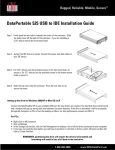
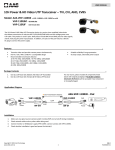
Step 1. Pull out the screw covers (rubber plugs) from the sides of the enclosure.
Step 1
Step 2. Remove the top cover of the enclosure
Step 2
Step 3. Set your hard disk drive to master. Connect the power and data cables.
Insert the hard drive back in the enclosure. Make sure the side mount holes on
the hard disk drive line up with the holes on the enclosure.
Step 4. Put the top cover back on to the enclosure.
Step 4
Step 5. Secure the hard drive and the top cover with the screws provided.
Step 6. Place the screw covers back into position.
Step 5 & 6
1-800-260-9800
www.CRU-DataPort.com
Rugged, Reliable, Mobile, Secure
TM
DataPort
™
Setting up the drive for Windows ME/2000/XP or Mac OS 9.x/X
Connect the DataPortable 350 to an available USB port. No new drivers are required. The hard disk drive will be found and a
window will pop up stating that new hardware has been detected. If the drive has previously been formatted the drive will
be accessible through My Computer on PCs and from the desktop on Macs. For PCs:
·Right click on My Computer
·Click on Manage
·In the Storage sub-section, click on Disk Management to display a list of all the drives connected to your computer.
·If you have not used the drive before you will have to partition it. Left click on Action, select All Tasks and then left
click on Create Partition. REMEMBER, formatting will result in loss of data.
·This will bring up the Create Partition Wizard screen. Follow the instructions and the drive will be ready to use.
For Macs
If the drive is not formatted you will be asked to initialize it. After initializing it select the partition tab and select the desired
partitions then click ok. The new disks will be added to your desktop. REMEMBER, formatting will result in loss of data.
Removing the Hard Drive.
For PCs:
·Quit all applications running on the external drive then right click on the green arrow icon on the system tray
·Select Remove/Eject
·Highlight the USB Mass Storage Device in the dialog box then click on Stop.
·Choose the external disk drive that you want to disconnect, then click on Stop.
·Wait until the “You may safely remove this device” message appears.
·Unplug the cable from the computer.
WARNING: If your computer reports that the drive is busy, you must shut down your computer
and then remove the drive. Failure to do so may result in data loss or corruption.
For Macs:
·When you disconnect the External drive from the Mac, close all windows and quit all applications that are running on
the external drive.
·Drag the external drive icon into Trash to dismount it from the desktop prior to unplugging the drive
Product Warranty
CRU-DataPort (CRU) warrants the DataPortable 350 to be free of significant defects in material and workmanship for a period of one year from the original date of purchase. CRU’s warranty is nontransferable and is limited to the original purchaser.
Limitation of Liability
The warranties set forth in this agreement replace all other warranties. CRU expressly disclaims all other warranties, including but not limited to, the implied warranties of merchantability and fitness for a particular purpose and noninfringement
of third-party rights with respect to the documentation and hardware. No CRU dealer, agent or employee is authorized to
make any modification, extension, or addition to this warranty. In no event will CRU or its suppliers be liable for any costs of
procurement of substitute products or services, lost profits, loss of information or data, computer malfunction, or any other
special, indirect, consequential, or incidental damages arising in any way out of the sale of, use of, or inability to use any
CRU product or service, even if CRU has been advised of the possibility of such damages. In no case shall CRU’s liability
exceed the actual money paid for the products at issue. CRU reserves the right to make modifications and additions to this
product without notice or taking on additional liability.
Rev. 1
1-800-260-9800
www.CRU-DataPort.com