1
Chapter 2: Getting Started
After you have installed InventoryControl, you need to enter your inventory
information. There are various ways you can enter information in
InventoryControl; however, to help you setup your system quickly and minimize
mistakes, we have compiled a list of steps you should follow. By completing
these steps in order, you can be assured that all of your information is entered
correctly and efficiently.
First, let’s take a brief look at the steps required for setting up your system. After
that, we’ll talk about each step in depth and give you some industry specific
examples to get you up and running in no time.
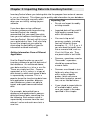
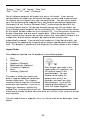
Follow the steps below to begin populating your database.
1.
2.
Setup Users and Assign Security Privileges
Enter Your Company Information and all Shipping/Receiving
3.
4.
5.
6.
7.
8.
9.
10.
Enter or Import Your Sites and Locations
Create Location Labels for Barcode Scanning
Enter or Import Your Suppliers
Enter or Import Your Items
Creating Item Labels for Barcode Scanning
Adding Inventory to Your Items
Printing the Inventory Location Report
Audit Your Inventory
Addresses
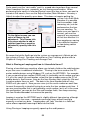
Step 1: Setup Users and Assign Security Privileges
When you first logon to InventoryControl, you will use Admin as the user name
and leave the password blank. This default user profile gives you access to
everything in the system. The first
step you should take upon logging in
is to create additional users on the
Security screen. You should setup at
TIP: Make sure you
least one additional admin user who
change the default “admin” user
has rights to all areas of the system
profile’s password. This
and change the password for the
password is initially blank and
default admin user profile. Since the
should be changed to prevent
default admin’s password is initially
others from logging into the
blank, it is important to change the
system under this profile.
default admin’s password to prevent
other users from logging in under this
profile.
You should eventually setup profiles on the Security screen for all users who will
need access to the system. It is a good idea to give each user his or her own
16