1
F!BoxFonWLAN-7170v2-e.book Seite 47 Freitag, 23. November 2007 3:41 15
Configuring the Printer Port in the Windows Operating Systems
Configuring the Printer Port in the Windows Operating
Systems
If the “FRITZ!Box” entry is already listed in the “Programs”
group of the start menu of the computer, this means that
the printer port is already configured on this computer.
Otherwise, work through the following steps to create the
entry in the start menu and thus configure the printer port:
1.
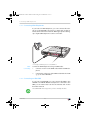
Insert the FRITZ!Box CD in your CD-ROM drive.
The Installation Help for starting operation of the
FRITZ!Box is started.
2.
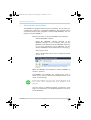
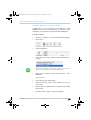
Click the “View CD Contents” button.
3.
Click the “Start Menu Entry” button.
The printer port designated “AVM: (FRITZ!Box USB
Printer Port)” will be configured.
Now you can install the printer drivers of the printer connected to FRITZ!Box for this printer port.
Installing Print Drivers in Windows Vista
1.
Click the “Start” button in the task bar and select the
“Control Panel”.
2.
Select “Printers”.
3.
Click “Add Printer”.
4.
Select “Add a local printer”.
You must make this selection because the printer port
on the computer functions as a local port.
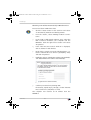
5.
Select the setting “Use an existing port” and then
choose the entry “AVM: (FRITZ!Box USB Printer Port)”
from the list. Click “Next”.
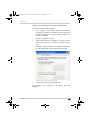
6.
Select the manufacturer for the USB printer connected
to the FRITZ!Box from the “Manufacturers” list and
then select the exact model from the “Printers” list.
If the manufacturer or the model is not included in the
lists, use an installation disk or CD with the required
files and click “Have Disk...”.
FRITZ!Box
47