1
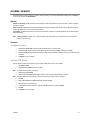
Voice Warning
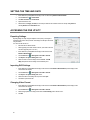
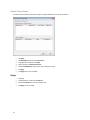
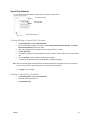
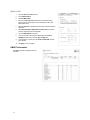
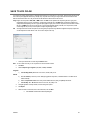
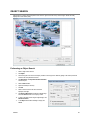
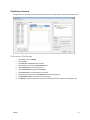
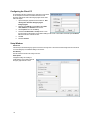
The recorder allows users to play a sound file when either a Motion event or Sensor event occurs. This file can be a custom created
sound file that is unique to the application. The selected WAV file is played through speakers attached to the recorder.
1.
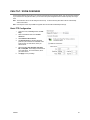
Click Browse, and then locate your .wav file.
2.
Click Play to test the file.
3.
Select Activate on Motion or Activate on Sensor Alarm to activate this warning whenever that event occurs.
4.
Click Apply to save your settings.
Display
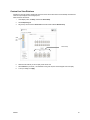
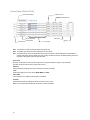
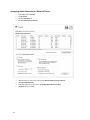
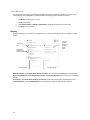
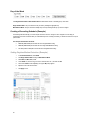
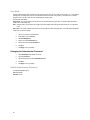
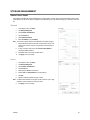
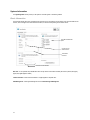
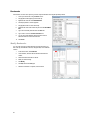
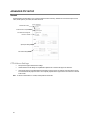
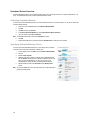
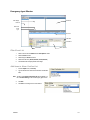
The Display tab allows you to control the on-screen appearance of your recorder, including the resolution and configuration of multiple
monitors.
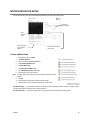
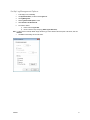
Set monitor
resolution
and the font
for the On
Screen
Display
Display motion
box
Show Sensor /
Relay status bars
on display screen
Enable live decoding
Live Afterimage Filter
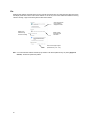
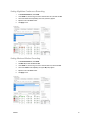
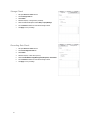
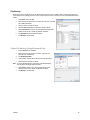
Motion Bounding Box – Select Display Motion Detection Area Box to see a colored boundary highlighting the area motion occurs.
Sensor / Relay Status Bars – Select Display Sensor Status Bar or Display Relay Status Bar to see icons when sensors or relays are
activated.
Live Decoding – Select Enable Key Frame Display for IP Cameras to reduce the processing load by only displaying key frames.
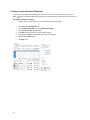
Live Afterimage Filter – Select Live Afterimage Filter to reduce motion blur in images from analog cameras if necessary.
54