1
Symantec Backup Exec 11d RM Administration Guide
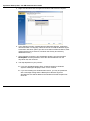
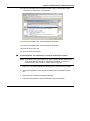
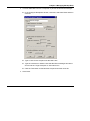
43. To ensure your first backup jobs run to tape without prompting you for
confirmation of overwrites, click Tools, Options. In the Settings section,
choose Media Management and ensure the box to Prompt before
overwriting imported media is clear (not ticked). (Do not click OK yet.)
44. To prevent Backup Exec marking a job as failed when a user has merely
failed to close their mail client, in the Job Defaults section, choose Backup.
In the Open file backup when Advanced Open File Option is not used
section, choose Never. (Do not click OK yet.)
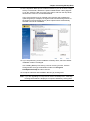
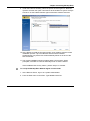
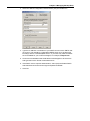
45. To prevent Backup Exec’s catalog files filling up the C drive, in the Settings
section, choose Catalog, change Catalog drive to D: (or another drive with
sufficient space) and change Catalog path to \Catalogs and now click OK.
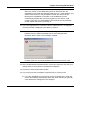
46. You will be prompted that the catalog file location has changed and that the
Backup Exec services need to be restarted. Click OK to the message. To
restart the services, click Tools, Backup Exec Services and click the Restart
all services button. When the services have restarted click OK, click Close,
click OK and click Close.
47. You now need to rename the devices. By default, your tape devices are
named SONY 1, SONY 2 etc; it is more helpful to give them meaningful
names so that you can easily recognise them when using Backup Exec.
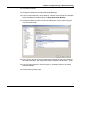
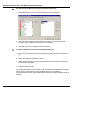
48. In the main Backup Exec window, select the Devices tab.
49. Under Stand-Alone Drives or Robotic Libraries, find your device(s).
Right-click the drive and select Rename.
50. Give the device a meaningful name. For example, name the Robotic Library
device LIB-81 Tape Library and the drive in the library AIT4 Drive in
Library. Repeat for all devices attached to the media server.
51. If you have a Tape Library or Autoloader and have inserted a cleaning tape
into one of the slots, to expand the slots click Slots, right-click the relevant
slot, choose Properties and select (tick) Cleaning Slot. Change the
maximum number of cleans to 50 and click OK.
52. If you have a Tape Library or Autoloader, now perform an inventory by
right-clicking the library, choosing Inventory and clicking Run Now. When
the inventory has completed, rename the tapes in Backup Exec to ensure
they match the name on the physical labels you placed on them. For more
detail on how to label tapes, including RM’s recommendations for working
with a Tape Library or Autoloader, see the section To label tapes on
page 64.
20