1
SVAT Electronics
Networking Guide
now you can see
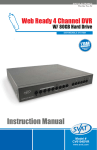
CV0104DVR
CV0204DVR
Confidential
1
www.svat.com
SVAT Electronics
1
Introduction &
Important Information
Introduction
Important Information
Congratulations on taking a step forward in protecting your
valued possessions. Now that you have your video security system in place, connecting it to the internet will allow you to view
what’s important to you with ease. You will learn about your
product and will see that you can do this on your own. The following is a step by step instruction manual on how to connect
your system to the internet. You will be able to view your DVR
and even watch previously recorded footage with the touch of
a button.
Please fill in the information you receive during this installation
in the areas below:
NOTE: This guide was created using a cable modem and some procedures will be slightly different depending on your hardware.
Before you start lets make sure that you have everything you
need to do this properly. You should have these ready and connected before beginning:
q DVR connected to a router
q Router connected to the internet. In order for this DVR
system to connect to the internet, it must be connected to a
router. If you are using a DSL internet connection the setup
process is much easier if you use modem with a router integrated in it as this will help avoid any problems connecting
your DVR. Please write down the model # of your router in
the important information section.
q A PC laptop or computer that is connected to the router
so you can make the necessary changes. This system is not
Mac compatible. Your computer should have the following
specifications:
Model Numbers
Your router manufacturer:__________________________________
Example: D-Link
Your router model #:______________________________________
Example: DI-524
Router IP:_ _________________________________ Port #: ______
Example: 192.168.1.101
Example: 80
External IP:_____________________________________________
Example: 14.14.243.113
DynDNS Username:______________________________________
Example: myname1234
DynDNS Password:_ _____________________________________
Example: 123ABC
DynDNS Domain Chosen:_________________________________
Example: dyndns.org
Sign-In URL:_ __________________________________________
Example: myname1234.dyndns.org
q Internet Explorer Version 5 or higher. If you do not have
this program, please go to www.download.com and get an
updated version. You can check your version of Internet Explorer by opening the program. Go to the top menu selection and in the Help menu options, choose About Internet
Explorer. The version will be displayed.
q A valid and fully updated version of Windows XP (minimum).
Confidential
2
SVAT Electronics
2
Prepare your computer
to view the DVR
Prepare your Computer
Following these steps will allow your computer to view the video.
Before starting to set-up your network connection, you have
to be sure that your computer is able to view the footage from
the DVR. If you are running Windows XP, you will most likely
have this pre-installed.
NOTE: You will need to do this to any computer that you
want to view the footage from.
1. Open Internet Explorer. Go to the drop down menu in
the TOOLS area and select INTERNET OPTIONS. A
screen will open.
2. Select the SECURITY tab, then click on the CUSTOM
LEVEL button in this tab.
q Download signed ActiveX controls: PROMPT
q Download unsigned ActiveX controls: PROMPT
q Initialize and script ActiveX controls not marked as safe:
PROMPT
q Run ActiveX controls and plug-ins: ENABLE
q Script ActiveX controls marked safe for scripting:ENABLE
NOTE: If you do not have ActiveX installed and the previous
step did not download it, go to www.download.com and search
for ActiveX. Download the ActiveX Download Control.
3. Change the ActiveX settings to the ones seen in the images.
Confidential
Your computer is now able to view the feed
from the DVR.
3
SVAT Electronics
3
Prepare your DVR to
connect to the Internet
Prepare your DVR
Next we will set up the DVR to connect to the internet and allow
you to view online.
1. Place the CD-ROM that was included with the DVR system into your computer’s CD-ROM drive. If your computer
does not automatically open the CD folder, go to Start/My
Computer and double-click on the CD-ROM icon.
2. Drag and drop the IPEDIT.EXE program onto your desktop. This program will give you the information needed to
find your DVR’s IP address (unique location on your network).
4. Click on the UPDATE button. In the top left area of the
program window you should see a set of numbers. This is the
IP address of your DVR. Write it down in the information
area of this manual listed as ROUTER IP.
5. Open up Internet Explorer. Enter enter the DVR’s IP
address found in Step 4 into the address bar. Example:
http://192.168.0.100
6. If entered successfully a window will open up with a login
screen. The default USER will be admin. The default PASSWORD will be 1234.
7. The first time you logon to the DVR, an ActiveX Installation
window will appear. Install the ActiveX control.
8. You can now view and control your DVR from inside your
network!
3. Open IPEDIT.EXE from your desktop. Depending on
your firewall settings, a warning message may appear asking
if you want to block or unblock this program. Click Unblock.
You can now view and control your DVR from
inside your local network.
Confidential
4
SVAT Electronics
4
Port Forwarding
on Your Router
Connect to the Internet
3. Select the Advanced tab.
Port forwarding is a necessary step that opens a path on your
home/business network to allow you to view your DVR video
feed from outside your network (over the internet).
There are hundreds of makes and brands of routers on the
market and these instructions have been made using a D-Link
router (Model DI-524). If you have a router that is different
than shown, please visit www.portforward.com and go to
the link marked GUIDES. Once on this page, go to the link
marked Port Forwarding Guides by Router. Find your router
make and model in the list of links and click on it. You will see
a list of various applications. Find a link for any DVR or IP
camera and click on it. Follow the instructions but make sure
you forward the correct port number (the port number assigned
to your DVR).
4. Select the Virtual Server tab.
The steps for your router will be similar to the following.
These instructions have also been created without a firewall
in place. If you have a firewall, please consult a computer
technician.
D-LINK ROUTER
You will need to enable the ports by locating the port range
forwarding screen. With some D-LINK routers the port forwarding screen is located within the Applications & Games or
Filters tab; in others it is located in the Advanced Tools tab.
1. Open your web browser. Enter the ROUTER IP address
(found on page 2) in the address bar as shown below and
press ENTER.
2. Enter the user name admin. Leave the password blank followed by pressing the OK button (unless you have set up a user
name and password for your router)
q In the Name field type in “DVR”
q In the Private IP field enter the DVR’s IP address.
q In the Protocol field, select Both (This will enable both TCP
and UDP).
q In the Private port enter the port number you need to forward. By default this DVR is set to port 80. Use port 80
unless you have a reason to change the DVR to another port
(not recommended).
q In the Public port re-enter the port number you entered in
the private port field (e.g. 80).
q Select the Schedule to Always.
When complete, select the Apply button located at the bottom of the page to save your changes. Port forwarding is now
complete!
Confidential
5
SVAT Electronics
5
Finding & Testing Your
External IP Address
Find Your External IP
Test Your External IP
Now you will need to find your external IP address. This will
be the address you will be entering in order to access the DVR
from outside your network (over the internet).
Now that you know your external IP address, you can perform a
test to ensure your DVR is accessible from outside your network
(over the internet).
There are many ways to find your external IP address. The simplest way is to go to http://www.whatsmyip.org. This site will
display your external IP address in the top portion of the screen.
Write it down on the first page marked EXTERNAL IP.
1. Open Internet Explorer, and in the address bar type in the
EXTERNAL IP address you wrote down on page 2, followed by a colon and your port number (default is port 80). It
should similar to the following example: 14.14.243.113:80
3. Press ENTER, and your DVR’s login window should pop
up. If it does not pop up, your router is not properly forwarding the necessary port. This could be due to a number
of problems including incorrect settings, presence of a firewall, or a DSL modem that has its own IP address.
Confidential
If your DSL modem has its own internal IP address, it will
not properly forward the necessary port. You may have to
configure PPPoE settings in the router to match the settings provided to you by your Internet Service Provider
(ISP). You may also need to configure port forwarding
in your DSL modem. Unfortunately many ISPs lock the
ability to change settings in your modem. Consult with
your ISP for more information. SVAT technical support
cannot troubleshoot modems, since changing these settings can potentially render your modem inoperable.
You should also check all your network connections and go
through the above steps again to make sure a configuration
error was not made.
6
SVAT Electronics
6
Dynamic DNS
VERY IMPORTANT
Forwarding Outside your Network.
Port Dynamic DNS
This section will explain how to associate your IP address with
an easy-to-remember URL (domain name)
1. Open Internet Explorer and type in www.dyndns.com
4. Do not worry about the optional information. Agree to the
Terms of Service by checking the boxes. Click Create Account.
5. Now check your email for the confirmation message. You
will need to click the link in the body of this message to activate your account. The message may take up to 24 hours to
arrive in your inbox. If you cannot find the message in your
inbox, please check your junk/spam mail folder.
6. When you click the link, a window will appear that displays
“Account Confirmed.” Click on the login link and enter the
user name and password you created.
2. The instructions on creating a dynamic DNS may have
changed since the writing of this guide. Create a new account by clicking the link “Create Account”
3. Enter your preferred user name, email address, and password. Enter these on page 2.
Confidential
7. Click on the Services button located on the top menu
7
SVAT Electronics
6
Dynamic DNS
VERY IMPORTANT
Forwarding Outside your Network.
continued...
8. Click on the Dynamic DNS link
12.In the IP address field, type in your external IP address (it
may also be shown below the field).
13.Leave all the rest of the options as-is, and click Create New
Host.
14.Your dynamic DNS settings have been created.
9. Click on the Get Started link located on the right menu
10.Type in a host name (subdomain name). We recommend
you use your first name or company name.
11.Choose a domain name from the dropdown menu. We recommend using the dvrdns.org suffix.
Confidential
8
SVAT Electronics
7
Associating Your DVR to
the Dynamic DNS Account
Finalizing the Set-up
Now you must associate your DVR with the DynDNS account
you just created. This will ensure that when your external IP
address changes, your domain name (address in the Internet
Explorer Bar) will remain associated with your new IP address.
This will ensure that you will only need to type in your domain
name in order to access your DVR, whether you are inside or
outside of your network:
1. Log-on to your DVR through your computer by using either the internal or external IP address.
4. Make sure the ENABLE button is selected.
5. Enter the username, password, and full domain name you
configured at www.dyndns.com. Example:
UserName: myname
Password: mypassword
DomainName: myname.dvrdns.org
6. Click the OK button located in this section to save your
configuration.
7. You should now be able to access your DVR simply by typing in your domain name (i.e. myname.dvrdns.org).
Note:
2. Click the CONFIGURATION button.
3. Under the “Network DVR Setup” window, scroll down to
“DDNS Account Setting.”
Confidential
If your router is set to automatically assign an IP address to your
DVR (Dynamic/DHCP), your DVR’s internal IP address may
change if your DVR or router is rebooted. To resolve this problem, you need to configure your router to forward to this new
address (simply replace the old private IP address with the new
one). To avoid this problem all together, you can set your router
to Static LAN IP, which will assign the same IP address to the
DVR every time, even when the DVR or router is rebooted.
9
SVAT Electronics
8
Additional
Troubleshooting
I press play and nothing happens
You need to press STOP on the DVR first. This DVR can either record or view video footage. It will not do both at the same
time. Please make sure that you press STOP before proceeding.
My browser keeps freezing
First make sure you have an up to date browser and that the
proper ActiveX options are selected. If they are, you may need
to re-install your browser.
I changed the settings on my DVR
and it won’t record now
In order to confirm your new settings and to activate them, you
must press record.
I can’t remember my DVR’s password
From the live camera view, make sure the DVR is not recording
(press STOP). Then press the PAUSE button 5 times. Confirm
that you want to reset the DVR to factory defaults. When you
restart the DVR your password will be cleared.
Confidential
I cannot switch to different cameras
while playing back footage
Make sure your Record Settings are set to “EACH” recording
and not “QUAD” recording. EACH recording will allow you
to record individual channels while QUAD recording will only
record the cameras in quad screen split mode.
I can’t see at night with my IR night
vision camera
These cameras are spec’d at 10-15ft in the dark. If you placed
these cameras outdoors in the open, the night vision will be
reduced as there is nothing to reflect the IR emitted from the
camera. To help increase the viewing capabilities add additional
lighting to the area.
The color is off on the camera
These cameras have been designed with a high resolution lens
which allows you to see crisp clean images. The best lighting for
this system is by using incandescent lighting. Other lighting effects will alter the color. You can adjust the color of the cameras
in your menu settings. Camera Settings.
10