1
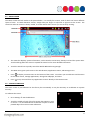
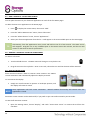
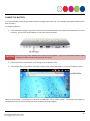
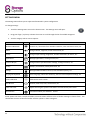
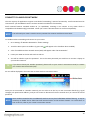
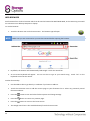
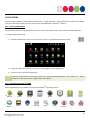
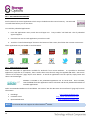
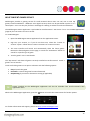
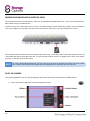
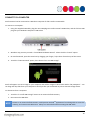
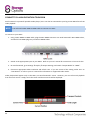
CONNECT TO A WIRELESS NETWORK The vast majority of applications support some kind of networking / Internet functionality. Scroll Essential must be connected to your broadband router’s wireless network to enable this functionality. Scroll Essential features standard wireless B / G capabilities, meaning it can connect to any router which is compatible with the 802.11b/g/n standard. Check your router’s documentation to confirm compatibility. NOTE You will need your router’s wireless access password to continue with these instructions. To enable wireless networking and connect to your router: 1. Go to Settings Wireless & Networks Wi-Fi Settings 2. Touch the Wi-Fi option to enable it (a green tick will appear in the checkbox when enabled). 3. A list of available wireless network names (SSID) will appear under “Wi-Fi Networks”. 4. Locate your SSID on the list and touch to select it. 5. You will be asked to input the password. This is the same password you would use to connect a laptop to your wireless network. TIP If you do not know your wireless password, please refer to your router’s instruction manual, or contact your Internet Service Provider (ISP). An icon will be displayed in the status bar to show wireless connection status: Once you are connected to a wireless network, you can select it on the list, to view connection details (e.g. signal strength, link speed and IP address), and you can choose to disconnect from the network and / or remove the stored password. NOTE Some wireless networks have an additional wireless security level called MAC address filtering. It may be necessary to disable this to allow the Scroll Essential access to the wireless network. For instructions on how to do this, refer to your router’s instruction manual. 13