1
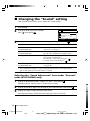
x Changing the “Sound” setting
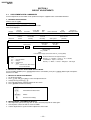
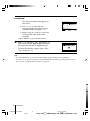
The “Sound” menu allows you to adjust the sound settings.
1
2
Press MENU.
Press V or v to select the “Sound”
icon ( ), then press .
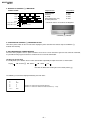
Sound
Mode:
Dynamic
Sound Adjustment
Balance
Intelligent Volume: Off
Surround:
Off
Select
2
End
Confirm
Press V or v to select the desired item (e.g., “Mode”), then press
.
Select
To
“Mode”
(KV-BT212M80 only)
choose either “Dynamic”, “Drama”, “Soft” or
“Personal”* (see page 11).
“Balance”
(KV-BT212M80 only)
Press v or B to emphasize the left speaker.
Press V or b to emphasize the right speaker.
“Intelligent Volume”
adjust the volume of all program numbers and
video inputs automatically.
Press V or v to select “On”, then press
.
To cancel, select “Off”, then press
“Surround”
(KV-BT212M80 only)
.
choose either “On”, “Simulated” or “Off”
(see page 10).
* You can adjust the setting to your personal preference in the “Sound Adjustment”
option only when the “Personal” mode is selected.
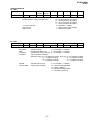
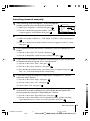
Adjusting the “Sound Adjustment” items under “Personal”
mode (KV-BT212M80 only)
16
1
Press V or v to select either “Treble” or “Bass”, then press
2
3
Press V,v,B or b to adjust the setting of your selected item, then press
.
Selecting “Reset” will set your TV to the factory setting.
.
Repeat the above steps to adjust other items.
The adjusted settings will be received when you select “Personal”.
Menu Adjustment
01GB06ADJ-SVAPAK.p65
16
Black
5/21/04, 9:37 AM
Sony KV-BT212M80 Group I15 (GB)_2-023-202-11 (1)