1
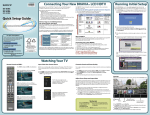
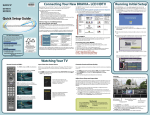
HD Basic Connection with A/V Receiver HD BRAVIA® Sync™ Basic Connection *Rear of TV Rear of TV 1 3 1 2 1 AUDIO OUT VIDEO IN 1 1 PB 3 4 L L VIDEO IN 1 3 AUDIO R R AUDIO L L L (MONO) AUDIO R AUDIO L S VIDEO (OPTICAL) SAT IN DVD IN VIDEO 2/BD IN L L ANTENNA CABLE / ANTENNA OPT IN SAT OPT IN VIDEO 1 COAX IN DVD AUDIO IN R SA-CD/CD AUDIO IN TV R AUDIO IN VIDEO 1 DMPORT FRONT R FRONT L SUR R SUR L AUDIO R AUDIO R R L AUDIO R (1080p/1080i/720p/480p/480i) CENTER SUBWOOFER AUDIO OUT L AUDIO AUDIO OUT HDMI L 3 4 L (MONO) DIGITAL 1 AUDIO OUT RGB VIDEO (VAR/FIX) AM IN DIGITAL PC IN PR *A/V Receiver R (1080p/1080i/720p/480p/480i) (VAR/FIX) AUDIO OUT AUDIO R R 2 PB L AUDIO AUDIO R (1080p/1080i/720p/480p/480i) 4 AUDIO OUT AUDIO COMPONENT IN 1 Y VIDEO L AUDIO R (OPTICAL) 3 PR VIDEO AUDIO Rear of TV 1 AUDIO OUT RGB PB S VIDEO PR (MONO) 2 Y RGB IN DIGITAL PC IN COMPONENT IN 3 (OPTICAL) Y S VIDEO IN DIGITAL PC IN COMPONENT IN SPEAKERS VIDEO IN HD Basic Connection with Home Theater System (VAR/FIX) Blu-ray Disc/DVD CABLE / ANTENNA A/V Receiver Blu-ray Disc/DVD CABLE / ANTENNA *Blu-ray Disc COMPONENT VIDEO OUT VIDEO OUT Y VIDEO AC IN PB/CB HDMI OUT 5.1CH OUTPUT AUDIO OUT DIGITAL OUT PCM/DTS/DOLBY DIGITAL COAXIAL OPTICAL PR/CR FRONT L L R R S VIDEO SAT (Dish) HD Cable Box or HD Satellite Receiver Splitter SAT (Dish) REAR or CENTER WOOFER Cable/SAT (dish) HD Antenna HD Cable Box or HD Satellite Receiver Cable/Antenna Splitter Home Theater System SD Cable Box or SD Satellite Receiver Cable/Antenna * Signifies a BRAVIA Sync capable device. Required Cable Types for Connection Coaxial DVI-to-HDMI Notes on Connection Mini-Pin Audio Digital Optical Audio Audio (L/R) with Mini-Pin Ethernet Composite HDMI HD15 Component ■ ■ ■ Audio (L/R) PC Connection with SD VCR/DVD Connecting a PC to Your BRAVIA TV Connect your incoming signal source (HD Cable Box, HD Satellite Receiver, or DVD) with HDMI or component video for the best possible picture quality. If your connecting equipment has DVI output instead of the HDMI output, you must use a DVI-to-HDMI cable for the video and also connect an audio cable for the sound. If this is the case, connect the cable to HDMI IN 4 (input) of your TV. P&P/PIP functions require Cable/Antenna connection. Your remote control can be programmed to use other equipment and is pre-programmed to operate the following Sony equipment. Cable/Antenna DISPLAY LIGHT POWER TV POWER DVD VIDEO IN 1 3 COMPONENT IN 1 2 Y S VIDEO PB Router Notebook PC IN DIGITAL PC IN 1 AUDIO OUT AUDIO R 2 T1 POR T2 POR T3 POR SYNC MENU RGB L AUDIO R PAUSE DLNA Certified™ Media Server AUDIO OUT THEATER SOUND PICTURE WIDE CC L AUDIO R AUDIO L AUDIO FREEZE Rear of TV R (1080p/1080i/720p/480p/480i) (VAR/FIX) VIDEO IN 1 3 2 Y S VIDEO PB IN DIGITAL PC IN (OPTICAL) RGB 3 VIDEO L (MONO) AUDIO R 4 L AUDIO R (1080p/1080i/720p/480p/480i) 2 4 1 AUDIO OUT LAN (10/100) PR CABLE / ANTENNA L AUDIO R AUDIO L 31033 AMP Receiver 52172 STB Digital Satellite 01639 Programming Other Equipment , or simultaneously with the button and release. When in the programming mode, the FUNCTION button blinks for approximately 30 seconds until a code is entered. 3Enter the five digit code using – while the FUNCTION button is lit. If the code is not 4Press AUDIO or to confirm the code. If successfully programmed, the FUNCTION button will blink twice, if not, it blinks five times. R (VAR/FIX) 3 4 PC VOL CH MUTING DVD DVD Player entered within 30 seconds, you must repeat step 2. AUDIO OUT CABLE / ANTENNA VCR VCR/DVD Combo DVD 2Press and hold COMPONENT IN 1 Code Number corresponds to the equipment you would like to operate with the Sony remote control. If more than one code is provided, try programming the first code listed. If your equipment’s code is not listed, visit http://esupport.sony.com/remotecodes for a more comprehensive list. STOP 3 4 Sony Equipment 1Look for the code in the Manufacturer’s Code List (see the Operating Instructions) that PLAY T4 POR Function Button Follow the steps below to program your TV remote control. ER PR (MONO) TV POW (OPTICAL) VIDEO L AMP STB FUNCTION PREV REPLAY ADVANCE NEXT Rear of TV ■ Connect PC’s audio output when using an HD15 connection. Press PC’s FUNCTION Key + Select Output to transmit to TV. When using an HD15 connection, adjust TV’s Pitch and Phase to correct sharpness. Refer to your Operating Instructions. Programming the Remote Control DLNA Certified™ Connection Splitter ■ ■ ■ This TV is a DLNA Certified™ Photo Viewer. REC JUMP REC PAUSE REC STOP BD/DVD TOP MENU MENU F1 F2 To Confirm the Programming If you can turn your equipment on and off using the green complete. If not, try the next code listed. POWER button, the programming is Note: ■ In some cases, you may not be able to program your remote control. If this is the case, use your equipment’s remote control. ■ Any of the FUNCTION buttons can be programmed to operate other equipment regardless of the labeling. For example, if programmed with the correct code, a Blu-ray Disc player can be operated with the button. This is useful if your equipment does not match any of the labeled buttons.