1
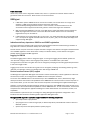
You can statically register an application that does not dynamically register with SLP using SLPAPIs by
modifying this file. For more information about these files, read the comments contained in them, or refer to
http://www.openslp.org/doc/html/UsersGuide/index.html
Verifying SLP service installation and operation on UNIX systems:
1. Open a command window.
2. Type % su root and press Enter to become the root user.
3. Type # Management_Application/cimom/bin/slptool findsrvs service:service-agent and press Enter to
verify the SLP service is running as a Service Agent (SA).
4. Type # < Management_Application >/cimom/bin/slptool findsrvs service:wbem and press Enter to
verify the SLP service is advertising its WBEM services.
5. Choose one of the following options to verify the SLP service is advertising the WBEM SLP template
over its configured client protocol adapters.
o
Type # Management_Application/cimom /bin/slptool findattrs
service:wbem:http://IP_Address:Port and press Enter.
o
Type # Management_Application/cimom /bin/slptool findattrs
service:wbem:https://IP_Address:Port and press Enter.
Note: Where IP_Address:Port is the IP address and port number that display when you use the slptool
findsrvs service:wbem command.
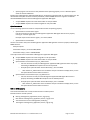
SLP on Windows systems
This section describes how to verify the SLP daemon on Windows systems.
SLP file locations:
SLP log—Management_Application\cimom \cfg\slp.log
SLP daemon—Management_Application\cimom\cfg\slp.conf
The SLP daemon can be reconfigure the by modifying this file.
SLP register—Management_Application\cimom\cfg\slp.reg
statically register an application that does not dynamically register with SLP using SLPAPIs by
modifying this file. For more information about these files, read the comments contained in them, or
refer to http://www.openslp.org/doc/html/UsersGuide/index.html
Verifying SLP service installation and operation on Windows systems:
1. Launch the Server Management Console from the Start menu.
2. Click Start to start the SLP service.
3. Open a command window.
4. Type cd c:\Management_Application\cimom \bin and press Enter to change to the directory where
slpd.bat is located.
5. Type > slptool findsrvs service:service-agent and press Enter to verify the SLP service is running as a
Service Agent.
6. Type > slptool findsrvs service:wbem and press Enter to verify the SLP service is advertising its WBEM
services.
7. Choose one of the following options to verify the SLP service is advertising the WBEM SLP template
over its configured client protocol adapters.
•
Type > slptool findattrs service:wbem:http://IP_Address:Port and press Enter.
Brocade Network Advisor 11.1.1 Release Notes v2.0
Page 19 of 27