1
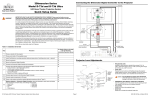
Connecting Sources to the Dimension Digital Controller
Connecting Other Equipment to the Dimension Digital Controller (optional)
HDMI
DisplayPort
Component Video
Anamorphic Lens Transport
(Rear View)
TRIGGERS
3D SYNC
1
RS-232
USB
2
USB
3
DisplayPort
HD2
Y
Video 1
Video 2
Pb
Pr
Video 3
Sec. Display Control
RS-232
IR
TRIGGERS
3D SYNC
1
HDMI 1
3
To Accessory Box
To Accessory Bo
HDMI 3
Video 2
HDMI 2
RS-232
USB
2
PC / Contro
To Accessory
Component / SCART
HD1
Pri. Display Control
RS-232
3
Video 3
HDMI 4
HDMI 1
HDMI 3
HDMI 5
Component / SCART
HDMI Out
To Sec. Display
HDMI 7
HD1
Y
Video 1
HDMI 1
Video 2
HDMI 3
IR Sensor
DisplayPor
HDMI 2
HDMI 4
HDMI 6
HDMI 8
HDMI Out
Audio Only
Ethernet
Pb
HD2
Pr
Video 3
HDMI 2
Remote Control
HDMI 4
HDMI
To Pri. D
IR Repeater
(3.5-mm, mini
phono plug)
Y
Retractable Screen or other
12-volt trigger-activated
device
DisplayPor
HD2
Video 1
Video 2
Pb
Pr
Video 3
HD1
DisplayPor
HD2
Video 1
Video 2
Pb
Pr
Video 3
HDMI 1
HDMI 2
Power On
Aspect
Ratio
Selection
Camcorder
Green
or
DVD/DTV STB
Image
Memory
Preset
Buttons
Composite
Composite
Blue
Red
Gaming Console
Video 3
Composite
Sync
Gaming Console
HDMI 5
HDMI 2
HDMI 4
HDMI 6
HDMI 7
HDMI Out
To Sec. Display
HDMI 8
Ethernet
HDMI Out
Audio Only
Video
Source
Selection
Menu Navigation
Buttons
Press to
illuminate
the remote
control
buttons
Page 2
Secondary Display
Audio Processor/
Switcher
or
Dimension Digital Controller Front-Panel Keypad
UP BUTTON
Used to direct-select an aspect ratio
or move the OSD menu cursor up.
When no menus are present on-screen,
this button toggles through
aspect ratios in the following order:
Native - Virtual Cinema - Cinema VirtualWide - Letterbox - 4:3 - 16:9
Power Off
3D Mode
Selection
LS-12HBd Projection System Quick Setup Guide
HDMI 3
R
Pr
HDMI 1
A
Pb
Number
Buttons
Composite
VCR
VCR
SCART-to-RGBS
adapter
R
IM
Y
RGB Camcorder
Computer
IR
PR
Video 3
Y
Composite
Pr
Remote Control
3
Component / SCART
Component / SCART
HD1
USB
2
Composite
Pb
1
3
Sync
Video 2
Green
HD2
Video 1
PR
DisplayPor
Y
Sec. Display Control
to Ethernet
Hub, Router
or Gateway
TRIGGERS
3D SYNC
2
Video 2
DTV-Set-Top Box
(DTV-STB)
TRIGGERS
1
Video 1
PR
Composite Video
Red
Component / SCART
HD1
SCART
3D SYNC
Pri. Display Control
IN
PB
Y
EL
A
Y
BD/DVD
Blue
3
RS-232
To Accessory Box
COMPONENT
VIDEO OUT
IN
2
USB
3
Component / SCART
IM
1
EL
TRIGGERS
3D SYNC
2
PC
HDMI source
(BD, DVD, DTV Set-Top Box etc.)
RGB Video
1
Tip = +12V
R
HDMI
AV OUT
Notebook Computer
or Other DisplayPort Source
TRIGGERS
Sleeve = Ground
Y
(3.5-mm, mini
phono plug)
STANDBY LED
Lights amber when
the controller is in
standby mode.
ON/STANDBY BUTTON
Press to go from standby
mode to on mode
or vice versa.
LEFT BUTTON
Used to direct-select an
input or move the OSD
menu cursor to the left.
When no menus are
present on-screen,
this button cycles
through the different
sources in this order:
DisplayPort - HDMI 8 HDMI 7 - HDMI 6 - HDMI 5 HDMI 4 - HDMI 3 - HDMI 2 HDMI 1 - SCART - HD 2 HD 1 - Component Composite 3 - Composite 2 Composite 1
ratio
standby
i
n
p
u
t
enter
i
n
p
u
t
ratio
DOWN BUTTON
Used to direct-select an aspect ratio
or move the OSD menu cursor down.
When no menus are present on-screen,
this button toggles through
aspect ratios in the following order:
16:9 - 4:3 - Letterbox - VirtualWide Cinema - Virtual Cinema - Native
m
e
n
u
RIGHT BUTTON
Used to direct-select an
input or move the OSD
menu cursor to the right.
When no menus are
present on-screen,
this button cycles
through the different
sources in this order:
Composite 1 - Composite 2 Composite 3 - Component HD 1 - HD 2 - SCART HDMI 1 - HDMI 2 - HDMI 3 HDMI 4 - HDMI 5 - HDMI 6 HDMI 7 - HDMI 8 - DisplayPort
MENU BUTTON
Press MENU to bring up the
main menu, or to exit the
current menu and return
to the previous one.
ENTER BUTTON
When an item is highlighted
on the OSD, press ENTER
to select that item.
020-1252-00 Rev. A (September 2013)