1
NOTE: You may need to gently pull the lower tabs of the retainer clips upward to install the
printhead assembly.
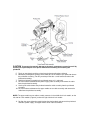
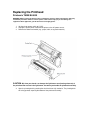
12. Slide the printhead assembly upward into the pivoting deck until the retainer clips snap it
in place. Make sure that the cable assemblies do not extend past the printhead cover and
into the media or ribbon path.
Restore the Printer to Operation
1. Inspect the light brown area of the printhead for smudges or fingerprints. If necessary,
gently clean the light brown area with a soft, lint-free cloth (or a cotton swab) moistened
with isopropyl alcohol, or use a Cleaning Pen (P/N 203502-001).
2. Install the ribbon and media (e.g., paper, label, or tag stock material).
3. Close the pivoting deck and rotate the deck lock lever fully counterclockwise. (Figure 7.)
4. Close the media cover.
5. Plug the AC power cord into the printer and the power source.
6. Set the printer power switch to | (On).
7. Press Menu Button to place the printer in Menu mode.
8. Press the Enter and Down Arrow keys at the same time until “ENTER SWITCH
UNLOCKED” displays.
9. Press the Plus Button until “DIAGNOSTICS” displays.
10. Press Down Arrow Button until “DIAGNOSTICS/Reset Head Data” displays.
11. Press Enter Button to select “Reset Head Data.” The message “RESETTING/HEAD
DATA” displays. (This sets the Head Print Distance and Head On Time values to zero.)
12. Test printer operation and check print quality by selecting the Diagnostics Printer
Tests menu and printing one of the test patterns.