1
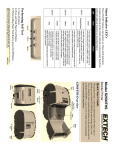
Status Indicator LED’s
Status
Blue
Purple/Orange
The battery charger is charging the battery at a fast
rate. If the battery is below 5V, the battery is being
“trickle” charged until the battery voltage reaches 5V,
and then the fast charge rate is started. The LED will
turn off when the battery is fully charged.
If the LED’s Color is Blue it indicates that Power is ON
and that the printer is in Bluetooth or 802.11b mode
Low Power Mode (If in BT/802.11b mode the LED is
Purple; If in RS-232 mode the LED is Orange.
If the LED’s Color is Green it indicates that Power is
ON and that the printer is in RS-232 or IrDA mode
Yellow
· Indicates that MCR is ready to accept data.
· Indicates that SCR is ready to accept data.
Red
LED #2
LED #1
· Indicates a fault condition or a printer error.
The printer is not ready to accept data.
· Printer is out-of-paper
Note: Refer to the troubleshooting guide to determine
error or fault condition.
Green
Green
State
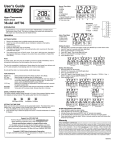
Press ON/OFF button to turn printer on. Three LED indicators
located on the top of the printer indicate various printer functions.
LED will indicate function as described below:
LED
LED #1
LED #2
LED #3
LED #3
Performing Self Test
1. Printer must be turned off.
2. Press and Hold Paper Feed Button
3. While holding Paper Feed Button, press On/Off Button
060607-R3
Copyright © 2007 Extech Instruments Corporation. All rights reserved including the right of reproduction in whole or in part in any form.
Extech Instruments Corporation 285 Bear Hill Rd., Waltham, MA 02451-1064
Phone: 1-781-890-7440 Fax: (781) 890-7864 WEB: www.extech.com/printers
Model S3750THS
Mobile Printer
Quick Start Guide
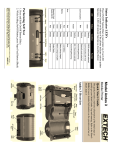
AC Adaptor
Port
Paper
Compartment
Platen
Roller
Serial
Port
Paper Door
Pull Lever
Metal Tear
Bar
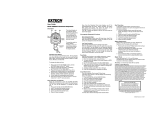
This guide provides a reference illustration of the initial steps to
quickly get your Model S3750THS up and running. Refer to the
User’s Guide for more detailed information on the operation and use
of Model S3750THS. A copy of User’s Guide can be downloaded
from www.extech.com/printers
Paper Feed
Button
S3750THS Overview
MCR
Slot
On/Off
Button
IrDA
Window
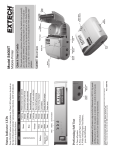
Installing the Battery
1. Open the Paper Supply Cover by placing your fingers under
the “T” pull lever and pulling up firmly on the supply cover until
the lever stops moving. Cover should open to a 90° angle.
Installing the Paper Roll
Battery
Note: Do not pull too hard. Use enough
force to allow cover to unlock and lift freely
2. Install Paper Roll
Tearing Paper
3. Close Paper Supply Cover and press closed.
4. Turn on the printer by pressing Power button and test the paper
advance function by pressing the Paper Feed button. Verify that
paper advances correctly.
Note: Pull paper roll
leader out of printer. Note
direction of paper travel.
1. Unlock the battery door by sliding the locking tab down.
2. Open the battery door to an angle of about 90 degrees.
(Do not force open)
Li-Ion
Battery Door
Tab
Note: Ensure that battery side with 2 contact terminals are facing down
to make contact with the spring probes inside the battery compartment
3. Insert battery as shown (non-contact end first and let the
contact end drop into place).
4. Close the battery door by sliding the locking tab up.
Charging the Battery
1. Plug battery charger adaptor output cable into the battery
charger connector.
2. Plug battery charger adaptor into the appropriate AC line
voltage socket.
3. LED will illuminate indicating that the battery is being charged.
4. The battery will be fast charged and after 180 minutes the LED
will turn off.
The printer’s paper door acts
as tear bar. To tear paper pull
one edge of the paper against
the tear bar as shown, then
tear down and across against
the tear bar to tear the paper.
Note: Pulling paper up and/or sideways without
using the tear bar can cause a paper jam due to
paper misalignment in printhead mechanism.