1
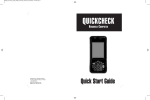
343369_Cummins_Guide_302283_Cummins_Guide.qxp 08/16/2014 6:32 AM Page 1 QUICKCHECK H C ANDHELD OMPUTER Cummins Inc., 500 Jackson Street P.O. Box 3005 Columbus, IN 47202 1-800-DIESELS http://www.cummins.com Bulletin No. 4081701 Rev. 8/14 Quick Start Guide 343369_Cummins_Guide_302283_Cummins_Guide.qxp 08/16/2014 6:32 AM Page 2 Introduction Congratulations on your purchase of the Cummins QUICKCHECK Handheld Computer for diesel-powered Automotive vehicle applications. It is our hope that this device will add value to your already valuable Cummins engine by giving you the ability to read engine and vehicle subsystem information quickly and conveniently. The QUICKCHECK CE application communicates with the engine ECM (electronic control module) component, as well as other vehicle subsystem components that broadcast on the SAE J1939 or J1587 datalink(s). The POWERSPEC CE application communicates with an engine ECM on the SAE J1939 or J1587 datalink(s). The POWERSPEC CE application is designed to work with late-model Cummins automotive engines (ISB, ISC, ISL, ISM, and ISX as well as some natural gas fueled engines). QC5600 Handheld Computer Kit, Part Number 5298640 5298641 QC5600 Handheld Computer Part Number Description 3165159 3165160 4918713 4919536 4919535 4919193 Datalink Cable (DB25F 9-pin Deutsch connector) Datalink Cable (DB25F 6-pin Deutsch connector) Storage Case Custom QuickCheck USB cable AC Power Supply PowerSpec Software CD Please do not plug your new QuickCheck handheld into the PC’s USB port until after you have supporting PC software installed. Install the PowerSpec PC Software 1. Insert the PowerSpec Software CD into your CD ROM drive. 2. The installation software should start up automatically. If it does not, this means the auto-run functionality is not working properly. Find and run the installation file called: PowerSpec.exe. To manually run the installation process, click the “Start” button on the Windows task bar, and then click “Run…”, before clicking “Browse…”. Using the dropdown box labeled “Look in:”, click on the item that represents your PC’s CD-ROM drive. This should bring up the contents of the PowerSpec CD. Double-click the entry “PowerSpec.exe” and then click “OK”. This will start the installation process. 3. Follow the instructions on the screen 4. When the installation program is ready, please start the application called SyncReports by clicking: StartAll ProgramsCumminsCummins PowerSpecPowerSpec 5.X.X 5. This will launch the installation program for the Mobile Device Center, unless it was already installed; please follow the instructions on the screen. When the installation is complete, please connect your QuickCheck device to your PC using the USB connector. 6. The PC will now automatically recognize the device as a USB device, but it still needs to install some drivers. Please follow the instructions on the screen and opt to automatically find and install drivers for the device. 7. After the drivers are installed, you are ready to synchronize the QuickCheck device with the PC. Do this by simply disconnecting and then reconnecting the USB cable between the QuickCheck device and the PC. This will automatically start the PowerSpec application, which will handle the synchronization and possible updates of the QuickCheck software. If you encounter a problem, review the QuickCheck USER’S MANUAL located on the QuickCheck Software CD. If you still have a problem with the device, the Technical Support Center telephone number is located at the end of the Troubleshooting and Technical Support section of our USER’S MANUAL. Battery Charging The QuickCheck Handheld Computer contains a removable Lithium Ion soft-pack cell (part number 4919734) with built-in protection circuitry. It has a battery life of approximately 10 hours (depending on usage). When connected to a PC via the USB cable, the battery will recharge in eight hours. If the AC power supply or vehicle power is used, the battery will recharge in four hours. The orange LED on the front of the unit will indicate when the unit is charging. The first time the device is connected to power, it will turn on immediately, then automatically initialize the software. Register Today Ensure that you receive the latest software upgrades for the QuickCheck Handheld Computer. Register by mailing the registration card provided in your kit. Provide the unit’s serial number, your name, street address, phone number, and date of purchase. Be sure to visit http://quickcheck.cummins.com for product information and updates.