1
DO NOT DISTURB (DND)
Disables ringer and notifies callers that you are “unavailable”
• While telephone is idle
• Press the > arrow to access the menu
to and select Do Not Disturb On
• Scroll
(DND icon will appear on display)
To Cancel DND:
• While telephone is idle
• Press the > arrow to access the menu
to and select Do Not Disturb Off
• Scroll
RINGER CUTOFF
To disable the RINGER but allow incoming calls
To DEACTIVATE ringer
• Press and hold the ASTERISK * button (with a bell on it) located on
the keypad for approx. 3 seconds
(A BELL ICON with a slash through it will appear in display indicating ringer is
deactivated)
CALL WAITING
To accept a 2
nd
call while on telephone
To ACTIVATE ringer
• Press and hold the ASTERISK * button for approx. 3 seconds
• During a call, if a 2nd party is calling, a “Beep” tone is heard AND
display shows CALL WAITING
• To answer the 2nd call, select and confirm the ACCEPT option
from display
• The 1st call is automatically placed on soft HOLD and you will be
connected to 2nd call
• To end the 2nd call and return to the 1st, press the
DISCONNECT key.
2 calls may also be DEFLECTED using DEFLECT
option
OR
• Hang up from current call. The 2nd call will ring through with
“Recalling” on display.
Answer telephone
FORWARD
• Press CALL FORWARD button (gray button with fwd arrow and dot)
nd
Temporarily redirect calls to another destination
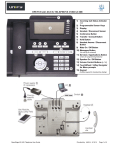
NOTE: THE FAR LEFT CIRCULAR
APPLICATION BUTTON IS THE
TELEPHONY/HOME BUTTON
• If nothing else is pressed, calls will automatically fwd to
predetermined target…usually voicemail
• To select a different forwarding destination:
o Press Call Forward button, Scroll to and select Edit
Call Forwarding
o Scroll down and select ON from ALL CALLS field
o Scroll down and select the Destination Field
o Scroll down and select Edit favorites
o Scroll and pick a Destination (1 thru 5)
o Enter the extension for this destination
o Press OK
o Scroll up and select Save & Exit from Forwarding
Favourites screen
o NOTE: Before exiting the Forward Status screen, be
sure that the correct fwd target is displayed in the
DESTINATION field.
o Scroll up and select Save & Exit from Call
Forward Status screen
o Press the Telephony/HomeButton to return to your
telephony HOME screen.
To Cancel Forwarding:
• Press Call Forwarding button (illumination of button is deactivated)
Telephone Reference Guide
UNIFY – Openstage 60 telephones
Page 3 of 4
Copyright © 2007, InfoTel Integrated Services