1
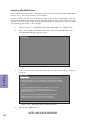
Updating the BIOS
1
If your motherboard has a BIOS protection jumper, change the setting to
allow BIOS flashing.
2
If your motherboard has an item called Firmware Write Protect in Advanced BIOS features, disable it. (Firmware Write Protect prevents BIOS
from being overwritten.)
3
Prepare a bootable device or create a bootable system disk. (Refer to
Windows online help for information on creating a bootable system disk.)
4
Download the Flash Utility and new BIOS file from the manufacturer’s
Web site. Copy these files to the bootable device.
5
Turn off your computer and insert the bootable device in your computer.
(You might need to run the Setup Utility and change the boot priority items
on the Advanced BIOS Features Setup page, to force your computer to
boot from the bootable device first.)
6
At the C:\ or A:\ prompt, type the Flash Utility program name and the file
name of the new BIOS and then press <Enter>. Example: AFUDOS.EXE
040706.ROM
7
When the installation is complete, remove the bootable device from the
computer and restart your computer. If your motherboard has a Flash
BIOS jumper, reset the jumper to protect the newly installed BIOS from
being overwritten. The computer will restart automatically.
Chapter 3
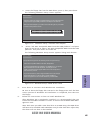
You can download and install updated BIOS for this motherboard from the
manufacturer’s Website. New BIOS provides support for new peripherals, improvements in performance, or fixes for known bugs. Install new BIOS as follows:
This concludes Chapter 3. Refer to the next chapter for information on the software
supplied with the motherboard.
A55F-M4 USER MANUAL
47