1
EXA1[J].book
Page 29
Friday, January 16, 2004
5:05 PM
Preferences
Advanced operations
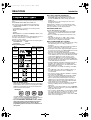
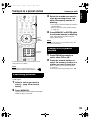
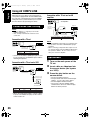
LANGUAGE
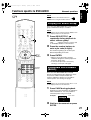
NOTE
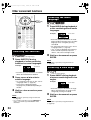
Cursor
(5///2/3 )
/ENTER
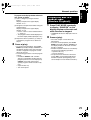
• If the selected language is not recorded on the disc,
the optimum language set for the disc will be
displayed.
• For a language code such as “AA”, refer to the
“Language codes ” (A page 38).
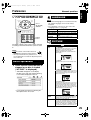
Items
Contents
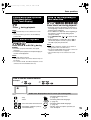
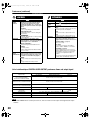
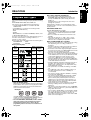
MENU LANGUAGE Select the language for the DVD VIDEO menu.
AUDIO LANGUAGE Select the audio language for the DVD VIDEO.
Number
buttons
SUBTITLE
Select the subtitle language for the DVD
VIDEO.
ON SCREEN
LANGUAGE
Select the language displayed on the
preference screens.
PICTURE
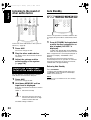
The initial settings of the system can be changed
according to the environment the system is used
in.
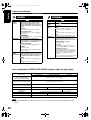
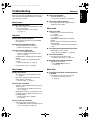
Items
Contents (
MONITOR
TYPE
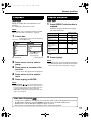
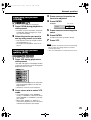
Select a display method suitable for your TV.
16 : 9 NORMAL:
Select this when the aspect ratio of your wide
TV is fixed to 16:9 (when playing a DVD
VIDEO recorded at 4:3, the system
automatically adjusts the screen width of the
output signal).
NOTE
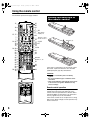
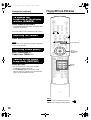
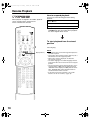
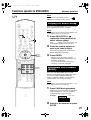
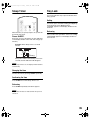
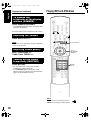
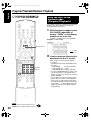
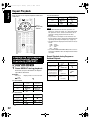
• Set the remote control mode selector to
AUDIO before using the number buttons.
• The top and bottom of the preference screen may
not be displayed on a wide TV. Adjust the picture
size on the TV.
16 : 9 AUTO:
Select this when your TV is an ordinary wide
TV.
Basic operations
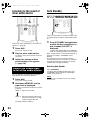
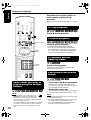
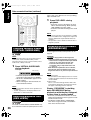
1
: initial setting)
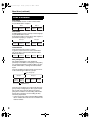
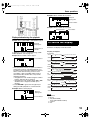
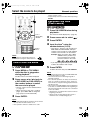
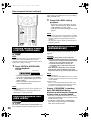
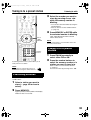
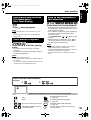
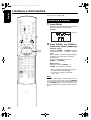
Press CHOICE while the disc is
stopped or no disc is loaded
(“NO DISC” is displayed).
4 : 3 LB (Letter Box) :
Select this when the aspect ratio of your TV is
conventional 4:3. While viewing a wide screen
picture, the black bars appear on the top and
bottom of the screen.
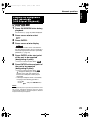
• “SETTING” will appear on the display
window on the main unit and the following
screen will be displayed on the TV.
4 : 3 PS (Pan Scan):
Select this when the aspect ratio of your TV is
conventional 4:3. While viewing a wide screen
picture, the left and right edges of the picture
will not be shown on the screen. (If the disc is
not compatible with Pan Scan, the picture will
be displayed at the Letter Box ratio.)
• Proceed with operations by following the
description on the TV screen.
SCREEN
SAVER
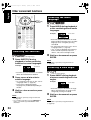
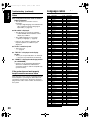
Select the Screen Saver mode between ON /
OFF (Screen Saver activates when there is no
operation made for about 5 minutes since a
still picture was last displayed).
MP3/JPEG
If there are both MP3 and JPEG files on a
disc, you can select which files to play. When
the preference has been changed, open/close
the tray and turn on the power again. (A disc
with only one of MP3 file or JPEG file recorded
can be played regardless of this preference.)
29