1
Contents
This technical brief provides detailed information on the following topics, related to all EPSON impact
printers:
Functionality
▼
Printing technology
Control code/emulation
▼ Paper handling
▼ SmartPark™ settings
▼
Versatility
▼
Flexible interfacing
Built-in fonts
▼ Computer-based set-up
▼
Reliability
Ribbon quality
Ribbon cartridge reliability
▼ Total Print Volume vs. MTBF
▼ Off-carriage motor assembly
▼
▼
Functionality—Printing technology
Why buy an impact printer? An impact printer has several advantages over any other type of printer:
▲
▲
▲
Low cost — both in purchase price and low cost of ownership
Flexible paper handling — only impact printers can handle multi-part forms and multiple paper paths
that can all have paper loaded and waiting.
Reliability — EPSON impact printers are renowned for their reliability with tireless printheads and
superior quality ribbons.
Impact printers are either 9- or 24-pin, which determines the type of printing and the number of multi-part
forms that the printer are capable of printing.
Nine-pin impact printers — These printers have the sturdiest printhead pins which:
▲
▲
▲
Hit the paper hard to make impressions through the thickest multi-part forms
Offer the fastest print speeds
Print from High Speed Draft up to Near Letter Quality
Twenty-four-pin impact printers — These printers have finer printhead pins which:
▲
▲
▲
Hit the paper less hard to make impressions through most multi-part forms
Offer finer Letter Quality printing
Print from High Speed Draft up to Letter Quality
▲
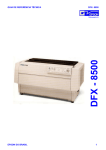
The name of an EPSON's impact printer tells you if it is a 9- or a 24-pin printer, and whether it has a narrow
or wide carriage:
FX-980—Nine-pin
Nine-pin printers all begin with FX, LX, or DFX
narrow carriage
Twenty-four pin printers all begin with LQ
▲
▲
▲
EPSON Sales Training
Wide carriage printers have 4 number in their names
Narrow carriage printers have 3 numbers in their names
EPSON is a registered trademark of Seiko Epson Corporation.
Other trademarks are the property of their respective owners.
1/00
Technical Brief—Multimedia projectors
Page 2
Functionality—Control code/emulation
All EPSON impact printers utilize EPSON Standard Code (ESC/P and ESC/P 2) printer control language, which is
the industry standard for simple, efficient operation of impact printers.
EPSON 9-pin impact printers utilize ESC/P, the original printer control language.
EPSON 24-pin impact printers utilize ESC/P 2, which includes these additional features:
▲
le
▲
Proportionally-spaced scalab fonts
Enhanced graphics printing which prints with 360 dpi in a
single pass of the print head and enhances printing with
Windows applications.
Most EPSON impact printers also offer an IBM emulation, which allows more connectivity compatibility.
Functionality—Paper handling
Versatile paper handling allows EPSON impact printers to handle several different types of paper — many
at the same time.
Tractor paper paths:
EPSON impact printers all include a rear tractor. In some models this tractor is moveable, and in some it is
fixed. Some EPSON impact printers also include additional tractor units, and all of EPSON's impact printers
have optional tractor units available.
The following chart explains the best use for the push tractor, pull tractor, and push/pull tractor
combinations:
Push tractor
Pull tractor
Push/Pull tractor
Best for reports, forms, etc.,
and allows you to achieve
zero tear-off and top of form
adjustment (which allows you
to tear off the printed
document or form without
wasting a sheet.)
Available in front and rear
paper paths.
Gives you better control
when printing on multi-part
forms by ensuring that the
forms stay properly aligned.
Available in front, bottom and
rear paper paths.
Gives you the greatest control
when printing on multi-part
forms by ensuring that the
forms stay properly aligned
and do not get jammed or
misfed.
Bottom pull paper path
Two tractors hold the forms
securely.
Front push paper path
Rear push/pull
Front push/pull
EPSON Sales Training
EPSON is a registered trademark of Seiko Epson Corporation.
Other trademarks are the property of their respective owners.
1/00
Technical Brief—Multimedia projectors
Page 3
Single sheet paper paths:
EPSON impact printers all can handle single sheet paper and single sheet multi-part forms, many EPSON
impact printers have both front and top paper paths:
Front paper path
The front paper path has an
almost straight-through paper
path, which helps eliminate
paper jams and minimizes
misfeeds, especially
when printing on multi-part
forms.
Top paper path
The top paper path
accommodates single sheets,
envelopes or postcards and
optional cut sheet feeders.
Paper feed method
Type of paper
Front Paper Guide
Single sheets, single
sheet labels, top- or
side-bound single
sheet multi-part
forms
Paper feed method
Type of paper
Top friction feed (standard
paper guide)
Optional high-capacity cutsheet feeder
Optional second-bin cutsheet feeder
Single sheets,
envelopes, or
postcards.
Paper thickness adjustment:
▲
▲
Most EPSON impact printers have a Paper Thickness Lever
that allows the printer to accommodate various thicknesses
of paper.
The DFX series EPSON impact printers have an Automatic
Platten Gap Adjustment which automatically adjusts the
platten to the thickness of the paper.
Paper
Thickness
Lever
7
6
5
4
3
0 -1
21
Paper release lever positions:
▲
You can load continuous paper in the printer from various
paper sources, such as the rear or front push tractors and
use the paper release lever to indicate the paper source you
want to use.
Sample paper release lever chart
Paper release
lever position
CUT
FF
PUSH
FF
PULL
EPSON Sales Training
Paper
Release
Lever
Description
Single-sheet position
For loading single sheets from the top or front slot.
Rear push tractor position
For loading continuous paper from the tractor in the read push position. Set the
lever to this position when using the rear push and pull tractor in combination.
Front push tractor position
For loading continuous paper from the tractor in the front push position. Set the
lever to this position when using the front push and pull tractors in combination.
Pull tractor position
For loading continuous paper from the tractor on top of the printer in the pull
position. When the tractor is in the pull position, you can load paper in the front,
rear, or bottom slot.
EPSON is a registered trademark of Seiko Epson Corporation.
Other trademarks are the property of their respective owners.
1/00
Technical Brief—Multimedia projectors
Page 4
Functionality—SmartPark™ settings
EPSON SmartPark settings, which help you save paper and trouble, and precisely line up documents, include
automatic tear-off, paper parking, and microfeed adjustments.
Automatic tear-off
▲
▲
▲
Can be automatic or activated by a button on the control panel.
After a document is printed, the printer will automatically advance the paper to the tear-off position.
When the paper is torn off, or when another document is printed, paper is automatically retracted to the
top-of-form position.
Paper parking
▲
▲
Supports loading of paper from most paper paths, by pressing a button on the control panel.
Paper from one path is backed out and "parked," while paper from the other path is loaded into printing
position
▲
Microfeed adjustments
Can set a top-of-form setting within 1/180 of an inch, to precisely line-up printing on pre-printed forms.
Versatility—Flexible interfacing
Most EPSON impact printers offer both standard bidirectional parallel and serial interfaces which make the
printers compatible with virtually any Windows system environment.
▲
Bundled Microsoft Windows® 3.1x, Windows NT 3.51/4.0, Windows 95 and Windows 98 drivers
guarantees ease of use right out of the box.
For optional connectivity, most EPSON impact printers offer EPSON Type B interface slots that allow you to add:
Interface card
32KB Serial
Serial
Coax
Twinax
Multiprotocol Series 2 & 100/
10Base-TX Ethernet Print Server
LocalTalk Interface board
Description
RS-232C serial port
Standard serial port
IBM® mainframe connection
IBM minicomputer connection
Direct Ethernet/ EtherTalk
network connection
AppleTalk connection
Compatibility
PC/Macintosh
PC/Macintosh
PC
PC
PC/Macintosh
Macintosh
When an optional interface is added, EPSON impact printers automatic interface switching feature will
automatically switch to the interface receiving data.
Versatility—Built-in fonts
Each EPSON impact printer includes a variety of built-in fonts.
DOS applications will take advantage of all of the built-in fonts that are available on a printer. EPSON
impact printers offers these types of built-in fonts:
▲
▲
▲
Bitmap fonts—available on all EPSON impact printers
Proportionally-spaced scalable fonts—selectable in 2-point increments,
available on EPSON 24-pin impact printers
Barcode fonts are printed
Barcode fonts—available on most EPSON impact printers.
unidirectionally for accuracy
Windows applications will overide all built-in fonts in favor of the Windows fonts resident on your
computer.
EPSON Sales Training
EPSON is a registered trademark of Seiko Epson Corporation.
Other trademarks are the property of their respective owners.
1/00
Technical Brief—Multimedia projectors
Page 5
Versatility—Computer-based set-up
EPSON Remote! Utility
EPSON Remote! is the DOS-based printer setup utility that allows you to easily change the printer's default
settings.
▲
Simplifies setup when installing multiple printers–just make the necessary changes in the software utility,
and download the settings to each printer
EPSON Remote! Start UP Utility Ver. 1.22
Copyright (C) SEIKO EPSON CORP. 1992
Printer: FX-2180
Mode: ESC/P
Port: LPT1
Font
Pitch
Print Quality
Character Table
Continuous Rear
Continuous Rear
Continuous Front
Continuous Front
CutSheetFeeder 1
CutSheetFeeder 1
CutSheetFeeder 2
CutSheetFeeder 2
Manual Rear
Manual Rear
:
:
:
:
:
:
:
:
:
:
:
:
:
:
Roman
10CPI
LQ
PC 437
11 inch
8.5mm
7 inch
8.5mm
11 inch
8.5mm
11 inch
8.5mm
14 inch
8.5mm
Manual Front
Manual Front
Print Direction
Skip over hold
Interface mode
I/F interval
Input Buffer
Auto Tear off
Auto Line Feed
Control Code
0 slash
Buzzer
Roll Paper
:
:
:
:
:
:
:
:
:
:
:
:
:
17 inch
8.5mm
Bi-d
OFF
Auto
10s
ON
OFF
OFF
ESC/P
OFF
ON
OFF
Help:
Select printer Font.
F1 : Execute
F10: Previous
F2 : Quit
CR : Select item
F3 : Default
F4 : Change Port
Printer Status Monitor Utility
The Printer Status Monitor provides Windows 95/98 users with automatic error messaging for direct printer to
host computer connection.
▲
This utility program provides printer status, error conditions, and trouble shooting instructions to the user.
Windows 3.51 and NT 4.0 users can add an
optional Ethernet card to have access to the
Printer Status Monitor.
EPSON Sales Training
EPSON is a registered trademark of Seiko Epson Corporation.
Other trademarks are the property of their respective owners.
1/00
Technical Brief—Multimedia projectors
Page 6
Reliability—Ribbon quality
EPSON brand impact printer ribbons are superior to the less
expensive compatible ribbons.
EPSON brand ribbons are ...
Customer advantages
Made with the highest quality
nylon manufactured
Ensures sharp printed edges
Reduces fraying which can jam or
damage the print head
Made with the highest quality
dyes, pigments, oils and a
special lubricant
Protects and extends the life of the
print head
▲
Available in a mylar film
Offers the highest print quality for
dot matrix printers
▲
Made of the highest grade
ABS plastic
Keeps the cartridge from warping during times
of extended use and extreme temperature
changes
▲
Easy to sell with every printer
Adds profit to every sale
▲
Ensures consistent print quality
throughout the life of the ribbon
▲
=
Manufactured with ink precisely
applied to both sides of the
ribbon nylon by computercontrolled machinery
=
First
Character
2,000,000 th
Character
▲
v s .
Ultra
Letter
Quality
5
Reliability—Ribbon cartridge reliability
Most EPSON impact printers use a stationary ribbon cartridge. The design used in many competitive printers
move the ribbon with the print head assembly unit. EPSON's stationary ribbon cartridge offers the following
benefits:
▲
▲
▲
The stationary ribbon cartridge can be larger, since it doesn't have to move with the print head,
and therefore has a longer life.
Because the carriage does not have the extra weight of the ribbon, the printer can achieve faster
print speeds.
This lower weight on the carriage reduces the wear and tear on the motor, which gives the printer
greater overall reliability.
EPSON's stationary ribbon cartridge
EPSON Sales Training
Competitive design with smaller
ribbon on the print head
EPSON is a registered trademark of Seiko Epson Corporation.
Other trademarks are the property of their respective owners.
1/00
Technical Brief—Multimedia projectors
Page 7
Reliability—Total Print Volume vs. Mean Time Between Failures
EPSON impact printers are more accurately rated for reliability in Total Print Volume, and are also rated in
Mean Time Between Failures.
▲
▲
Total Print Volume estimates the total number of lines that the printer can print before it may fail.
Mean Time Between Failures estimates the number of hours between failures at 25 percent usage
and 35 percent density, which can vary depending on printing conditions, and is much less
accurate than Total Print Volume.
Reliability—Off-carriage motor assembly
Most EPSON impact printers use an off-carriage motor assembly, versus the on-carriage motor used in
competitive printers.
▲
▲
The off-carriage motor allows the print head to reach top speed more quickly and stop more
quickly because it is not carrying the extra motor weight.
Because just the print head moves, there is less wear and tear on the motor for greater overall
reliability.
On-carriage motor
Off-carriage motor
F ix e d
P u lle y
M o to r
EPSON Sales Training
T im in g B e lt
R a c k
P in io n
M o to r
EPSON is a registered trademark of Seiko Epson Corporation.
Other trademarks are the property of their respective owners.
1/00