1
Basic Settings
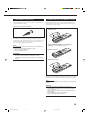
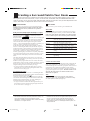
Some of the following settings are required after connecting and positioning your speakers in your listening room, while
others will make operations easier.
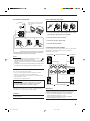
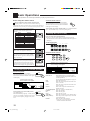
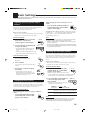
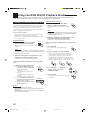
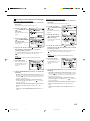
Adjusting the Front Speaker Output
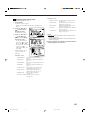
Balance
If the sounds you hear from the front right and left speakers are
unequal, you can adjust the speaker output balance.
• You can do this setting for each source.
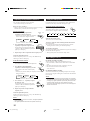
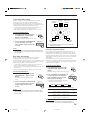
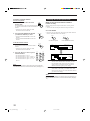
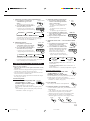
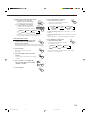
When changing the source name from “TV” to
“DBS”:
• Press and hold SOURCE NAME (TV
SOUND/DBS) until “ASSGN. DBS”
appears on the display.
TV SOUND/DBS
SOURCE NAME
Before you start, remember....
• There is a time limit in doing the following steps. If the setting is
canceled before you finish, start from step 1 again.
To change the source name to “TAPE” or “TV,” repeat the same
procedure above — press and hold SOURCE NAME (TAPE/MD)
to select “TAPE,” or press and hold SOURCE NAME (TV
SOUND/DBS) to select “TV.”
On the front panel:
Note:
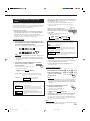
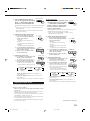
1. Press LEVEL ADJUST repeatedly
until “BAL– (with current
setting)” appears on the display.
L
2. Press CONTROL UP 5/DOWN ∞
to adjust the balance.
LEVEL
ADJUST
CONTROL
DOWN
UP
• Pressing CONTROL UP 5 decreases the
left channel output (from CENTER to
L–21).
• Pressing CONTROL DOWN ∞ decreases the
right channel output (from CENTER to R–21).
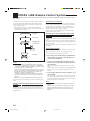
Selecting the Video Input Terminal
From the remote control:
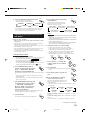
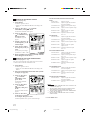
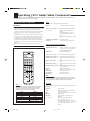
1. Press SOUND.
SOUND
The 10 keys are activated for sound
adjustments.
2. Press L/R BAL.
“L/R” appears on the remote control display
window.
Without changing the source name, you can still use the connected
components. However, there may be some inconvenience.
– “TAPE” or “TV” will appear on the display when you select the MD
recorder or DBS tuner.
– You cannot use the digital input (see page 19) for the MD recorder.
– You cannot use the COMPU LINK remote control system (see page
41) to operate the MD recorder.
∗L/R BAL
8
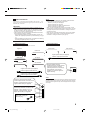
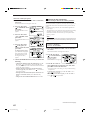
This receiver is equipped with the component video input terminals
for the DVD player and DBS tuner, which give you higher picture
quality. When you use the component video input terminals for the
DVD player and/or DBS tuner, change the video input terminal
setting.
Before you start, remember....
• There is a time limit in doing the following steps. If the setting is
canceled before you finish, start from step 1 again.
On the front panel ONLY:
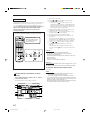
3. Press BAL L or BAL R to adjust
the balance.
• Pressing BAL L decreases the right
channel output (from CENTER to R–21).
• Pressing BAL R decreases the left channel
output (from CENTER to L–21).
+
∗BAL L
∗
CH/ LEVEL
−
∗BAL R
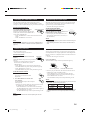
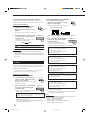
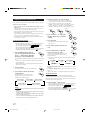
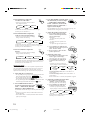
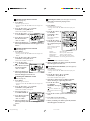
1. Press SETTING repeatedly until
“VIDEO DVD” or “VIDEO DBS”
appears on the display.
The display changes to show the current setting.
• Select “VIDEO DVD” to select the video input terminal for
the DVD player and “VIDEO DBS” for the DBS tuner.
2. Press CONTROL UP 5/DOWN ∞
to select the appropriate video
input terminal.
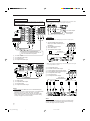
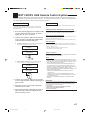
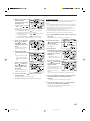
Changing the Source Name
CT SETTING
CONTROL
DOWN
UP
When you have connected an MD recorder to the TAPE/MD jacks
or the DBS tuner to the TV SOUND/DBS jacks on the rear panel,
change the source name which will be shown on the display when
you select the MD recorder or DBS tuner as the source.
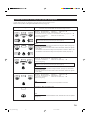
• Each time you press the button, the display
changes to show the following:
On the front panel ONLY:
COMPNT: Select this when you connect the DVD player or
DBS tuner to the component video input terminals.
When changing the source name from “TAPE” to
“MD”:
• Press and hold SOURCE NAME
(TAPE/MD) until “ASSGN. MD”
appears on the display.
S/C:
COMPNT
S/C
(Component)
(S-video/Composite)
Select this when you connect the DVD player or DBS
tuner to the composite video or S-video input terminal.
TAPE / MD
SOURCE NAME
Note:
Without changing the video input terminal setting, you can see the
picture through the video input terminals, but cannot use the AV
COMPU LINK remote control system correctly (see page 47).
16
EN11_23.RX-8010V[J]_f
16
01.1.11, 5:52 PM