1
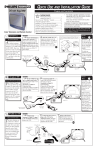
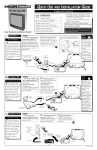
QUICK USE AND INSTALLATION GUIDE
TABLE OF CONTENTS
11
12
•
Warning/Precautions ..................................1
Hooking Up Your TV ................................1
How to Use the “INSTALL” Controls ..................2-3
Using the Language Control......................................2
Setting the TV to Auto Program Channels ................2
Setting the TV for a Cable or Antenna Signal...........2
Using the Channel Edit Control ................................3
Setting the Channel Name Control............................3
How to use the SmartClock control ..........................3
Basic TV and Remote Control Operation .................4
3
7
Color Television and Remote Control
For details on product registration, warranty,
and service refer to the other literature included
with your TV information packet.
2
4
8
ANTENNA
Getting Started
1
10
9
6
5
Please retain all these materials and keep them
handy for future reference.
WARNING: TO PREVENT FIRE OR SHOCK
HAZARD DO NOT EXPOSE THIS UNIT TO RAIN
OR EXCESSIVE MOISTURE.
NOTE: This Quick Use Guide may be used with
other models. Some of the features listed may or
may not apply to your TV.
BEGIN
OUTDOOR/INDOOR
combination (outdoor
or indoor) antenna
receives normal broadcast
channels 2-13 (VHF) and
14-69 (UHF). Your connection to such an antenna
is easy since there is only
one antenna plug (75Ωohm) on the back of your
TV - and that’s where the
antenna goes.
A
Note: For homes with separate UHF and VHF antennas you will need an optional combiner to connect to
the TV.
U/V Combiner
Push the round end of the
adapter (or antenna) onto the
ANTENNA (ANT “A”) plug on
the rear of the TV. If the round
end of the antenna wire is
threaded, screw it down tight.
If your antenna has a
round cable connector (75
ohm) on the end, then you're
ready to connect it to the TV.
If your antenna has flat twinlead wire (300 ohm), you first
need to attach the antenna wires
to the screws on a 300 to 75
ohm adapter.
UH
F
30
0Ω
S-VIDEO
VIDEO
VHFVH
L
AUDIO
ANT "A"
75
F
R/MONO
IN-1
IN-2
OUT
Back of TV
OR
R
TE
AP
00
Ω
AD
Remember,
be sure to set the
TV for the type signal you've connected (see "TUNER"
section on page 2 of
this Guide).
-3
75
To order any
optional accessory
contact your dealer
or call the toll-free
accessory ordering
number:
1-800-851-8885.
75-300 Ohm Adapter
Combination VHF/UHF Antenna
(Outdoor or Indoor)
SMART
HELP
300 to 75Ω
Adapter
(483521827003)
1
2
Twin Lead
Wire
ANT "A"
75
S-VIDEO
VIDEO
L
ANT "A"
75
AUDIO
R/MONO
IN-1
OR
IN-2
OUT
Back of TV
Round Cable
75Ω Ohm
CABLE TV
CABLE INPUT/CONVERTER
Y
our Cable TV input
into your home may be
a single (75 ohm) cable or
a Converter Box installation. In either case, the
connection to the TV is
very easy. Just put the
threaded end of the cable
signal to the TV's antenna
plug and screw it down
tight.
SMART
HELP
BEGIN
If your Cable TV signal is a single round cable (75
ohm) then you're ready to connect to the TV.
If you have a Cable TV
Converter Box:
Connect the Cable TV signal to
the Cable Signal IN(put) plug
on the Converter.
Connect the Cable TV
cable to the ANTENNA (ANT
“A”) plug on the TV.
If you have a Cable TV
Converter Box:
Connect the OUT(put) plug
from the Converter to the
ANTENNA (ANT “A”) plug on
the TV (connecting cable supplied with the Converter).
2
ANT "A"
75
Cable TV Signal
Cable TV
Company
Remember,
set the TV for the
type signal you've
just connected (see
the “TUNER” section on page 2 of
this Set-Up Guide).
S-VIDEO
VIDEO
L
ANT "A"
75
BASIC CONNECTION
T
he basic Antenna, or
Cable TV, to VCR to
TV connection is shown to
the right. For more information on other hookups
(possible when Cable
Converter/Descrambler
boxes are included) refer
to your accessory VCR
and Cable Converter
Owner's Manual for
details.
IN-2
OUT
Back of TV
OUT
Round Cable
75Ω Ohm
Cable TV Converter
Box Connection
VCR TO TV
AUDIO
R/MONO
IN-1
OR
IN
Your TV can set
itself to select only
the channel numbers
on your Cable system
(see “AUTO PROGRAM" section on
page 2). If you use a
Cable Converter box,
set the TV to the
same channel as the
converter's CH 3/4
switch (on the rear of
the converter).
1
BEGIN
Connect the OUT TO
TV plug on the VCR to the
ANTENNA (ANT “A”) plug
on the TV (connecting cable
supplied with the VCR).
Connect your
Antenna or Cable TV signal
to the IN FROM ANT(enna)
plug on the VCR.
Refer to the Owner's
Manual included with your
VCR for other possible connections and TV/VCR operating details.
300 to 75Ω Ohm
Adapter
1
Outdoor VHF/UHF
Antenna
OR
IN FROM ANT.
OUT TO TV
Round Cable
75Ω Supplied
with VCR
2
ANT "A"
75
S-VIDEO
VIDEO
L
ANT "A"
75
AUDIO
R/MONO
IN-1
IN-2
OUT
Cable TV signal
Back of TV
VCR
3135 015 12651
HOW TO USE THE INSTALLATION FEATURES
LANGUAGE
BEGIN
Press the MENU button on the remote to show the
on-screen menu.
F
or our Spanish and
French speaking TV owners, an on-screen LANGUAGE option is present.
With the LANGUAGE control
you can set the TV’s on-screen
menu to be shown in either
English, Spanish, or French.
...
..
PICTURE
LANGUAGE
SOUND
TUNER
FEATURES
AUTO PROGRAM
INSTALL
CHANNEL EDIT
...
.
..
..
.
SLEEP
A/V
SWAP
ACC
ON/O
SOUR
POWER
FF
POSITIO
CE
UP
1
N
FREE
or CURSOR DOWN ■
INSTALL
SMART CLOCK
VCR
...
.
ENGLISH
LANGUAGE
ESPANOL
..
..
.
AUTO PROGRAM
CHANNEL EDIT
NAME
SMART CLOCK
ZE
PIP CH
SMAR
T
MENU
D
.
INSTALAR
TUNER
DN
SOUN
IDIOMA
buttons to select ENGLISH,
ESPANOL (Spanish), or
FRANCAIS (French).
ESPANOL
FRANCAIS
SINTONIA
PICT
ED. DE CANAL
NOMBRE
SMART CLOCK
URE
VOL
CC
MUT
STAT
US
EXIT
VCR
RECO
2
RD
INCR
STER
EDIB
5
TV/V
LE
MED
EO
CLOC
.
INSTALL
FRANCAIS
LANGUE
SYNTON
AUTO PROGRAM
CHANNEL EDIT
NOM DU CANAL
SMART CLOCK
SMART HELP
E
CH
K
...
.
..
..
.
AUTO PROGRAM
SMAR
T
SURF
Press the CURSOR
RIGHT button to highlight the Language control
options.
Press the CURSOR UP
REVIEW
NAME
TV
Press the CURSOR
RIGHT button to shift
the menu to the left and highlight the LANGUAGE feature.
Press the CURSOR
DOWN ■ button four times to
select the INSTALL menu.
A/CH
CR
3
MUL
TI
4
IA
AUTO PROGRAM
Remember, the
Language control only
makes the TV’s on-screen
MENU items appear in
English, Spanish, or French
text. It does not change the
other on-screen text features
such as Closed Caption (CC)
TV shows.
Pressing the STATUS/EXIT
button after making adjustments to the TV will remove
the menu from the screen.
BEGIN
Press the MENU button on the remote to show the
on-screen menu.
Y
our TV can automatically
set itself for local area (or
Cable TV) channels. This
makes it easy for you to select
only the TV stations in your
area when the CHANNEL (+),
(–) buttons are pressed.
..
..
.
REVIEW
PICTURE
LANGUAGE
SOUND
TUNER
FEATURES
AUTO PROGRAM
INSTALL
CHANNEL EDIT
...
.
...
..
SMART CLOCK
SLEEP
TV
VCR
A/V
SWAP
ACC
ON/O
SOUR
POWER
FF
POSITIO
CE
UP
1
N
FREE
Press the CURSOR
RIGHT button to start
the Auto Program scanning of
channels.
INSTALL
NAME
LANGUAGE
TUNER
AUTO PROGRAM
...
..
INSTALL
AUTO PROGRAM
..
.. .
CHANNEL EDIT
NAME
...
.
INSTALL
TUNER
CABLE
CHANNEL
12
...
..
PLEASE WAIT
SMART CLOCK
ZE
PIP CH
DN
SMAR
T
SO
MENU UND
SMAR
T
PICT
SURF
Press the CURSOR
DOWN ■ button to highlight
the AUTO PROGRAM control.
Press the CURSOR
RIGHT button to shift
the menu to the left and highlight the LANGUAGE feature.
Press the CURSOR
DOWN ■ button four times to
select the INSTALL menu.
URE
LANGUAGE
TUNER
AUTO PROGRAM
CHANNEL EDIT
NAME
SMART CLOCK
VOL
CC
MUT
STAT
US
EXIT
VCR
RECO
RD
INCR
STER
EO
EDIB
LE
4
TV/V
2
MED
CLOC
E
K
CH
A/CH
CR
3
MUL
TI
5
IA
SMART HELP
Try it out. Press the
CHANNEL (+), (–) buttons and see which channels
you can select.
TUNER
Remember, an antenna or cable
TV signal must be first connected to your TV.
BEGIN
Y
..
...
REVIEW
PICTURE
LANGUAGE
SOUND
TUNER
FEATURES
AUTO PROGRAM
INSTALL
CHANNEL EDIT
SMART CLOCK
SLEEP
TV
VCR
A/V
SWAP
ACC
SOUR
ON/O
SMAR
T
D
POWER
FF
POSITIO
CE
6
1
MENU
Press the CURSOR
RIGHT button to shift
the menu to the left and highlight the LANGUAGE feature.
Press the CURSOR
RIGHT button to highlight the TUNER options.
Press the CURSOR
DOWN ■ button to highlight
the TUNER control.
or the CURSOR DOWN
Press the CURSOR UP
NAME
SOUN
Press the CURSOR
DOWN ■ button four times to
select the INSTALL menu.
Press the MENU button on the remote to show the
on-screen menu.
ou need to make sure the
TV is set to pick up either
Cable TV or Antenna signals.
In other words, the TV needs
to know if you want to receive
channels coming from a
Cable TV signal or a normal
Antenna signal connected to
the TV’s ANT Input.
UP
N
FREE
...
.
INSTALL
..
..
.
ENGLISH
LANGUAGE
ESPANOL
TUNER
AUTO PROGRAM
CHANNEL EDIT
NAME
SMART CLOCK
ZE
PIP CH
DN
SMAR
T
PICT
SURF
URE
...
.
INSTALL
.
..
..
TUNER
AUTO PROGRAM
CHANNEL EDIT
NAME
SMART CLOCK
...
.
STAT
US
EXIT
VCR
RECO
RD
INCR
STER
EDIB
4
EO
LE
TV/V
2
MED
MUT
CLOC
CR
CABLE
.
..
..
LANGUAGE
TUNER
AUTO PROGRAM
CHANNEL EDIT
NAME
SMART CLOCK
MUL
TI
IA
.
...
.
INSTALL
CABLE
.
..
.. ...
..
..
..
LANGUAGE
TUNER
.
AUTO
AUTO PROGRAM
CHANNEL EDIT
NAME
INSTALL
SMART CLOCK
E
K
■ button to select either
CABLE, AUTO, or
ANTENNA.
INSTALL
LANGUAGE
VOL
CC
If you want to delete any unwanted channels from the TV’s memory, see the CHANNEL EDIT
section on the next page.
CH
A/CH
3
5
SMART HELP
When CABLE is
selected, channels 1-125
are available.
When ANTENNA is selected,
channels 2-69 are available.
LANGUAGE
TUNER
AUTO PROGRAM
CHANNEL EDIT
NAME
SMART CLOCK
.
ANTENNA
HOW TO USE THE INSTALLATION FEATURES
CHANNEL EDIT
BEGIN
Press the MENU button on the remote to show the
on-screen menu.
C
hannel Edit makes it easy
for you to ADD or
DELETE channels from the
list of channels stored in the
TV’s memory.
Press the CURSOR
DOWN ■ button four times to
select the INSTALL menu.
..
..
.
REVIEW
PICTURE
LANGUAGE
SOUND
TUNER
FEATURES
AUTO PROGRAM
INSTALL
CHANNEL EDIT
NAME
SMART CLOCK
SLEEP
TV
VCR
A/V
SWAP
ACC
ON/O
SOUR
POWER
FF
POSITIO
CE
UP
1
N
FREE
Press the CURSOR
RIGHT button to shift
the menu to the left and highlight the LANGUAGE feature.
Press the CURSOR
RIGHT button to access
the CHANNEL EDIT menu.
CHANNEL will be highlighted.
Press the CURSOR
DOWN ■ button to highlight
the ADD/DELETE option.
Press the CURSOR
DOWN ■ button to highlight
the CHANNEL EDIT control.
Select the channel you
want to ADD or DELETE with
the CH (+) or (–) buttons. (OR,
use the Numbered buttons.)
or DOWN ■ button to
Press the CURSOR UP
...
.
...
..
INSTALL
..
..
.
...
..
INSTALL
CHANNEL EDIT
LANGUAGE
TUNER
AUTO PROGRAM
CHANNEL EDIT
CHANNEL
NAME
ADD
..
..
SMART CLOCK
ZE
..
..
12
ADD
PIP CH
DN
CHANNEL
INSTALL
CHANNEL EDIT
..
..
12
ADD
SMAR
T
SO
MENU UND
SMAR
T
PICT
SURF
MUT
STAT
US
EXIT
VCR
STER
TV/V
CLOC
E
K
CH
A/CH
CR
3
2
4
8
7
INCR
EDIB
MUL
TI
LE
MED
EO
12
DELETE
6
CC
RD
CHANNEL
URE
VOL
RECO
To clear the screen, press the
STATUS/EXIT button.
...
..
INSTALL
CHANNEL EDIT
CHANNEL
ADD or DELETE the channel
from memory.
5
6
IA
NAME
BEGIN
T
he channel NAME feature
allows you to list the
“call” letters of your favorite
stations beside their channel
numbers when they appear on
the screen. The TV has in memory a list of the 50 most popular channel names (for example, ABC, NBC, FOX, etc.).
You can also enter a custom
name (up to four digits).
Press the MENU button on the remote to show the
on-screen menu.
Press the CURSOR
DOWN ■ button to highlight
the NAME control.
Press the CURSOR
DOWN ■ button four times
to select the INSTALL menu.
Press the CURSOR
RIGHT button to highlight the NAME options area.
REVIEW
PICTURE
LANGUAGE
SOUND
TUNER
FEATURES
AUTO PROGRAM
INSTALL
CHANNEL EDIT
NAME
VCR
A/V
SWAP
ACC
SOUR
ON/O
POSITIO
N
FREE
..
..
.
ZE
PIP CH
DN
1
SMAR
T
SOUN
MENU
D
...
.
INSTALL
POWER
FF
CE
UP
...
.
SMART CLOCK
SLEEP
6
through a list of channel names
provided in the TV’s memory.
OR
You can also enter a channel
name manually. Press the
CURSOR RIGHT button
again when PERSONAL is
highlighted, then use the CURSOR UP and DOWN ■
buttons to scroll through a list
of options for the first digit.
Press the CURSOR RIGHT
button and repeat for the
second, third, and fourth digit.
Press the CURSOR
RIGHT button to shift
the menu to the left and highlight the LANGUAGE feature.
..
..
.
TV
Using the CURSOR UP
or DOWN ■ buttons, scroll
...
.
INSTALL
LANGUAGE
TUNER
AUTO PROGRAM
CHANNEL EDIT
NAME
12
SMART CLOCK
..
..
.
TUNER
AUTO PROGRAM
CHANNEL EDIT
.
PERSONAL
NAME
SMART CLOCK
..
..
Press the STATUS/EXIT
button to clear the menu from
the screen
12:00 PM
STEREO
6
CBS
INSTALL
LANGUAGE
Once you have selected a
name for the channel, press
the CURSOR RIGHT button again to SAVE the
name in the TV’s memory.
LANGUAGE
AUTO PROGRAM
TUNER
CHANNEL EDIT
NAME
.
C
SMAR
T
PICT
SURF
URE
VOL
6
RD
INCR
STER
EDIB
4
EO
LE
TV/V
2
MED
MUT
CLOC
.
E
K
CH
A/CH
CR
MUL
TI
IA
3
5
6
SMARTCLOCK
S
martClock can automatically set the TV’s onscreen clock. Since the time is
received from a broadcast signal, be sure that a Cable TV
or Antenna signal is present
before attempting to use the
SmartClock feature.
Press the MENU button on the remote to show the
on-screen menu.
..
..
.
...
.
PICTURE
LANGUAGE
SOUND
TUNER
FEATURES
AUTO PROGRAM
INSTALL
CHANNEL EDIT
Press "
" to select the
time zone that you live in
>
ATLANTIC
EASTERN
CENTRAL
MOUNTAIN
..
..
.
TUNER
AUTO PROGRAM
CHANNEL EDIT
NAME
SMARTCLOCK
Daylight Savings Time
Yes
No
>
>
>
>
Press ">" to Continue
Time was not found on channel
The time is broadcast by certain TV
stations. We suggest trying PBS first.
Enter another channel
Set time Manually
10
Please wait...
OR
" to select
Press ">" to Continue
Note: When setting the
clock manually, use the
number buttons on the
remote to enter the time.
Don’t forget to set AM or
PM with the cursor Up or
Down button.
The time is broadcast by certain TV
stations. We suggest trying PBS first.
Press "
" to select
Press ">" to Continue
Press ">" to Continue
Time was found
12:30 PM
Enter the PBS channel
2
use "
Press ">" to Continue
Press ">" to Continue
" to set AM/PM
>
" to set AM/PM
>
use "
Press "
" to select
Press ">" to Continue
Press ">" to Continue
Enter the PBS channel
>
12:30 PM
Press the CURSOR
DOWN ■ button to highlight
the SMART CLOCK control.
Press the CURSOR
RIGHT button to start
the SMART CLOCK feature.
Just follow the on-screen
instructions to set the clock.
This TV contains a clock which
can automatically be set
through the SMARTCLOCK Feature.
>
>
AUTO
MANUAL
Press ">" to Continue
Press the CURSOR
RIGHT button to shift
the menu to the left and highlight the LANGUAGE feature.
LANGUAGE
Press "
Press "
" to select
Press ">" to Continue
CBS
>
SET TIME
Press the CURSOR
DOWN ■ button four times to
select the INSTALL menu.
INSTALL
REVIEW
>
Follow these
on-screen
instructions to
set the
SmartClock
Manually.
AUTO
MANUAL
.
BEGIN
SMARTCLOCK
SET TIME
ACTS
7
NAME
Follow these
on-screen
instructions to
set the
SmartClock
Automatically.
ABC
>
STAT
US
EXIT
>
CC
VCR
RECO
Press ">" to Continue
TV AND REMOTE CONTROL OPERATION
TELEVISION
BEGIN
Press the POWER
button to turn the TV ON.
6
12:00 PM
STEREO
Press the VOLUME + button to increase the sound
level or the VOLUME –
button to lower the sound level.
Press the CHANNEL UP
▲ or DOWN ▼ button to select
TV channels. Use these buttons
to make adjustments or selections in the on-screen menu.
Note: Always press two number
buttons on the remote for channels under 100. Press three
number buttons for channels
100 or above. For example: Press
"0" then "6" for channel 6, or
press “1” then “2” then “5” for
channel 125.
Pressing both buttons at the
same time will display the onscreen menu. Once in the
menu, use these buttons to
make adjustments or selections.
POWER
REMOTE
BATTERY INSTALLATION
T
o load the supplied batteries into the remote:
CHANNEL
MENU
BEGIN
Remote Sensor Window
Point the remote control toward the remote sensor
window on the TV when operating the TV with the remote.
1. Remove the battery
compartment lid on the
back of the remote.
– VOLUME + Slide the TV/VCR/ACC
mode switch on the remote
control to the TV position and
point the remote at the front
of the TV when sending commands.
1
2
3
ER
POW
N
ITIO
POS
EP
SLE
FF
ON/O
RCE
SOU
AV
TV
ZE
FREE
CH
PIP
UP
DN
3
AP
SW
VCR
ACC
2. Place the batteries (2AA) in the remote. Be
sure the (+) and (-) ends
of the batteries line up
correctly (inside of case is
marked).
ART
SM
E
TUR
PIC
SUR
ART
SM
ND
SOU
MEN
F
U
CH
TE
MU
VOL
TUS
STA
CC
H
A/C
CK
CLO
CR
TV/V
LTI
MU
EXIT
IA
MED
IBLE
RED
INC
REO
STE
VCR
ORD
REC
3. Reattach the battery lid.
4
Power Button
Sleep Button
Press to set the TV to automatically turn
itself OFF. Also can be used as an Enter button when sending channel commands to
remote controlled cable converters or VCRs.
TV/VCR/ACC MODE
SWITCH
The remote's TV/VCR/ACC
Switch controls how buttons
on the remote are used.
For example:
With the switch in the "TV"
position:
the Menu, CURSOR ,
, and ■ buttons
are used to select and
adjust on-screen TV
features.
With the switch in the
"ACC" position:
the Power, Channel
Number, and Channel
Up (+) /Down (–) buttons
on the remote work with
Cable TV Converters.
With the switch in the
"VCR" position:
the Menu, CURSOR ,
, and ■ buttons
on the remote work Stop,
Play, Fast Forward, and
other VCR features.
Note: For more details on
how the TV remote works
with VCRs and Cable
Converters, see the other
owner's manual supplied with
your TV.
AV Button
Press to toggle between the external
Audio/Video input jacks. This button will tune
to the AV 1, AV 2 or current tuner channel.
TV/VCR/ACC Mode Switch
POWER
SLEEP
PIP Buttons
TV
AV
ON/OFF
VCR
SWAP
SOURCE
FREEZE
DN
ACC
Press the number buttons to select TV
channels. Press two number buttons to
select single digit channels. For example:
press "0" then "6" for channel 6.
Smart Picture Button
SMART
SMART
SOUND
PICTURE
MENU
SURF
Menu Button
Cursor Buttons
Use these buttons to move through the onscreen menu, make selections within the
menu or make adjustments to the menu. Also
used with a VCR for PLAY, FAST FORWARD, REWIND, and STOP.
VOL
Volume (+), (–) Buttons
CH
MUTE
Press to adjust the TV sound level.
Mute Button
CC
Press to turn the sound OFF on the TV. Press
again to return the sound to its previous
level.
CC Button
Press to select Closed Caption options within
the menu. (Refer to the Owner’s Manual for
details.)
STATUS
CLOCK
EXIT
TV/VCR
VCR
RECORD
STEREO
VCR-Record Button
SMART HELP
Surf Button
Press to select previously viewed channels. You can place up to 10 channels in
memory. Then by pressing the SURF button you can quickly view the select channels. See the “Surf" section (in your other
owner's manual) to see how to select a
series of channels using the Surf button.
Channel (+), (–) Buttons
Press to change the tuned channel.
Press to toggle between the currently
viewed channel and the previously
viewed channel.
Clock-TV/VCR Button
MEDIA
INCREDIBLE
Press to select from a list of Smart
Picture controls (factory preset picture
control levels set for different types of
viewing sources and programs).
A/CH Button
A/CH
MULTI
Status/Exit Button
Press to see the current channel number on the
TV screen. Also press to remove the menu
from the screen.
Press to back light the Menu, Surf,
Cursor, Volume, and Channel buttons.
Number Buttons
Smart Sound Button
Press for the on-screen menu to appear.
Pressing the menu button after menu selections are made will either return to a previous
menu or remove the menu from the screen.
Press to operate Picture-In-Picture features. See "PIP" section in your other
owner's manual for details.
Light Button
PIP CH
UP
When in the VCR mode, press the
VCR/RECORD and PLAY buttons to start the
Remember, you can
press any button on the
front of the TV to turn the TV
ON.
POSITION
Slide to position of TV to control TV functions,
VCR to control VCR functions and ACC for
Cable Converter, DBS, DVD, etc., functions.
Press to select from a list of Smart Sound
settings (factory preset sound control levels
set for different types of programming).
Press to turn the TV (or select VCR/
Cable Converter) ON and OFF.
When in TV mode, press to access the
TIMER feature where you can set the
TV’s clock. When in the VCR mode,
this button can be used to quickly toggle
between the VCR A/V connection and
the last viewed TV channel.
Multi Media Button
Press to toggle between the external input
jacks. This button will tune to MM 1,
MM 2, or the currently tuned channel
along with setting the picture controls to
the Smart Picture setting for Multi Media
viewing.
Incredible Stereo Button
The tuned channel number will
always briefly appear when the
TV is first turned ON (and with
channel changes).
You can also press the STATUS
button (on the remote) to see
what channel the TV is ON.
Press to toggle between the Mono and
Spatial sound controls (expands the stereo
sound for a fuller, more dynamic listening
experience). Also press to toggle between
STEREO and INCR. SURROUND if a
station is broadcasting in stereo.