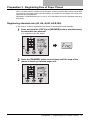
1
2 HOW TO MAKE COPIES
2
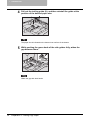
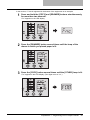
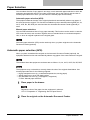
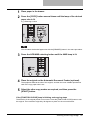
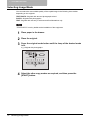
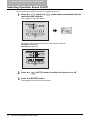
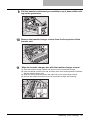
Check if the lamp of the paper size placed on bypass tray is lit. If
not, press the [COPY] button several times until the lamp of the
desired paper size is lit.
3
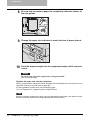
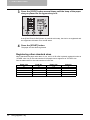
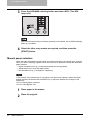
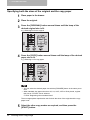
Press the media type setting button until the lamp of the media type
placed on the bypass tray is lit.
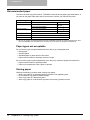
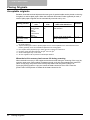
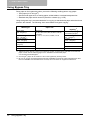
You can select the media type from the following three:
THICK PAPER 1: Thick paper (81 to 105 g/m2)
THICK PAPER 2: Thick paper (106 to 163 g/m2), sticker labels
TRANSPARENCY: Overhead transparencies
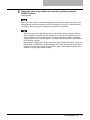
y You do not need to select the media type when you use plain paper (64 to 80 g/m2) or
tracing paper.
y If you select a different media type from the one you placed on the bypass tray, this
could cause a paper jam or the quality of the copied image could be lowered.
4
56
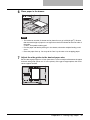
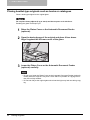
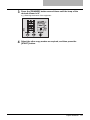
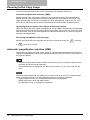
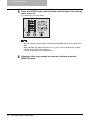
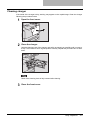
Place the original.
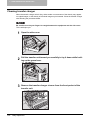
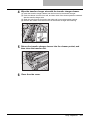
Using Bypass Tray