1
all.book
Page 89
Friday, May 31, 2002
9:49 AM
6. Making Copies
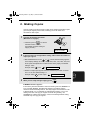
Your fax machine can also be used to make copies. Single and multiple copies
(up to 99 per original) can be made, enabling your fax to double as a
convenience office copier.
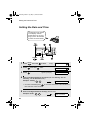
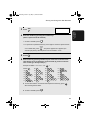
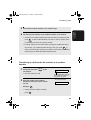
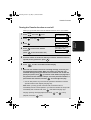
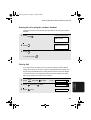
1
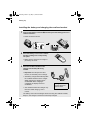
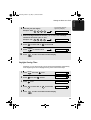
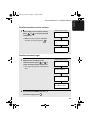
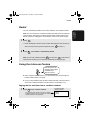
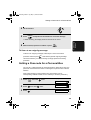
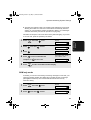
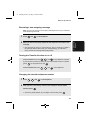
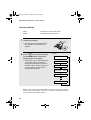
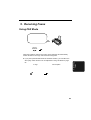
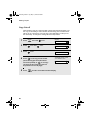
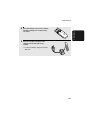
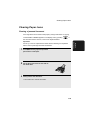
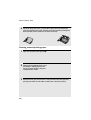
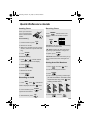
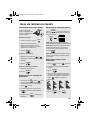
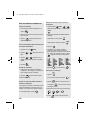
Load the document(s) face down.
(Maximum of 10 pages.)
• If desired, press
RESOLUTION/
RECEPTION MODE
to set the
resolution and/or contrast.
(The default resolution setting for
copying is FINE.)
READY TO SEND
2
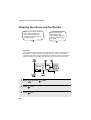
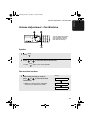
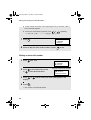
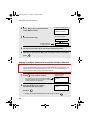
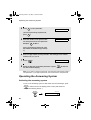
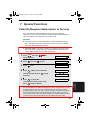
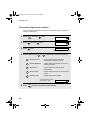
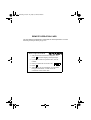
If desired, select an enlarge/reduce setting, and/or select the number of
copies per original:
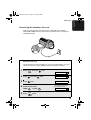
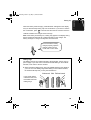
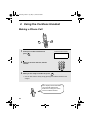
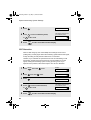
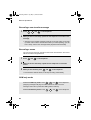
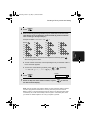
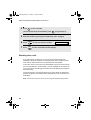
• ENLARGE/REDUCE: Press
or
until the desired setting appears
in the display. Settings are 100%, 125%, 135%, 50%, 73%, 88%, 94%, and
AUTO (auto size adjustment to match the size of the paper). The default
setting is 100%.
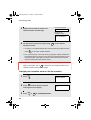
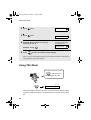
Example: Press
twice
RATIO: 125%
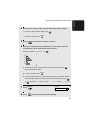
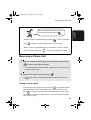
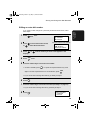
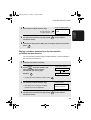
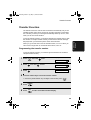
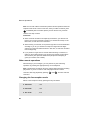
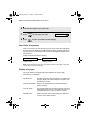
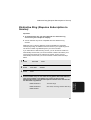
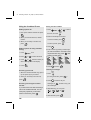
• Number of copies per original: Press the number keys to enter a number
Example: Press 5
3
for five copies
6. Making
Copies
from 1 to 99. The default setting is 1.
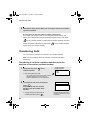
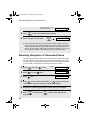
5
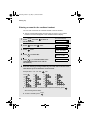
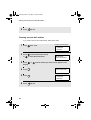
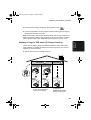
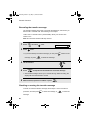
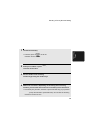
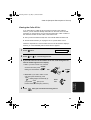
When you are ready to begin copying, press
COPY/HELP
.
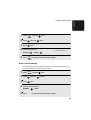
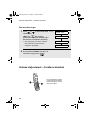
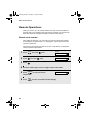
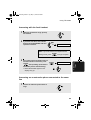
If MEMORY IS FULL appears...
If the memory becomes full while a document is being scanned, MEMORY IS
FULL and SEE MANUAL will alternately appear in the display and the
document will automatically feed out. This may happen if the resolution is set
to SUPER FINE, or if you selected an enlarge/reduce setting, or if you are
making more than one copy per original. To avoid using memory, use
STANDARD or FINE for the resolution, 100% for the enlarge/reduce setting,
and make only one copy per original.
89