1
DEFINITY® Enterprise Communications
Server Generic 1, Generic 3,
and System 75
8411 Voice Terminal User’s Guide
Lucent Technologies —
formerly the communications
systems and technology
units of AT&T
555-230-872
Issue 1
May 1996
Contents
Your 8411 Voice Terminal . . . . . . . . . . . . . . . . . . . . . . . . . . . . . . . . . . . . . . . . . . . . . . . . . . . . . . 1
The PassageWay Connection . . . . . . . . . . . . . . . . . . . . . . . . . . . . . . . . . . . . . . . . . . . . . . 7
Connection with Analog Equipment . . . . . . . . . . . . . . . . . . . . . . . . . . . . . . . . . . . . . . . . . 7
The PassageWay Button (Button #9) and the Analog Adjunct
Status Button (Button #10). . . . . . . . . . . . . . . . . . . . . . . . . . . . . . . . . . . . . . . . . . . . . . . . . . 7
PassageWay Status Indications . . . . . . . . . . . . . . . . . . . . . . . . . . . . . . . . . . . . . . . . . . . 8
Analog Adjunct Status Indications . . . . . . . . . . . . . . . . . . . . . . . . . . . . . . . . . . . . . . . . 8
Sharing the 8411 Telephone Line with the Analog Adjunct . . . . . . . . . . . . . . . . . . . . . 9
A Quick Look at the Features . . . . . . . . . . . . . . . . . . . . . . . . . . . . . . . . . . . . . . . . . . . . . . . . . . 10
Voice Features . . . . . . . . . . . . . . . . . . . . . . . . . . . . . . . . . . . . . . . . . . . . . . . . . . . . . . . . . . 10
Display Features and Features Used with the Softkeys . . . . . . . . . . . . . . . . . . . . . . . 13
How to Use the Features . . . . . . . . . . . . . . . . . . . . . . . . . . . . . . . . . . . . . . . . . . . . . . . . . . . . . . 14
General Instructions. . . . . . . . . . . . . . . . . . . . . . . . . . . . . . . . . . . . . . . . . . . . . . . . . . . . . . 14
Conventions Used in The Following Procedures . . . . . . . . . . . . . . . . . . . . . . . . . . . . . 15
Troubleshooting (Later in This Guide) . . . . . . . . . . . . . . . . . . . . . . . . . . . . . . . . . . . . . . 15
Quick Reference Lists (at the Back of This Guide). . . . . . . . . . . . . . . . . . . . . . . . . . . . 15
Using the Display, Softkeys and Display Control Buttons . . . . . . . . . . . . . . . . . . . . . . . . . . . 16
Entering Softkey Mode and Viewing the Three Feature Option Screens . . . . . . . . . 16
Other Softkey Features That May Be On Your Display . . . . . . . . . . . . . . . . . . . . . . . . 18
Using the Softkeys to Activate a Feature . . . . . . . . . . . . . . . . . . . . . . . . . . . . . . . . . . . . 19
Voice Feature Procedures . . . . . . . . . . . . . . . . . . . . . . . . . . . . . . . . . . . . . . . . . . . . . . . . . . . . . 20
Handset and Speaker . . . . . . . . . . . . . . . . . . . . . . . . . . . . . . . . . . . . . . . . . . . . . . . . . . . . 20
Abbreviated Dialing (AD). . . . . . . . . . . . . . . . . . . . . . . . . . . . . . . . . . . . . . . . . . . . . .
Automatic Callback. . . . . . . . . . . . . . . . . . . . . . . . . . . . . . . . . . . . . . . . . . . . . . . . . . .
Bridging/Manual Exclusion . . . . . . . . . . . . . . . . . . . . . . . . . . . . . . . . . . . . . . . . . . . .
Call Coverage/Consult . . . . . . . . . . . . . . . . . . . . . . . . . . . . . . . . . . . . . . . . . . . . . . . .
Call Forwarding All Calls . . . . . . . . . . . . . . . . . . . . . . . . . . . . . . . . . . . . . . . . . . . . . .
Call Park . . . . . . . . . . . . . . . . . . . . . . . . . . . . . . . . . . . . . . . . . . . . . . . . . . . . . . . . . . .
Call Pickup . . . . . . . . . . . . . . . . . . . . . . . . . . . . . . . . . . . . . . . . . . . . . . . . . . . . . . . . .
Conference . . . . . . . . . . . . . . . . . . . . . . . . . . . . . . . . . . . . . . . . . . . . . . . . . . . . . . . . .
Diagnostics . . . . . . . . . . . . . . . . . . . . . . . . . . . . . . . . . . . . . . . . . . . . . . . . . . . . . . . . .
Drop. . . . . . . . . . . . . . . . . . . . . . . . . . . . . . . . . . . . . . . . . . . . . . . . . . . . . . . . . . . . . . .
Handset Volume . . . . . . . . . . . . . . . . . . . . . . . . . . . . . . . . . . . . . . . . . . . . . . . . . . . . .
Hold. . . . . . . . . . . . . . . . . . . . . . . . . . . . . . . . . . . . . . . . . . . . . . . . . . . . . . . . . . . . . . .
Intercom (Automatic/Dial) . . . . . . . . . . . . . . . . . . . . . . . . . . . . . . . . . . . . . . . . . . . . .
Last Number Dialed . . . . . . . . . . . . . . . . . . . . . . . . . . . . . . . . . . . . . . . . . . . . . . . . . .
Leave Word Calling (LWC) . . . . . . . . . . . . . . . . . . . . . . . . . . . . . . . . . . . . . . . . . . . .
Message. . . . . . . . . . . . . . . . . . . . . . . . . . . . . . . . . . . . . . . . . . . . . . . . . . . . . . . . . . . .
20
23
24
25
26
27
28
28
29
29
30
30
31
32
32
33
i
Mute . . . . . . . . . . . . . . . . . . . . . . . . . . . . . . . . . . . . . . . . . . . . . . . . . . . . . . . . . . . . . .
Priority Calling . . . . . . . . . . . . . . . . . . . . . . . . . . . . . . . . . . . . . . . . . . . . . . . . . . . . . .
Select Ring (and Ringer Volume) . . . . . . . . . . . . . . . . . . . . . . . . . . . . . . . . . . . . . . . .
Send All Calls . . . . . . . . . . . . . . . . . . . . . . . . . . . . . . . . . . . . . . . . . . . . . . . . . . . . . . .
Speaker . . . . . . . . . . . . . . . . . . . . . . . . . . . . . . . . . . . . . . . . . . . . . . . . . . . . . . . . . . . .
Speakerphone . . . . . . . . . . . . . . . . . . . . . . . . . . . . . . . . . . . . . . . . . . . . . . . . . . . . . . .
Test/Diagnostics . . . . . . . . . . . . . . . . . . . . . . . . . . . . . . . . . . . . . . . . . . . . . . . . . . . . .
Transfer . . . . . . . . . . . . . . . . . . . . . . . . . . . . . . . . . . . . . . . . . . . . . . . . . . . . . . . . . . . .
34
34
35
37
38
39
41
42
Display Feature Procedures. . . . . . . . . . . . . . . . . . . . . . . . . . . . . . . . . . . . . . . . . . . . . . . . . . . . 43
Call Information . . . . . . . . . . . . . . . . . . . . . . . . . . . . . . . . . . . . . . . . . . . . . . . . . . . . . . . . . 43
Directory . . . . . . . . . . . . . . . . . . . . . . . . . . . . . . . . . . . . . . . . . . . . . . . . . . . . . . . . . . .
Exit (Normal) . . . . . . . . . . . . . . . . . . . . . . . . . . . . . . . . . . . . . . . . . . . . . . . . . . . . . . .
Inspect . . . . . . . . . . . . . . . . . . . . . . . . . . . . . . . . . . . . . . . . . . . . . . . . . . . . . . . . . . . . .
Message Retrieval . . . . . . . . . . . . . . . . . . . . . . . . . . . . . . . . . . . . . . . . . . . . . . . . . . . .
Normal (Exit) . . . . . . . . . . . . . . . . . . . . . . . . . . . . . . . . . . . . . . . . . . . . . . . . . . . . . . .
Stored Number . . . . . . . . . . . . . . . . . . . . . . . . . . . . . . . . . . . . . . . . . . . . . . . . . . . . . .
Time/Date . . . . . . . . . . . . . . . . . . . . . . . . . . . . . . . . . . . . . . . . . . . . . . . . . . . . . . . . . .
Timer . . . . . . . . . . . . . . . . . . . . . . . . . . . . . . . . . . . . . . . . . . . . . . . . . . . . . . . . . . . . . .
44
45
45
46
47
47
48
48
Tones and Their Meaning. . . . . . . . . . . . . . . . . . . . . . . . . . . . . . . . . . . . . . . . . . . . . . . . . . . . . . 49
Ringing Tones. . . . . . . . . . . . . . . . . . . . . . . . . . . . . . . . . . . . . . . . . . . . . . . . . . . . . . . . . . . 49
Feedback Tones. . . . . . . . . . . . . . . . . . . . . . . . . . . . . . . . . . . . . . . . . . . . . . . . . . . . . . . . . 49
Troubleshooting . . . . . . . . . . . . . . . . . . . . . . . . . . . . . . . . . . . . . . . . . . . . . . . . . . . . . . . . . . . . . . 50
System 75 Version Notes . . . . . . . . . . . . . . . . . . . . . . . . . . . . . . . . . . . . . . . . . . . . . . . . . 51
Key Words to Know . . . . . . . . . . . . . . . . . . . . . . . . . . . . . . . . . . . . . . . . . . . . . . . . . . . . . . . . . . . 52
Quick Reference Lists
ii
Your 8411 Voice Terminal
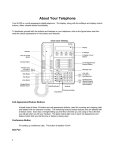
The 8411 voice terminal is available in two models: the 8411D, shown below in Figure 1, has a
display; the 8411B does not have a display. Although the display on the 8411D, along with the
softkeys and display control buttons, offers the user valuable added functionality, both models are
comprehensively equipped so you can make the best use of the many features of the Lucent
Technologies DEFINITY® Enterprise Communications Server (ECS) Generic 1 or Generic 3 and
System 75.
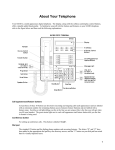
To familiarize yourself with the various features of your voice terminal, you can use Figure 1
below, which shows a top view of the 8411D voice terminal (the 8411B has the same button
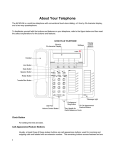
layout, but does not have a display), Figure 2, on page 5, which shows a bottom view, and Figure
3, on page 6, which shows a rear view of the 8411. The features offered on the 8411 voice
terminal are explained below each figure.
8411D
Display
Handset
Telephone
number card
Menu
Volume control
button
Transfer button
Exit
Prev
#1
#2
#3
#4
#5
#6
#7
#8
#9
#10
Shift button
Next
4 Softkeys
4 Display
control
buttons
10 Call appearance/
feature buttons
Used for
PassageWay status
Message
Volume
Test/Diagnostics
button
Mute button
Speaker button
Shift
Transfer
Test
Conf
Mute
Drop
Speaker
Hold
Ring
ABC
DEF
GHI
JKL
MNO
4
5
PQRS
TUV
*
O
1
7
2
8
3
Used for Analog
Adjunct status
Message light
6
WXYZ
9
Dial pad
#
Conference button
Hold/Ring
button
Drop button
Figure 1. Top View of the 8411D Voice Terminal (With Display)
1
Starting with the upper right corner of Figure 1 and continuing clockwise:
Display
(on 8411D terminal only)
A 2-line by 24-character display.
4 Softkeys
(on 8411D terminal only)
The four buttons located below the display and labeled with arrows
(
), correspond to words on the display screen. You can use the
softkeys along with display control keys to access up to 12 features
on your voice terminal in addition to those features administered on
the call appearance/
feature buttons.
For a list of the features that can be accessed with the softkeys, check
with your system manager. For procedures for using these softkey
features, see “Using the Display, Softkeys, and Display Control
Buttons” later in this guide.
4 Display control buttons
(on 8411D terminal only)
10 Call appearances/
feature buttons
(and designation card)
These four buttons are labeled
.
and Next
Menu
,
Exit
,
Prev
,
•
is used to enter Softkey Mode and access the first feature
option screen.
•
Exit is used for exiting the Display Mode and returning to
Normal (call-handling) Mode.
•
Prev and Next
can be used to help you go back and
forth through the feature option screens.
Menu
At least three of these 10 buttons are devoted to incoming and
outgoing calls (call appearances) and are labeled
with an extension number; the remaining buttons access features
(feature buttons) and are labeled with a feature name. Each has a red
light telling you this is the line you are using or this is the line you
will get when you lift your handset. The green status light next to
each call appearance and feature button tells you the line or feature is
being used.
On the designation card, write the call appearance telephone number
or extension or the feature that each of these 10 buttons can access.
(The lights beside Button #9
are) used for PassageWay
status
The red and green lights next to Button #9 show the status of the
PassageWay® connection, if a PC used for PassageWay is connected
to the rear of the 8411. For the meaning of the lights, see
“PassageWay and Analog Adjunct Status Indications” later in this
guide.
(The lights beside
Button #10 are) used for
Analog Adjunct status
The red and green lights next to Button #10 show the status of the
Analog Adjunct, if there is one connected to the rear of the 8411. For
the meaning of the lights, see “PassageWay and Analog Adjunct
Status Indications” later in this guide.
Note: The system manager may also option Button #10 so it can be
used to send a disconnect signal to the analog adjunct when the 8411
and analog adjunct share the same telephone line.
2
Message light
A red light which goes on steadily when a message has been left for
you. Check with your system manager to see how you can retrieve
your messages.
Dial pad
The standard 12-button pad for dialing phone numbers and accessing
features. The letters “Q” and “Z” have been added to the appropriate
dial pad keys for directory access, and the “5” button on your dial pad
has raised bars for
visually-impaired users.
Conference button
For setting up conference calls. This button is labeled
Drop button
For disconnecting from a call or dropping the last party added to a
conference call.
Hold/Ring button
A red button for putting a call on hold. By pressing Shift and then
Hold , you can select a personalized ring for your voice terminal
from eight possible ringing patterns.
Speaker button
For accessing the built-in 2-way speakerphone.
Conf
.
Note: Your voice terminal can be set for either the Speaker (listenonly) feature or the Speakerphone (listen and talk) feature. Check
with your system manager to see how your Speaker button is to be
used.
Mute button
For turning off the microphone associated with the handset or the
built-in speakerphone so the other person on the call cannot hear you.
Test/Diagnostics button
When the voice terminal is initially powered up, the red light next to
Test flashes if the link with the PBX is not
(or not yet) operational. The light changes to steady red when the
voice terminal is able to communicate with the PBX, and then goes
off after a short period of time. After the voice terminal is powered
up, you can press Test to test the lights and the display (if
applicable) on your voice terminal.
If you press Shift and then Test , you can perform a diagnostics
test of the PassageWay connection (if a PC has been connected to the
RS-232-D jack on the rear of the set) and the status of the Analog
Adjunct (if one has been connected to the Analog Adjunct jack also
on the rear of the set). For more information on the meaning of the
diagnostics lights for the PC and the Analog Adjunct, see
“PassageWay and Analog Adjunct Status Indications” later in this
manual.
Shift button
Transfer button
A blue button which can be used to access two additional features
(when Shift is active, the red light next to the button is on):
•
When used with Hold , you can select a personalized ring from
among eight available patterns.
•
When used with Test , you can perform a diagnostics test of
the PassageWay and/or the Analog Adjunct connected to the RS232-D jack and Analog Adjunct jack, respectively, on the rear of
the set.
For transferring a call to another voice terminal.
3
Volume control button
For adjusting the volume of the following:
•
The speakerphone or speaker when a call is in progress using the
2-way speakerphone or 1-way speaker
•
The handset receiver level while a call is in progress using the
handset
•
The tone ringer when the speaker is off and either the handset is
inactive or the tone ringer is active
Note: When the speaker is active, the ringer volume is
automatically reduced to a low setting. The volume is restored when
the speaker is turned off.
Remember: The Volume control button on your voice terminal
does not control the volume level of adjunct equipment.
Telephone number card
For noting the area code and telephone number of your voice
terminal.
Handset
A handset is provided for placing and receiving calls. (The handset is
also known as the receiver.) In most cases, you must lift the handset
(go off-hook) or activate the speaker or speakerphone before you can
use a feature.
4
Kickstand
Routing
channel
for line cord
and adjunct
cord
Handset
jack
LINE
Line jack
Adjunct
jack
ADJUNCT
!
Figure 2. Bottom View of the 8411 Voice Terminal
The various components which appear on the bottom of the 8411 voice terminal are shown in
Figure 2 and listed and explained below.
Handset jack
This jack is for connecting a handset, with handset cord, to your
.
voice terminal. The jack is labeled
Adjunct jack
This jack is used for connecting an external speakerphone (such
as an S101A or S201A Speakerphone) or a headset adapter (such
as a 500A Headset Adapter) to your voice terminal.
The jack is labeled “ADJUNCT.”
Line jack
This jack is used for connecting a line cord to your
voice terminal. The jack is labeled “LINE.”
Routing channel
Thread the line cord (and adjunct equipment cord,
if applicable) through the routing channel.
Kickstand
Can be lifted from the deskstand or can be left level with the
bottom of the voice terminal. Check which kickstand adjustment
allows you the best viewing angle of the display. (Only the 8411D
has a display.)
5
Analog Adjunct jack
RS-232-D jack
Figure 3. A Rear View of the 8411 Voice Terminal
The Analog Adjunct jack and the RS-232-D jack, shown in Figure 3, are located on the rear of
the voice terminal.
Analog Adjunct jack
This RJ11C jack is used for connecting analog equipment such as
answering machines, fax machines, PC or laptop data/fax modem
cards, data sets or modems, audio teleconferencing equipment,
and TTY machines commonly used by the hearing impaired. For
more information about this connections, see “Connection with
Analog Equipment” later in this section.
RS-232-D jack
This asynchronous RS-232 jack is used for connecting the voice
terminal to the COM port on an IBM®-compatible personal
computer on which you can load and use the Lucent Technologies
PassageWay Solution software. For a description of the
PassageWay applications, see “The PassageWay Connection”
later in this section.
6
The PassageWay Connection
The EIA RS-232 type jack on your 8411 voice terminal provides you with an interface between
the voice terminal and the COM port on an IBM-compatible personal computer. This interface
allows you to access Lucent Technologies PassageWay Solution software which you can install
on your PC.
For more information on installing and using PassageWay Solution with your 8411 voice
terminal, read the information contained in the PassageWay® Direction Connection Solution For
DEFINITY® Communications System 8411 Voice Terminal User’s Guide, 585-201-115. You can
order this book by calling the GBCS Publications Fulfillment Center at 1 800 457-1235.
Connection with Analog Equipment
Through the Analog Adjunct RJ11C jack on the rear of the set, the 8411 voice terminal provides
connection with Analog Adjuncts such as answering machines, fax machines, PC or laptop data/
fax modem cards, data sets or modems, audio teleconferencing equipment, and TTY machines
commonly used by the hearing impaired. On System 75, System 85, and the DEFINITY ECS G1
and G2 switches and DEFINITY ECS G3 releases prior to G3V4, Issue 3 (your system manager
can tell you to which switch your voice terminal is connected), the analog equipment shares the
telephone line with the voice terminal. Therefore, while the telephone is being used, you cannot
use the Analog Adjunct at the same time, or vice versa. On
the DEFINITY ECS G3V4, Issue 3 and later, the 8411 and the Analog Adjunct can be assigned
separate telephone lines, and thus the voice terminal and Analog Adjunct can be used
simultaneously.
The PassageWay Button (Button #9) and the Analog Adjunct Status Button
(Button #10)
The system manager may choose to option Button #9 on the 8411 voice terminal, the next-to-last
button in the second column (see Figure 1 for button numbering), so that the red and green lights
next to the button provide PassageWay status information. (See “PassageWay Status Indications”
below.) If Button #9 is optioned in this manner, it is then disabled and CANNOT be used as a call
appearance button.
The system manager may also choose to option Button #10 (again, see Figure 1 for its location)
so that its adjacent red and green lights provide Analog Adjunct status information. (See “Analog
Adjunct Status Indications” on the next page.) If Button #10 is optioned in this way, the button’s
function changes from a call appearance button to a local button that can be used to send a
disconnect signal to the analog adjunct. (See “Sharing the 8411 Telephone Line with the Analog
Adjunct” later in this section.)
Notes: If optioned by the system manager, the light indications next to these two buttons go on
and off automatically.
If these buttons are optioned for PassageWay and Analog Adjunct status,
Button #9 is always used to monitor PassageWay, and Button #10 is always used to monitor the
Analog Adjunct.
You can also perform a diagnostics test of the PassageWay connection and the status of the
Analog Adjunct by pressing Shift and then Test . These two button presses will activate
the red and green lights next to Buttons #9 and #10 to show the status of the PassageWay and
Analog Adjunct connections.
7
PassageWay Status Indications
The 8411 provides the following status indications next to Button #9 for the PassageWay
connection:
PassageWay
Status
Green Light
Red Light
AT Command Mode
Off
On
PassageWay Mode
On
Off
DCP Looparound
Flash
1
Flash
Switch Link Down
Wink2
Wink
EIA Out-of-Sync
Flash
Off
Memory Error/Wait
Modes
Off
Flash
Program Mode
On
Flash
1. A Flash is a repeating pattern of 500 ms ON and
500 ms OFF.
2. A Wink is a repeating pattern of 750 ms ON and
250 ms OFF.
Analog Adjunct Status Indications
On the 8411 the GREEN light provides the following status indications, next to Button #10, for
the Analog Adjunct connection.:
Analog Adjunct
Status
Green Light
The Analog Adjunct is
off-hook
On
The Analog Adjunct is
on-hook and idle
Off
The voice terminal is sending
a ringing signal to the Analog
Adjunct
Flash
8
The RED light next to Button #10 on the 8411 shows whether the Analog Adjunct OR the 8411
voice terminal currently has control of the telephone line.
Which has control of the
telephone line?
Red light
The Analog Adjunct has control of the line
On
The 8411 voice terminal has
control of the line, or the line
is idle
Off
Note: If the 8411, with Analog Adjunct, is connected to a DEFINITY ECS G3V4, Issue 3, (or
later) switch, the red light next to Button #10, the button light that monitors the Analog Adjunct
interface, is always on.
Sharing the 8411 Telephone Line with the Analog Adjunct
When your 8411 voice terminal has not been assigned a separate telephone number for your
analog adjunct, that is, the telephone line must be shared between your voice terminal and the
analog adjunct connected to the Analog Adjunct jack, you CANNOT use your 8411 and the
analog adjunct at the same time. If you desire to use your 8411 (the handset, the built-in
speakerphone, or any adjunct equipment connected to the Speakerphone/Headset jack) while the
analog adjunct is using the line, you must first disconnect the analog adjunct.
You may disconnect the analog adjunct manually using a button on the analog adjunct or use a PC
command if the analog adjunct is connected to the PC.
Button #10 can also be used to disconnect the call on the analog adjunct if that button has been
enabled for the disconnect function.
In addition to the manual and Button #10 methods for disconnecting the analog adjunct, going offhook and pressing the appropriate call appearance button will also cause the line to be switched to
the voice terminal (the handset, speakerphone, or any adjunct equipment connected to the
Speakerphone/Headset jack) and a disconnect signal will be sent to the analog adjunct. This
method allows you to automatically disconnect the analog adjunct to:
•
Answer an incoming call on another call appearance
•
Originate a call on an idle call appearance
•
Interrupt the analog adjunct and use the active call appearance
Note: This feature requires the 8411 to use the first three call appearance/feature buttons (the top
three button in the first column) as call appearance buttons. If there are more than three call
appearance buttons administered, the feature will still work with these (top) three buttons, but
NOT with the additional call appearance buttons.
For incoming calls, the device that answers first (that is, the 8411 handset, 8411 built-in
speakerphone, any adjunct equipment connected to the Speakerphone/Headset jack on the 8411,
or the analog adjunct connected to the 8411 Analog Adjunct jack) gets control of the call. Note
that not all incoming calls will cause a ringing signal to be sent to the analog adjunct. A ringing
signal will be sent only if all call appearances are idle and the incoming call is either an inside
call, a DID/Attendant call, or a Priority call.
9
A Quick Look at the Features
Here are brief descriptions of both voice features and display features that can be used with the
8411 voice terminal. Each description includes what each feature does and how you might want to
use it.
Note: You will automatically have the following features on your voice terminal: Conference,
Drop, Hold, Message, Mute, Select Ring, Test, and Transfer voice features and Normal Mode/the
Exit feature (labeled Exit on the voice terminal) among the display features. You may also be
able to use the Speakerphone or the Speaker feature. Check with your system manager to see
what other features you can use with the DEFINITY ECS Generic 1 or Generic 3 or System 75
switch.
Note: If you are using an 8411D voice terminal (which has a display), you may also be able to
use up to 12 other features accessed with the softkeys and display control buttons. These features
are in addition to the features administered on the call appearance/feature buttons on your voice
terminal. Check with your system manager to see which softkey features are available to you.
Voice Features
Abbreviated Dialing (AD) Allows you to store selected telephone numbers for quick and
easy dialing. Each number can be a complete or partial telephone number, an extension number,
or a trunk or feature access code. Abbreviated Dialing offers four possible types of lists —
personal, group, system, and enhanced, and you can have a total of three out of the four lists.
Numbers on a personal list are programmable by you; numbers on group lists are programmable
by the controller of the list; system lists are programmable only by the system manager. Use this
feature as a timesaver for dialing frequently called, lengthy, or emergency numbers. Note: Check
with your system manager concerning what types of lists you have and how many of each list. If
your voice terminal is connected to a DEFINITY ECS G3V4 (or later), you can also program a
number on an Abbreviated Dialing button that is not stored on an AD list. This Automatic Dialing
button can be used for one-touch dialing of frequently called numbers.
Automatic Callback Sends you a special 3-burst ring indicating a previously busy or
unanswered extension you dialed is now available. Use to avoid constant redialing when you wish
to speak to someone who is frequently busy on the telephone or in and out of the office. Note:
You can use this feature only for extensions, not for outside numbers.
Bridging/Manual Exclusion Permits you to answer or join calls to someone else's extension
by pressing a bridged appearance button on your voice terminal. This button can be any call
appearance button labeled with another user’s primary extension number, as assigned to you by
your system manager. Use to assist in handling calls for a designated coworker. Note: You can
use the Manual Exclusion feature to keep other users with whom you have a bridged call
appearance from listening in on an existing call.
Call Coverage/Consult Provides automatic redirection of certain calls to your voice terminal
for answering. (Your system manager determines which calls will be sent to you.) Use to answer
calls for other extensions for whom you provide coverage.
10
Note: If you are a covering user, you can use the Consult feature, after answering a coverage call,
to call the principal (the person for whom you are answering calls) for private consultation. Then,
you can add the calling party to the conversation, transfer the call to the principal, or return to the
calling party.
Call Forwarding All Calls Temporarily forwards all your calls to another extension or to an
outside number, depending on your system. Use when you will be away from your voice terminal
and you want your calls to be forwarded to a telephone number of your choice.
Call Park Puts a call on hold at your voice terminal, for retrieval at any extension. Use when
you need to go elsewhere to get information during a call, or whenever you wish to complete a
call from a different location. Also, if the call received is for someone else, use it to hold the call
until the called party can answer it from another voice terminal.
Call Pickup Lets you answer a call at your voice terminal for another extension in your pickup
group. Use when you wish to handle a call for a group member who is absent or otherwise unable
to answer. Note: You can use this feature only if you and the called party have been assigned to
the same pickup group by your system manager.
Conference Allows you to conference up to six parties on a call (including yourself) so you
can conduct a 6-way discussion. Use to set up time-saving conferences, or to spontaneously
include an additional party important to a conversation.
Diagnostics Allows you to perform a diagnostics test of the PassageWay connection and the
status of the Analog Adjunct (if either of these is connected to your 8411 set). The red and green
lights go on next to Buttons #9 and/or #10 to indicate the status of these two functions. For more
information on the meaning of the PassageWay and Analog Adjunct lights, see “PassageWay and
Analog Adjunct Status Indications” earlier in this guide.
Drop Disconnects from a call without requiring you to hang up the handset, turn off the
speakerphone, or press the switchhook. Can also be used with the Conference feature to
disconnect the last party added. Use whenever you want to continue using the handset or
speakerphone after ending a call.
Hold Puts a call on hold until you can return to it. While a call is on hold, you can place another
call, activate another feature, answer a waiting call, or leave your voice terminal to do another
task. Use when you have a call you don’t want to drop, but have to interrupt briefly to do
something else.
Intercom (Automatic/Dial) Gives you quick access to specified extensions. With Automatic
Intercom, you can call a predetermined partner by pressing a single feature button. With Dial
Intercom, you can call any member of a predetermined group of users. (For the Dial Intercom
feature, you need to know the group member’s 2- or 3-digit code.) Use to rapidly dial frequently
called numbers.
Last Number Dialed Automatically redials the last extension or outside number you dialed.
Use to save time in redialing a busy or unanswered number.
Leave Word Calling (LWC) Leaves a message for another extension to call you back. The
called party will be able to dial message service (for example, an attendant, AUDIX®, a covering
user, etc.) to retrieve a short, standard message which gives your name and extension, the date and
time you called, and the number of times you called. Use whenever you wish to have someone
call you back; it will help cut down on repeated call attempts. This feature also allows other
people in your system to leave a message for you.
Message Your Message light goes on when a caller has left a message for you. You can then
follow your system manager’s local message retrieval procedures to get your message.
Mute Allows you to turn off the microphone of the built-in speakerphone or the handset. Use
when you want to confer with someone in the room with you, but you do not want the other
person on the call to hear your conversation.
11
Priority Calling Allows you to call an extension with a distinctive 3-burst ring to indicate your
call requires immediate attention. Use when you have important or timely information for
someone.
Select Ring Allows you to choose your own personalized ringing pattern for your voice
terminal from among eight available patterns. Use to help distinguish your incoming calls from
those of other nearby voice terminals. This feature is accessed by pressing Shift and then
Hold .
Send All Calls Temporarily sends all your calls to the extension of a person designated by
your system manager to answer them when you cannot (perhaps a secretary or receptionist). Use
when you will be away from your desk for awhile, or when you do not wish to be interrupted by
telephone calls.
Speaker (Listen-Only) Allows you to place calls or access other voice features without lifting
the handset. However, in order to speak to the other party, you must use the handset. Use with
feature activities that require listening only, such as
on-hook dialing, monitoring calls on hold, and group listening situations. Note: Your voice
terminal has either the Speaker (listen-only) or the Speakerphone function. Check with the system
manager to see how your voice terminal is administered.
Speakerphone Allows you to place and answer calls or access other voice features without
lifting the handset. Use the built-in speakerphone any time you prefer hands-free communication,
both speaking and listening, or for group conference situations. Note: Your voice terminal is set
for either the Speaker (listen-only) or the Speakerphone (listen and speak) feature. Check with
your system manager to see how your voice terminal is administered.
Test When the voice terminal is initially powered up, the red light next to Test flashes if the
link with the PBX is not (or not yet) operational. The light changes to steady red when the voice
terminal is able to communicate with the PBX, and then goes off after a short period of time.
After the voice terminal is powered up, you can press
your voice terminal.
Test
to test the lights and the display on
Transfer Transfers a call from your voice terminal to another extension or outside number. Use
when your caller needs to speak further with someone else.
12
Display Features and Features Used with the Softkeys
Note: If you are using an 8411D voice terminal (which has a display), you can also use up to 12
additional features accessed with the softkeys and display control buttons. Your system manager
can tell you which softkey features are available to you.
Directory Searches for the extension of another user in your location by allowing you to key in
the user’s name with the dial pad. Use as a handy quick reference source for extension number
information.
Exit Use Exit to leave Display (call-handling) Mode (after using any display or softkey
feature) and return to Normal (call-handling) Mode. Once you are in Normal Mode, you can use
the display to identify current call appearance, calling/called party, and calling/called number.
Feature Status Indication Indicates the status of each feature accessed with the softkeys. If
the feature is active, an arrow ( ) appears above the feature abbreviation; if the arrow does not
appear above the feature, the feature is off.
Inspect Shows you call-related information for an incoming call when you are already active
on a call. Use to identify and screen new calls.
Message Retrieval Allows you to retrieve messages left for you when your Message light is
on. Will also let you retrieve messages for other voice terminals not equipped with a display (if
you are authorized as a systemwide message retriever by your system manager). Use to quickly
and conveniently check messages, even when you are already on a call.
Normal See “Exit.”
Stored Number Allows you to check the number stored on an Abbreviated Dialing button or
as an item on an Abbreviated Dialing list. Also lets you see what number you last dialed (via Last
Number Dialed feature). Use to verify Abbreviated Dialing list items before placing a call or
reprogramming a number, and to make sure the Last Number Dialed feature is appropriate to use.
Time/Date Shows you the date and time. Use as a handy calendar and clock.
Timer Allows you to measure elapsed time. Use in order to keep track of time spent on a call or
task.
13
How to Use the Features
The procedures which appear in the sections, Voice Feature Procedures and Display Feature
Procedures, give short, step-by-step instructions for using each feature. For your convenience,
the features in each section are listed alphabetically.
General Instructions
Use the following special instructions for operating your voice terminal.
•
The first time you use these procedures, you will need to customize them for yourself by
obtaining the following information from your system manager:
➤
Your system manager may assign call appearances or features to the 10 call appearance/
feature buttons on your voice terminal. To the right of each feature name in this section is
a box. For each feature you have on your voice terminal or feature you can access with the
softkeys (see “Note” below), mark a ✔ in the blank box as a reminder. (The
Conference, Drop, Hold, Message, Mute, Select Ring, Test, and Transfer voice features
and the Normal Mode/
the Exit feature [labeled Exit on the voice terminal] display feature are already marked
for you.) You may also be able to use the Speakerphone or the Speaker feature. Check
with your system manager to see what other features you can use with the DEFINITY
ECS Generic 1 or Generic 3 or System 75.
Note: If you are using an 8411D voice terminal (which has a display), you may also be
able to use up to 12 additional features accessed with the softkeys and display control
buttons. Check with your system manager to see which softkey features are available on
your voice terminal and then put a checkmark in the box beside each of those features.
➤
Any feature not appearing on a button or accessed with the display and softkeys can be
activated or canceled by dialing a 1-, 2-, or 3-digit feature access code. Ask your system
manager for the feature access codes for the features you need, and then write the assigned
code number in the provided blanks in each feature procedure.
•
To operate a feature, you must have the handset off-hook (removed from the cradle of the
voice terminal) or the speaker or speakerphone on unless otherwise noted.
•
If you receive an intercept tone (high-pitched, alternating high and low tone) while attempting
to operate any feature, you have taken too much time to complete a procedural step or have
made a dialing error. Hang up, get dial tone, and begin again at Step 1.
•
System 75 is available in more than one version. Some features, such as Abbreviated Dialing,
Call Forwarding All Calls, Last Number Dialed, and Priority Calling operate slightly
differently with Version 1, and possibly Version 2, than they do with later versions. If you are
using Version 1 or 2 of the System 75 software, you should check the section titled
Troubleshooting later in this guide before you use any of these four features.
14
Conventions Used in The Following Procedures
xxxxx
Feature
This box represents a call appearance button, which is used
exclusively for placing or receiving calls. The button has a red
light and a green status light and is labeled with an extension
number (shown as xxxxx).
and
Feature xxxxx
LWC CnLWC Cnslt AutCB Timer
[handset tones]
Each of these boxes represents a button that has a feature
assigned to it. The button is labeled with the feature name,
sometimes followed by an extension number (shown as xxxxx)
or a person’s name.
This rectangular box, 2 lines by 24 characters, represents the
8411 display screen (for those sets that have a built-in display).
Like the example to the left, the second line appearing on the
display will most likely list the features you can access with the
softkeys. For directions on using the display and softkeys, see
the section titled Using the Display, Softkeys, and Display
Control Buttons.
The tone that appears in brackets after a step, such as [dial
tone], indicates what you should hear from your handset (or
speakerphone) after successfully performing that step. For a list
of tones and their meanings, see the section titled Tones and
Their Meanings.
Troubleshooting (Later in This Guide)
Later in this guide you will find a short section on troubleshooting. Use the procedures listed in
that section if you have problems in using your voice terminal.
Quick Reference Lists (at the Back of This Guide)
At the back of this guide is a set of quick reference lists. Use them to record your feature access
codes and trunk codes, Abbreviated Dialing personal list items, and message and attendant
extensions. Once you have completed the lists, remove the page from the guide (tear along the
perforation), and keep the lists near your voice terminal.
15
Using the Display, Softkeys and Display
Control Buttons
If you are using an 8411D voice terminal (which has a display), the following information will
help you use the display, the softkeys, and the display control buttons.
The softkeys are the four keys labeled with arrows (
) located directly below
Prev ,
the display. The four display control buttons, labeled Menu , Exit ,
and Next
are located under the softkeys. Figure 4 shows the location of the softkeys in
relation to the display above the softkeys and the display control buttons below them.
8411D
Display
Softkeys
Menu
Exit
Prev
Next
Display control buttons
Figure 4. The Display, Softkeys, and Display Control Buttons
Entering Softkey Mode and Viewing the Three Feature Option Screens
There are three separate feature option screens. Each of these screens allows you to select from
four different features.
You can enter Softkey Mode by pressing the display option button labeled
is an example of a feature option screen.
LWC
Menu
. The following
CnLWC AutCB Timer
The top line of each feature option screen shows you the status of each of the four features. An
arrow appears above the feature name or abbreviation if that feature is active. If there is no arrow
above the feature, the feature is not active. In the above example, the Automatic Callback feature
is active because there is an arrow above that feature abbreviation.
Note: If the feature requires you to dial a telephone number or extension, such as Call
Forwarding, you will temporarily see the digits you are dialing, rather than the arrow, above the
feature name.
16
The second line on each feature option screen shows the features you can access. To use any of
these features, you must press the softkey below the feature name or abbreviation. For example,
on the feature option screen shown above, you can leave a message for another extension to call
you back by pressing the softkey below LWC (the Leave Word Calling feature). If you want to
cancel the message, press the softkey below CnLWC (the Cancel Leave Word Calling feature).
To see the next set of four features, press the display control button labeled Next
; to move
Prev . Press Next
Prev until
back a screen, press the display control button labeled
or
the feature you want to use appears on the second line.
The following flowchart (Figure 5) shows the default features for the three feature option screens.
These are the 12 softkey features available when the voice terminal (with display) is shipped from
the factory. Also, see “Other Softkey Features That May Be On Your Display” in this section.
LWC
CnLWC
AutCB
Timer
CFrwd
Cancel
LWC
Leave
Word
Calling
CPark
TmDay
PCall
Timer
Prog
Automatic
Callback
Call
Park
Call
Forwarding
Pause
Mark
Wait
Priority
Calling
Time/
Date
AD
Wait
AD
Pause
Abbreviated
Dialing (AD)
Program
AD
Mark
Figure 5. The Three Default Feature Option Screens
Note: An error tone (one beep) sounds when you have made a mistake in your softkey entries.
Press
Exit
at any time to exit softkey mode and return to Normal (call-handling) Mode.
17
Other Softkey Features That May Be On Your Display
Figure 5 shows the 12 default softkey features, those features that can be accessed with the
softkeys when the 8411D voice terminal is initially installed. However, if the voice terminal is
connected to a DEFINITY ECS G3V3 (or later) switch, the system manager may substitute other
softkey features in their place. The following table is a list of these alternate features and the
feature abbreviation associated with each.
Abbreviation
AD
Feature
Abbreviated Dialing buttons (can be multiple buttons)
Cnslt
Consult
Count
ACD Stroke Count (can be up to 10 buttons)
CPkUp
Call Pickup
Dir
Directory*
Excl
Manual Exclusion
HFAns
Internal Auto Answer†
IAuto
Automatic Intercom
IDial
Dial Intercom
Abbreviation
Feature
IDial
Dial Intercom
Inspt
Inspect
Last
Last Number Dialed
RngOf
SAC
Ringer Off
Send All Calls
SFunc
Abbreviated Dialed Special Function
Spres
Abbreviated Dialing Suppress
Stats
ACD Agent Statistics
Stop
Abbreviation Dialing Stop/Indefinite Wait
View
Stored Number
*
A Call Display button should be administered, if access to System
Directory is provided. It is also desirable for Next Display to be administered.
†
This feature is available only with the DEFINITY ECS G3V2
(and later) switch.
18
Using the Softkeys to Activate a Feature
Your display and softkeys allow you to access up to 12 switch-related features. For example, you
may want to use the Priority Calling feature to call another extension with a distinctive 3-burst
ring. You can activate this feature with the softkeys in the following way:
To access a feature with the
softkeys (Priority Calling is
used in this example)
1 Press
•
The display shows the initial feature option screen:
LWC
2 Press
•
Menu
CnLWC
AutCB
Timer
Next
The display shows:
CFrwd CPark TmDay PCall
3 To use the Priority Calling feature, press the softkey below
PCall and then dial the extension.
Note: When the feature is activated, after the display screen
shows you the digits you are dialing, an arrow appears above
the feature, as in the example below. If there is not an arrow
above the feature, the feature is off.
CFrwd CPark TmDay PCall
When both parties hang up from the call, the arrow above
PCall (showing feature status indication) disappears.
19
Voice Feature Procedures
Handset and Speaker
When placing calls or using the voice features, you have the option of doing so by lifting the
handset or by pressing Speaker . If your voice terminal is set for the Speakerphone feature,
pressing Speaker simultaneously activates the built-in microphone so you can place and answer
calls without lifting the handset.
Abbreviated Dialing (AD)
Note: Before you can use this feature, AD buttons must first be assigned by your system
manager. (These AD locations can be assigned to actual buttons, or you may be able to access
them with the softkeys.)
Usually, an Abbreviated Dialing number is part of a Personal List, Group List, System List, or
Enhanced List. You can have a total of three lists; the programmed number can be up to 24 digits
and characters. (Special Characters such as Pause count as two digits.)
However, if your voice terminal is connected to a DEFINITY ECS G3V4 (or later), you can also
program a number on an Abbreviated Dialing button that is not stored on an AD list; this
programmed number can be up to 16 digits and characters. (Special Characters such as Pause
count as two digits.) The Automatic Dialing button can be used for one-touch dialing of
frequently called numbers.
If you hear the intercept tone while programming, start over from the beginning.
If you have an 8411D (with display), you may be able to use the following softkey features with
Abbreviated Dialing (Press Menu and then the softkey below the feature abbreviation.)
•
Program (labeled Prog) — You can program a telephone number, extension, or feature access
code on an AD button.
•
Pause (labeled Pause) — A 1.5-second pause can be placed in an AD number, such as
between an access code and the telephone number.
•
Mark (labeled Mark) — Numbers included after a Mark on an AD button are dialed in TouchTone signal form.
•
Wait (labeled Wait) — Numbers included after a Wait on an AD button are delayed 5 to 25
seconds until the voice terminal receives dial tone from the switch.
•
Suppress (labeled Spres) — Suppressed numbers are dialed but not shown on the display (an
“s” appears instead). Used for passwords or authorization codes.
20
To program/reprogram
an AD button
1 On a separate sheet of paper, write down the outside numbers,
extensions, and/or feature access codes you want to program
Note: Each AD button will hold one complete phone
number or feature access code.
2 Pick up handset
[dial tone]
Note: If you are using the built-in speakerphone, you must
either press a call appearance button or press Speaker
before you begin Step 3.
3 If you are using an 8411 with a display, press
Menu
and then
press the softkey below Prog
If your 8411 does not have a display or if Prog is not
available on your display, press Program
or Dial AD Program access code __________
[dial tone]
4 Press
AD xxxxx
to be programmed
[dial tone]
5 Dial outside number, extension, or feature access code you
want to store
Note: If your 8411 has a display, you may be able to use the
softkeys to add special functions such as Pause, Mark, or
Wait into the telephone numbers programmed on the AD
button.
If you are programming an outside number, be sure to
include a trunk code, if applicable.
If the programmed number is associated with a list, it can be
up to 24 digits. If the stored number is NOT associated with
a list (that is, an Automatic Dialing button), it can be up to 16
digits. See your system manager if you need help.
6 Press
[confirmation tone]
#
•
Number is stored
•
Repeat Steps 4 through 6 to program additional buttons
7 Hang up or press
To place an AD call
1 Press selected
Drop
to end programming
AD xxxxx
[ringback tone]
2 Call is automatically dialed
21
To program/reprogram
1 On a separate sheet of paper, write down the outside numbers,
an outside number, extension,
extensions, and/or feature access codes you want to program
or feature access code into a
as items on your personal lists(s)
personal list
Note: Each phone number or feature access code is stored as
a separate item.
2 Pick up handset
[dial tone]
Note: If you are using the built-in speakerphone, you must
either press a call appearance button or press Speaker
before you being Step 3.
3 If you are using an 8411 with a display, press
Menu
and then
press the softkey below Prog
If your 8411 does not have a display or if Prog is not
available on your display, press Program
or Dial AD Program access code __________
[dial tone]
4 Dial Personal List number (1, 2, or 3)
[dial tone]
5 Dial list item (1, 2, 3...)
[dial tone]
6 Dial number you want to store (up to 24 digits)
Note: If your 8411 has a display, you may be able to use the
softkeys to add special functions such as Pause, Mark, or
Wait into the telephone number programmed on the AD
button.
If you are programming an outside number, be sure to
include a trunk code, if applicable.
7 Press
[confirmation tone]
#
•
Number is stored
•
Repeat Steps 5 through 7 if you want to program
additional items on the same list; press Drop and begin
again at Step 1 if you want to program items on another
list
8 Hang up or press
Drop
to end programming
Note: Record your personal list items on the Abbreviated
Dialing list in the back of this guide; group, system, and
enhanced lists can be obtained from your system manager.
22
To place a call using an AD
list button or code
1 Press
Pers List
or
Grp List
or
Sys List
or Dial appropriate AD List code:
•
List 1 __________
•
List 2 __________
•
List 3 __________
[dial tone]
Note: An Enhcd List may also be available;
see your system manager.
2 Dial desired list item (1, 2, 3...)
•
Call is automatically dialed
[ringback tone]
Automatic Callback
You can access this feature with the softkeys only if your voice terminal has a display and if the
feature’s abbreviation, AutCB, appears on the second line of one of the feature option screens.
To automatically place
1 If you are using an 8411 with a display, press Menu and then
another call to an extension
press the softkey below AutCB during call attempt
that was busy, did not answer,
If your 8411 does not have a display or if AutCB is not
or returned call waiting
available on your display, press AutoCallBk during call
ringback tone
attempt
[confirmation tone]
Note: If you send your calls to coverage after activating
Automatic Callback, you callback calls will still ring at your
extension and will not be redirected to coverage.
2 Hang up
•
You will get a 3-burst priority ring when both you and the
called extension are idle; when you answer, regular
ringing is sent to the called party
3 Lift handset when you hear priority ring
Note: Automatic Callback is automatically canceled after 30
minutes.
23
To cancel Automatic Callback 1 If you are using an 8411 with a display, press
press the softkey below AutCB again
(while on-hook)
Menu
and then
If your 8411 does not have a display or if AutCB is not
available on your display, press AutoCallBk again (while onhook)
Bridging/Manual Exclusion
You can access the Manual Exclusion feature with the softkeys only if your voice terminal has a
display and if the feature’s abbreviation, Excl, appears on the second line of one of the feature
option screens.
To answer a bridged call
1 Press
xxxxx
of bridged call
Note: If your terminal has Ringing Appearance Preference,
this step is not necessary; you will automatically be
connected to the call when you lift the handset.
2 Pick up handset or press
Speaker
To use Manual Exclusion to
1 If you are using an 8411 with a display, press Menu and then
prevent other bridged
press the softkey below Excl while active on a call
terminals from entering a call
If your 8411 does not have a display or if Excl is not
(on a per call basis)
available on your display, press Excl xxxxx while connected
to the call
Note: Pressing Excl xxxxx or pressing the softkey below
Excl reactivates bridging.
24
Call Coverage/Consult
You can access the Consult feature with the softkeys only if your voice terminal has a display and
if the feature’s abbreviation, Cnslt, appears on the second line of one of the feature option screens.
To answer a call for a
1 Press xxxxx of incoming call when ring begins or green light
coworker for whom you are a
flashes
coverage point
Note: The call is not at your terminal until the green light is
flashing.
To leave a message for a
coworker to call the original
caller’s extension
1 Press
Cvr CallBk
while connected to the call
[confirmation tone]
Note: To leave a message for a coworker to call you,
activate Leave Word Calling instead.
To use the Consult feature to 1 Press Transfer
talk privately with a coworker
• Call is put on hold
after answering a redirected
call
2 If you are using an 8411 with a display, press
press the softkey below Cnslt
[dial tone]
Menu
and then
If your 8411 does not have a display or if Cnslt is not
available on your display, press Consult
[priority ring to coworker]
or Dial coworker’s extension
Note: You can privately discuss call; if coworker is not
available, press the fluttering xxxxx to reconnect to call.
3 Press
Transfer
or Press
Conf
again to send call to coworker
to make it a 3-party call
25
Call Forwarding All Calls
You can access this feature with the softkeys only if your voice terminal has a display and if the
feature’s abbreviation, CFrwd, appears on the second line of one of the feature option screens.
To temporarily redirect all
1 If you are using an 8411 with a display, press
calls to an extension or
press the softkey below CFrwd
outside number of your choice
(while on-hook or off-hook)
Menu
and then
If your 8411 does not have a display or if CFrwd is not
available on your display, press Call Fwd
(while on-hook or off-hook)
or Dial Call Forward access code __________
(while on-hook or off-hook)
[dial tone]
Note: If you have console permission, next, dial the
extension number whose calls are to be forwarded; receive
dial tone.
2 Dial extension or number where calls will be sent
[confirmation tone]
Note: Some voice terminals have restrictions on where calls
can be forwarded (see your system manager).
3 Hang up
Note: You may hear a ring-ping tone from your voice
terminal as each call is forwarded.
To cancel
Call Forwarding
1 If you are using an 8411 with a display, press
press the softkey below CFrwd
(while on-hook)
Menu
and then
[dial tone]
If your 8411 does not have a display or if CFrwd is not
available on your display, press Call Fwd
(while on-hook)
or Dial Call Forward cancel code __________
(while on-hook)
[confirmation tone]
•
Your calls will now ring at your own voice terminal
26
Call Park
You can access this feature with the softkeys only if your voice terminal has a display and if the
feature’s abbreviation, CPark, appears on the second line of one of the feature option screens.
To park a call at your
extension (for retrieval at any
extension)
Note: To use the Call Park feature on an 8411 with display
(if Call Park is one of your softkey features), press Menu
and then the softkey below CPark. Then hang up.
or, if a Call Park button has been assigned to your voice
terminal, press Call Park and hang up.
Otherwise, follow the instructions below.
1 Press
Transfer
[dial tone]
2 Dial Call Park access code __________
[confirmation tone]
3 Press
•
Transfer
again
Call is parked
4 Hang up
To retrieve a parked call from 1 Pick up handset or press Speaker
any extension
2 Dial Call Park access code __________
[dial tone]
[confirmation tone]
3 Dial extension where call is parked
[confirmation tone]
•
If returning to call parked at your voice terminal, dial your
own extension
Note: If you receive intercept tone, the parked call has been
disconnected or retrieved by someone else.
27
Call Pickup
You can access this feature with the softkeys only if your voice terminal has a display and if the
feature’s abbreviation, CPkUp, appears on the second line of one of the feature option screens.
To answer a call placed to a
1 If you are using an 8411 with a display, press Menu and then
member of your pickup group
press the softkey below CPkUp
when your voice terminal is
If your 8411 does not have a display or if CPkUp is not
idle
available on your display, press CallPickup
or Dial Call Pickup access code __________
•
Called voice terminal stops ringing
•
You are connected to ringing call
Conference
✔
[dial tone]
To add another party to a call 1 Press Conf
(for a total of up to six parties)
• Present call is put on hold, and you are given a new call
appearance; all other parties remain connected to each
other
2 Dial number of new party and wait for answer
Note: You can privately discuss the call with the new party
at this time; if no answer or busy, press fluttering xxxxx to
return to held call.
3 Press
Conf
again
•
All parties now connected
•
Repeat Steps 1 through 3 for additional conference
connections
28
To add a call you’ve put on
hold to another call you’re
connected to
1 Press
Conf
[dial tone]
•
Held call light continues to flutter;
current call light also flutters
•
You are given a new call appearance
2 Press
xxxxx
3 Press
Conf
•
of call on hold (first call)
again
All parties are now connected
To drop the last party added to 1 Press Drop
a conference call
• Last party you added is dropped
•
You remain connected to other parties
Note: Parties other than the last one must disconnect to be
released from the conference call.
Diagnostics
✔
For procedures on using the Diagnostics features, see “Test/Diagnostics” later in this section.
Drop
To disconnect from a normal
call and obtain dial tone
without hanging up the
handset
✔
1 Press
Handset Volume
Drop
[dial tone]
Note: If you press Drop during a conference call, the last
party added will be dropped, and you will remain connected
to the other parties.
✔
29
To raise or lower the receive
level volume
of the handset
1 While handset is off-hook, press the Volume control button
•
To raise the volume, press the right half of the Volume
control button labeled
;
to lower the volume, press the left half of the Volume
control button labeled
•
If your 8411 voice terminal has a display, it shows:
HANDSET
L>>>>>
H
(There are eight possible volume settings. On the display,
one arrow is the lowest setting, and eight arrows is the
highest setting.)
Hold
✔
1 Press Hold
To put a call on hold while
you answer another call, make
• Green light next to held call flutters
a call, or perform some other
task
Note: If you put a conference call on hold, the other parties
remain connected.
To answer a new call while
active on another
1 Press
•
Green light next to held call flutters
2 Press
•
To return to held call
xxxxx
of incoming call
You are connected to incoming call
1 Press
•
Hold
xxxxx
of held call
You are connected to held call
Note: If you are active on a call and you press
the xxxxx of the held call, the active call will be dropped.
Intercom (Automatic/Dial)
30
You can access this feature with the softkeys only if your voice terminal has a display and if the
feature’s abbreviation, IAuto (for Automatic Intercom feature), or IDial (for the Dial Intercom
feature) appears on the second line of one of the feature option screens.
To make a call to your
predetermined Automatic
Intercom partner
1 If you are using an 8411 with a display, press
Menu
and then
press the softkey below IAuto
(while off-hook)
If your 8411 does not have a display or if IAuto is not
available on your display, press IcomAuto xxx (while offhook)
[ringback tone]
•
Special intercom ring is sent
Note: If call is unanswered, press Go to Cvr while call is
ringing if you want to redirect it to coverage.
To dial a call to a member of
your Dial Intercom group
1 If you are using an 8411 with a display, press
Menu
and then
press the softkey below IDial
(while off-hook)
If your 8411 does not have a display or if IDial is not
available on your display, press IcomDial xxx
(while off-hook)
[dial tone]
•
Green light goes on steadily
2 Dial group member’s 1- or 2-digit code
[ringback tone]
•
Special intercom ring is sent
Note: If call is unanswered, press Go to Cvr while call is
ringing if you want to redirect it to coverage.
To answer any
intercom call
1 Pick up handset
•
You are connected to call
Note: If you are active on another call, first
press Hold , then press flashing xxxxx . To return
to the held call, press the xxxxx of the held call.
31
Last Number Dialed
You can access this feature with the softkeys only if your voice terminal has a display and if the
feature’s abbreviation, Last, appears on the second line of one of the feature option screens.
To automatically redial the
1 If you are using an 8411 with a display, press Menu and then
last number you dialed (up to
press the softkey below Last
24 digits) (extension, outside
(while on-hook or off-hook)
number, or trunk/feature
If your 8411 does not have a display or if Last is not
access code)
available on your display, press LastDialed
(while on-hook or off-hook)
or Dial Last Number Dialed access code __________
(while on-hook or off-hook)
Leave Word Calling (LWC)
You can access this feature with the softkeys only if your voice terminal has a display and if the
feature’s abbreviation, LWC, (for the Leave Word Calling feature) or CnLWC (for the Cancel
Leave Word Calling feature), appears on the second line of one of the feature option screens.
To leave a message after
1 If you are using an 8411 with a display, press Menu and then
dialing an extension (when
press the softkey below LWC before hanging up your handset
your call is not answered, you
If your 8411 does not have a display or if LWC is not
hear a coverage or busy tone,
available on your display, press LWC before hanging up at
or you have been put on hold)
your handset
[confirmation tone]
•
Message light goes on at called voice terminal
(if so equipped)
Note: If reorder tone is heard, message is not stored; try
again.
32
To leave a message without
ringing an extension
1 If you are using an 8411 with a display, press
Menu
and then
press the softkey below LWC
(while on-hook or off-hook)
If your 8411 does not have a display or if LWC is not
available on your display, press LWC
(while on-hook or off-hook)
or Dial Leave Word Calling access code __________
(while on-hook or off-hook)
[dial tone]
2 Dial extension
•
Message light goes on at called voice terminal
(if so equipped)
3 Hang up or press
To cancel a Leave Word
Calling message
Note: You cannot cancel a
message left for an AUDIX
subscriber.
[confirmation tone]
Drop
1 If you are using an 8411 with a display, press
Menu
and then
press the softkey below CnLWC
(while on-hook or off-hook)
If your 8411 does not have a display or if CnLWC is not
available on your display, press Cancel LWC (while on-hook
or off-hook)
or Dial Leave Word Calling cancel code __________ (while
on-hook or off-hook)
[dial tone]
2 Dial extension
[confirmation tone]
Note: If reorder tone is heard, message is not canceled; try
again.
Message
To retrieve a message when
your Message light is on
✔
1 If your set has a display, see the Message Retrieval procedures
under the Display Features Procedures heading. Otherwise,
see your system manager for instructions regarding your local
message retrieval procedures
33
Mute
✔
Note: When you are talking on the handset, the Mute feature affects the microphone associated
with the handset rather than the speakerphone.
This feature has no effect on an external speakerphone attached to your voice terminal.
To prevent the other
1 Press Mute
party from hearing you (To
• Red light next to Mute goes on and the other party
mute the handset
cannot hear you
or speakerphone microphone)
2 When you are ready to resume conversation with the other
party, press Mute again
•
Red light next to
hear you again
Mute
goes off and the other party can
Note: When the voice terminal is set for the Speaker (listenonly) feature, the light next to Mute goes on whenever you are
using the speaker.
The Mute feature turns off automatically when you hang up, or
switch from the speakerphone to the handset or from the handset
to the speakerphone.
Priority Calling
You can access this feature with the softkeys only if your voice terminal has a display and if the
feature’s abbreviation, PCall, appears on the second line of one of the feature option screens.
To place a priority call
(3-burst ring)
1 If you are using an 8411 with a display, press
Menu
and then
press the softkey below PCall
(while on-hook or off-hook)
If your 8411 does not have a display or if PCall is not
available on your display, press Priority
(while on-hook or off-hook)
or Dial Priority Calling access code __________
(while on-hook or off-hook)
[dial tone]
2 Dial the extension
•
[ringback tone]
Wait for called party to answer
Note: If your call is not answered and you wish to redirect it
to coverage, press Go to Cvr while call is ringing.
34
To change a regular call into a 1 If you are using an 8411 with a display, press Menu and then
priority call (when you hear a
press the softkey below PCall
call waiting ringback tone)
If your 8411 does not have a display or if PCall is not
available on your display, press Priority
2 Wait for called party to answer
Note: If you still receive a call waiting ringback tone, wait a
few minutes and try again.
Select Ring (and Ringer Volume)
To select a personalized ring
1 Press
•
✔
Shift
Red light goes on steadily
2 Press
Hold
•
Red light next to
•
Current ringing pattern plays and repeats every four
seconds
•
If your 8411 has a display, it shows the ringing pattern
you are hearing, such as:
Shift
winks
SELECT RING PATTERN: 1
3 Continue to press (and then release)
Hold (or, if you are using
a display set, you can also press Next
Prev ) to cycle through all eight ringing patterns
or
35
4
When you hear the desired ringing pattern,
press Shift again
•
You hear confirmation tone (two rising tones), and your
new ringing pattern is set
•
If your 8411 has a display, it shows the number of the
ringing pattern you have selected
•
Red light next to
Shift
goes off
Note: If you receive a call, go off-hook, or lose power
during selection, the process is interrupted and you must start
again.
To adjust ringer volume
if necessary (speaker is not
active)
1 To raise the volume, press the right half of the
Volume control button labeled
;
to lower the volume, press the left half of the
Volume control button labeled
•
If you have a display, it shows:
RINGER
L>>>>>
H
(There are eight possible volume settings. On the display,
one arrow is the lowest setting, and eight arrows is the
highest setting.)
One full ring cycle will sound to demonstrate the new
volume.
36
Send All Calls
You can access this feature with the softkeys only if your voice terminal has a display and if the
feature’s abbreviation, SAC, appears on the second line of one of the feature option screens.
To send all calls (except
priority calls) immediately to
coverage (If your system
manager has provided a
coverage path for your
extension)
1 If you are using an 8411 with a display, press
Menu
and then
press the softkey below SAC
(while on-hook)
If your 8411 does not have a display or if SAC is not
available on your display, press Send Calls
(while on-hook)
or Dial Send All Calls access code __________
(while on-hook)
[confirmation tone]
Note: You may hear a ring-ping tone from your voice
terminal as each call is forwarded.
To cancel Send All Calls
1 If you are using an 8411 with a display, press
Menu
and then
press the softkey below SAC again
(while on-hook)
If your 8411 does not have a display or if SAC is not
available on your display, press Send Calls again (while onhook)
or Dial Send All Calls cancel code __________
(while on-hook)
[confirmation tone]
37
Speaker
Note: Your voice terminal is set for either the Speaker (listen-only) or the Speakerphone (listen
and talk) function. Check with your system manager to see which of these two features you can
use.
Use the following procedures if your voice terminal is set for the Speaker
(listen-only) feature.
To place a call without lifting 1 Press Speaker
the handset, or to use speaker
• Red light next to Speaker goes on;
with any listening-only
red light next to Mute goes on
feature activity (such as,
monitoring a call on which
2 Place call or access selected feature
you have been put on hold or
3 Adjust speaker volume if necessary
for group listening)
• To raise the volume, press the right half of the Speaker
Volume control button labeled
;
to lower the volume, press the left half of the Speaker
Volume control button labeled
Note: In order for the other
party to hear you, you must
speak through the handset.
•
If you have a display, it shows:
SPEAKER
L>>>>>
H
(There are eight possible volume settings. On the display,
one arrow is the lowest setting, and eight arrows is the
highest setting.)
To turn off the speaker and
return to handset
1 Pick up handset
•
Red light next to
to Mute go off
•
Speaker goes off
Speaker
and red light next
38
To mute the microphone
1 Press Mute
associated with the handset so
• Red light goes on and other party cannot hear you
the other party cannot hear
you
2 Press Mute again to resume talking to other party through
handset
•
To activate the speaker while
using the handset
Red light goes off and other party can hear you again
1 Press
Speaker
•
Red light next to Speaker and the red light next
to Mute go on steadily
•
The speaker is active, and the handset is turned off
1 Press Speaker
To end a call
(while the handset is
• Red light next to
on-hook and only the speaker
to Mute go off
is active)
Speaker
and red light next
Speakerphone
Note: If you are uncertain whether your voice terminal is set for the Speaker
(listen-only) feature or the Speakerphone (listen and talk) feature, check with your system
manager.
Use the following procedures if your voice terminal is set for the Speakerphone (speak and listen)
feature.
To place/answer a call without 1 Press Speaker
lifting the handset, or to use
• Red light next to Speaker goes on steadily
speakerphone with
any feature
2 Place or answer call, or access selected feature
3 Adjust speakerphone volume if necessary
•
To raise the volume, press the right half of the Volume
control button labeled
;
to lower the volume, press the left half of the Volume
control button labeled
39
•
If you have a display, it shows:
SPEAKER
L>>>>>
H
(There are eight possible volume settings. On the display,
one arrow is the lowest setting, and eight arrows is the
highest setting.)
Note: The Volume control does not affect an external
speakerphone attached to your voice terminal.
To prevent the other
party from hearing you
Note: If the Speakerphone feature is not active, the Mute
feature turns off the microphone associated with the handset (not
the speakerphone). However, if the speakerphone is active and
the handset is not active, then the Mute feature turns off the
microphone associated with the speakerphone (not the handset).
1 Press
•
Red light goes on and other party cannot hear you
2 Press
•
Mute
Mute
again to resume talking to party
Red light goes off and other party can hear you again
To change from
speakerphone to handset
1 Pick up handset and talk
To change from handset
to speakerphone
1 Press
•
•
Red light goes off next to
Speaker
Speaker
Red light goes on next to
Speaker
2 Hang up handset
To end a call
1 Press
•
Speaker
again to hang up
Red light next to
Speaker
goes off
40
Test/Diagnostics
✔
To test the lights and the
1 While on-hook or off-hook, press and hold
display on your voice terminal
• Red light next to Test goes on
Test
Note: If the red light next to Test flashes rather than
goes on steadily, it means that the voice terminal is not
communicating with the PBX. In such a case, see your
system manager.
•
The lights go on steadily in two groups, and, if your 8411
has a display, all the display segments fill in
2 To end test, release
•
Test
Lights return to pretest state; red light next
to Test goes off
Note: If the display or the lights do not respond during the
test, notify your system manager.
To perform a diagnostics test 1 Press Shift
of the PassageWay connection
2 Press Test
and the status of the Analog
Adjunct (if either of these is
• The red and green lights go on next to Buttons #9 and/or
connected to your 8411 set)
#10 to indicate the status of these two functions. For more
information on the meaning of the PassageWay and
Analog Adjunct lights, see “PassageWay and Analog
Adjunct Status Indications.”
Note: If you press any voice terminal buttons or if you receive
or place a call during the diagnostics test, the test is terminated
and the voice terminal returns to Normal Mode.
Transfer
✔
41
To send present call to another 1 Press Transfer
[dial tone]
extension or outside number
• Present call is put on hold and green light next to the held
call flutters
•
You are given a new call appearance
2 Dial number that call is to be transferred to
[ringback tone]
•
Remain on line and announce call; if no answer or busy,
return to held call by pressing its xxxxx
3 Press
•
Transfer
again
Call is sent to dialed number
4 Hang up
42
Display Feature Procedures
This section includes the procedures for seven display features you may use with the 8411 voice
terminal equipped with a display. However, note that the display, along with the softkeys and
display control buttons, can also be used for accessing up to 12 softkey features. For procedures
on using the display and softkeys and a list of the features that can be accessed with the softkeys,
see “Using the Display, Softkeys, and Display Control Buttons” earlier in this guide.
Call Information
You may have as many as 10 call appearance buttons. Beginning with the first button in the upper
left hand corner of your faceplate and going down, the display identifies the buttons in the left
column as a through e. The buttons in the right column are identified as f through j. When the
display shows a=
it represents call information for the first call appearance button. The
next button down would be shown as b=
, and so on, continuing through j=
if all
10 of the buttons are used for call appearances.
When you dial an extension, that number is shown then replaced by the called party’s name and
extension.
When a call is received from another extension, the caller’s name is shown; when a call is
received from outside, “OUTSIDE CALL” or a trunk identifier is shown.
The display remains in Normal (call-handling) Mode until you activate one of the other display or
softkey features. After using any of these features, return to Normal (call-handling) Mode by
pressing Exit .
43
Directory
You can access this feature with the softkeys only if your voice terminal has a display and if the
feature’s abbreviation, Dir, appears on the second line of one of the feature option screens.
If the Directory feature is used while any of the (softkey) feature option screens are displayed, the
directory information is displayed for five seconds, and then the display reverts back to the
previous softkey display.
To search directory
for a name
1 Press
Menu
and then press the softkey below Dir
or, if Dir is not available on your display,
press Directory
2 Key in selected name with dial pad:
last name, comma (use
first name or initial
3 Press
Next Msg
* ),
for each successive directory name you wish
to see
•
To search for a new name, begin again at Step 1
4 When you are ready to exit the directory, press
To place a call to the
name shown on the display
Exit
1 Lift handset
2 While name is shown, press
Call Disp
Note: You can also leave your handset on-hook. The
speakerphone will turn on automatically when you press
Call Disp .
44
Exit (Normal)
To exit any display feature
and return to Normal (callhandling) Mode display
✔
1 Press
•
Exit
Display will show call information for active
call appearance
Inspect
You can access this feature with the softkeys only if your voice terminal has a display and if the
feature’s abbreviation, Inspt, appears on the second line of one
of the feature option screens.
Note: If you are currently on a call and a new call comes in, the display automatically shows you
information on the new call. You do not need to use the Inspect feature in this situation. However,
you can use the Inspect feature to see who’s on a call that has been placed on hold.
To see who’s on hold
while on a call
1 Press
Menu
and then press the softkey below Inspt
or, if Inspt is not available on your display,
press Inspect
2 Press
•
xxxxx
of held call
Information is shown on display screen;
you remain connected to present call
3 To return to held call, press
Exit
and
xxxxx
of
held call
45
Message Retrieval
To see your messages when
your Message light is on
(while on-hook,
off-hook, or on a call)
1 Press
To return a call to message
sender
1 Lift handset
Msg Rtrv
2 Press
Next Msg to see first message
(and then for each following message)
2 Press
Call Disp
while any part of message is shown
Note: You can also leave your handset on-hook. The
speakerphone will turn on automatically when you press
Call Disp .
Delete
To erase a message
Press
To see a coworker’s
messages (can be during call
with coworker)
1 Press
Note: You must first
be designated as systemwide
message retriever by your
system manager.
3 Press
while any part of message is shown
CvrMsgRtrv
2 Dial coworker’s extension
Next Msg to see first message
(and then for each following message)
To return a call for a coworker 1 Press Transfer
to displayed extension (while
• Coworker is put on hold
on call with coworker)
2 Press Call Disp while any part of message is shown
3 Press
•
To erase a message
Normal (Exit)
Transfer
Coworker is connected to call attempt
1 Press
Delete
while any part of message is shown
✔
46
To exit any display feature
and return to normal display
1 Press
•
Exit
Display will show call information for active call
appearance
Stored Number
You can access this feature with the softkeys only if your voice terminal has a display and if the
feature’s abbreviation, View, appears on the second line of one of the feature option screens.
To view a number stored on
an AD button
1 Press
Menu
and then press the softkey below View
or, if View is not available on your display,
press Stored
2 Press selected
•
AD xxxxx
Stored number shown
3 To return to Normal (call-handling) Mode display, press
Exit
or repeat Step 2 to see another stored number
To see the number stored as a 1 Press Menu and then press the softkey below View
list item
or, Press Stored
2 Press selected
Pers List or Grp List
or
Sys List
or Dial appropriate AD List code:
•
List 1 __________
•
List 2 __________
•
List 3 __________
Note: An Enhcd List may also be available;
see your system manager.
3 Dial selected list item (1, 2, 3...)
•
Stored number shown
4 Hang up
5 To return to Normal (call-handling) Mode display, press
Exit
or being again at Step 2 to see another
stored number
47
To see the number you last
dialed
1 Press
Menu
and then press the softkey below View
or, if View is not available on your display,
press Stored
2 Press the softkey below Last
or, if Last is not available on your display,
press LastDialed
or Dial Last Number Dialed code __________
Time/Date
You can access this feature with the softkeys only if your voice terminal has a display and if the
feature’s abbreviation, TmDay, appears on the second line of one of the feature option screens.
To see date and time
1 Press
Menu
and then press the softkey below TmDay
or, if TmDay is not available on your display,
press Date/Time
•
Display returns to Normal Mode after a few seconds
Timer
You can access this feature with the softkeys only if your voice terminal has a display and if the
feature name, Timer, appears on the second line of one of the feature option screens.
To see elapsed time (hours,
minutes, seconds)
1 Press
Menu
and then press the softkey below
Timer
or, if Timer is not available on your display,
press Timer
•
Elapsed time is shown
2 To stop timer and clear display, press
Menu
and
then press the softkey below Timer again
or, if Timer is not available on your display,
press Timer again
•
Elapsed time is displayed on the screen for about four
seconds and then disappears
48
Tones and Their Meaning
Ringing tones are produced by an incoming call. Feedback tones are those which you hear
through the handset (receiver) or the speaker.
Ringing Tones
•
1 ring — A call from another extension.
•
2 rings — A call from outside or from the attendant.
•
3 rings — A priority call from another extension, or from an Automatic Callback call you
placed.
•
ring-ping (half ring) — A call redirected from your voice terminal to another because Send
All Calls or Call Forwarding All Calls is active.
Feedback Tones
•
busy tone — A low-pitched tone repeated 60 times a minute; indicates the number dialed is in
use.
•
call waiting — One, two, or three beeps of high-pitched tone, not repeated; indicates an
incoming call is waiting to be answered. Number of beeps designates the source: one for an
internal call, two for an outside or attendant call, three for a priority call.
•
call waiting ringback tone — A ringback tone with a lower-pitched signal at the end;
indicates the extension called is busy, and the called party has been given a call waiting tone.
•
confirmation tone — Three short bursts of tone; indicates a feature activation or cancellation
has been accepted. When you have finished selecting a ringing pattern for your voice terminal,
you hear two rising tones.
•
coverage tone — One short burst of tone; indicates your call will be sent to another extension
to be answered by a covering user.
•
dial tone — A continuous tone; indicates dialing can begin.
•
intercept/time-out tone — An alternating high and low tone; indicates a dialing error, a denial
of the service requested, or a failure to dial within a preset interval (usually 10 seconds) after
listing the handset or dialing the previous digit.
•
local error tone — A steady low tone; indicates an incorrect button press.
•
recall dial tone — Three short bursts of tone followed by a steady dial tone; indicates the
feature request has been accepted and dialing can begin.
•
reorder tone — A fast busy tone repeated 120 times a minute; indicates all trunks are busy.
•
ringback tone — A low-pitched tone repeated 15 times a minute; indicates the number dialed
is being rung.
49
Troubleshooting
Problem
A feature doesn’t work as
noted in this guide.
Solution
1 Reread the procedure and try again.
2 For many features you must lift the handset before you can use
the feature.
3 Check with your system manager to be sure this feature is
administered on your voice terminal.
4 You may have an older version of System 75; thus, some
features may operate differently from the procedures described
in this guide. Check the section below on “System 75 Version
Notes” for ways in which these features work differently.
There are no feature access
codes written in the appropriate blanks in this guide.
See your system manager for a list of feature access codes for features assigned to your voice terminal.
Then, write the codes in this guide.
Problem
Solution
There’s no dial tone.
1 Check with your system manager to be sure your voice
terminal is administered correctly.
2 Make sure the handset and line cords at your voice terminal are
securely connected at both ends.
3 Press
Test . If the red light next to Test does not go on or
flashes rather than goes on steadily, the voice terminal is not
communicating with the PBX.
4 Find a working voice terminal of the same type as your own.
Unplug this voice terminal from its modular wall jack. Plug
your voice terminal into that jack and check if it gets dial tone.
5 If your voice terminal still does not work, plug the working
voice terminal (of the same type) into your modular wall jack.
If the working voice terminal has dial tone, your own voice
terminal is faulty. See your system manager.
50
Problem
Solution
The telephone doesn’t ring.
1 Make sure the ringer is turned on.
2 Set the ringer volume to a higher level.
3 Place a test call from another extension to your extension.
4 Check the line cord to make certain it is securely connected at
both ends.
5 If there is still a problem, see your system manager.
The lights do not go on
next to the buttons.
1 Press
Test
to check if the voice terminal lights go on.
2 Check the line cord to make certain it is securely connected at
both ends.
3 If there is still a problem, see your system manager.
System 75 Version Notes
If you have Version 1 or 2 of System 75, some features may work a little differently than noted in
this guide. The following list explains the slight differences in these procedures.
Note: If you are uncertain what version of the System 75 software your business is using, check
with your system manager.
Feature
Abbreviated
Dialing
System 75 Version
Changes in Feature Operation
If you are using
Version 1
You can store up to 16 digits rather than 24
digits.
If you are using
Version 1 or 2
You cannot use an Enhanced List.
Call Forwarding
All Calls
If you are using
Version 1 or 2
You cannot forward someone
else’s calls.
Last Number
Dialed
If you are using
Version 1
You can store up to 16 digits rather than 24
digits.
Priority Calling
If you are using
Version 1 or 2
You cannot change a regular call into a priority call.
51
Key Words to Know
access code See feature access code.
activate To begin or turn on the operation of a feature.
attendant The person who handles incoming and outgoing calls at the main console.
AUDIX Audio Information Exchange, an optional voice mail and message service which
provides coverage for calls to you by recording callers’ messages and reporting Leave Word
Calling messages.
call appearance A button used exclusively to place or receive calls. It has an assigned
extension number and is equipped with a red light and a green status light.
console permission The authorization (from your system manager) to initiate
Call Forwarding All Calls for an extension other than your own.
coverage Automatic redirection of calls from an unanswered voice terminal to another voice
terminal. Redirection could be to the extension of a receptionist, secretary, coworker, AUDIX, or
message center. A person who provides coverage is a covering user.
DEFINITY Enterprise Communications Server (ECS) Generic 1 and Generic 3 The
switch to which you may be connected. (Your voice terminal may be connected to System 75
instead.) Both the DEFINITY ECS Generic 1 and Generic 3 and
System 75 are communications systems which transmit and receive voice and data signals for all
communications equipment in your network.
dial pad The 12 pushbuttons you use to dial a number and access features.
Prev , and Next
.
display control buttons These buttons are labeled Menu , Exit ,
Menu is used to access the first feature option screen. Exit allows you to exit a display feature
Prev
and return to Normal (call-handling) Mode.
and Next
can be used to help you go back and forth through the feature option screens.
enhanced list One of the four types of Abbreviated Dialing lists; programmable only by the
system manager (and available only with System 75 Version 3 and the DEFINITY ECS Generic 1
and Generic 3). Contains telephone numbers useful to all system members, and stores each of
those numbers as a 1-, 2-, or 3-digit list item.
extension A dialing number of one to five digits assigned to each voice terminal connected to
your DEFINITY ECS Generic 1 or Generic 3 or your System 75.
feature A special function or service, such as Conference, Hold, Send All Calls, etc.
feature access code A dial code of one, two, or three digits, which you use to activate or
cancel the operation of a feature. Check with your system manager for the feature access codes
for your system.
group list One of the four types of Abbreviated Dialing lists; programmable by the controller
of the list or the system manager. Contains telephone numbers useful to members of a specific
group, and stores each of those numbers as a 2-digit list item.
handset The handheld part of the voice terminal which you pick up, talk into, and listen from.
Also known as the receiver.
message retriever A person authorized by the system manager to retrieve messages for other
users.
off-hook When the handset is removed from the cradle (for example, when you lift the handset
to place or answer a call) or when the speakerphone is turned on.
52
on-hook When the handset is left on the cradle and the speakerphone is turned off.
party A person who places or answers a call.
personal list One of the four types of Abbreviated Dialing lists; programmable by the system
manager or by you, the user. Contains telephone numbers of your choice, and stores each of them
as a single-digit list item.
personal list item One of the 10 available slots on an Abbreviated Dialing personal list. The
first nine personal list items are given digits 1 to 9, with 0 for the tenth item.
pickup group A group of up to 25 voice terminal users who can answer calls for each other
through the Call Pickup feature. Group members are determined by the system manager and are
usually located in the same work area or perform similar job functions.
priority call An important or urgent call which sends a special 3-burst ring.
program/reprogram To use your dial pad to assign a telephone number to a personal list item
or an AD xxxxx for Abbreviated Dialing.
retrieve To collect telephone messages with the Message or Voice Message Retrieval features.
(Also, with Call Park, to resume a call from an extension other than the one where the call was
first placed or received.)
ringer The device that produces the electronic ringing sound in your voice terminal.
softkey features Those features accessed with the four arrowed softkeys (
) and the display
control buttons. A person using an 8411D (with display) can access up to 12 softkey features.
softkeys The four buttons below the display labeled with arrows (
). These buttons
correspond to words on the display screen. Softkeys can be used along with display control keys
to access up to 12 features. (These features are in addition to those features assigned to the call
appearance/feature buttons on your voice terminal.)
stored number A telephone number which has been programmed and stored as a
1-, 2-, or 3-digit list item for use with Abbreviated Dialing. It can be a complete or partial
telephone number, an extension number, or a feature or trunk code. Once programmed, a number
can be accessed by first dialing the list, then the list item digit(s) under which it is stored. If the
number is stored on an AD xxxxx , the number can be accessed by simply pressing that button,
and then dialing the appropriate entry number.
switch The device that makes connections for all voice and data calls for a
network, and which contains software for features. Also known as a system, switching system, or
PBX (private branch exchange). Your switch is either a
DEFINITY Enterprise Communications Server (ECS) Generic 1 or
Generic 3 or a System 75.
system list One of the four types of Abbreviated Dialing lists; programmable only by the
system manager. Contains telephone numbers helpful to all system users, and stores each of those
numbers as a 2-digit list item.
system manager The person responsible for specifying and managing the operation of
features for all the voice and data equipment in your network.
System 75 The switch to which you may be connected. [Your voice terminal may be
connected to DEFINITY Enterprise Communications Server (ECS) Generic 1 or Generic 3
instead.] Both System 75 and the DEFINITY ECS Generic 1 and Generic 3 are communications
systems which transmit and receive voice and data signals for all communications equipment in
your network.
trunk A telecommunications channel between your switch and the public network. Trunks of
the same kind connecting to the same end points are assigned to the same trunk group.
trunk code A dial code of one, two, or three digits which you dial to access a trunk group to
place an outside call.
53
voice terminal A telephone equipped with an array of specifically designed features (for
example, Shift button, Message light, etc.) and functional capabilities that distinguish it from a
conventional telephone.
Quick Reference Lists
54
Blind Perf
Quick Reference Lists
FEATURE ACCESS CODES
Feature
Code
ABBREVIATED DIALING
List 1
Feature
Code
CALL PICKUP
LAST NUMBER DIALED
List 2
LEAVE WORD CALLING
List 3
Cancel
Program
PRIORITY CALLING
CALL FORWARDING
ALL CALLS
SEND ALL CALLS
Cancel
Cancel
CALL PARK
Answer Back
Miscellaneous
Abbreviated Dialing*
Item
No.
Personal List 1
Personal List 2
Personal List 3
Name
Name
Name
Description
Extension
Message
1
Attendant
2
AUDIX
3
4
5
6
7
8
9
0
* You may have as many as 3 Personal Lists. On System 75
and DEFINITY G3V3 (and prior) switches, each list can
have either 5 or 10 items. See your system manager.
On DEFINITY G3V4 (and later) switches, you can have
up to 100 entries. In this case, photocopy this form for
as many Personal List entries as you need to record.
Trunk Codes
Description
Code
Blind Perf