1
Playback Controls
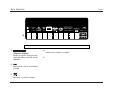
RT-10
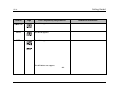
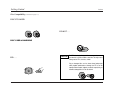
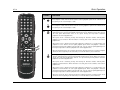
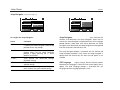
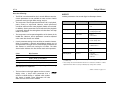
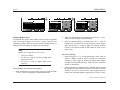
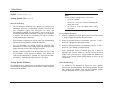
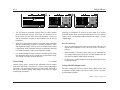
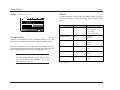
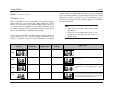
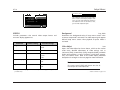
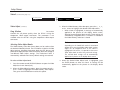
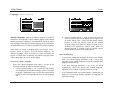
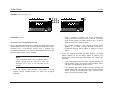
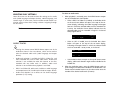
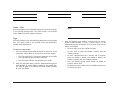
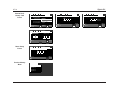
REPEAT PLAYBACK
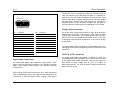
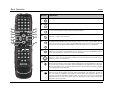
Activates repeat playback of the currently playing track.
REPEAT
•
Track
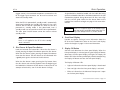
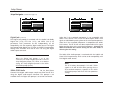
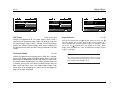
The remote control REPEAT button can be used to activate
repeat playback, which repeats playback of the currently
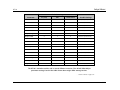
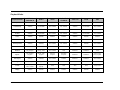
playing title, chapter, group, track, folder, or program list. The
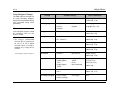
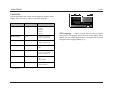
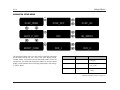
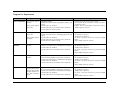
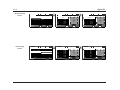
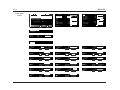
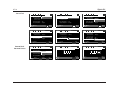
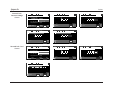
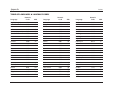
table on page 4-12 indicates the repeat playback modes
available for each disc format.
•
Repeat playback is not available for Video CDs and SVCDs that
include PBC menus.
•
Repeat playback is automatically deactivated when:
–
random playback or A-B repeat playback is activated
–
the remote control CLEAR, STOP, PREV, NEXT, RANDOM,
or A-B button is pressed
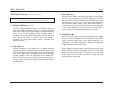
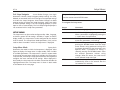
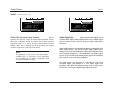
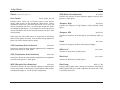
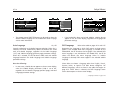
Folder
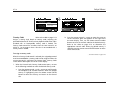
Activates repeat playback of the currently playing folder.
All or Disc
Activates repeat playback of the loaded disc.
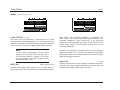
Program
Activates repeat playback of the currently playing program list.
Repeat program playback is not available unless program playback
is activated when the REPEAT button is pressed.
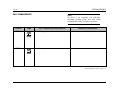
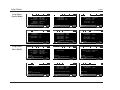
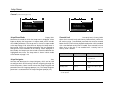
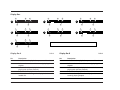
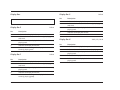
Repeat Playback Modes
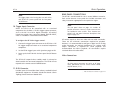
Note:
Repeat playback is not available for Video CDs and
SVCDs that include PBC menus.
Title
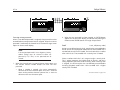
Activates repeat playback of the currently playing title.
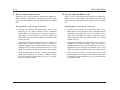
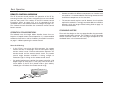
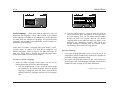
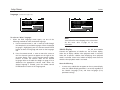
To activate repeat playback:
Chapter
Activates repeat playback of the currently playing chapter.
1. Make sure playback of the desired title, chapter, group, track,
folder, disc, or program list is activated.
•
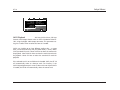
Group
Activates repeat playback of the currently playing group.
Repeat program playback is not available unless program
playback is activated when the REPEAT button is pressed.
. . . Repeat Playback continues on page 4-20
4-19