1
urg_01119.book Page 1 Wednesday, March 3, 2010 6:29 AM
ENGLISH
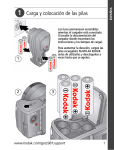
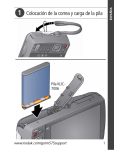
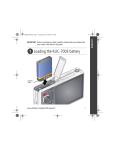
� Charge and load the batteries
Lights are on while the charger
is plugged in. (See the charger
documentation for instructions
and charging times.)
For longer life, charge KODAK
Ni-MH Rechargeable Batteries
AA prior to use, and occasionally
discharge them to depletion.
1
2
3
www.kodak.com/go/z981support
1
urg_01119.book Page 2 Wednesday, March 3, 2010 6:29 AM
ENGLISH
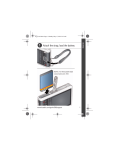
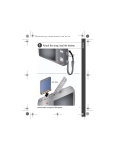
� Attach the strap
2
www.kodak.com/go/easysharecenter
urg_01119.book Page 3 Wednesday, March 3, 2010 6:29 AM
ENGLISH
� Turn on the camera
� Set the language and date/time
Language:
OK
to change.
to accept.
Date/Time:
At the prompt, press OK.
to change current field.
OK
for previous/next field.
to accept.
See the Extended user guide www.kodak.com/go/z981support
www.kodak.com/go/z981support
3
urg_01119.book Page 4 Wednesday, March 3, 2010 6:29 AM
ENGLISH
� Take a picture
.
1
Turn the Mode dial to Smart Capture
2
Press the Shutter button halfway to lock the focus.
When the framing marks turn green, press the Shutter
button completely down.
To save
battery
power,
press the
EVF/LCD
button and
use the
electronic
viewfinder.
Framing
marks
See other modes
see page 10
See the Extended user guide www.kodak.com/go/z981support
4
www.kodak.com/go/easysharecenter
urg_01119.book Page 5 Wednesday, March 3, 2010 6:29 AM
ENGLISH
� Review pictures/videos
the Review
1 Press
button to enter/exit
Review.
2
View previous/
next picture or
video.
OK Play a video.
Review
See the Extended user guide www.kodak.com/go/z981support
www.kodak.com/go/z981support
5
urg_01119.book Page 6 Wednesday, March 3, 2010 6:29 AM
ENGLISH
� Download software, transfer pictures
When you connect the camera to the computer, it prompts you
to run the KODAK Software Downloader on your computer.
Make sure the computer is connected to the Internet. When
you connect the camera to the computer, the KODAK Software
Downloader automatically runs. Follow the prompts to
download and install KODAK Software.
1 Turn off the camera.
2 Use the KODAK Camera USB
Cable, U-8 to connect
camera to computer. (Use
only the cable included with
this camera!)
3 Turn on the camera.
4 After the software is
installed, follow the prompts
to transfer pictures and
videos to your computer.
NOTE: If the downloader does not run, find it here and launch it:
■ WINDOWS OS: in My Computer
■ MAC OS: on your Desktop
Download KODAK Software
www.kodak.com/go/camerasw
To use this camera on more
than one computer
See the Extended user guide at
www.kodak.com/go/z981support
6
www.kodak.com/go/easysharecenter
urg_01119.book Page 7 Wednesday, March 3, 2010 6:29 AM
ENGLISH
� Use the camera Help system
button,
then highlight a menu choice.
1 Press the Menu
2 Press the Info
button.
Scroll through a
Help topic.
Keep learning about your camera!
Go to www.kodak.com/go/z981support for:
• the Extended user guide
• interactive troubleshooting and repairs
• interactive tutorials
• and more!
See the Extended user guide www.kodak.com/go/z981support
www.kodak.com/go/z981support
7
urg_01119.book Page 8 Wednesday, March 3, 2010 6:29 AM
ENGLISH
Back View
EVF/LCD
Power light
Mode dial
Power
Vertical Shutter on/off
Shutter button
Flash, Focus Mode,
Drive
Jog dial
Strap post
Zoom
Share
5V DC-In, A/V Out,
USB
Vertical Shutter
button
OK,
EVF
(Electronic
viewfinder) LCD
Delete,
Menu,
Info,
Review
Tripod socket
SD/SDHC Card slot,
battery compartment
8
www.kodak.com/go/easysharecenter
ENGLISH
urg_01119.book Page 9 Wednesday, March 3, 2010 6:29 AM
Front View
AF Assist/
Self-timer/
Video light
Flash
Microphone
Speaker
Lens
www.kodak.com/go/z981support
9
urg_01119.book Page 10 Wednesday, March 3, 2010 6:29 AM
1
Do more with your camera
Choose the mode that best suits your
subjects and surroundings.
Capture mode
Smart Capture
Excellent image quality and ease of use.
Portrait
Full-frame portraits of people.
Sport
Subjects that are in motion. Shutter
speed is fast.
Panorama
“Stitching” 2 or 3 pictures into 1
panoramic scene.
SCN Scene
P
A
S
M
For
Point-and-shoot simplicity when taking
pictures under special conditions.
Program
Aperture Priority
More creative control (see page 14).
Shutter Priority
Manual
Video
Video with sound (see page 11).
NOTE: To adjust the LCD brightness for your environment, see the Extended
user guide (www.kodak.com/go/z981support).
10
www.kodak.com/go/easysharecenter
urg_01119.book Page 11 Wednesday, March 3, 2010 6:29 AM
Do more with your camera
Take a video
1 Turn the Mode dial to Video
2 Press the Shutter button
completely down,
then release it. To stop
recording, press and release
the Shutter button again.
Use Scene (SCN) modes
Choose a Scene mode—for great pictures in any situation.
1 Turn the Mode dial to SCN.
2 Press
to choose a mode and read its description.
3 Press OK (or let the description turn off) to enter the chosen
Scene mode.
To read a mode description after it has turned off, press OK.
SCN modes: High ISO, Night Portrait, Landscape, Night
Landscape, Flower, Sunset, Backlight, Candle light,
Manner/Museum, Text, Beach, Snow, Fireworks, Children,
Self-Portrait, and Stage.
See the Extended user guide www.kodak.com/go/z981support
www.kodak.com/go/z981support
11
urg_01119.book Page 12 Wednesday, March 3, 2010 6:29 AM
Do more with your camera
Use the flash
Press the Flash button
repeatedly to scroll through
flash modes.
The current flash mode appears
on the LCD or EVF.
Flash modes
Flash fires
Auto
When the lighting conditions require it.
Fill
(Flash On)
Every time you take a picture, regardless of
the lighting conditions. Use when the
subject is in shadow or is “backlit” (when
the light is behind the subject).
NOTE: Not available in Smart Capture mode.
Red-eye
Reduction
Choose a
setting in
the Setup
menu.
Off
12
Preflash
A preflash fires, shrinking the eye pupil,
before the picture is taken.
Digital
A preflash does not fire; the camera
Correction corrects red eye.
NOTE: When using digital correction, image
processing takes longer than when
using preflash.
Never
www.kodak.com/go/easysharecenter
urg_01119.book Page 13 Wednesday, March 3, 2010 6:29 AM
Do more with your camera
Use the optical zoom
1 Use the LCD or EVF to frame
your subject.
2 To zoom in, press Telephoto
(T). To zoom out, press Wide
Angle (W).
3 Take the picture.
Delete pictures/videos
1 Press the Review
2 Press
button.
for previous/next picture/video.
3 Press the Delete button.
4 Follow the screen prompts.
See the Extended user guide www.kodak.com/go/z981support
www.kodak.com/go/z981support
13
urg_01119.book Page 14 Wednesday, March 3, 2010 6:29 AM
Do more with your camera
P, A, S, and M modes
Use these modes for more control over your camera.
Jog dial
Mode When to use
Press Jog dial to control
Program mode offers Exposure compensation (how much
the ease of auto
light enters the camera), flash
shooting with access to compensation, and ISO speed
all menu options.
Aperture Priority
Aperture, exposure compensation,
mode controls depth of flash compensation, and ISO speed
field (the range of
sharpness).
Shutter Priority mode Shutter speed, exposure
controls shutter speed. compensation, and flash
compensation
Manual mode offers
the highest level of
creative control.
Aperture, shutter speed, flash
compensation, and ISO speed
See the Extended user guide www.kodak.com/go/z981support
14
www.kodak.com/go/easysharecenter
urg_01119.book Page 15 Wednesday, March 3, 2010 6:29 AM
Do more with your camera
Use the menu button to change settings
You can change settings to get the best results from your
camera. Some modes offer limited settings.
1 Press the Menu
2 Press
button.
to choose a tab:
■
Capture/Video for the most common picture- and
video-taking settings
■
Setup for other camera settings
3 Press
to choose a setting, then press OK.
4 Choose an option, then press OK.
To access the camera Help system, see page 7.
www.kodak.com/go/z981support
15
urg_01119.book Page 16 Wednesday, March 3, 2010 6:29 AM
Do more with your camera
Understand the picture-taking icons
Focus mode
Self timer/Burst
Flash mode
Capture mode
Pictures/time
remaining
Zoom slider
Battery level
Date stamp
Tag name
Understand the review icons
Video
duration
Select
picture/video
Print, quantity
Protected
Email
Picture/Video
number
Add text tag
View
thumbnails
Play video
Upload
Favorite
Text tag
Battery level
See the Extended user guide www.kodak.com/go/z981support
16
www.kodak.com/go/easysharecenter
urg_01119.book Page 17 Wednesday, March 3, 2010 6:29 AM
2
Share and tag pictures
It’s never been easier to share pictures on your favorite social
networking sites.
IMPORTANT: To use the social networking features, you need to
download KODAK Software. (See page 6.)
1 Press the Review
button, then
to find a picture.
2 Press the Share button.
If it’s your first time, a Help screen appears.
3 Press
to choose a social networking site, then press
OK.
A check mark appears. Repeat this step to choose more sites.
(Press OK again to remove a check mark.)
4 Press
to choose Done, then press OK.
The picture is displayed with the Share icon. When you transfer
the picture to your computer, it will be sent to the networking
site(s) that you chose.
Tip: Do you send pictures to the same sites each time?
Find a picture, then press and hold the Share button for about 1
second.
The camera applies the networking site(s) that you used previously
and adds the Share icon to the picture.
www.kodak.com/go/z981support
17
urg_01119.book Page 18 Wednesday, March 3, 2010 6:29 AM
Share and tag pictures
Choose networking sites to show
You can show/hide social networking sites on your camera so
that only your favorite sites appear.
1 In Review, press the Menu
button.
2 Press
to choose the Setup tab, then
Share Button Settings, then press OK.
to choose
3 Press
to choose a social networking site, then press
to choose Show/Hide. Repeat this step for each
network.
4 When finished, press
to choose Done, then press OK.
To return to picture-taking mode, press the Shutter button
halfway down. When you are in Review and press the Share
button, your chosen sites appear.
To access the camera Help system, see page 7.
18
www.kodak.com/go/easysharecenter
urg_01119.book Page 19 Wednesday, March 3, 2010 6:29 AM
Share and tag pictures
Manage email addresses and KODAK
PULSE Digital Frames
You can add, edit, or delete email addresses and KODAK PULSE
Digital Frames on your camera.
1 In Review, press the Share button. Press
to choose
Manage Email Addresses (or Manage Frames), then press
OK.
2 To add an email address or frame, press
to choose
New Email or New Frame, then press OK. Use the on-screen
keyboard to make the addition.
(Example: [email protected])
To edit an email address or frame, press
to choose
the address’s nickname (“Dad” or “Mary”) or the frame,
then press OK. Use the on-screen keyboard to make edits.
To delete an email address or frame, choose Delete Email or
Delete Frame, then press OK. Press
to choose the
address or frame, then press OK so that a check mark
appears. Press
to choose Delete, then press OK.
3 When finished, press
to choose Done, then press OK.
www.kodak.com/go/z981support
19
urg_01119.book Page 20 Wednesday, March 3, 2010 6:29 AM
Share and tag pictures
Use the keyboard
The keyboard appears when you need it.
1 Press
to choose a letter, then press OK.
2 When finished, press
to choose OK, then press OK.
3 If you’ve added a new name, the camera prompts you to
update all faces to match assigned names. Choose Yes, then
press OK.
The name is assigned to all faces that match this one.
Tag pictures
Tag pictures to make them easy to find, later. You can tag
pictures in 2 ways:
■
People, and then find all pictures of “Mary.”
■
Keywords, and then find all pictures from “Dad’s 60th
Birthday.”
20
www.kodak.com/go/easysharecenter
urg_01119.book Page 21 Wednesday, March 3, 2010 6:29 AM
Share and tag pictures
Tag people
When you tag faces, you’re helping your camera to recognize
people by name. Then it matches names and faces in pictures
you’ve taken—and those you take in the future!
1 Press the Review
that contains faces.
button, then
2 Press the Menu
button. Press
People, then press OK.
3 Press
to find a picture
to choose Tag
to choose Apply Tags, then press OK.
4 Press
to choose an existing name, or New Name to
add a new one, then press OK.
If more than one face is detected, a name or question mark is
assigned to each detected face. To resolve an incorrect name or
a question mark, press
to select a face, then press OK.
5 If prompted to Update People Tags, press
to choose
Yes, then press OK.
Other pictures are scanned and updated with the name(s) you
applied here.
Press
to add names to other pictures. When finished, press
to choose Done, then press OK. To return to
picture-taking mode, press the Shutter button halfway down.
To access the camera Help system, see page 7.
www.kodak.com/go/z981support
21
urg_01119.book Page 22 Wednesday, March 3, 2010 6:29 AM
Share and tag pictures
Need to update a name?
If you meet a new friend—James—but you already have
pictures tagged with an old friend, James, you can:
■
Tag the new James with “James Smith” and/or
■
Update the old James to “James Monroe”
1 Press the Review
button.
2 Press the Menu
button. Press
People, then press OK.
to choose Tag
3 Press
to choose Modify Names List, then press OK.
4 Press
press OK.
to choose the name you want to modify, then
5 Edit the name, press
to choose OK, then press OK. (If
prompted to Update People Tags, press
to choose
Yes, then press OK.)
To return to picture-taking mode, press the Shutter button
halfway down.
NOTE: You can have up to 20 active names.
To access the camera Help system, see page 7.
22
www.kodak.com/go/easysharecenter
urg_01119.book Page 23 Wednesday, March 3, 2010 6:29 AM
Share and tag pictures
Tag with keywords
1 Press the Review
button, then
2 Press the Menu
button. Press
Tag, then press OK.
to find a picture.
to choose Keyword
3 Press
to choose an existing keyword or New Keyword
to add a new one, then press OK.
4 Press
to add keywords to other pictures. When finished,
press
to choose Done, then press OK.
To return to picture-taking mode, press the Shutter button
halfway down.
Tip: You can pre-choose a tag so that new pictures/videos are
assigned that tag. See the Extended user guide at
www.kodak.com/go/z981support.
To access the camera Help system, see page 7.
www.kodak.com/go/z981support
23
urg_01119.book Page 24 Wednesday, March 3, 2010 6:29 AM
Share and tag pictures
A smarter way to find your pictures
Tag pictures—by people or keywords—to make them easy to
find, later. For example, the camera can find all pictures that
contain “Mary” or “Dad’s 60th Birthday.” (See Tag people,
page 21 or Tag with keywords, page 23.)
1 Press the Review
button.
2 Press the Wide Angle (W) button to view pictures by
thumbnail (or choose View Thumbnails shortcut).
3 Press
to choose a tab and sort pictures by All,
Date, People, Favorite, or Keyword.
4 Press
to choose a picture or picture stack.
Press Telephoto (T) to see pictures in a stack or to see an
individual picture. Press Wide Angle (W) to see thumbnails or
picture stacks. To return to picture-taking mode, press the
Shutter button halfway down.
All
People
Date
Favorites
Keywords
For best results, make sure the
camera date/time is current.
24
www.kodak.com/go/easysharecenter
urg_01119.book Page 25 Wednesday, March 3, 2010 6:29 AM
3
Solve camera problems
To access the camera Help system, see page 7.
Status
Solution
Camera does not
turn on or off
■ Make sure the batteries are charged and
installed correctly (see page 1).
Camera buttons and
controls do not function
Flash does not fire
■ Check the flash setting, and change as
needed (see page 12).
NOTE: The flash does not fire in all modes.
In Review, a blue or
black screen is
displayed instead of
a picture
■ Transfer all pictures to the computer (see
You cannot take a
picture
■ Turn the camera off, then on again.
page 6).
■ Take another picture.
■ Press the Shutter button all the way (see
page 4).
■ Insert new or charged batteries (see
page 1).
■ Memory is full. Transfer pictures to the
computer (see page 6), delete pictures
(see page 13), or insert another card.
See the Extended user guide www.kodak.com/go/z981support
www.kodak.com/go/z981support
25
urg_01119.book Page 26 Wednesday, March 3, 2010 6:29 AM
4
Appendix
CAUTION:
Do not disassemble this product; there are no user-serviceable parts inside.
Refer servicing to qualified service personnel. KODAK AC Adapters and Battery
Chargers are intended for indoor use only. The use of controls, adjustments, or
procedures other than those specified herein may result in exposure to shock
and/or electrical or mechanical hazards. If the LCD breaks, do not touch the
glass or liquid. Contact Kodak customer support.
■ The use of an accessory that is not recommended by Kodak may cause fire, electric
shock, or injury. For approved accessories, go to www.kodak.com/go/accessories.
■ Use only a USB-certified computer equipped with a current-limiting motherboard.
Contact your computer manufacturer if you have questions.
■ If using this product in an airplane, observe all instructions of the airline.
■ When removing the batteries, allow them to cool; they may be hot.
■ Follow all warnings and instructions supplied by the battery manufacturer.
■ Use only batteries approved for this product to avoid risk of explosion.
■ Keep batteries out of the reach of children.
■ Do not allow batteries to touch metal objects, including coins. Otherwise, a battery may
short circuit, discharge energy, become hot, or leak.
■ Do not disassemble, install backward, or expose batteries to liquid, moisture, fire, or
extreme temperature.
■ Remove the batteries when the product is stored for an extended period of time. In the
unlikely event that battery fluid leaks inside the product, contact Kodak customer
support.
■ In the unlikely event that battery fluid leaks onto your skin, wash immediately with
water and contact your local health provider. For additional health-related information,
contact your local Kodak customer support.
■ See www.kodak.com/go/reach for information about the presence of substances
included on the candidate list according to article 59(1) of Regulation (EC) No.
1907/2006 (REACH).
■ Dispose of batteries according to local and national regulations. Go to
www.kodak.com/go/kes.
■ Do not charge non-rechargeable batteries.
For more information on batteries, see www.kodak.com/go/batterytypes.
26
www.kodak.com/go/easysharecenter
urg_01119.book Page 27 Wednesday, March 3, 2010 6:29 AM
Appendix
Limited Warranty
Kodak warrants its digital cameras and accessories (excluding batteries) to be free from
malfunctions and defects in both materials and workmanship for the warranty period
specified on your KODAK Product packaging. Retain the original dated sales receipt. Proof of
purchase date is required with any request for warranty repair.
Limited warranty coverage
Warranty service is only available from within the country where the products were originally
purchased. You may be required to ship products, at your expense, to the authorized service
facility for the country where the products were purchased. Kodak will repair or replace
products if they fail to function properly during the warranty period, subject to any conditions
and/or limitations stated herein. Warranty service will include all labor as well as any
necessary adjustments and/or replacement parts. If Kodak is unable to repair or replace a
product, Kodak will, at its option, refund the purchase price paid for the product provided
the product has been returned to Kodak along with proof of the purchase price paid. Repair,
replacement, or refund of the purchase price are the sole remedies under the warranty. If
replacement parts are used in making repairs, those parts may be remanufactured, or may
contain remanufactured materials. If it is necessary to replace the entire product, it may be
replaced with a remanufactured product. Remanufactured products, parts and materials are
warranted for the remaining warranty term of the original product, or 90 days after the date
of repair or replacement, whichever is longer.
Limitations
This warranty does not cover circumstances beyond Kodak’s control. This warranty does not
apply when failure is due to shipping damage, accident, alteration, modification,
unauthorized service, misuse, abuse, use with incompatible accessories or attachments (such
as third party ink or ink tanks), failure to follow Kodak’s operation, maintenance or repacking
instructions, failure to use items supplied by Kodak (such as adapters and cables), or claims
made after the duration of this warranty. Kodak makes no other express or implied
warranty for this product, and disclaims the implied warranties of
merchantability and fitness for a particular purpose. In the event that the exclusion
of any implied warranty is ineffective under the law, the duration of the implied warranty will
be one year from the purchase date or such longer period as required by law. The option of
repair, replacement, or refund is Kodak’s only obligation. Kodak will not be responsible for
any special, consequential or incidental damages resulting from the sale, purchase, or use of
this product regardless of the cause. Liability for any special, consequential or incidental
damages (including but not limited to loss of revenue or profit, downtime costs, loss of the
use of the equipment, cost of substitute equipment, facilities or services, or claims of your
customers for such damages resulting from the purchase, use, or failure of the product),
regardless of cause or for breach of any written or implied warranty is expressly disclaimed.
The limitations and exclusions of liability set forth herein apply to both Kodak and its
suppliers.
www.kodak.com/go/z981support
27
urg_01119.book Page 28 Wednesday, March 3, 2010 6:29 AM
Appendix
Your rights
Some states or jurisdictions do not allow exclusion or limitation of incidental or
consequential damages, so the above limitation or exclusion may not apply to you. Some
states or jurisdictions do not allow limitations on how long an implied warranty lasts, so the
above limitation may not apply to you. This warranty gives you specific rights, and you may
have other rights which vary from state to state or by jurisdiction.
Outside the United States and Canada
In countries other than the United States and Canada, the terms and conditions of this
warranty may be different. Unless a specific Kodak warranty is communicated to the
purchaser in writing by a Kodak company, no warranty or liability exists beyond any
minimum requirements imposed by law, even though defect, damage, or loss may be by
negligence or other act.
FCC compliance and advisory
This equipment has been tested and found to comply with the limits for a Class B digital
device, pursuant to Part 15 of the FCC Rules. These limits are designed to provide reasonable
protection against harmful interference in a residential installation.
Canadian DOC statement
DOC Class B Compliance—This Class B digital apparatus complies with Canadian
ICES-003.
Observation des normes-Classe B—Cet appareil numérique de la classe B est conforme
à la norme NMB-003 du Canada.
Australian C-Tick
N137
VCCI Class B ITE
Korean Class B ITE
28
www.kodak.com/go/easysharecenter
urg_01119.book Page 29 Wednesday, March 3, 2010 6:29 AM
Appendix
China RoHS
Eastman Kodak Company
Rochester, New York 14650
© Kodak, 2009
Kodak, EasyShare, and Pulse are trademarks of Eastman Kodak Company.
4H6893_en
www.kodak.com/go/z981support
29