1
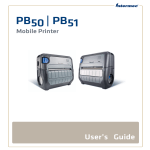
PB50
User’s
Guide
Mobile Label and Receipt Printer
Intermec Technologies Corporation
Worldwide Headquarters
6001 36th Ave.W.
Everett, WA 98203
U.S.A.
www.intermec.com
The information contained herein is provided solely for the purpose of allowing customers to
operate and service Intermec-manufactured equipment and is not to be released, reproduced, or
used for any other purpose without written permission of Intermec Technologies Corporation.
Information and specifications contained in this document are subject to change without prior
notice and do not represent a commitment on the part of Intermec Technologies Corporation.
© 2007-2008 by Intermec Technologies Corporation. All rights reserved.
The word Intermec, the Intermec logo, Norand, ArciTech, Beverage Routebook, CrossBar,
dcBrowser, Duratherm, EasyADC, EasyCoder, EasySet, Fingerprint, i-gistics, INCA (under license),
Intellitag, Intellitag Gen2, JANUS, LabelShop, MobileLAN, Picolink, Ready-to-Work, RoutePower,
Sabre, ScanPlus, ShopScan, Smart Mobile Computing, SmartSystems, TE 2000, Trakker Antares,
and Vista Powered are either trademarks or registered trademarks of Intermec Technologies
Corporation.
There are U.S. and foreign patents as well as U.S. and foreign patents pending.
Wi-Fi is a registered certification mark of the Wi-Fi Alliance.
Bluetooth is a trademark of Bluetooth SIG, Inc., U.S.A.
ii
PB50 Mobile Label and Receipt Printer User’s Guide
Document Change Record
This page records changes to this document. The document was
originally released as Revision 001.
iii
Version
Number
Date
Description of Change
002
11/2008
These changes were made for the current release:
• Support for the ESC/P programming language.
• Addition of a radioless PB50 printer.
• Change to the Ready-to-Work indicator
behavior.
• Addition of linerless media support.
• New icons for Bluetooth radio and addition of
printhead lifted error message.
• Addition of power management options Sleep
Timer and Standby Timer.
PB50 Mobile Label and Receipt Printer User’s Guide
PB50 Mobile Label and Receipt Printer User’s Guide
iv
Contents
Contents
Before You Begin. . . . . . . . . . . . . . . . . . . . . . . . . . . . . . . . . . . . . . . . . . . . . . . . . . . . . . . . . . . . . . . . . vii
Safety Information . . . . . . . . . . . . . . . . . . . . . . . . . . . . . . . . . . . . . . . . . . . . . . . . . . . . . . . vii
Global Services and Support . . . . . . . . . . . . . . . . . . . . . . . . . . . . . . . . . . . . . . . . . . . . . . vii
Warranty Information. . . . . . . . . . . . . . . . . . . . . . . . . . . . . . . . . . . . . . . . . . . . vii
Web Support . . . . . . . . . . . . . . . . . . . . . . . . . . . . . . . . . . . . . . . . . . . . . . . . . . . viii
Telephone Support . . . . . . . . . . . . . . . . . . . . . . . . . . . . . . . . . . . . . . . . . . . . . viii
Service Location Support . . . . . . . . . . . . . . . . . . . . . . . . . . . . . . . . . . . . . . . . viii
Who Should Read This Manual . . . . . . . . . . . . . . . . . . . . . . . . . . . . . . . . . . . . . . . . . . . ix
Related Documents . . . . . . . . . . . . . . . . . . . . . . . . . . . . . . . . . . . . . . . . . . . . . . . . . . . . . . ix
1 Using the PB50 Mobile Label and Receipt Printer
................... 1
Learning About the PB50 Printer . . . . . . . . . . . . . . . . . . . . . . . . . . . . . . . . . . . . . . . . . . . . . . . . . . . 2
What’s New?. . . . . . . . . . . . . . . . . . . . . . . . . . . . . . . . . . . . . . . . . . . . . . . . . . . . . . . . . . . . . . 2
Identifying the Parts of the Printer . . . . . . . . . . . . . . . . . . . . . . . . . . . . . . . . . . . . . . . . . 3
Understanding the Printer Firmware . . . . . . . . . . . . . . . . . . . . . . . . . . . . . . . . . . . . . . . 3
Understanding the Control Panel . . . . . . . . . . . . . . . . . . . . . . . . . . . . . . . . . . . . . . . . . . 4
Understanding the Printer Sounds . . . . . . . . . . . . . . . . . . . . . . . . . . . . . . . . . . . . . . . . . 6
Managing Power on the PB50 . . . . . . . . . . . . . . . . . . . . . . . . . . . . . . . . . . . . . . . . . . . . . . 7
Using the Batteries . . . . . . . . . . . . . . . . . . . . . . . . . . . . . . . . . . . . . . . . . . . . . . . . . . . . . . . . . . . . . . . . 8
Installing the Battery . . . . . . . . . . . . . . . . . . . . . . . . . . . . . . . . . . . . . . . . . . . . . . . . . . . . . . 8
Charging the Batteries. . . . . . . . . . . . . . . . . . . . . . . . . . . . . . . . . . . . . . . . . . . . . . . . . . . . . 9
Understanding the Battery Icons . . . . . . . . . . . . . . . . . . . . . . . . . . . . . . . . . . . . . . . . . . 10
Extending Battery Life. . . . . . . . . . . . . . . . . . . . . . . . . . . . . . . . . . . . . . . . . . . . . . . . . . . . 10
Loading Media. . . . . . . . . . . . . . . . . . . . . . . . . . . . . . . . . . . . . . . . . . . . . . . . . . . . . . . . . . . . . . . . . . . 11
Printing a Testprint . . . . . . . . . . . . . . . . . . . . . . . . . . . . . . . . . . . . . . . . . . . . . . . . . . . . . . . . . . . . . . 15
2 Configuring the PB50
. . . . . . . . . . . . . . . . . . . . . . . . . . . . . . . . . . . . . . . . . . . . . . . . . . 17
Configuring the PB50 . . . . . . . . . . . . . . . . . . . . . . . . . . . . . . . . . . . . . . . . . . . . . . . . . . . . . . . . . . . . 18
Understanding the Display Modes. . . . . . . . . . . . . . . . . . . . . . . . . . . . . . . . . . . . . . . . . 18
Understanding Ready Mode . . . . . . . . . . . . . . . . . . . . . . . . . . . . . . . . . . . . . . 18
Understanding Information Mode . . . . . . . . . . . . . . . . . . . . . . . . . . . . . . . . 18
Understanding Pause Mode. . . . . . . . . . . . . . . . . . . . . . . . . . . . . . . . . . . . . . . 19
Understanding Setup Mode. . . . . . . . . . . . . . . . . . . . . . . . . . . . . . . . . . . . . . . 19
Understanding Error Mode . . . . . . . . . . . . . . . . . . . . . . . . . . . . . . . . . . . . . . . 20
Understanding Test Mode . . . . . . . . . . . . . . . . . . . . . . . . . . . . . . . . . . . . . . . . 21
Changing Configuration Settings . . . . . . . . . . . . . . . . . . . . . . . . . . . . . . . . . . . . . . . . . 23
Changing Configuration Settings From the Display . . . . . . . . . . . . . . . . 23
PB50 Mobile Label and Receipt Printer User’s Guide
v
Contents
Changing Configuration Settings From PrintSet . . . . . . . . . . . . . . . . . . . 25
Changing Configuration Settings Using the Command Line . . . . . . . . 25
Changing Configuration Settings From the Printer Home Page . . . . . . 26
Changing Configuration Settings From SmartSystems Console. . . . . . 26
Establishing Communications With a Host . . . . . . . . . . . . . . . . . . . . . . . . . . . . . . . . . . . . . . . . 27
Setting Up Bluetooth Communications. . . . . . . . . . . . . . . . . . . . . . . . . . . . . . . . . . . . 27
Setting Up 802.11 Radio Communications . . . . . . . . . . . . . . . . . . . . . . . . . . . . . . . . . 28
Configuring Wireless Printing Using IPL. . . . . . . . . . . . . . . . . . . . . . . . . . . 31
Configuring Wireless Printing Using Fingerprint . . . . . . . . . . . . . . . . . . . 33
Setting Up USB Communications . . . . . . . . . . . . . . . . . . . . . . . . . . . . . . . . . . . . . . . . . 36
Setting Up Serial Communications . . . . . . . . . . . . . . . . . . . . . . . . . . . . . . . . . . . . . . . . 36
Upgrading the Firmware. . . . . . . . . . . . . . . . . . . . . . . . . . . . . . . . . . . . . . . . . . . . . . . . . . . . . . . . . . 37
Downloading Fonts and Graphics . . . . . . . . . . . . . . . . . . . . . . . . . . . . . . . . . . . . . . . . . . . . . . . . . 39
3 Troubleshooting and Maintaining the PB50
. . . . . . . . . . . . . . . . . . . . . . . . 41
Troubleshooting the PB50 . . . . . . . . . . . . . . . . . . . . . . . . . . . . . . . . . . . . . . . . . . . . . . . . . . . . . . . . 42
Contacting Product Support. . . . . . . . . . . . . . . . . . . . . . . . . . . . . . . . . . . . . . . . . . . . . . 42
Understanding Error Messages . . . . . . . . . . . . . . . . . . . . . . . . . . . . . . . . . . . . . . . . . . . . 42
Troubleshooting Printer Problems and Finding Solutions . . . . . . . . . . . . . . . . . . . 44
Troubleshooting Communication Problems . . . . . . . . . . . . . . . . . . . . . . . . . . . . . . . 46
Using the Line Analyzer in Fingerprint. . . . . . . . . . . . . . . . . . . . . . . . . . . . . 46
Using Dump Mode in IPL . . . . . . . . . . . . . . . . . . . . . . . . . . . . . . . . . . . . . . . . 47
Cold Booting the PB50 . . . . . . . . . . . . . . . . . . . . . . . . . . . . . . . . . . . . . . . . . . . . . . . . . . . . . . . . . . . 48
Cleaning the Printer. . . . . . . . . . . . . . . . . . . . . . . . . . . . . . . . . . . . . . . . . . . . . . . . . . . . . . . . . . . . . . 48
A Specifications
. . . . . . . . . . . . . . . . . . . . . . . . . . . . . . . . . . . . . . . . . . . . . . . . . . . . . . . . . 51
Specifications. . . . . . . . . . . . . . . . . . . . . . . . . . . . . . . . . . . . . . . . . . . . . . . . . . . . . . . . . . . . . . . . . . . . 52
Accessories for the PB50 . . . . . . . . . . . . . . . . . . . . . . . . . . . . . . . . . . . . . . . . . . . . . . . . . . . . . . . . . . 55
B IPL and Fingerprint Setup Menus
. . . . . . . . . . . . . . . . . . . . . . . . . . . . . . . . . . . . 57
IPL Setup Menu . . . . . . . . . . . . . . . . . . . . . . . . . . . . . . . . . . . . . . . . . . . . . . . . . . . . . . . . . . . . . . . . . 58
Fingerprint Setup Menu . . . . . . . . . . . . . . . . . . . . . . . . . . . . . . . . . . . . . . . . . . . . . . . . . . . . . . . . . . 59
vi
PB50 Mobile Label and Receipt Printer User’s Guide
Before You Begin
Before You Begin
This section provides you with safety information, technical support
information, and sources for additional product information.
Safety Information
Your safety is extremely important. Read and follow all warnings and
cautions in this document before handling and operating Intermec
equipment. You can be seriously injured, and equipment and data can
be damaged if you do not follow the safety warnings and cautions.
This section explains how to identify and understand warnings,
cautions, and notes that are used in this document.
A warning alerts you of an operating procedure, practice,
condition, or statement that must be strictly observed to avoid
death or serious injury to the persons working on the equipment.
A caution alerts you to an operating procedure, practice,
condition, or statement that must be strictly observed to prevent
equipment damage or destruction, or corruption or loss of data.
Note: Notes either provide extra information about a topic or contain
special instructions for handling a particular condition or set of
circumstances.
Global Services and Support
Warranty Information
To understand the warranty for your Intermec product, visit the
Intermec web site at www.intermec.com and click Support >
Returns and Repairs > Warranty.
PB50 Mobile Label and Receipt Printer User’s Guide
vii
Before You Begin
Web Support
Visit the Intermec web site at www.intermec.com to download our
current manuals (in PDF). To order printed versions of the Intermec
manuals, contact your local Intermec representative or distributor.
Visit the Intermec technical knowledge base (Knowledge Central) at
intermec.custhelp.com to review technical information or to request
technical support for your Intermec product.
Telephone Support
In the U.S.A. and Canada, call 1-800-755-5505.
Outside the U.S.A. and Canada, contact your local Intermec
representative. To search for your local representative, from the
Intermec web site, click About Us > Contact Us.
Service Location Support
For the most current listing of service locations, go to
www.intermec.com and click Support >Returns and Repairs >
Repair Locations.
For technical support in South Korea, use the after service locations
listed below:
AWOO Systems
102-1304 SK Ventium
522 Dangjung-dong
Gunpo-si, Gyeonggi-do Korea, South 435-776
Contact: Mr. Sinbum Kang
Telephone: +82-31-436-1191
E-mail: [email protected]
IN Information System PTD LTD
6th Floor
Daegu Venture Center Bldg 95
Shinchun 3 Dong
Donggu, Daegu City, Korea
E-mail: [email protected] or [email protected]
viii
PB50 Mobile Label and Receipt Printer User’s Guide
Before You Begin
Who Should Read This Manual
This user’s guide is for the person who is responsible for installing,
configuring, and maintaining the PB50 printer.
This guide provides you with information about the features of the
PB50, and how to install, configure, operate, maintain, and
troubleshoot it.
Before you work with the PB50, you should be familiar with your
network and general networking terms, such as IP address.
Related Documents
This table contains a list of related Intermec documents and their
part numbers.
Document Title
Part Number
Intermec Fingerprint Command Reference Manual
937-005-xxx
Intermec Fingerprint Developer’s Guide
934-019-xxx
Intermec Printer Language (IPL) Developer’s Guide
934-013-xxx
Intermec Printer Language (IPL) Command Reference Manual
937-007-xxx
ESC/P Programmer’s Reference Manual
937-010-xxx
The Intermec web site at www.intermec.com contains our
documents (as PDF files) that you can download for free.
To download documents
1 Visit the Intermec web site at www.intermec.com.
2 Click Support > Manuals.
3 In the Select a Product field, choose the product whose
documentation you want to download.
To order printed versions of the Intermec manuals, contact your local
Intermec representative or distributor.
PB50 Mobile Label and Receipt Printer User’s Guide
ix
Before You Begin
x
PB50 Mobile Label and Receipt Printer User’s Guide
1
Using the PB50 Mobile Label and
Receipt Printer
Use this chapter to familiarize yourself with the PB50 and
PB50C Mobile Label and Receipt Printers. In this chapter
you will find these sections:
•
Learning About the PB50 Printer
•
Using the Batteries
•
Loading Media
•
Printing a Testprint
1
Chapter 1 — Using the PB50 Mobile Label and Receipt Printer
Learning About the PB50 Printer
The PB50 and PB50C are rugged direct thermal label and receipt
printers designed for use with the CK31, 700 series, CK61, CN2B,
CN3, and CN3e mobile computers as well as the SF51 and SR61
scanners.
Throughout this manual, both models of the printer are referred to as
PB50 unless the information is specific to one model.
The PB50 provides:
•
print resolution of 203 dpi.
•
print speeds of up to 100 mm per second (4 ips).
•
802.11 radio, Bluetooth radio, or no radio options.
What’s New?
This version of the PB50 printer manual contains these changes:
2
•
Support for the ESC/P programming language.
•
Addition of a PB50 printer without a radio.
•
Change to the Ready-to-Work™ indicator behavior.
•
Addition of linerless media support.
•
New icons for Bluetooth radio and addition of printhead lifted
error message.
•
Addition of the power management options Sleep Timer and
Standby Timer.
PB50 Mobile Label and Receipt Printer User’s Guide
Chapter 1 — Using the PB50 Mobile Label and Receipt Printer
Identifying the Parts of the Printer
Use this illustrations to familiarize yourself with some of the features
of the PB50.
Self-strip
door
Media cover
release button
Control panel
Ready-to-Work
indicator
Communications port
PB50 Printer: This illustration shows the important features of the PB50
printer. A weather-resistant flap protects the communications ports and the
external power connector.
Understanding the Printer Firmware
Your PB50 printer comes with Intermec Printer Language (IPL),
Fingerprint, or ESC/P firmware. The choice of firmware affects the
functionality of the printer and how you interact with it. This manual
contains information for using each type of printer firmware.
The current firmware type and version display on the PB50 screen
when the printer is in Ready mode.
SETUP:
IPL 11.2.0
SER-COM
The PB50 Display Showing IPL Firmware
PB50 Mobile Label and Receipt Printer User’s Guide
3
Chapter 1 — Using the PB50 Mobile Label and Receipt Printer
Understanding the Control Panel
The PB50 control panel contains four buttons, a liquid crystal display
(LCD), and one LED indicator. Use the four buttons to navigate the
menu system and perform functions on the PB50 printer. See the
following tables to understand the buttons, the menu system, and
what the LED means.
Feed button
Setup button
SETUP:
SER-COM
Standby button
Info button
Ready-to-Work
indicator
PB50 Control Panel: Use this illustration to familiarize yourself with the
buttons and lights on the PB50.
Understanding How to Use the PB50 Buttons
Button
Name
4
Button
Function
Feed
Press to advance label or receipt paper. The amount of
media that feeds is dependent on the type of media you
are using. It will advance by 5 mm (0.2 inch), feed out
an entire label, or feed a configured length of media
based on your media and settings.
If you hold the button down for longer than two
seconds, the printer performs a testfeed and calibrates
the media.
If the printer is printing, pressing this button causes
the printer to pause. Press the button again to resume
printing.
Setup
Press to display the Setup menu.
PB50 Mobile Label and Receipt Printer User’s Guide
Chapter 1 — Using the PB50 Mobile Label and Receipt Printer
Understanding How to Use the PB50 Buttons (continued)
Button
Name
Button
Function
Standby
(Power)
Press to put the printer in Standby mode. In Standby
mode, power to the radio, the display, and the
backlight are turned off.
Press to turn the printer back on and put in Ready
mode.
Info
Press to display a summary of error conditions, serial
port settings, USB connection status, and wireless
information (Bluetooth and WiFi). Each setting in the
summary information displays on the screen for five
seconds.
All of the buttons can act as “soft keys,” which means that the
function of each button depends on the state of the printer. A small
icon appears in the screen next to the button to indicate the function
it performs
Understanding the Soft Keys
Button
Soft Keys
Description
Moves through the settings at the same level in the
menu system.
Exit Setup mode and return to Ready mode.
• Moves up one level in the menu system. This soft
key appears in Setup mode.
• Increases the value of a number when editing
settings s uch as an IP address. This soft key
appears in Setup mode.
• Pauses the printing job. This icon appears only
when you are printing.
• Moves down one level in the menu system and
saves changes to a setting.
• Exits a printing job or exits Information mode.
PB50 Mobile Label and Receipt Printer User’s Guide
5
Chapter 1 — Using the PB50 Mobile Label and Receipt Printer
There is only one LED on the PB50 printer: the Ready-to-Work™
indicator.
Understanding the Ready-to-Work Indicator
Indicator State
Description
Off
When the light is off, it can mean one of several
conditions:
• The printer is in Standby mode.
• The printer is in Info mode.
• The printer is in Setup mode.
On
The PB50 is powered on and operating.
Blinking
A blinking light can mean one of several conditions:
• The printer is out of paper.
• The media cover is open.
• There is a printer error that requires you to perform an
action. For a list of possible problems, see
“Troubleshooting the PB50” on page 42.
Understanding the Printer Sounds
The PB50 plays sounds in response to several actions that you can
take with the printer. Use the following table to understand when the
sounds occur and what they mean.
Understanding the Printer Sounds
Sound
Occurs When:
Power
• You supply power (battery or AC adapter) to the
printer.
• The PB50 starts charging the battery.
Hardware
You open the media door, close the media door, or insert a
cable.
Button
You press any of the PB50 buttons.
Error
• The printer cannot feed paper or print a job because of
a hardware issue such as the media door open, a paper
jam, or there is no media.
• An error occurs such as a paper jam or a print error.
6
PB50 Mobile Label and Receipt Printer User’s Guide
Chapter 1 — Using the PB50 Mobile Label and Receipt Printer
Managing Power on the PB50
Use the power options on the PB50 to manage and conserve battery
power. From the Power option in Setup menu, you can set Low
Battery, Sleep Timer, and Standby Timer.
Use the Low Battery option to set the battery voltage at which the low
battery warning appears. The values for Low Battery range from 12.1
V to 16.8 V in 0.1 V increments. The default setting is 13.5 V.
Use the Sleep Timer option to set the amount of time it takes for the
PB50 to go to “sleep” if the printer is not printing and you do not have
any interaction with it. When the printer goes to “sleep,” it turns off
the backlight and it dims the Ready-to-Work indicator. By default, the
printer backlight turns off after 20 seconds of no user interaction.
You can set Sleep Timer to always off, always on, 5 seconds, 10
seconds, 20 seconds, 30 seconds, or 60 seconds. The backlight turns
on when:
•
the printer begins printing.
•
you press a button.
•
you connect the printer to external power.
•
you are communicating with or sending data to the printer.
Note: If you have Sleep Timer set to always on, the Standby timer
setting will have no effect on the PB50.
Use the Standby Timer option to turn off power to the radio, the
display, and the backlight. The Standby Timer option has the same
effect on the PB50 as pressing the Standby button. When the printer
is in Standby mode, both the LCD and the Ready-to-Work indicator
are turned off. You can set Standby Timer to 5 mins, 10 mins, 20
mins, 30 mins, 60 mins, or disabled. Press the Standby button to turn
the printer back on.
PB50 Mobile Label and Receipt Printer User’s Guide
7
Chapter 1 — Using the PB50 Mobile Label and Receipt Printer
Using the Batteries
The PB50 uses a rechargeable 2200 mAh lithium-ion battery (Model
AB13) for power. You must fully charge the battery before you can use
the PB50. A fully charged battery can last up to one week without
needing to be recharged when the printer is in Standby mode.
Use Intermec Model AB13 battery only. Use of another battery
may present a risk of fire or explosion.
The Model AB13 battery may present a fire or chemical burn
hazard if mistreated. Do not disassemble, heat above 100°C
(212°F), or incinerate.
Dispose of used batteries promptly. Keep away from children.
Installing the Battery
Make sure you fully charge the battery before you use your PB50. You
can charge the battery before or after you install them into the PB50.
To install the battery
1 Lay the PB50 upside down on a flat surface.
2 Insert the battery with the tab facing away from the front control
panel.
8
PB50 Mobile Label and Receipt Printer User’s Guide
Chapter 1 — Using the PB50 Mobile Label and Receipt Printer
3 Insert the edge of the battery under the lip of the PB50 and then
push down until you hear the battery latch click.
Charging the Batteries
There are two ways to charge the PB50 battery:
•
Connect AC power to the printer and charge the battery while it is
in the PB50.
•
Charge the battery in the AC18 4-bay battery charger.
For information on charging your battery in the 4-bay battery
charger, see the AC18 4-Bay Battery Charger Instructions
(P/N 943-128-xxx).
It takes approximately 6 hours to charge the battery while it is
installed in the PB50 printer. To charge the battery inside the PB50,
you need:
•
an Intermec 12 VDC power supply (Model AE19).
•
an AC power cord.
To charge the battery inside the PB50
1 Install the battery in the PB50. For help, see the previous section,
“Installing the Battery” on page 8.
2 Connect the power supply to the DC power connector on the
printer.
3 Connect one end of the power cord to the power supply and then
plug the other end into an AC outlet.
PB50 Mobile Label and Receipt Printer User’s Guide
9
Chapter 1 — Using the PB50 Mobile Label and Receipt Printer
Understanding the Battery Icons
The easiest way to tell the status of your battery is to look at the
battery icons on the control panel of the PB50.
Battery Icon Status
Icon
Status
Battery is fully charged.
Battery has a medium charge. You should be able to
work for several more hours before charging or
replacing the battery.
Battery is low. You need to replace the battery soon.
Battery is critically low. You need to replace the
battery now.
Battery charging error. You may need to replace the
battery.
External power connected and there is no battery in
the printer.
Extending Battery Life
Here are some tips for extending the overall life of your battery:
•
Never expose the battery to direct sunlight or temperatures over
40°C (104°F).
•
Only charge the battery inside the PB50 using a power supply or in
the 4-bay battery charger (Model AC18).
•
Do not set the backlight to always on. The always on setting
disabled automatic power saving modes.
Here are some tips for extending the life of your battery between
charges:
10
•
Press the Standby button to put the printer in Standby mode.
•
Remove the battery from the printer if you will not be using it for
three days or more.
PB50 Mobile Label and Receipt Printer User’s Guide
Chapter 1 — Using the PB50 Mobile Label and Receipt Printer
•
Do not operate the PB50 in extremely cold temperatures. Using
the PB50 in temperatures below freezing reduces the overall
battery life.
Remember that any rechargeable battery loses its ability to maintain a
charge over time. You can only recharge it a finite number of times
before you must replace it.
Loading Media
You can use roll or fanfold receipt media with the PB50 printer. The
PB50 ships with a small amount of media loaded and a test page
printed to verify that the printer works. The PB50 supports self-strip
printing applications. For information on how to correctly load
media for self-strip printing, see “To load media for self-strip
printing” on page 14. For information on media specifications, see
“Specifications” on page 52.
To load media
1 Press down on the blue media cover release button until the cover
releases.
PB50 Mobile Label and Receipt Printer User’s Guide
11
Chapter 1 — Using the PB50 Mobile Label and Receipt Printer
2 Press down on the media adjust guide and slide the two media
supports apart.
3 Insert a roll of media and press the media adjust guide until the
roll is held firmly in place. Make sure you load the media clockwise
so that it pulls off the core from the bottom of the printer.
4 Pull out approximately 8 cm (3 inches) of the media.
12
PB50 Mobile Label and Receipt Printer User’s Guide
Chapter 1 — Using the PB50 Mobile Label and Receipt Printer
5 Close the media cover until it latches. The printer emits the
hardware sound to tell you that the media door closed correctly.
6 Press down on the self-strip door to make sure the media cover is
completely latched.
Note: The linerless printer does not have a self-strip door. Instead,
the self-strip door is molded plastic and part of the media cover.
7 Press and hold the Feed button for more than two seconds to
calibrate the media.
PB50 Mobile Label and Receipt Printer User’s Guide
13
Chapter 1 — Using the PB50 Mobile Label and Receipt Printer
To load media for self-strip printing
1 Complete Steps 1 through 4 in the previous procedure.
2 Open the self-strip door in the media cover.
Self-strip door
Self-strip bar
3 Remove a label from the roll of media so that you are left with
several inches of label liner.
4 Feed the label liner over the self-strip bar and out the back of the
self-strip door.
5 Close the media cover until it latches and press down on the selfstrip door to make sure it locks.
6 Pull on the liner to tighten it and ensure a good self strip.
14
PB50 Mobile Label and Receipt Printer User’s Guide
Chapter 1 — Using the PB50 Mobile Label and Receipt Printer
7 Press and hold the Feed button for more than two seconds to
calibrate the media.
Printing a Testprint
After you have loaded media in the printer, you are ready to print a
testprint. You can choose from several testprint options for each type
of firmware. If you cannot get the testprint information to print, see
“Troubleshooting the PB50” on page 42.
To print a testprint with a PB50 loaded with IPL firmware
1 Press the Setup button.
2 Press
until you reach Test/Service.
3 Press
to enter the Test/Service menu system.
4 Press
to enter the Testprint Config menu.
5 Press
to enter the Config menu.
6 Press
7 Press
to choose a testprint.
to print the Config testprint of your choice.
To print a testprint with a PB50 loaded with Fingerprint firmware
1 Press the Setup button.
2 Press
3 Press
4 Press
5 Press
6 Press
7 Press
until you reach Print Defs.
to enter the Print Defs menu system.
until you reach Testprint.
to enter the Testprint menu.
to choose a testprint.
to print the testprint of your choice.
Before you can print a self test with ESC/P firmware, you need to
establish communications between the PB50 and your network. For
help, see “Establishing Communications With a Host” on page 27.
To print a self test with a PB50 loaded with ESC/P firmware
•
Send the ESC EZ{TP} command to the printer.
PB50 Mobile Label and Receipt Printer User’s Guide
15
Chapter 1 — Using the PB50 Mobile Label and Receipt Printer
16
PB50 Mobile Label and Receipt Printer User’s Guide
2
Configuring the PB50
In this chapter you will find these sections:
•
Configuring the PB50
•
Establishing Communications With a Host
•
Upgrading the Firmware
•
Downloading Fonts and Graphics
17
Chapter 2 — Configuring the PB50
Configuring the PB50
You can change the configuration settings of the PB50 printer directly
from the display, by sending commands from your PC, by using the
web pages, or remotely from the SmartSystems console.
For more information on the IPL and Fingerprint menu systems,
see“IPL and Fingerprint Setup Menus” on page 57.
Understanding the Display Modes
The PB50 has six display modes to help you effectively interact with
the printer: Ready, Information, Paused, Setup, Error, and Test. Use
the following sections to understand the different printer modes.
Understanding Ready Mode
The printer is in Ready mode when the printer is on and ready to
print. The main screen displays the power status, the radio status, and
the printer language and version.
SETUP:
IPL 11.2.0
SER-COM
The PB50 in Ready Mode
Understanding Information Mode
When the printer is in Information mode, it displays a subset of
network information about the printer. If the printer experienced an
error, the error message displays first followed by the printer
information. Each message displays on the screen for five seconds.
After five seconds on the last information screen, the printer exits
Information mode.
SETUP:
I/O serial
SER-COM
8N1 9600
5
X
The PB50 in Information Mode
18
PB50 Mobile Label and Receipt Printer User’s Guide
Chapter 2 — Configuring the PB50
To enter Information mode
•
Press the Information button on the control panel.
Understanding Pause Mode
Use Pause mode to momentarily stop printing or to cancel a current
print job. Once you pause the printer, the Pause mode screen appears.
Use the Feed button to both pause and resume printing.
PAUSE
X
The PB50 in Pause Mode
To enter Pause mode
•
Press the Feed button while the printer is printing.
To resume printing
•
Press the Feed button (or
soft key).
To cancel a print job
1 Press the Feed button to pause printing.
2 Press the Information button (or
job.
soft key) to cancel the print
Understanding Setup Mode
Use Setup mode to change the settings on the printer.
Sample Setup Mode Screen
To enter or exit Setup mode
•
Press the Setup button.
PB50 Mobile Label and Receipt Printer User’s Guide
19
Chapter 2 — Configuring the PB50
Once you enter Setup mode, there are two editing modes: normal and
enhanced.
Editing Settings in Setup Mode
Editing Mode
To Navigate
To Accept Value
Normal
• Press
Press
.
Enhanced
• Press
to move within Press
the editable fields. When
the field blinks, you can
edit it.
• Press to increase the
value of the field.
.
to move among
choices.
• Press to go up a level
in menu system.
BAUDRATE:
9600
Normal Editing Mode: In normal editing mode, you see an up arrow and a right
arrow for making selections.
+
IP ADDRESS:
130.42.240.102
Enhanced Editing Mode: In enhanced editing mode you have a plus sign and a
right arrow to change the value of numeric fields.
Understanding Error Mode
The printer enters Error mode when it detects an error condition such
as a low battery or a paper fault. Some error messages appear on the
screen immediately when they occur, such as DOOR OPEN. Other
error messages do not appear until you press the Info button. If there
is more than one error at a given time, the errors display in the order
that they occurred.
20
PB50 Mobile Label and Receipt Printer User’s Guide
Chapter 2 — Configuring the PB50
PAPER FAULT
Sample Error Mode Screen
If you encounter an error message, see “Understanding Error
Messages” on page 42 for information on how to fix the problem.
Understanding Test Mode
Use Test mode to verify printer settings, print test labels, restore
factory default settings, or enter Dump mode for troubleshooting
purposes. Two test modes are available: Test mode and Extended Test
mode.
Using Test Mode
Test mode is a simple sequence of events which requires little user
interaction. Extended Test mode requires more user interaction and
lets you choose which actions you want the printer to perform.
To enter Test mode
1 Make sure the printer is in Ready mode and is loaded with media.
2 Press the Feed and Standby buttons at the same time and hold
until Select Media appears on the screen and it displays the type of
media you are using.
3 Release both buttons. The printer performs a test feed (sensor
calibration), prints a series of test labels, and then enters Dump
mode.
The printer is now in Dump mode and it scans the
communication ports. Any characters received on the
communication ports are printed.
4 Press Feed to exit Dump mode.
After you exit Dump mode, the printer returns to Ready mode. For
more information on Dump mode, see “Troubleshooting
Communication Problems” on page 46.
PB50 Mobile Label and Receipt Printer User’s Guide
21
Chapter 2 — Configuring the PB50
Using Extended Test Mode
Use Extended Test mode to run additional diagnostic tests, including
printing specific test labels, entering Dump mode, and resetting to
factory defaults.
TEST LABELS
CHESS
Sample Extended Test Mode Screen
To enter Extended Test mode
1 Make sure that the printer is loaded with media.
2 Press the media cover release button to open the media cover.
3 Press the Standby button to turn the printer off.
4 Press Feed and Standby buttons at the same time until CLOSE
PRINTER DOOR appears on the screen.
5 Close the media cover. You are now in Extended Test mode.
•
Press
to cycle through the options.
•
Press
to select a test option.
•
Press
to exit Extended Test mode.
Options in Extended Test Mode
22
Function
Description
Select Media
This option is almost the same as the
process in Test mode, except that the
printer performs a slow test feed in
Extended Test mode. The slow test feed
enables the printer to perform a slow
sensor calibration which can help resolve
gap or mark detection problems.
Test Labels
This option allows you to print test labels
one at a time. Press
to print the next
label.
PB50 Mobile Label and Receipt Printer User’s Guide
Chapter 2 — Configuring the PB50
Options in Extended Test Mode (continued)
Function
Description
Dump Mode
This options enters Dump mode. For more
information on Dump mode, see
“Troubleshooting Communication
Problems” on page 46.
Factory Default
This option restores the factory default
settings. Press
to select this option and
then follow the instructions on the screen.
Setup and Exit
This option exits Extended Test mode and
puts the printer in Setup mode.
Exit
This option exits Extended Test mode.
Changing Configuration Settings
There are several ways you can change the configuration settings of
the printer. You can change the configuration settings:
•
from the display.
•
from the host PC using PrintSet.
•
from the host PC using the command line.
•
from the printer home page.
•
from the SmartSystems Console.
Changing Configuration Settings From the Display
You need to enter Setup mode before you can change configuration
settings. For more information on entering Setup mode and
navigating through the settings, see “Understanding Setup Mode”
on page 19.
The top levels of the Setup menu are organized in a one-way loop.
Each level has several sub-levels.
Note: The ESC/P printer does not have a Setup menu.
PB50 Mobile Label and Receipt Printer User’s Guide
23
Chapter 2 — Configuring the PB50
Note: If you have a Bluetooth or radioless printer, you will not see the
NETWORK setup menu in Fingerprint or IPL.
Starting point
SETUP:
DISPLAY
SETUP:
SETUP:
SER-COM,UART1
NET-COM, NET1
SETUP:
SETUP:
BATTERY
NETWORK
SETUP:
PRINT DEFS
SETUP:
SETUP:
MEDIA
FEEDADJ
The Main Levels of the Setup Menu in Fingerprint
Starting point
SETUP:
DISPLAY
SETUP:
SETUP:
SER-COM
NETWORK
SETUP:
SETUP:
BATTERY
TEST/SERVICE
SETUP:
SETUP:
CONFIGURATION
MEDIA
The Main Levels of the Setup Menu in IPL
24
PB50 Mobile Label and Receipt Printer User’s Guide
Chapter 2 — Configuring the PB50
Changing Configuration Settings From PrintSet
PrintSet Version 4.2 (or higher) is a printer configuration tool that
you can download from the Intermec web site. PrintSet can
communicate with your printer through a serial cable or a network
connection. It works on all PCs running Windows 98 (or later).
PrintSet allows you to easily change all of the setup parameters. It also
includes setup wizards to guide you through some common
configuration tasks.
Changing Configuration Settings Using the Command
Line
You can change configuration parameters by sending commands
directly to the printer using your terminal program (HyperTerminal)
and a serial or network connection.
If your printer uses the Fingerprint language, you use the SETUP
command, followed by the node, subnode, and parameters setting.
Here is a Fingerprint example that sets your media setting to labels
with gaps:
SETUP "MEDIA,MEDIA TYPE,LABEL (w GAPS)"
If your printer uses the IPL language, you would send this command:
<STX><SI>T1<ETX>
Fingerprint automatically sends feedback to HyperTerminal as you
type. If you want to see what you are typing with IPL, you need to
complete the following procedure.
To see IPL commands as you type
1 From the HyperTerminal menu, select File > Properties > the
Settings tab.
2 Click the ASCII Setup button.
3 Select Echo typed characters locally.
4 Click OK twice.
For more information on how to change configuration settings, see
either the Fingerprint Command Reference Manual (P/N 937-005-xxx) or
the IPL Command Reference Manual (P/N 937-007-xxx). You can
download both documents from the Intermec web site at
www.intermec.com.
PB50 Mobile Label and Receipt Printer User’s Guide
25
Chapter 2 — Configuring the PB50
Changing Configuration Settings From the Printer
Home Page
If you have an 802.11 radio in your PB50 printer and it is connected to
the network, you can use your web browser to open the printer home
page and make configuration changes. To connect to a wireless
network, follow the procedure in “Setting Up 802.11 Radio
Communications” on page 28.
The PB50 Printer Home Page
To make changes to the configuration
•
From the home page, click Configuration.
Changing Configuration Settings From SmartSystems
Console
You can use the SmartSystems Console to change configuration
settings on your printer. The PB50 ships with the SmartSystems client
loaded on it. The console is part of SmartSystems Foundation and is
available from the Intermec web site. To download SmartSystems
Foundation, go to www.intermec.com/products/
smrtsysfoundation/index.aspx.
26
PB50 Mobile Label and Receipt Printer User’s Guide
Chapter 2 — Configuring the PB50
Establishing Communications With a Host
The PB50 must establish communications with a host that will send
the data for the printer to print. The PB50 provides four ways to
communicate with a host:
•
Bluetooth radio communications
•
802.11 b/g radio communications
•
USB communications
•
Serial communications
Setting Up Bluetooth Communications
The PB50C can contain a Bluetooth radio that allows wireless
communications with a remote device from distances up to 100
meters (approximately 328 feet) depending on the Bluetooth range
capabilities of the remote device, environmental conditions, and
obstructions. For the Bluetooth-enabled devices to exchange data,
both devices must establish a connection. Bluetooth software is
always running in the background.
The PB50C cannot initiate a Bluetooth connection. One of the
devices, such as a CK31, CK61, 700 series, CN2B, or CN3 mobile
computer, must request a connection with the printer. The PB50C
then accepts or rejects the connection. Use Intermec Settings on the
mobile computer to enable the Bluetooth settings on the PB50C.
The PB50C can also connect to Bluetooth scanners such as the SF51
and the SR61 Cordless scanners. You can create the bar code labels
you need to connect the printer to a Bluetooth scanner using EasySet
software. If you are going to create the bar code labels using EasySet,
you will need to know the Bluetooth Device Address and the PIN of
the PB50C. You can download a free version of EasySet from the
Intermec web site at www.intermec.com.
Each PB50C equipped with a Bluetooth radio has a unique Bluetooth
Device Address (BDA) loaded into its module when manufactured.
You can find the BDA on the certification label located on the bottom
of the printer.
PB50 Mobile Label and Receipt Printer User’s Guide
27
Chapter 2 — Configuring the PB50
To set up Bluetooth communications with a mobile computer
•
Follow the procedure to discover and connect to Bluetooth devices
in your mobile computer user’s manual.
Note: For maximum security, you need to configure a Bluetooth
passcode for the PB50C. The default passcode for the PB50C is
“1234.”
To set up Bluetooth communications with a scanner
1 Download and install EasySet.
2 Create the following bar code labels using EasySet:
•
Administrator reset factory defaults
•
Bluetooth parameters - security - not active
•
Bluetooth parameters - connect/disconnect - compose BT
address
•
Bluetooth parameters - security - compose PIN:
3 Scan the bar code labels with the Bluetooth scanner.
Understanding Bluetooth Radio Icons
Icon
Description
The Bluetooth radio is on and the printer is not connected to a
serial cable.
The Bluetooth radio is turned off. The Bluetooth radio turns off
when you connect a serial cable.
Setting Up 802.11 Radio Communications
The PB50 can have an internal 802.11 b/g radio to transfer and receive
data using wireless communications. This manual assumes that you
have already set up your wireless communications network including
your access points. The following procedures include information on
setting up wireless security for both IPL and Fingerprint versions of
the PB50.
28
PB50 Mobile Label and Receipt Printer User’s Guide
Chapter 2 — Configuring the PB50
The PB50 supports these authentication modes: none, WEP, WPA
Personal and Enterprise mode (802.1x authentication), WPA2
Personal and Enterprise mode (802.1x authentication).
Note: WPA and WPA2 Enterprise mode currently support PEAP,
TTLS, and LEAP. For LEAP authentication, the PB50 supports Open
EAP, but does not support Network EAP.
To set up the PB50 to work in your wireless network, you will need:
•
Serial cable (P/N 075497-001)
•
Host PC running Windows or Linux
•
Serial port software such as HyperTerminal
Note: If you are using IPL commands with HyperTerminal, you may
want to be able to see the commands as you type them on your screen.
For help, see “Changing Configuration Settings Using the
Command Line” on page 25.
To set up the PB50 for wireless communications
1 Connect the 8-pin circular DIN connector to the serial port on the
PB50.
2 Connect the other end of the serial cable to a serial port on the
back of your PC or to a serial adapter on your mobile computer.
3 Open HyperTerminal on your PC and configure the following
parameters for the serial port:
Parameter
Default Setting
Baud rate
115200
Data bits
8
Parity
None
Stop bits
1
PB50 Mobile Label and Receipt Printer User’s Guide
29
Chapter 2 — Configuring the PB50
4 From the host PC, check the wireless settings.
If you have an IPL version of the printer, send these commands to
the PB50:
<STX><SI>wt,SSID<ETX>
<STX><SI>wt,WEP1<ETX>
<STX><SI>wt,WEP2<ETX>
<STX><SI>wt,WEP3<ETX>
<STX><SI>wt,WEP4<ETX>
<STX><SI>wt,AUTH<ETX>
<STX><SI>wt,WPA<ETX>
<STX><SI>wt,WPA2<ETX>
<STX><SI>wt,WPA_PSK<ETX>
<STX><SI>wt,ROAM<ETX>
<STX><SI>wt,PWR_MODE<ETX>
<STX><SI>wt,CHANNEL<ETX>
<STX><SI>wt,AP_MAC<ETX>
<STX><SI>wt,SIGNAL<ETX>
<STX><SI>wt,SPEED<ETX>
<STX><SI>wt,ACTIVE<ETX>
If you have a Fingerprint version of the printer, send this
command to the PB50:
setup write "wlan","uart1:"
5 Set up the PB50 to use the correct SSID and authentication
modes. See one of the following procedures to configure wireless
printing on your IPL or Fingerprint printer.
6 If you are going to use certificates for validation, transfer the
certificate to the printer. The printer can accept .pfx, .pem, and
.der certificates.
7 Verify that the PB50 is connected to the access point and make
sure it has an IP address allocated to it.
Understanding the 802.11 Radio Icons
Icon
Description
Excellent signal
Strong signal
Good signal
30
PB50 Mobile Label and Receipt Printer User’s Guide
Chapter 2 — Configuring the PB50
Understanding the 802.11 Radio Icons (continued)
Icon
Description
Weak signal
Poor signal
No signal
Use the following sections to set most of your wireless
communication settings. For help with additional commands and
information, see either the Fingerprint Command Reference Manual (P/N
937-005-xxx) or the IPL Command Reference Manual (P/N 937-007-xxx).
You can download both documents from the Intermec web site at
www.intermec.com.
Configuring Wireless Printing Using IPL
Use the following procedures to configure your PB50 with IPL for
wireless printing.
To configure the printer to use WEP authentication
1 Send the following commands to login as an admin and set the
SSID:
<STX><ESC>.x,su -p pass admin<ETX>
<STX><SI>ws,SSID,xxxxx<ETX>
where xxxxx can be from 0 to 32 ASCII characters, not including
the double quote.
Note: The default password for logging in as an admin is “pass.” If
you have changed the password, you will need to use your
password instead of “pass.”
2 Send the following commands to configure the WEP keys. The
following example sets WEP key 1 to 1234 and enables WEP key 1.
<STX><SI>ws,WEP1, 0x0001020304<ETX>
<STX><SI>ws,.WEP_KEY,1<ETX>
3 Send the following command to activate the settings.
<STX><SI>ws,ACTIVE,1<ETX>
PB50 Mobile Label and Receipt Printer User’s Guide
31
Chapter 2 — Configuring the PB50
To configure the printer to use WPA-PSK or WPA2-PSK mode
1 Send the following commands to login as an admin and set the
SSID:
<STX><ESC>.x,su -p pass admin<ETX>
<STX><SI>ws,SSID,xxxxx<ETX>
where xxxxx can be from 0 to 32 alphanumeric characters.
2 Send one of the following commands to turn on WPA or WPA2
authentication. Send the WPA-PSK or WPA2-PSK command to set
a pre-shared key:
<STX><SI>ws,WPA,ON<ETX>
<STX><SI>ws,WPA2,ON<ETX>
<STX><SI>ws,WPA_PSK, xxxxxxxxxx<ETX>
where xxxxxxxxxx is a value between 8 and 64 characters.
3 Send the following command to activate the settings:
<STX><SI>ws,ACTIVE,1<ETX>
To configure the PB50 to use WPA or WPA2 Enterprise mode
1 Send the following commands to login as an admin and set the
SSID:
<STX><ESC>.x,su -p pass admin<ETX>
<STX><SI>ws,SSID,xxxxx<ETX>
where xxxxx can be from 0 to 32 alphanumeric characters.
Note: The default password for logging in as an admin is “pass.” If
you have changed the password, you will need to use your password
instead of “pass.”
2 Send one of the following commands to enable WPA-802.1x or
WPA2-802.1x authentication. You should also send the WPA_PSK
command that does not contain a value:
<STX><SI>ws,WPA,ON<ETX>
<STX><SI>ws,WPA2,ON<ETX>
<STX><SI>ws,WPA_PSK, <ETX>
3 Send these commands to configure the EAP_TYPE:
<STX><SI>ws,EAP_TYPE,xxxx<ETX>
where xxxx can be OFF, LEAP, PEAP, or TTLS.
<STX><SI>ws,.EAP_USER,xxxx<ETX>
<STX><SI>ws,.EAP_PASS,xxxx<ETX>
32
PB50 Mobile Label and Receipt Printer User’s Guide
Chapter 2 — Configuring the PB50
where xxxx is the unique username and the unique password for
this protocol.
4 If you are using TTLS, you may need to send this command to set
the TTLS outer name:
<STX><SI>ws,TTLS_USER, xxxx <ETX>
where xxxx is the outer name.
5 If you are using certificates for validation, here are some
commands you may need to use.
•
Send the following commands to set a certificate and enable
validation:
<STX><SI>ws,CA_CERT,c:/testCA.pfx@export<ETX>
<STX><SI>ws,VALIDATE,ON<ETX>
where c:/testCA.pfx is the location and name of the certificate
and export is the passphrase.
•
Send the following commands to set a common name for
server 1 and server 2:
<STX><SI>ws, .SERVER_CN1,xxxxxxxxxx <ETX>
<STX><SI>ws, .SERVER_CN2,xxxxxxxxxx <ETX>
where xxxxxxxxxx can be a value from 0 to 64 characters.
•
Send the following command to make sure your values match
those used by the access point:
<STX><SI>wt,[variable name]<ETX>
All variables are returned with the exception of EAP_PASS
which always returns “****” if configured and CA_CERT
which transmits the name of the last certificate authority
successfully installed. An additional read-only variable for the
supplicant state, called STATE, is also returned.
•
You may need to send the following command several times for
the wireless station to connect:
<STX><SI>ws,ACTIVE,1<ETX>
Configuring Wireless Printing Using Fingerprint
Use the following procedures to configure your PB50 with
Fingerprint for wireless printing.
PB50 Mobile Label and Receipt Printer User’s Guide
33
Chapter 2 — Configuring the PB50
To configure the printer to use WEP authentication
1 Send the following commands to login as an admin and set the
SSID:
run"su -p pass admin"
setup write "wlan","uart1:"
setup "wlan","SSID","xxxxx"
where xxxxx can be from 0 to 32 ASCII characters, not including
the double quote.
Note: The default password for logging in as an admin is “pass.”
If you have changed the password, you will need to use your
password instead of “pass.”
2 Send the following commands to configure the WEP keys. The
following example sets WEP key 1 to 1234 and enables WEP key 1.
setup
setup
setup
setup
"wlan","WEP1","0x0001020304"
"wlan",".WEP_KEY","1"
"wlan","ACTIVE","1"
write "wlan","uart1:"
To configure the printer to use WPA-PSK or WPA2-PSK mode
1 Send the following commands to login as an admin and set the
SSID:
run"su-p pass admin"
setup write "wlan","uart1:"
setup "wlan","SSID","xxxxx"
where xxxxx can be from 0 to 32 alphanumeric characters.
2 Send one of the following WPA/WPA2 ON commands to turn on
WPA or WPA2 authentication. Send the WPA-PSK or WPA2-PSK
command to set a pre-shared key:
setup
setup
setup
setup
setup
"wlan","WPA","ON"
"wlan","WPA2","ON"
"wlan","WPA_PSK","xxxxxxxxxx"
"wlan","ACTIVE","1"
write "wlan","uart1:"
where xxxxxxxxxx is a value between 8 and 64 characters.
To configure the PB50 to use WPA or WPA2 Enterprise mode
1 Send the following commands to login as an admin and set the
SSID:
34
PB50 Mobile Label and Receipt Printer User’s Guide
Chapter 2 — Configuring the PB50
run"su-p pass admin"
setup write "wlan","uart1:"
setup "wlan","SSID","xxxxx"
where xxxxx can be from 0 to 32 alphanumeric characters.
2 Send one of the following WPA/WPA2 ON commands to set up
WPA-802.1x or WPA2-802.1x authentication. You should also
send the WPA_PSK command that does not contain a value:
setup
setup
setup
setup
•
"wlan","WPA","ON"
"wlan","WPA2","ON"
"wlan","WPA_PSK",""
write "wlan","uart1:"
To view the 802.1x values, send this command:
setup write "8021x","uart1:"
3 Send these commands to configure the EAP_TYPE:
setup "8021x","EAP_TYPE","xxxx"
where xxxx can be OFF, LEAP, PEAP, or TTLS.
setup "8021x",".EAP_USER","xxxx"
setup "8021x","EAP_PASS","xxxx"
where xxxx is the unique username and the unique password for
this protocol.
4 If you are using TTLS, you may need to send this command to set
the TTLS outer name:
setup "8021x","TTLS_USER","xxxx"
where xxxx is the outer name.
5 If you are using certificates for validation, here are some
commands you may need to use.
•
Send the following commands to set a certificate and enable
validation:
setup "8021x","CA_CERT","c:/test.pfx@export"
setup "8021x","VALIDATE","ON"
where c:/test.pfx is the location and name of the certificate and
export is the passphrase.
•
Send the following commands to set a common name for
server 1 and server 2:
setup "8021x",".SERVER_CN1","xxxxxxxxxx"
setup "8021x",".SERVER_CN2","xxxxxxxxxx"
PB50 Mobile Label and Receipt Printer User’s Guide
35
Chapter 2 — Configuring the PB50
where xxxxxxxxxx can be a value from 0 to 64 characters.
•
Send the following command to make sure your values match
those used by the access point:
setup write "8021x","uart1:"
•
You may need to send the following command several times for
the wireless station to connect:
setup "wlan","ACTIVE","1"<ETX>
Setting Up USB Communications
To set up USB communications with your PC, you will need:
•
USB cable
•
Intermec InterDriver® software
You can download the InterDriver software from the Intermec web
site at www.intermec.com.
Setting Up Serial Communications
Use a serial cable (P/N 075497-001) to connect the PB50 to a PC or a
mobile computer. For the mobile computer, you may need to
purchase a serial adapter. For more information, contact your local
Intermec sales representative.
Before you can establish a serial connection, you need to make sure
that the settings on the PC or mobile computer match those of the
PB50.
Serial Port Settings on the PB50
36
Parameter
Default Setting
Baud rate
115200
Data bits
8
Parity
None
Stop bits
1
Flow control
XON_XOFF (IPL)
RTS/CTS (ESC/P)
PB50 Mobile Label and Receipt Printer User’s Guide
Chapter 2 — Configuring the PB50
To connect the PB50 to a PC or mobile computer
1 Connect the 8-pin circular DIN connector to the serial port on the
PB50.
2 Connect the other end of the serial cable to a serial port on the
back of your PC or to a serial adapter on your mobile computer.
Serial cable
Serial port
Upgrading the Firmware
The latest firmware and software is always available for download
from the Intermec web site at www.intermec.com.
To download firmware updates
1 Go to the Intermec web site at www.intermec.com.
2 Click Support > Downloads.
3 In the Select a Product field, choose PB50 mobile printer. The
latest available software displays on the page.
4 Download the latest firmware version to your computer. Make
sure you choose the correct firmware upgrade for your IPL,
Fingerprint, or ESC/P printer.
5 Extract the .zip file to a folder on your computer.
PB50 Mobile Label and Receipt Printer User’s Guide
37
Chapter 2 — Configuring the PB50
You have options for upgrading the firmware based on whether your
PB50 has a Bluetooth radio, an 802.11 b/g radio, or no radio. Use one
of the following procedures to upgrade your printer firmware. Your
printer should reboot after you finish upgrading the firmware. If it
does not reboot, you will need to cold boot the printer. For help, see
“Cold Booting the PB50” on page 48.
To upgrade your printer using PrintSet
1 Download the latest version of PrintSet from the Intermec web
site at www.intermec.com.
2 Select File > Add Printer to start the Add Printer Wizard which
guides you through the process of adding your printer.
3 Select your printer under My Printers and then go to Printer >
Firmware Wizard.
The Firmware Wizard guides you through the necessary steps to
update your firmware.
To upgrade your printer using an 802.11 network connection
1 Browse to the home page of the printer. For help, see “Changing
Configuration Settings From the Printer Home Page” on
page 26.
2 From the home page, click Maintenance.
3 From the Firmware upgrade page, browse to the upgrade firmware
file.
4 Click Upgrade.
To upgrade your printer using a serial connection
1 Make sure you have established serial communications between
your PC and the PB50. For help, see “Setting Up Serial
Communications” on page 36.
2 Use Fingerprint, IPL, or ESC/P commands to send the upgrade file
to the printer.
For help with Fingerprint, IPL, or ESC/P commands and information,
see the Fingerprint Command Reference Manual, the IPL Command
Reference Manual, or the ESC/P Programmer’s Reference Manual. You can
download all of the documents from the Intermec web site at
www.intermec.com.
38
PB50 Mobile Label and Receipt Printer User’s Guide
Chapter 2 — Configuring the PB50
Downloading Fonts and Graphics
The easiest way to download fonts and graphics is to use the free
Intermec printer application called PrintSet. You can download
PrintSet from the downloads page for the PB50 printer on the
Intermec web site at www.intermec.com. Follow the procedures in
the PrintSet online help to download fonts and graphics.
You can also use Fingerprint, IPL, or ESC/P commands to send fonts
and graphics to the printer. For help with commands and
information, see either the Fingerprint Command Reference Manual, the
IPL Command Reference Manual, or the ESC/P Programmer’s Reference
Manual. You can download both documents from the Intermec web
site at www.intermec.com.
PB50 Mobile Label and Receipt Printer User’s Guide
39
Chapter 2 — Configuring the PB50
40
PB50 Mobile Label and Receipt Printer User’s Guide
3
Troubleshooting and
Maintaining the PB50
Use this chapter to solve problems you may encounter while
using the PB50. You will also find information on booting
the printer and routine maintenance.
In this chapter, you will find these sections:
•
Troubleshooting the PB50
•
Cold Booting the PB50
•
Cleaning the Printer
41
Chapter 3 — Troubleshooting and Maintaining the PB50
Troubleshooting the PB50
You may have printer operation, print quality, or printer
communication problems at some time during the life of the PB50
printer. It is easy to fix most of the problems and you will find
solutions in “Troubleshooting Printer Problems and Finding
Solutions” on page 44. If you cannot find the answer to your
problem, you may need to contact Product Support.
Contacting Product Support
Before you call Intermec Product Support, you may want to visit the
Intermec technical knowledge base (Knowledge Central) at
intermec.custhelp.com to review technical information or to request
technical support. If you still need help after visiting Knowledge
Central, you may need to call Product Support.
To talk to an Intermec Product Support representative in the U.S.A.
or Canada, call:
1-800-755-5505
Outside the U.S.A. and Canada, go to www.intermec.com and click
Contact Us to find your local Intermec representative.
Before you call Intermec Product Support, make sure you have the
following information ready:
•
Printer serial number
•
Firmware type and version
•
Bluetooth, wireless, or serial port settings
You can find all of the information listed above in the printer menu
system or on a testprint page.
Understanding Error Messages
Use the following tables to troubleshoot some common error message
you may see display on PB50 screen. Some of the error messages are
specific to the type of firmware you have loaded on your PB50.
42
PB50 Mobile Label and Receipt Printer User’s Guide
Chapter 3 — Troubleshooting and Maintaining the PB50
Possible PB50 Error Icons and Messages
Error Icon Error Message
Description
Pause
The print job is paused.
Paper out (IPL)
Out of Paper
(Fingerprint)
The printer is out of paper. Load a new roll of
media. For help, see “Loading Media” on
page 11.
Testfeed not
done
The printer did not perform a testfeed before
it printed out test labels. It is important to
perform a testfeed because it calibrates the
sensor.
To perform a testfeed:
• In Fingerprint and ESC/P, press the Feed
button for more than 2 seconds.
• In IPL, open and close the media door and
then press the Feed button.
Printhead hot
The printhead is overheated and needs to
cool down. In IPL, wait for printing to resume
automatically. In Fingerprint and ESC/P,
your print job is lost.
Upgrading
The printer is loading new firmware.
LSS too high,
LSS too low
These errors can occur when you run a test
feed without any media installed, or if you
have incorrect media settings.
Load the printer with media (see “Loading
Media” on page 11), run Test mode (see
“Using Test Mode” on page 21), and select
the appropriate media type.
‘
IP configuration The printer is trying to acquire an IP address
error
from the network. Wait for the printer to
complete the task before taking any action.
IP link error
PB50 Mobile Label and Receipt Printer User’s Guide
No network connection.
43
Chapter 3 — Troubleshooting and Maintaining the PB50
Possible PB50 Error Icons and Messages (continued)
Error Icon Error Message
Description
Field out of label You are attempting to print in an area that
extends beyond the print window. See the
command reference manual for your type of
firmware (IPL, Fingerprint, or ESC/P) for
information on how to set the media
parameters.
Printhead lifted
The printer is not completely closed. Press
down on the media cover to make sure it is
latched.
Troubleshooting Printer Problems and Finding Solutions
Use the following tables to troubleshoot some common problems you
may encounter with the PB50 printer.
Printer Problems and Solutions
Problem
Possible Solution
The printer does not
• Replace the battery with a charged battery.
turn on when you press • Connect external power to make sure the
Standby.
printer works correctly and to charge the
battery.
The blue light (Readyto-Work indicator) is
blinking.
• Make sure media is loaded and the media cover
Printer keeps printing
or feeding when it
should stop.
• Check media settings.
• Make sure the label gap sensor is clean. For
The printout is not in
the desired position.
• Check for errors in the software application.
• Make sure the label gap sensor and platen roller
is closed. For help, see “Loading Media” on
page 11.
• There is a printing error. The screen displays an
error message containing information on the
error.
• The printer is paused. The printer is cancelling
a print job.
help, see “Cleaning the Printer” on page 48.
are clean.
44
PB50 Mobile Label and Receipt Printer User’s Guide
Chapter 3 — Troubleshooting and Maintaining the PB50
Printer Problems and Solutions (continued)
Problem
Possible Solution
The printer is not
• Verify that the wireless settings are correct. For
printing with an 802.11
help, see “Setting Up 802.11 Radio
wireless connection.
Communications” on page 28.
• Make sure the printer has an IP address.
• Make sure the printer is connected to the
network.
• Make sure the printer is in Ready mode.
The printer is not
printing with a
Bluetooth connection.
When printing, the
printer is skipping
labels.
• Re-establish a Bluetooth connection with the
mobile computer or scanner. For help, see your
mobile computer user’s manual or “Setting Up
Bluetooth Communications” on page 27.
• Make sure the mobile computer can print to a
known good printer.
• Print a Bluetooth testprint page to make sure
that the mobile printer discovered your printer.
For help, see “Printing a Testprint” on
page 15.
• Make sure the printer is in Ready mode.
Perform a testfeed:
• In Fingerprint or ESC/P, press the Feed button
for more than 2 seconds.
• In IPL, open and close the media door and then
press the Feed button.
• Make sure the label gap sensor is clean. For
help, see “Cleaning the Printer” on page 48.
Printout is faded or
weak.
• Fingerprint users: adjust the media constant/
factor and contrast (-10% to +10%).
• IPL users: adjust the media sensitivity setting (10 to +10).
• ESC/P users: Adjust the darkness.
• Check to see if the printhead needs cleaning.
For help, see “Cleaning the Printer” on
page 48.
The battery charge is
• Check the battery date. If the battery is a few
not lasting as long as it
years old, the shortened life may be due to
should.
normal aging.
• Replace the battery.
PB50 Mobile Label and Receipt Printer User’s Guide
45
Chapter 3 — Troubleshooting and Maintaining the PB50
Printer Problems and Solutions (continued)
Problem
Possible Solution
The test pages do not
print.
• Make sure that the blue light is not blinking. If
Print quality is poor.
• Clean the printhead. For help, see “Cleaning
it is, make sure your printer has media and that
the media cover is closed.
• Make sure that you can advance media by
pressing the Feed button.
the Printer” on page 48.
• Check the battery and recharge or replace as
necessary. For help, see “Charging the
Batteries” on page 9.
• Check the quality of the media. Use only
Intermec media to ensure superior print quality
and product performance.
• Check that the printer is set to the appropritae
Constant/Factory or sensitivity number for the
media you are using.
Troubleshooting Communication Problems
Use Dump mode to verify that the printer is receiving data from the
host correctly.
Using the Line Analyzer in Fingerprint
In Dump mode, the printer runs a Fingerprint program called Line
Analyzer. The Line Analyzer captures incoming characters on the
communication ports and prints them on one or more labels.
The easiest way to enter Dump mode is through Test mode or
Extended Test mode. For help, see “Understanding Test Mode” on
page 21.
After the printer enters Dump mode, it tells you it has entered Dump
mode by printing it on a label. The display shows the Dump mode
icon and printer is ready to receive data.
While the printer is receiving data, the Ready-to-Work indicator
blinks. After a half of a second, if no more characters have been
received, the printer times out. The program considers the
transmission terminated and prints out a label.
46
PB50 Mobile Label and Receipt Printer User’s Guide
Chapter 3 — Troubleshooting and Maintaining the PB50
Printable characters are printed in black-on-white. Control characters
and space characters (ASCII 000 to 032 dec) are printed in white-onblack.
As long as a continuous string of characters is being received, the
program wraps the lines until the label is full and then starts to print
another label. After each character transmission, the following
information prints:
•
Page number
•
Number of characters printed on the label
•
Total number of characters received so far
When you exit Dump mode, a final label prints to inform you that it is
exiting from Dump mode.
Using Dump Mode in IPL
When you enter Dump mode, the printer captures incoming
characters on the communication ports and prints them on one or
more labels.
If you have IPL firmware on your printer, you can access Dump mode
in two different ways with slightly different results:
•
You can access Dump mode through Test mode or Extended Test
mode and you will receive printouts that look exactly like those
produced with the Line Analyzer program in Fingerprint. For
more information, see the previous procedure, “Using the Line
Analyzer in Fingerprint” on page 46.
•
You can access Dump mode using the control panel buttons. If
you access Dump mode this way, characters are printed on a
continuous line along with corresponding hexadecimal numbers.
To enter Dump mode using the control panel buttons
•
Press and hold the Feed and Standby buttons until the printer
starts feeding out media.
The printer feeds out several labels (or inches of media), prints the test
labels, and then enters Dump mode.
To exit Dump mode using the control panel buttons
•
Press the Feed button.
PB50 Mobile Label and Receipt Printer User’s Guide
47
Chapter 3 — Troubleshooting and Maintaining the PB50
Cold Booting the PB50
You rarely need to cold boot the PB50 printer, unless you are
upgrading the firmware. If your printer occasionally locks up, you will
want to cold boot it. A cold boot reinitializes the 802.11 radio and
clears the working memory.
Note: The Setup menu is not affected by a cold boot. Your printer
retains all of your configuration settings after the printer powers back
up.
To reset the PB50
1 Disconnect the PB50 from power if externally powered.
2 Remove the battery from the PB50 for at least one second.
3 Insert the battery back into the PB50.
4 Reconnect external power if your PB50 is externally powered.
Cleaning the Printer
To properly maintain your PB50, you should clean it at the
recommended intervals. If you have a linerless printer, you may want
to clean your printer more often than recommended. Printing may get
noisy due to residue from the linerless medai building up on the roller
bar.
To avoid possible personal injury or damage to the printer, never
insert any pointed or sharp objects into the printer.
Use only the cleaning agents specified in this section. Intermec is
not responsible for damage caused by any other cleaning
materials used on this printer. Clean most of the printer with a
cotton swab saturated with alcohol.
Do not clean the linerless platen roller with isopropyl alcohol. It could
damage the surface of the platen roller.
48
PB50 Mobile Label and Receipt Printer User’s Guide
Chapter 3 — Troubleshooting and Maintaining the PB50
Tear bar
Label taken
sensor
Paper sensor
Printhead
Platen roller
Label gap
sensor
Parts of the PB50 to Clean Regularly
Cleaning the PB50 Printer
Printer Part
Cleaning Method
Cleaning Interval
Printhead
Use 70% isopropyl alcohol on a
cotton swab to clean the print
elements from end to end.
After every five rolls of
media or more often if
necessary.
Platen roller
Rotate the platen roller and clean After every five rolls of
it thoroughly with 70% isopropyl media or more often if
necessary.
alcohol on a cotton swab.
Do not clean the linerless platen
roller with isopropyl alcohol.
Paper sensors Clean thoroughly with 70%
isopropyl alcohol and a cotton
swab.
After every five rolls of
media or more often if
necessary.
Tear bar
Clean thoroughly with 70%
isopropyl alcohol and a cotton
swab.
As needed.
Exterior
Clean with a water-dampened
cloth.
As needed.
Interior
Brush or air blow. Make sure the
paper sensor is free of dust.
After every five rolls of
media or more often if
necessary.
PB50 Mobile Label and Receipt Printer User’s Guide
49
Chapter 3 — Troubleshooting and Maintaining the PB50
50
PB50 Mobile Label and Receipt Printer User’s Guide
A
Specifications
51
Chapter A — Specifications
Specifications
Physical Dimensions
Depth:
78.7 mm (3.1 in)
Height:
174.5 mm (6.9 in)
Width:
159.5 mm (6.3 in)
Weight:
1190 g (2 lb) with battery
Power Specifications
AC power adapter
voltage:
100 to 240V
Printer voltage:
100V to 240V and 50 Hz to 60 Hz
Operating power:
Rechargeable 16.8 V 2200 mAh
lithium-ion battery
Temperature and Humidity Specifications
Operating temperature:
-15°C to 50°C (5°F to 122°F)
Storage temperature:
-22°C to 70°C (-30°F to 158°F)
Charging temperature:
0°C to 45°C (32°F to 113°F)
Relative humidity:
0 to 95% non-condensing
Sealing:
IP54
Memory
RAM:
16 MB
Flash:
64 MB
Print Speed and Resolution
Print speed:
4 ips (100 mm/s)
Resolution:
203 dpi (8 dots/mm)
Print Technology
Printhead:
Direct thermal
Maximum print width:
108 mm (4.25 in)
52
PB50 Mobile Label and Recept Printer User’s Guide
Chapter A — Specifications
Media Specifications
Core inside diameter, standard:
19 mm (0.75in)
Core inside diameter, with adapter:
10.2 mm (0.4 in)
Maximum roll outside diameter:
67.3 mm (2.65 in)
Media width, label with liner/receipt:
49mm (1.9 in) to 111.5 mm (4.4 in)
Media length, label:
25.4 mm (1.0 in) to 609.6 mm (24 in)
Media length, receipt:
Continuous
Media caliper, label with liner/receipt:
0.05 mm (0.002 in) to 0.165 mm (0.0065 in)
Media caliper, tag (maximum):
0.15 mm (0.006 in)
Gap length (centered on perforation):
3.17 mm (0.125 in) to 12.7 mm (0.50 in)
Notch length (centered on perforation):
6.35 mm (0.25 in)
Notch width (centered on perforation):
12.7 mm (0.50 in)
Black mark length (centered on perforation):
3.17 mm (0.125 in) to 12.7 mm (0.50 in)
Black mark width (centered on media width):
Full width of media
Receipt roll stock media is supplied as a continuous roll. Label, tag,
and fanfold media use repeat indicators for non-continuous media.
Gap, notch, and black marks are used as repeat indicators:
•
Gap: Label and fanfold media
•
Notch: Tag media
•
Black mark: Label, tag, and fanfold media
Here are a few things to keep in mind when ordering media for the
PB50 printer:
•
Black marks can only be sensed on the back side of the media.
•
You can use higher caliper media in the printer, but print quality
will be reduced.
•
Receipt roll stock media has an end of roll indicator. The end of
roll indicator is a red marking (on last 3 feet of roll) on the
thermally sensitive side of the paper.
PB50 Mobile Label and Recept Printer User’s Guide
53
Chapter A — Specifications
External Fanfold Media Specifications
Stack height:
70 mm (2.75 in)
Page length:
152 mm (6 in) to 305 mm (12 in)
Note: A 6-inch page length is supplied in 12-inch long stacks (two 6inch stacks of equal height with the bottom page linked).
Specialty media is required for unique customer environments,
including printer operating temperature extremes. Media
performance is format and environment dependent. Not all media
will work in all customer applications. Intermec recommends that
you test the media in your application.
Supported Media
The PB50 printer supports direct thermal label, tag, and receipt
media. Both North American and European label media are
supported in multiple label lengths. Receipt media is supported in
both a top coated and an uncoated paper in continuous roll stock
only.
The default media sensitivity number is 180.
The default media sensitivity number for linerless media is 103
Use the following table as a guide when setting sensitivity numbers.
Recommended Media Sensitivity, Constant, Factor, and Print Speed
Sensitivity
Constant
Factor
Description
Max Print Speed
North American Label Media
720
60
40
Duratherm Lightning Plus
4 ips
470
52
40
Duratherm Lightning
4 ips
450
48
40
Duratherm Lightning
2 ips
430
100
40
Duratherm Synthetic
4 ips
180
80
40
Duratherm II Label
4 ips
180
80
40
Duratherm III Label
4 ips
180
80
40
Duratherm Near IR
4 ips
150
50
40
Duratherm 5 mil Tag
2 ips
54
PB50 Mobile Label and Recept Printer User’s Guide
Chapter A — Specifications
Recommended Media Sensitivity, Constant, Factor, and Print Speed (continued)
Sensitivity
Constant
Factor
Description
Max Print Speed
North American Label Media (continued)
103
110
45
Direct Thermal Linerless
Dependent on format
and environment
North America Receipt Media
401
45
40
Duratherm TC
2 ips
102
32
40
Duratherm NTC - 2
2 ips
101
30
40
Duratherm NTC
2 ips
European Label Media
440
47
30
Thermal Eco
2 ips
140
70
40
Thermal Top
4 ips
Accessories for the PB50
You can use these accessories (sold and ordered separately) with the
PB50 printer. To order accessories, contact your local Intermec sales
representative.
AB13 Battery
Use the lithium-ion 2200 mAh battery to provide power to the
printer.
AC18 4-Bay Battery Charger
Use the AC18 to charge up to four batteries at a time. The battery
charger is designed to sense when a battery is fully charged and not
overcharge it, ensuring long and consistent battery life.
AV8 Vehicle Cradle
Use the vehicle cradle to attach the PB50 to a truck or forklift. You
will need the forklift power supply kit to connect your vehicle power
to the PB50.
Belt Clip
Use the PB50 belt clip to attach the printer to your belt.
PB50 Mobile Label and Recept Printer User’s Guide
55
Chapter A — Specifications
Cart Dock
Use the cart dock to easily attach the PB50 to a movable cart or a flat
surface.
Forklift Power Supply Kit
Use the forklift power supply kit to connect the PB50 and vehicle
cradle to a truck or forklift.
Handstrap
Use the PB42 and PB50 handstrap to conveniently carry your PB50
printer. With the handstrap attached, you can also attach the
shoulder strap.
Power Supply (Model AE19)
Provides power to the PB50 and the 4-bay battery charger (Model
AC18).
Protective Case
Use the protective case to transport and store your PB50. The
protective case keeps the printer free of dust, dirt, and moisture and
still provides easy access to the printer for printing.
Serial Cable
The serial adapter is an 8-pin DIN to DB9 connector that connects
from the PB50 printer to your desktop PC.
Shoulder Strap
Use the shoulder strap in combination with the handstrap to easily
carry the PB50 printer. The wide padded strap makes it comfortable
to wear the printer for long periods of time.
56
PB50 Mobile Label and Recept Printer User’s Guide
B
IPL and Fingerprint Setup Menus
57
Chapter B — IPL and Fingerprint Setup Menus
IPL Setup Menu
SETUP
SER-COM
BAUDRATE
DATA BITS
PARITY
STOPBITS
IP ADDRESS
NETMASK
DEFAULT
ROUTER
DATA DUMP
MEMORY RESET
LSS TEST
LBL LENGTH
DOTS
LBL WIDTH
DOTS
PROTOCOL
NETWORK
IP SELECTION
NAMESERVER
MAC ADDRESS
SENSITIVITY
DARKNESS
TEST/SERVICE
TESTPRINT
CONFIG
TEST LABELS
FORMAT
PAGE
UDC
FONT
MEDIA
TESTFEED
MODE
MEDIA TYPE
LBL REST POINT
FORM ADJ DOTS
X
FORM ADJ DOTS
Y
CONFIGURATION
PWRUP
EMULATION
PRINT SPEED
LTS
CALIBRATION
SLEEP TIMER
STANDBY TIMER
POWER
LOW BATTERY
DISPLAY
ORIENTATION
58
CONTRAST
PB50 Mobile Label and Receipt Printer User’s Guide
Chapter B — IPL and Fingerprint Setup Menus
Fingerprint Setup Menu
SETUP
SER-COM,UART1
CHAR LENGTH
BAUDRATE
PARITY
STOPBITS
FLOWCONTROL
NEW LINE
REC BUF
TRANS BUF
RTS/CTS
NET-COM NET 1
ENQ/ACK
NEW LINE
XON/XOFF
DATA TO HOST
DATA FROM
HOST
NETWORK
IP SELECTION
IP ADDRESS
DEFAULT
ROUTER
NETMASK
NAMESERVER
MAC ADDRESS
FEEDADJ
STARTADJ
STOPADJ
MEDIA
MEDIA SIZE
XSTART
WIDTH
LENGTH
MEDIA TYPE
PAPER TYPE
LABELS
(w GAPS)
DIRECT
THERMAL
TICKET
(w MARK)
CONTRAST
TESTFEED
TESTFEED
MODE
LEN (SLOW
MODE)
LABEL
CONTRAST
TICKET
(w GAPS)
LABEL
FACTOR
FIX LENGTH
STRIP
VAR LENGTH
STRIP
PRINT DEFS
HEAD RESIST
TESTPRINT
PRINT SPEED
POWER
LOW BATTERY
SLEEP TIMER
LSS TEST
CLIP DEFAULT
LTS
LESS AUTO
LTS VALUE
LSS MANUAL
LTS ADJUST
STANDBY TIMER
LTS TEST
DISPLAY
ORIENTATION
CONTRAST
PB50 Mobile Label and Receipt Printer User’s Guide
59
Chapter B — IPL and Fingerprint Setup Menus
60
PB50 Mobile Label and Receipt Printer User’s Guide
Worldwide Headquarters
6001 36th Avenue West
Everett, Washington 98203
U.S.A.
tel 425.348.2600
fax 425.355.9551
www.intermec.com
© 2008 Intermec Technologies
Corporation. All rights reserved.
PB50 Mobile Label and Receipt Printer User’s Guide
*934-012-002*
P/N 934-012-002