1
Using Adaptec Easy CD Creator 4
After installation of Adaptec
Easy CD Creator 4, you will be
prompted to restart your
Notebook. You must restart
your Notebook before you can
begin using Adaptec Easy CD
Creator 4.
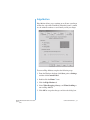
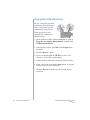
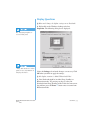
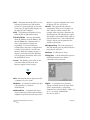
To access the main menu of the Adaptec Easy CD Creator 4
from the Windows taskbar, click Start, point to Programs,
then to Adaptec Easy CD Creator 4, then click Create CD.
The Adaptec main menu is displayed.
When you start or restart
your Notebook, Adaptec Easy
CD Creator 4 prompts you
with a Web-CheckUP option.
Web-CheckUP connects
to the Adaptec Web site on
the Internet and searches
for Adaptec software programs
that can be updated on
your Notebook.
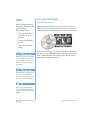
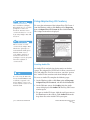
Creating Audio CDs
An Audio CD is used only for playing music, not for data
storage. The Adaptec Easy CD Creator 4 allows you to record
CDs and audio files. You can even create your own “greatest
hits” Audio CD that contains tracks from multiple artists.
If you are using the Easy CD
Creator Standard Edition and
would like to upgrade to the
Deluxe Edition, contact your
nearest software retailer or run
Web-CheckUP.
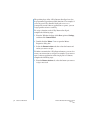
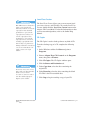
To create an Audio CD, complete the following steps:
1. On the Windows taskbar, click Start, point to Programs,
Adaptec Easy CD Creator 4, and then click Create CD.
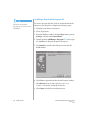
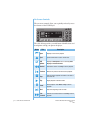
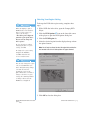
2. On the Welcome screen, click Audio. After the Audio
screen is displayed, click Audio CD. The Easy CD Creator
window opens.
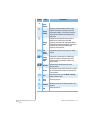
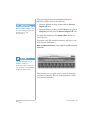
3. To open an Audio CD layout, click the small arrow next to
the New button on the toolbar. Click Audio CD from the
drop-down list and an Audio CD Layout opens.
5-18 U SING THE CD OR DVD D RIVE
PRESARIO NOTEBOOK B EYOND S ETUP GUIDE
1400 S ERIES